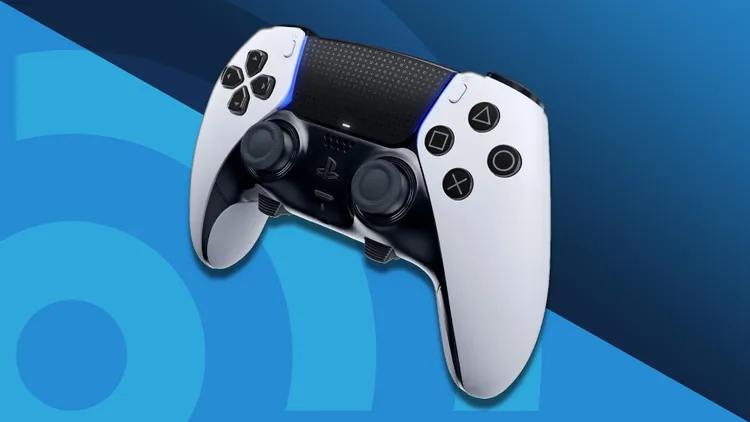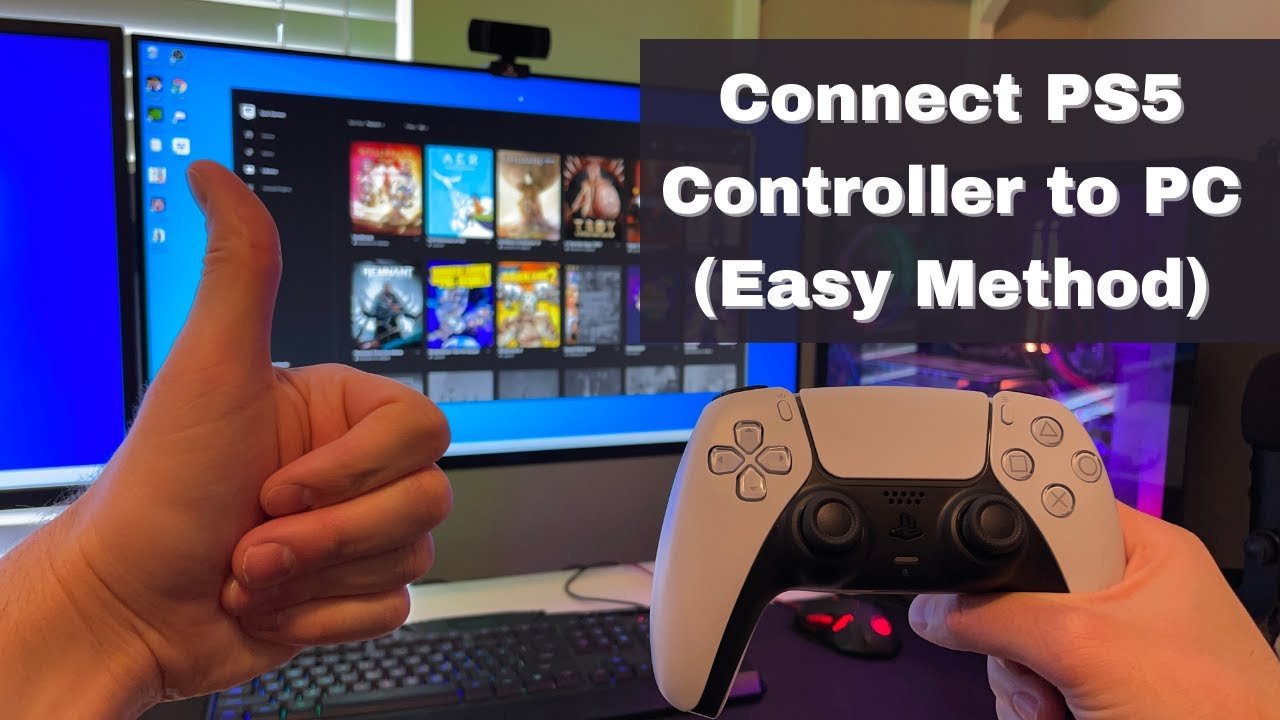
The PlayStation 5’s DualSense controller has revolutionized gaming with its immersive haptic feedback, adaptive triggers, built-in microphone, and ergonomic design. Many PC gamers now prefer it over traditional Xbox controllers for its premium feel and unique features. Whether you’re playing Sony ports like God of War Ragnarök or Spider-Man, or using it for other titles, knowing how to connect PS5 controller to PC unlocks a more engaging experience.
This in-depth guide walks you through every method, from simple wired connections to advanced wireless setups, software optimizations, troubleshooting, and pro tips. By the end, you’ll have your DualSense running smoothly on Windows.
Why Use a PS5 DualSense Controller on PC?
The DualSense stands out with features that enhance immersion:
- Adaptive Triggers: Variable resistance simulates pulling a bowstring or firing a weapon with realistic tension.
- Haptic Feedback: Advanced vibrations provide nuanced sensations, like footsteps on different surfaces or engine rumble.
- Built-in Microphone and Speaker: Great for quick voice chat without a headset.
- Motion Controls: Six-axis sensors support gyro aiming in compatible games.
- Touchpad: Useful for navigation or specific game interactions.
Many modern PC games, especially those on Steam and from PlayStation Studios, offer native or enhanced support. While basic inputs work wirelessly, advanced features like full haptics often perform best wired (though community solutions are improving wireless capabilities).
Pro Tip: If you’re new to PC gaming with controllers, the DualSense feels premium right out of the box and charges via USB-C, just like your phone.
Prerequisites Before Connecting
- A PS5 DualSense controller (charged).
- USB-C to USB-A (or USB-C to USB-C) cable for wired setup.
- Windows 10 or 11 PC.
- Built-in Bluetooth or a reliable USB Bluetooth adapter (for wireless).
- Optional: Steam client installed for easiest integration.
Ensure your controller isn’t paired to a PS5 during initial setup to avoid conflicts.
Method 1: Wired Connection (Most Reliable for Beginners)
The simplest how to connect PS5 controller to PC method uses a cable and requires no extra software for basic functionality.
Steps:
- Plug the USB-C end into your DualSense controller.
- Plug the other end into an available USB port on your PC.
- Windows should automatically detect it as a “Wireless Controller.”
- Test in Gamepad Tester (search online for a free web-based tool) or launch a game.
Advantages:
- No latency.
- Full support for haptic feedback and adaptive triggers in compatible titles.
- Charges the controller while playing.
When to Use: Ideal for competitive gaming or titles relying on advanced features.
[Image 1: Alt text – “PS5 DualSense controller connected to PC via USB-C cable showing wired setup”] (Visual: Close-up of controller plugged into laptop USB port, light bar illuminated)
Method 2: Wireless Bluetooth Connection
For cable-free freedom, Bluetooth is excellent once set up properly.
Step-by-Step Bluetooth Pairing:
- Ensure the controller is off (hold PS button until light bar turns off).
- Put it into pairing mode: Hold the Create button (left of touchpad) + PS button until the light bar blinks rapidly.
- On your PC, go to Settings > Bluetooth & devices > Add device.
- Select Bluetooth and choose “Wireless Controller” from the list.
- Once connected, the light bar will stabilize.
Note: Some PCs need a Bluetooth 5.0+ adapter for stability. Cheap adapters can cause input lag or dropouts.
Reconnecting: Press the PS button; it should connect to the last paired device.
[Image 2: Alt text – “Bluetooth pairing PS5 controller to Windows PC settings screenshot”] (Visual: Windows Bluetooth settings with DualSense in pairing mode)
Optimizing with Steam: The Easiest Way for Gamers
Steam offers excellent native support for DualSense, making it one of the best ways how to connect PS5 controller to PC for Steam library users.
Setup in Steam:
- Connect your controller (wired or Bluetooth).
- Open Steam > Steam > Settings > Controller.
- Enable “PlayStation Configuration Support.”
- In General Controller Settings, your DualSense should appear.
- Customize button mapping, deadzones, and enable Steam Input for better compatibility.
Steam Input translates DualSense features beautifully in supported games and allows gyro aiming, custom profiles, and more.
For Non-Steam Games: Add them as a non-Steam game to use Steam Overlay and Input features.
Using DS4Windows for Broader Compatibility
For non-Steam games or more customization, DS4Windows emulates an Xbox controller while retaining PlayStation button prompts in some cases.
Quick Installation:
- Download the latest version from the official ds4-windows.com site.
- Extract and run DS4Windows.exe.
- Install ViGEmBus driver when prompted.
- Connect your controller and let the software detect it.
- Customize profiles for lighting, macros, touchpad, and more.
DS4Windows shines for older games or when you need Xbox emulation. Alternatives like DSX on Steam offer enhanced DualSense-specific features.
Advanced Features: Haptics and Adaptive Triggers on PC
- Wired: Best for full haptics and adaptive triggers.
- Wireless: Basic rumble works; advanced features vary by game and may require specific setups or tools.
- Check PCGamingWiki for per-game support.
Games like The Last of Us Part I, Ratchet & Clank: Rift Apart, and Horizon Forbidden West leverage these features excellently on PC.
Troubleshooting Common Issues
Even with straightforward methods, problems can arise when learning how to connect PS5 controller to PC.
- Controller Not Detected: Restart PC, try different USB port/cable, or update Bluetooth drivers.
- No Input in Games: Disable Steam Input temporarily or remove conflicting drivers in Device Manager (under Human Interface Devices or Sound, video and game controllers).
- Bluetooth Dropouts: Move closer to PC, remove other interfering devices, or use a better adapter.
- Drift or Lag: Calibrate in Windows or Steam settings; reset controller (small hole on back with pin for 5+ seconds).
- Double Inputs: Use HidHide tool with DS4Windows.
Reset Tip: Disconnect from all devices, reset the controller, and re-pair fresh.
Tips and Best Practices
- Keep your controller firmware updated using Sony’s PlayStation Accessories app on PC.
- For multiple controllers, pair up to four.
- Use a charging dock for convenience.
- Experiment with motion controls in shooters for aiming.
- Battery life is solid (8-12 hours), but intensive haptics drain it faster.
- For couch gaming, combine with a long USB cable or strong Bluetooth.
External Resource: For official pairing instructions, refer to the official PlayStation support guide.
[Image 3: Alt text – “DualSense controller features haptic feedback adaptive triggers diagram on PC gaming setup”] (Visual: Infographic highlighting DualSense components with PC gaming background)
Comparing to Other Controllers
The DualSense often edges out Xbox controllers in immersion for supported games, though Xbox has broader native compatibility. Many players use both depending on the title. The ergonomic grips and textured triggers make long sessions comfortable.
Conclusion and Actionable Takeaways
Connecting your PS5 controller to PC opens up incredible gaming possibilities. Start with the wired method for reliability, then move to Bluetooth and Steam for convenience. Experiment with DS4Windows or Steam Input to fine-tune your setup.
Key Takeaways:
- Wired for maximum features; Bluetooth for freedom.
- Always enable PlayStation support in Steam.
- Troubleshoot by resetting and updating drivers.
- Leverage haptics in supported games for next-level immersion.
- Test in a simple game first to verify inputs.
With this setup, your PC library becomes even more enjoyable. Grab your DualSense, follow the steps, and dive into your favorite games today. If you encounter specific issues, community forums like Reddit’s r/Dualsense or Steam discussions are excellent resources.
Happy gaming! Your controller is now ready to deliver console-quality immersion on PC.