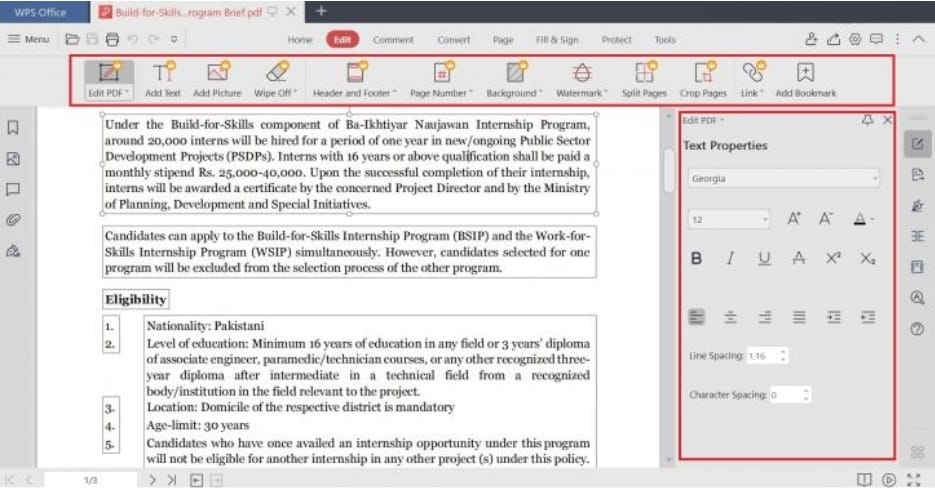
Users can add comments, highlight text, draw objects, and put notes right onto a PDF document using the robust capability of PDF annotation. These annotations are crucial for document inspection, collaboration, and feedback. WPS Office has a robust PDF annotation tool that makes it simple to add comments and markups, making it a useful addition to your toolkit for altering documents. In this post, we’ll look at how WPS Office can improve document collaboration and assist with PDF annotation.
How Does WPS Office Make PDF Annotation Simple?
You may simply highlight and underline critical text in your PDF documents using WPS Office. When reading through lengthy documents and needing to stress important topics, this tool is extremely helpful.
Sticky Notes Can Be Added: WPS Office lets you add sticky notes to PDF pages. By using these notes like digital post-it notes, you can add more information, explanations, or criticism for particular sections of the page.
Markup of Text and objects: The WPS Office annotation toolbar offers a number of tools for adding text boxes, arrows, lines, rectangles, and other objects to your PDF files. These markups are ideal for highlighting certain details or providing examples of concepts.
Drawing and Erasing: You can draw directly on the PDF pages using WPS Office’s freehand drawing feature. Making diagrams, sketches, or handwritten annotations is much easier by doing this. The sketched content can also be removed or changed as necessary.
WPS Office offers a comment summary function that compiles a list of all the annotations put on a PDF document. You may browse and scroll through every remark in this summary, making it simple to respond to criticism and ideas.
Review and Collaboration: WPS Office’s annotation tools streamline the review process and improve teamwork. The same PDF can have annotations added by multiple users, allowing for effective communication and feedback exchange.
How Do I Use WPS Office’s PDF Annotation?

The process of using PDF annotation in WPS Office is simple and intuitive. Here is a step-by-step tutorial on annotating PDF files:
launching the sample pdf file Open the PDF file you want to annotate in WPS Office Writer.
Once the PDF is open, choose the “Review” tab and then choose “Annotation” from the toolbar to activate annotation mode. The annotation mode will then be activated.
Use the annotation toolbar to add comments and markups to the PDF pages, such as highlights, sticky notes, shapes, and drawings. The comment summary can be used to browse the annotations as well.
Save and Share: Once you’ve finished annotating the document, save it to keep the modifications. The annotated PDF can be distributed to others for review and teamwork.
WPS Office PDF Annotation to Improve Document Collaboration
How to add drop down list in excel. The PDF annotation tool in WPS Office enables people to work successfully together on PDF documents. With PDF annotation in WPS Office, it’s simple to share thoughts on a proposal, write notes on a design, or give input on a report. Collaboration on documents takes on a new dimension with the addition of comments, highlights, shapes, and drawings, making it simpler to exchange thoughts and suggestions.
Conclusion
Finally, WPS Office’s PDF annotation feature provides a simple and effective way to improve document collaboration. WPS Office makes it easier to review and comment on PDF documents with its varied annotation options, user-friendly interface, and comment summary feature. Take your document collaboration to new heights by embracing the power of PDF annotation with WPS Office.