Windows Media Player: The Complete Guide to Using the Classic Player in 2025

 Startup & Entrepreneurship
 Windows Media Player: The Complete Guide to Using the Classic Player in 2025
For decades, windows media player has been a staple of the Microsoft Windows operating system. Even in the era of high-definition streaming and modern UWP apps, millions of users still prefer the simplicity, library management, and familiarity of this classic software. Whether you are running the latest Windows 11 update or a stable version of Windows 10, this iconic media player remains accessible—though sometimes hidden.
In this guide, we will dive deep into everything you need to know about windows media player. We will cover where to find it, how to fix common codec errors, how it compares to Microsoft’s new Media Player app, and step-by-step instructions for installing optional features. If you are troubleshooting playback issues or simply looking to organize your music collection, this article offers practical, research-backed insights.
Table of Contents
ToggleWhat is Windows Media Player? A Brief Overview
windows media player is a media player and media library application developed by Microsoft. Initially released in 1991 as part of Windows 3.0 with Multimedia Extensions, it has evolved significantly . The current stable version for modern operating systems is Windows Media Player 12, included with Windows 7, 8, and 10.
Core Features
If you haven’t used the player recently, here is a refresher on what it can do:
-
Playback: Supports MP3, WMA, WMV, AVI, and other popular formats (with codecs).
-
Library Management: Allows users to organize digital media files into categories like “Artist,” “Album,” and “Genre.”
-
Ripping (CD Ripping): Convert audio CDs into digital files (MP3, WMA, or WAV).
-
Burning: Create custom audio CDs or data DVDs.
-
Syncing: Transfer media to portable devices, older MP3 players, or Windows phones It is important to note that Microsoft has discontinued active feature development for the legacy windows media player in favor of the new “Media Player” app for Windows 11. However, the classic version remains fully functional and is available as an optional feature for users who prefer the traditional interface or rely on specific legacy codecs .
Where to Find Windows Media Player in Windows 10 and 11
One of the most common frustrations for users upgrading to a new PC is the apparent disappearance of their favorite tools. If you type “Media Player” into the Start Menu on Windows 11, you might see the new modern app instead of the classic one. Don’t worry—windows media player is likely still on your drive, just hidden.
How to Open Windows Media Player (Legacy)
-
For Windows 11: Press the Windows key + S, type “Windows Media Player” (be sure to type the full name), and click on the result. It is often labeled as “Legacy” or just the classic icon.
-
For Windows 10: Click the Start button and start typing “Windows Media Player.” It should appear immediately.
If It Is Missing: Installing via Optional Features
Microsoft began removing windows media player as a default installation in some regions (specifically Europe to comply with antitrust regulations) and on Windows 10/11 “N” editions (which exclude media features) .
To install it manually:
-
Open Settings (Windows + I).
-
Navigate to Apps > Optional Features.
-
Click View features (or the plus icon next to “Add a feature”).
-
Scroll down or search for Windows Media Player.
-
Check the box and click Install.
https://via.placeholder.com/800×400?text=How+to+Install+Windows+Media+Player+via+Settings
Tip from the author: After installation, you may need to restart your PC to finalize the integration, especially if you are using Windows 11 .
The Codec Conundrum: Solving Playback Errors
Despite its utility, windows media player has one well-known weakness: Codecs. If you have ever tried to play an MKV file or an HEVC video, you have likely encountered the dreaded error message: “Missing codec 0xc00d5212” or “Cannot play the file.”
Why Does This Happen?
Unlike competitors like VLC, which have codecs built-in, Windows Media Player relies on system codecs to decode file formats. If the necessary codec isn’t installed on your PC, the player stops working.
The Best Fixes
Here is how to get your files playing again:
-
Install the K-Lite Codec Pack (Recommended by Experts)
-
This is the most comprehensive solution. The K-Lite Codec Pack adds support for virtually every video and audio format (FLAC, MKV, MOV, etc.) to your system.
-
Once installed, your windows media player will suddenly recognize files it rejected minutes earlier .
-
Caution: Always download codec packs from the official developer website (CodecGuide.com) to avoid adware or malware .
-
-
Use the “Download Codecs Automatically” Setting
-
Open windows media player.
-
Go to Tools > Options > Player tab.
-
Check the box marked “Download codecs automatically.”
-
However, as noted in Microsoft Q&A forums, this function is often deprecated. It may not work for modern, proprietary codecs .
-
-
Alternative Method: Use the ‘Movies & TV’ App
-
For Windows 10/11, if a video won’t play in the older player, right-click the file, select Open with, and choose “Movies & TV” or the new “Media Player.” These apps can often purchase codecs (like HEVC) directly from the Microsoft Store.
-
Windows Media Player vs. The New Media Player App
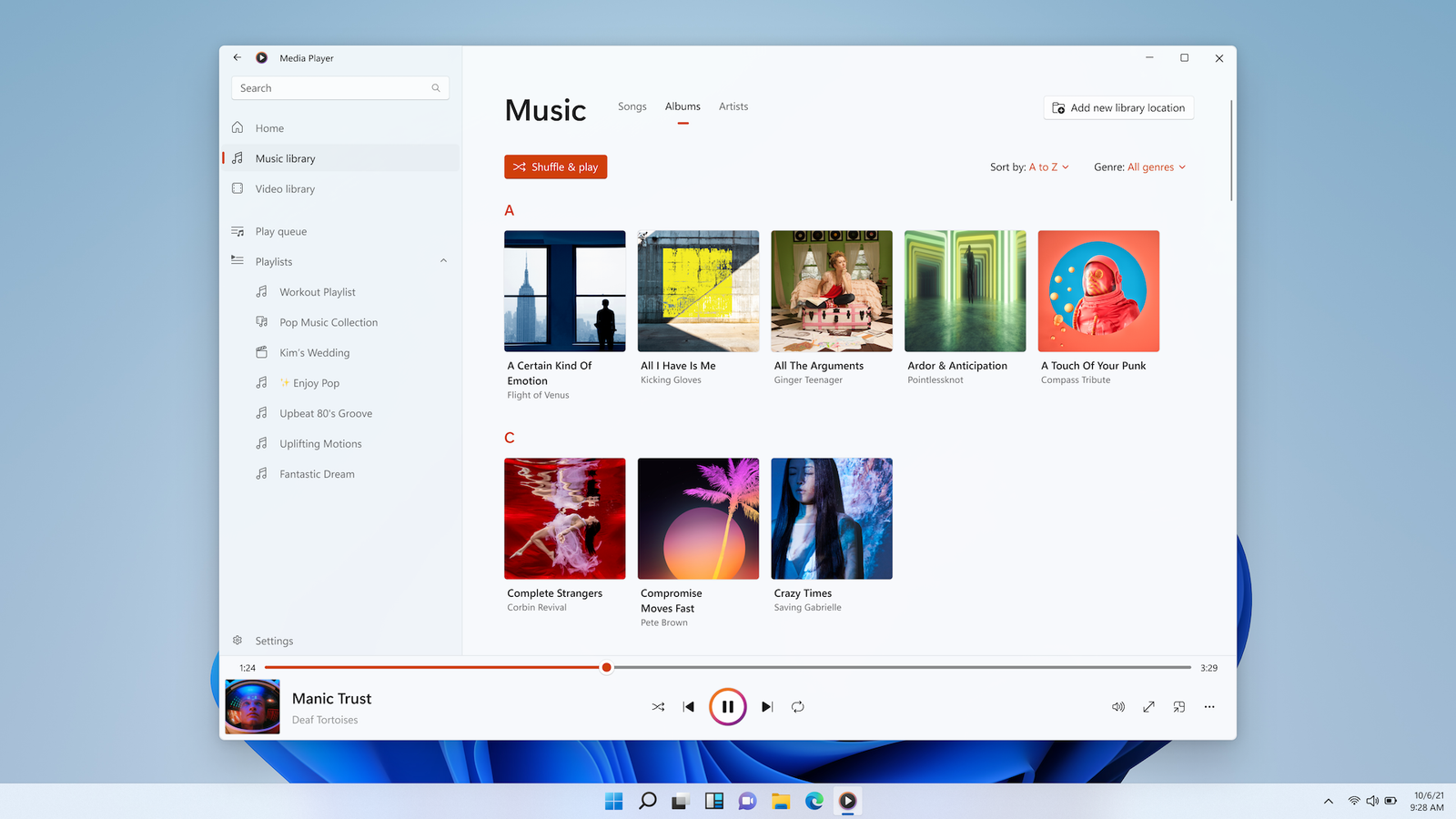
With Windows 11, Microsoft introduced a new “Media Player” app to replace both Groove Music and the classic windows media player . Which one should you use?
| Feature | Windows Media Player (Legacy) | New Media Player App |
|---|---|---|
| Interface | Classic toolbar, menus, and visualizations | Modern Fluent Design, dark mode, rounded corners |
| Music Library | Star ratings, advanced auto-playlists | Simple, streamlined viewing |
| Video Playback | Basic, relies on system codecs | Better support for modern video formats (requires extensions) |
| CD Ripping | Yes (Full control over bitrate) | No (Cannot rip CDs) |
| Best For | Audiophiles, CD burning, device sync | Casual video watching, modern UI lovers |
Verdict: If you have a large local library of MP3s and want to manage star ratings or complex playlists, stick with windows media player. If you just want to watch a downloaded video file quickly, use the new Media Player.
Practical Use Cases: Ripping CDs and Syncing Devices
For many, the primary reason to keep windows media player installed is its unrivaled ability to rip CDs. In an age of streaming, digital ownership still matters.
How to Rip a CD to MP3
-
Insert your audio CD into the drive.
-
Open windows media player. It should automatically detect the disc and query the internet for album info (metadata).
-
Click the Rip CD button.
-
Setting Quality: Click the “Rip Settings” menu.
-
Change format from WMA (default) to MP3 for maximum compatibility.
-
Adjust the audio quality. A bitrate of 320 kbps provides excellent sound quality, though 128 kbps saves space.
-
-
Your files will be saved to the Music folder (usually
C:\Users\[YourName]\Music).
Syncing to an MP3 Player
While cloud storage is popular, many runners and commuters still use dedicated MP3 players.
-
Connect your device via USB.
-
In windows media player, click the Sync tab in the top-right corner.
-
Drag your playlists or albums to the “Sync List.”
-
Click Start Sync. The player automatically transcodes files if the device doesn’t support a specific format (e.g., converting FLAC to MP3 on the fly).
Troubleshooting: “Missing Codec 0x887a0004” and Other Errors
Users on the Microsoft Q&A forums frequently report specific error codes. Here is a quick reference for fixing them:
Error: Missing codec 0x887a0004
-
Problem: Usually relates to video rendering or corrupt display drivers.
-
Solution: Go to Settings > Apps > Installed Apps. Find windows media player, click the three dots, go to Advanced Options, and click Repair or Reset. Also, run the
sfc /scannowcommand in Command Prompt (Admin) to repair system files .
Error: “Windows Media Player encountered a problem while playing the file.”
-
Cause: The file is DRM-protected, corrupt, or using a codec pack that conflicts with the system.
-
Solution: Try playing the file in VLC. If that works, uninstall recently added codec packs and reinstall the official K-Lite Standard pack.
External Resources and Alternatives
While windows media player is a capable tool, it is not the only fish in the sea. If you find the codec issues too persistent or you need cross-platform support, consider these alternatives:
-
VLC Media Player: The open-source champion. It plays anything on Windows, Mac, Linux, Android, and iOS without needing extra codecs. It also handles incomplete or damaged files better than WMP.
-
MusicBee: For music lovers who want a better library interface than WMP but faster than iTunes.
-
Foobar2000: A minimalist player for audiophiles who want high-definition audio support (DSD, SACD) and low resource usage.
External Resource: For a comprehensive history of the software and the various version releases over the last three decades, check out the Wikipedia entry for Windows Media Player. It provides a detailed timeline of how the software has evolved, including the antitrust rulings that led to the “N” editions of Windows.
The Future: Is Windows Media Player Dying?
It is essential to set realistic expectations. Microsoft has stopped adding new features to windows media player 12 . The company is focusing its efforts on the “Media Player” app (for video/music) and the legacy player is now officially considered a deprecated “Legacy Feature.”
However, “deprecated” does not mean “dead.” Windows 11 still supports it. Microsoft understands that enterprises and power users rely on the CD ripping capabilities that the new UWP apps lack. As long as Windows supports optical drives (which are disappearing from laptops but still common in desktops), the legacy windows media player will likely remain in the “Optional Features” catalog.
Conclusion: Should You Keep Using It?
windows media player is like a trusty old pickup truck—it isn’t flashy, doesn’t have the latest navigation system, but it gets the job done reliably for specific tasks.
You should use Windows Media Player if:
-
You frequently rip CDs to MP3.
-
You have a massive music library organized by ratings and custom tags.
-
You need to sync content to an older MP3 player or Zune.
-
You prefer the classic, no-nonsense interface.
You should upgrade or switch if:
-
You want to play high-end formats like MKV or HEVC natively (without installing codec packs).
-
You primarily stream audio or video.
-
You want a unified, touch-friendly interface on your tablet.
Ultimately, windows media player serves as a fantastic backup media solution. It is lightweight, free, and already on your machine. By following the installation tips and codec solutions above, you can breathe new life into this classic app and avoid the high resource usage of browser-based streaming.
Actionable Takeaways
-
Check your installation: Press Windows + S and search for “Windows Media Player.” If it isn’t there, install it via Settings > Apps > Optional Features.
-
Install the K-Lite Codec Pack immediately to solve 90% of playback errors regarding missing codecs.
-
Use the Repair function in Windows 11 settings if the player crashes or freezes.
-
Backup your library: Ensure your
MusicandVideosfolders are backed up to OneDrive or an external drive. WMP libraries are easy to rebuild but hard to replace if the hard drive fails. -
Keep an alternative ready: Install VLC Media Player alongside WMP. When WMP fails to play a strange video file, VLC is your safety net.
Hello! I hope you enjoyed this comprehensive guide. Did this help you find the classic windows media player? Let us know if you have any other questions, or share your own tips for getting the most out of Microsoft’s long-standing media hub
 Startup & Entrepreneurship
 Blossom Word Game: Complete Rules, Scoring, and Winning Strategy
 Startup & Entrepreneurship
 How to Validate a Business Idea Before You Quit Your Job
 Startup & Entrepreneurship