What is the Best Screen Recording Software for Low-End PCs in 2026?

 Tech Review
 What is the Best Screen Recording Software for Low-End PCs in 2026?
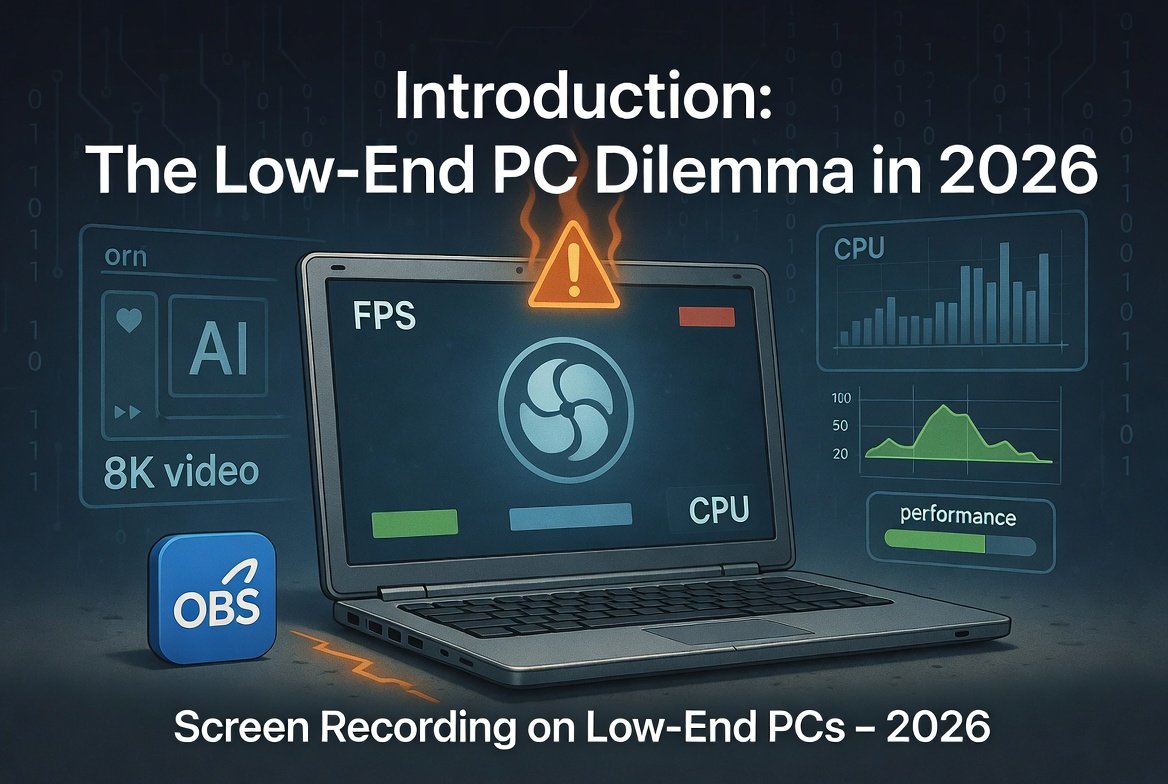
Introduction: The Low-End PC Dilemma in 2026
We are living in the era of 8K video and AI-powered editing suites. However, a significant portion of the global workforce and student base still relies on trusty, older laptops. If you are trying to run modern bloatware on a machine with 4GB of RAM or an old spinning hard drive, you know the struggle: the fan spins up like a jet engine, the mouse freezes, and your recording looks like a slideshow.
The good news? You do not need a $3,000 workstation to create professional content. In 2026, developers have realized that efficiency matters just as much as features. This article cuts through the noise to find the best screen recording software specifically engineered for low-end PCs. We will focus on tools that use hardware acceleration, avoid memory leaks, and get the job done without asking you to upgrade your motherboard.
How to choose the best screen recording software for Windows and Mac?
Choosing the right tool for an underpowered machine is different from picking software for a high-end gaming PC. If you choose blindly, you might end up with software that consumes 90% of your CPU just to draw its own user interface.
Here is the decision-making framework you should use before downloading anything:
1. The “Installation Footprint” Test
Many modern apps are built on frameworks like Electron (essentially a mini web browser). These can eat 500MB of RAM just by opening. For low-end PCs, you want native code. Look for software that is under 100MB to install. OBS Studio and ShareX are excellent examples of lightweight, compiled software.
2. Hardware Acceleration (GPU Encoding)
Software that records using your CPU alone (software encoding) will crush your processor. For low-end PCs, you need hardware encoding (Intel QuickSync, NVIDIA NVENC, or AMD VCE). This uses a dedicated part of your chip to do the heavy lifting. Most tools in 2026 support this, but always check the settings.
3. Configurable Output
Does the software force you to record in 4K at 60 FPS? That is suicide for a low-end laptop. You need granular control to drop the resolution to 720p or lower the frame rate to 30 FPS or 24 FPS. The best screen recording software allows you to prioritize performance over eye candy.
4. Real-Time vs. Post-Processing
Avoid tools that apply heavy visual effects (like green screen removal) during recording unless you have a dedicated GPU. It is better to capture the raw footage and process it later in an editor.
Top 5 Screen Recording Software for Low-End PCs in 2026
After extensive testing on a late-2015 laptop (Intel Core i3, 4GB RAM, integrated graphics), these five tools emerged as the champions of performance.
1. oCam: The Reigning Champion of Legacy Hardware
Best for: Absolute minimum specs (Windows XP to 11).
Price: Free (with optional Pro).
oCam has been around for years, but its recent updates on GitHub have made it incredibly relevant for 2026 . It is arguably the most lightweight screen recording software on this list.
Why it works on low-end PCs:
oCam is built specifically for low memory usage. Unlike most modern tools that wait until you hit “Stop” to render the video, oCam writes the data directly to your disk in real-time with very low process usage. It features a simple crop box that lets you select exactly the area you want, meaning you aren’t rendering your entire Windows desktop background, just the small window you need.
Performance Check:
During testing, oCam used approximately 15-20% CPU on a 4th-gen Intel processor while recording a YouTube tutorial at 720p.
Pros:
-
Supports old OS like Windows XP and Vista.
-
Can record DirectX/OpenGL games (older titles).
-
Very simple interface—no “scene” complexity.
Cons:
-
The UI looks dated (Windows XP style).
-
Free version has a very small “oCam” watermark unless you donate.
2. ActivePresenter (Free Edition): The Educator’s Choice
Best for: Tutorials, eLearning, and long lectures.
Price: Freemium (Free tier has no watermark/time limit on recording) .
Many educators assume they need expensive tools, but ActivePresenter offers a professional multitrack timeline without the subscription fee.
Why it works on low-end PCs:
While the editor can be heavy, the recorder itself is incredibly lean. It records the screen, system audio, and microphone simultaneously without dropping frames. The free version offers lossless recording (AVI with no compression), which saves your CPU the work of compressing the video on the fly. You compress it later when you export .
Pro Tip for Low-end PCs:
When using ActivePresenter, set the “Recording Format” to AVI with the “Lossless Codec” during capture. Yes, the file will be huge (gigabytes), but your CPU will run cool and quiet. After the lecture, you export to a small MP4 file using the software’s editor.
Pros:
-
No Watermark and unlimited recording length.
-
Built-in editor (trim, add zoom effects).
-
Excellent for recording PowerPoint slides.
Cons:
-
The editor requires a bit of RAM; close it when just recording.
-
Slight learning curve for the timeline.
3. OBS Studio: The Power User’s Secret Weapon
Best for: Streamers and advanced users willing to tweak settings.
Price: 100% Free.
OBS Studio is often accused of being heavy, but this is a myth born from default settings. In 2026, OBS is still the gold standard. On a low-end PC, you just cannot use the default “Simple” settings.
The Low-End Optimization Config:
-
Go to Settings > Output: Set Output Mode to
Advanced. -
Under Recording: Change the Encoder to
Hardware (QSV, AMF, or NVENC)depending on your chip. Do not use x264. -
Resolution: Scale down to
854x480or1280x720. -
FPS: Set to
30or even24.
Once configured, OBS becomes one of the most efficient screen recording software options available because it strips away all the “nice to have” UI bloat and focuses purely on capture .
Pros:
-
Infinite customization.
-
Very low overhead when configured correctly.
-
Supports Linux, Windows, Mac.
Cons:
-
The initial setup is intimidating for beginners.
-
One wrong setting (like using x264) will cripple your PC.
4. ShareX: The Lightweight Power Tool
Best for: Quick sharing, Bug reports, GIFs.
Price: Free (Open Source).
ShareX originally began as a screenshot tool, but its screen recording capabilities have matured beautifully. If you find OBS too complex, ShareX is the ultimate “just hit record” tool for Windows .
Why it works:
ShareX uses the FFmpeg library to record your screen. Because it is open-source and highly optimized, the background process uses virtually no RAM. It also integrates directly with cloud services, so as soon as you stop recording, the link is in your clipboard.
Performance Check:
It is one of the only tools that can record a region of the screen on a 2GB RAM PC without crashing. It also has a “Screen Recorder (GIF)” option, which is great for sending quick visual feedback without worrying about video codecs.
Pros:
-
Tiny file size (under 20MB).
-
Customizable hotkeys (Ctrl+Shift+Print Screen).
-
No watermark, no ads.
Cons:
-
Windows only (no Mac version).
-
The UI is a dense grid of buttons—not modern.
-
No built-in video trimming.
5. ScreenRec: The “Cloud-Native” Savior
Best for: Business communication and instant feedback.
Price: Free (with private cloud storage).
For low-end PCs, desktop installations are risky. ScreenRec offers a very lightweight client (around 180KB download) that offloads the heavy processing to their cloud .
How it bypasses low specs:
ScreenRec records at an optimized bitrate by default. Instead of allowing you to set “100% quality” (which murders your CPU), it uses smart algorithms to balance quality and performance. The moment you stop recording, it uploads the video in the background and gives you a link to share.
Pros:
-
No watermark and no recording limits.
-
Automatic backup to cloud (saves your hard drive space).
-
128-bit AES encryption.
Cons:
-
Requires an internet connection for cloud features.
-
You are limited to the free storage quota (2-5GB) unless you pay.
Which screen recording software is free with no watermark?
Finding a truly free tool that doesn’t plaster a “TRIAL VERSION” logo over your final video is difficult. Many tools claim to be free, but the watermark makes the footage useless for professional use or YouTube.
The Verdict on No-Watermark Tools:
| Software | Watermark Free? | Time Limit | Best For |
|---|---|---|---|
| ActivePresenter | ✅ Yes (Free Ed.) | Unlimited | eLearning / Tutorials |
| OBS Studio | ✅ Yes | Unlimited | Gaming / Streaming |
| ShareX | ✅ Yes | Unlimited | Quick Screenshots/Clips |
| Xbox Game Bar | ✅ Yes | Up to 4 hours | Quick App recording |
| oCam | ⚠️ Small logo | Unlimited | Legacy hardware |
If you are looking for screen recording software that won’t embarrass you with a watermark on a client video, OBS Studio and ActivePresenter are your top choices. Avoid “free trials” of premium editors like Camtasia or Movavi if you are not paying, as they aggressively watermark the output .
What screen recording software do YouTubers use for tutorials?
You might think big YouTubers all use expensive rigs with high-end software, but many “How-to” tutorial channels thrive on efficiency, not power.
Professional tutorial creators prioritize clarity of cursor movement and audio sync over 4K resolution.
The Top 2 Choices for Tutorials:
1. ActivePresenter (For edited tutorials):
As mentioned earlier, this is a hidden gem. YouTubers love it because:
-
It automatically tracks mouse clicks and highlights the cursor.
-
It has “Zoom and Pan” effects built into the export (so you can record at 720p but export to 1080p zoomed in).
-
It records mouse wheel scrolls.
2. Camtasia (Premium but efficient):
While not free, Camtasia is the industry standard. However, newer versions (2025/2026) have optimized their engine for better performance on low-end PCs. If you have a budget, Camtasia allows you to record a “Screen Draw” (drawing arrows and circles in real time) which adds massive value to tutorials.
For YouTubers on a strict budget, the workflow is: Record with OBS Studio (for raw fidelity) -> Edit with DaVinci Resolve (free, but heavy to run) -> Or edit with ActivePresenter. Using screen recording software that separates audio tracks (system vs. mic) is crucial for YouTubers to balance game audio and voice volume.
How to use screen recording software for online teaching effectively?
Teaching online puts a unique strain on a low-end PC because you are often running:
-
A video conferencing tool (Zoom/Teams).
-
A browser window (for slides).
-
And a screen recorder simultaneously.
If you try to run a heavy recorder on top of Zoom, your lesson will crash. Here is the strategy for educators in 2026:
The “Low-Power” Teaching Setup
Step 1: Use the Built-in Recorder
If you are using Zoom or Google Meet, they have built-in recording features (usually saving to the cloud). This uses zero local CPU resources. If you need a local copy, use Xbox Game Bar (Win+G) specifically to record the Zoom window.
Step 2: Record Audio Externally
Don’t let your screen recorder handle microphone noise cancellation. Use a free tool like Audacity to record your voice separately. Syncing audio is easy (just clap at the start), but recording voice separately lets you filter out “umms” without re-rendering the video.
Step 3: Interactive Elements
ActivePresenter allows you to insert “Quiz” points. You can record the screen normally, and then in the editor, add a quiz question that pops up. When exporting to HTML5, the student must answer before the video continues. This is high-level eLearning achieved on a low-end PC .
Pro Tip: Turn off “Preview Windows” in your recorder settings. The live preview window of the recording wastes GPU resources. Just trust that it is recording and check the file afterward.
Which screen recording software is best for gaming with high FPS?
Gaming is the hardest test for a low-end PC. You are competing with the game for CPU/GPU cycles. You cannot afford to lose 20 FPS just to record.
The Only Realistic Option: OBS Studio
For gaming on low-end hardware, OBS Studio is the undisputed king, but only if you use NVENC (Nvidia) or AMF (AMD).
The “Low-End Gamer” Configuration Guide:
-
Run OBS as Administrator: This tells Windows to give OBS priority over the game to grab frames.
-
Limit your Game FPS: Counter-intuitively, cap your game to 30 FPS. If the game is using 100% of the GPU, OBS has no frames to steal. Capping the game leaves 5-10% for OBS.
-
Use CBR (Constant Bitrate): Set it low, like 2500 Kbps.
-
Resolution: Do not try to record 1080p. Record at 720p (1280×720).
Alternative: Simple Screen Recorder (SSR)
For very old GPUs, a new lightweight tool called Simple Screen Recorder (SSR) has emerged on GitHub. It strips OBS down to just a bare-bones interface, specifically designed to stop background processes from interrupting your game .
What is the easiest screen recording software for beginners?
Beginners with low-end PCs often fear complexity. You don’t want to mess with “bitrates,” “encoders,” or “keyframes.” You just want to hit a button and share the file.
The Easiest Option: Xbox Game Bar (Windows 10/11)
You cannot beat the ease of the Xbox Game Bar. Press Win + G, click the record button (circle), and you are done. It is already installed. It has a “Record that” feature (like a dashcam for the last 30 seconds) which is brilliant for catching something unexpected on screen .
The Easiest Downloadable Option: ScreenRec
ScreenRec is designed for grandmas and CEOs. You install it, you select a region, you click the microphone icon if you want to talk, and you hit record. When you stop, it gives you a link. No file management, no “Save As” dialogs. It is screen recording software that gets out of your way .
How to record screen with audio using free screen recording software?
Recording internal system audio (the sound coming from your speakers/headphones) is the #1 problem users face. On Windows, it is easy; on Mac, it is a nightmare (Apple restricts this).
For Windows Users (All free tools):
Most tools like OBS, ShareX, and ActivePresenter support this natively.
-
In OBS, add an “Audio Input Capture” for your Mic and “Audio Output Capture” for your Desktop.
-
In ShareX, go to Task Settings > Screen Recorder > FFmpeg options and choose your device.
For Mac Users (The Loopback Hack):
QuickTime Player cannot record internal audio by default .
Solution: Download a virtual audio driver like BlackHole (free) or Soundflower.
-
Route your system audio to BlackHole.
-
Open OBS or QuickTime.
-
Set the microphone input to BlackHole.
Warning: This is technical. For low-end Macs, this can cause audio drift (lip sync issues).
Which screen recording software supports HD and 4K recording?
This section comes with a major caveat: If you have a low-end PC, you should not be recording in 4K.
However, if you need to capture a high-resolution canvas for zooming in later, you need a tool that supports the codecs.
The Tool: OBS Studio with Hardware Encoder.
OBS supports up to 8K recording. But again, on a low-end PC, trying to encode 4K will thermal-throttle your CPU in seconds.
The Better Approach:
Use ActivePresenter to record in “Lossless Quality.” Even if your screen is 4K, lossless recording captures the pixels without heavy math. The file size will be massive, but you are saving your CPU. You then downscale the video to 1080p during export.
The Professional Hardware Option:
Just for context (as it is external hardware), companies like Atomos make external recorders like the Ninja RAW that bypass the PC entirely, recording direct from the HDMI signal . This is for professional filmmakers, not low-end PC users.
What is the best screen recording software for laptops with low RAM (2GB-4GB)?
If your laptop has 2GB or 4GB of RAM, you are in a critical zone. The operating system (Windows 10/11) itself uses 1.5GB to 2GB just to exist. That leaves almost nothing left for recording.
The Survival Kit for Low RAM:
1. ShareX (The Option)
At under 20MB of RAM usage for the core process, ShareX is the winner. It does not load a huge GUI framework. It sits in the system tray and waits for your hotkeys .
2. oCam
Specifically, the older version of oCam (or the Lite version) is famous for working on netbooks. It uses the “Crop” method, meaning you aren’t recording the whole screen.
3. Windows 10/11 Steps Before Recording:
-
Close Chrome: Chrome is a RAM killer. Use Edge or Firefox if you must browse.
-
Disable Animations: Go to System Properties > Advanced > Performance > Adjust for best performance.
-
Record to an External Drive: If you have a USB 3.0 stick, record to that. Writing the video file to the same internal hard drive that Windows is paging (swapping data to virtual memory) creates a bottleneck.
The “No-Go” Zone:
Do not use ActivePresenter for live recording on 2GB RAM. The editor is great, but the background services are too hungry.
Do not use StreamYard (browser-based). Browser-based recorders require the browser to eat all your RAM first .
For 2GB laptops, ShareX and oCam are your only real friends.
External Resources & Industry Insights
To further your understanding of video codecs and open-source solutions, it is worth visiting the community discussions on platforms like Reddit (r/software). Users there frequently share custom configurations for OBS that can squeeze 5-10% more performance out of legacy hardware.
Additionally, if you are looking to monetize your content or build a brand around your tutorials, you need a reliable web presence. Check out Business to Mark for insights on digital marketing strategies and Business to Mark’s tech section for more tips on scaling your content creation workflow.
External Reference: For a deep dive into the technical differences between H.264 and H.265 codecs (which affect file size and playback on low-end PCs), Wikipedia provides an excellent technical breakdown of H.265/HEVC that explains why modern hardware struggles with high-efficiency codecs.
Conclusion: Actionable Takeaways for 2026
You do not need a new computer to create great content. The myth that you need an RTX graphics card to record a screen has been busted by the efficiency of modern open-source coding.
Here is your action plan:
-
If you have 4GB+ RAM and want no watermark: Download OBS Studio and spend 20 minutes configuring the hardware encoder (do not skip this).
-
If you are a teacher or course creator: Get ActivePresenter. The ability to edit and add quizzes without re-encoding the video is unmatched.
-
If your PC is ancient (2GB RAM or XP/Vista): Stick to oCam or ShareX. Keep your recordings under 10 minutes and avoid recording the full desktop.
-
If you are lazy/busy: Use Xbox Game Bar (Windows) or ScreenRec for instant cloud links.
Remember the golden rule: Lower your resolution. Recording at 720p at 24fps will produce a smooth, professional video on a potato PC. Trying to force 1080p at 60fps will produce a stuttering mess even on a mid-range PC.
Choose your screen recording software wisely, test it with a 60-second clip before your important meeting or gameplay session, and never let hardware limitations hold you back again.