In the world of Windows 11 deployment, few questions cause as much confusion as “windows 11 multi-edition iso. does it have enterprise edition”. Many users and IT professionals download the official ISO expecting a one-stop solution for all editions, only to find limitations during setup.
This comprehensive guide explores the structure of Windows 11 ISOs, clarifies what the standard multi-edition file contains, and provides practical advice for home users, businesses, and enthusiasts. Whether you’re performing a clean install, setting up a virtual machine, or managing multiple devices, you’ll find actionable insights here.
Understanding Windows 11 Editions and ISO Types
Microsoft offers Windows 11 in various editions tailored to different users:
- Home: Ideal for everyday consumers and gaming.
- Pro: Adds business features like BitLocker, Remote Desktop, and Hyper-V.
- Pro for Workstations: Optimized for high-end hardware and power users.
- Education: For schools and academic environments.
- Enterprise: Designed for large organizations with advanced management, security, and deployment tools.
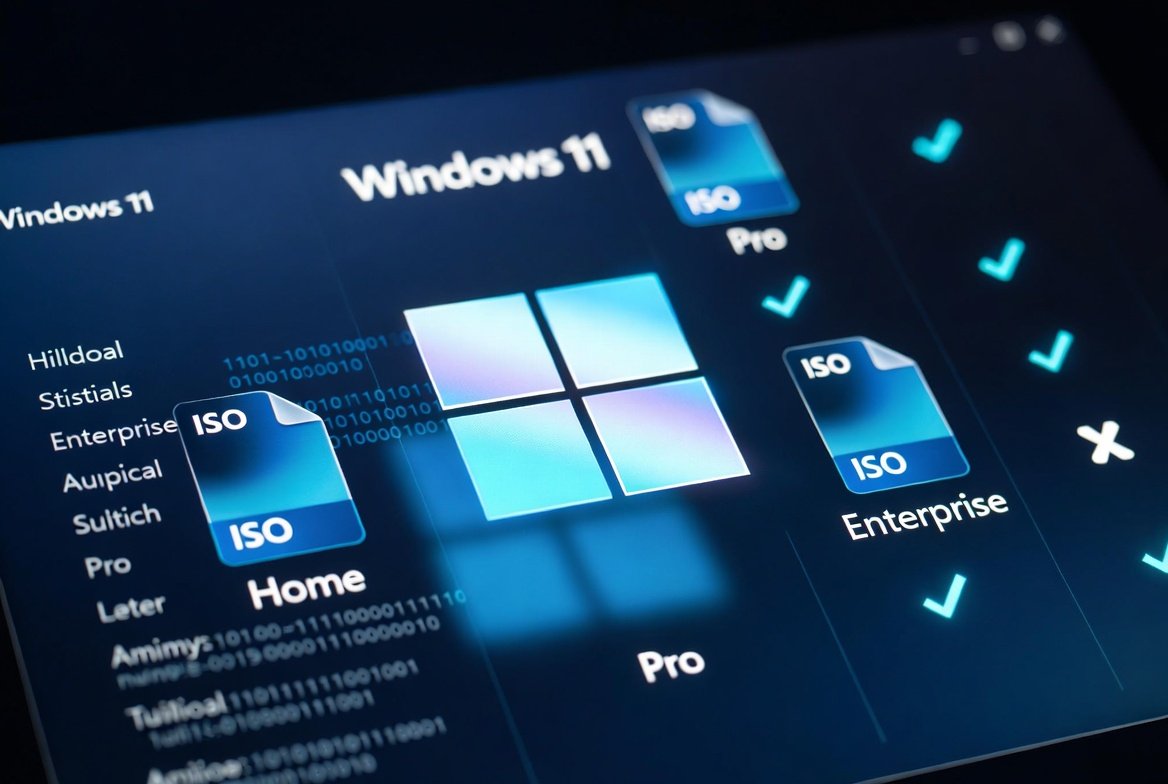
The Windows 11 multi-edition ISO refers to a single downloadable file containing multiple SKUs (Stock Keeping Units). During installation, your product key or existing license determines the activated edition.
However, not all multi-edition ISOs are created equal. The publicly available version from Microsoft’s download page differs significantly from business-oriented ones.
Does the Standard Windows 11 Multi-Edition ISO Include Enterprise?
Short answer: No, the standard consumer Windows 11 multi-edition ISO does not include the Enterprise edition by default.
When you visit the official Download Windows 11 page and select the multi-edition ISO for x64 devices, you typically get editions such as:
- Windows 11 Home
- Windows 11 Home N
- Windows 11 Pro
- Windows 11 Pro N
- Windows 11 Education
- Windows 11 Pro for Workstations
- And related variants (Single Language, etc.)
Enterprise and its N variant are generally absent from the consumer-facing multi-edition ISO. These are reserved for volume licensing channels, evaluation downloads, or specialized business ISOs.
This separation exists because Enterprise is licensed differently—usually as an upgrade from Pro via Microsoft 365 E3/E5 subscriptions or volume agreements—and targets organizational needs rather than individual users.
Real-World Scenario
Imagine you’re an IT admin preparing deployment media for a company fleet. Downloading the standard ISO and expecting Enterprise options during setup leads to frustration. Instead, you need the appropriate business edition media or must use upgrade paths post-installation.
Consumer vs. Business Windows 11 ISOs: Key Differences
Microsoft provides distinct ISO variants:
Consumer Multi-Edition ISO (Public Download):
- Focuses on Home and Pro families.
- Smaller or differently compressed in some cases.
- Uses product key to unlock compatible editions.
Business/Volume Licensing ISOs:
- Often include Enterprise, Enterprise N.
- May swap or add SKUs like full Enterprise support.
- Available through Volume Licensing Service Center (VLSC), Microsoft 365 admin center, or Evaluation Center.
Some users leverage tools like the Media Creation Tool with specific parameters to generate an Enterprise-focused multi-edition ISO.
Expert Tip: Use DISM (Deployment Image Servicing and Management) to inspect any ISO’s contents. Mount the ISO, navigate to the sources folder, and run:
text
dism /get-wiminfo /wimfile:install.wimThis lists all available indexes and editions.
How to Check Editions in Your Windows 11 Multi-Edition ISO
- Download and mount the ISO (right-click > Mount).
- Open Command Prompt as Administrator.
- Navigate to the mounted drive.
- Run the DISM command above.
- Note the Index numbers for desired editions.
This step prevents surprises during clean installs and helps verify if Enterprise is present.
Windows 11 Enterprise Features: Why It Matters
Windows 11 Enterprise builds on Pro with advanced capabilities ideal for managed environments:
- Advanced Security: Credential Guard, Device Guard, Windows Defender Application Control.
- Management Tools: Group Policy enhancements, better Intune integration, long-term servicing options (LTSC).
- Deployment Flexibility: Customizable update controls, AppLocker.
- Virtualization and Remote Features: Enhanced support for VDI (Virtual Desktop Infrastructure), including multi-session capabilities in certain variants.
- Longer Support: Specialized channels for stability in critical systems.
Comparison Table: Home vs. Pro vs. Enterprise
| Feature | Home | Pro | Enterprise |
|---|---|---|---|
| Maximum RAM | 128 GB | 2 TB | 6 TB+ |
| BitLocker | No | Yes | Yes + Advanced |
| Remote Desktop (Host) | No | Yes | Yes |
| Group Policy Editor | No | Yes | Enhanced |
| Windows Update for Business | Limited | Better | Full control |
| Credential Guard | No | No | Yes |
| Licensing Model | Retail/OEM | Retail/Volume | Volume/Subscription |
| Ideal For | Consumers | Small Business | Large Organizations |
Enterprise excels in security and manageability but requires proper licensing.
How to Get and Install Windows 11 Enterprise
If the standard windows 11 multi-edition iso. does it have enterprise edition doesn’t meet your needs, here are legitimate options:
- Microsoft Evaluation Center: Download a 90-day Enterprise evaluation ISO (great for testing).
- Volume Licensing: Access through your organization’s Microsoft account.
- Upgrade Path: Install Pro from the multi-edition ISO, then apply an Enterprise key or subscription to upgrade.
- Media Creation Tool Tricks: Advanced users can use command-line parameters for Enterprise media.
Practical Example: A small business starts with the consumer ISO, installs Pro, then purchases Microsoft 365 E3 to enable Enterprise features via key entry.
Note: Direct clean install of Enterprise often requires a qualifying Pro base license.
windows 11 offline installer Options
For users preferring offline installation, the multi-edition ISO serves as a complete offline installer. After downloading:
- Create bootable USB with Rufus or the Media Creation Tool.
- Ensure the USB has at least 8GB capacity.
- Boot from it and select the desired edition (if available).
This approach is perfect for environments with limited internet or multiple deployments. Always verify the ISO hash for integrity using Microsoft’s provided checksums.
Related Tools and Features: Windows Media Feature Pack and Remote Play
Windows 11 installations sometimes require additional components. The Windows Media Feature Pack enhances media capabilities, particularly for remote play scenarios like streaming games or media across devices.
While not directly tied to edition selection, Enterprise users benefit from better integration with Windows Remote Desktop and media features in managed setups. Install packs via Settings > Apps > Optional Features after base installation.
Benefits and Drawbacks of Using Multi-Edition ISOs
Benefits:
- One file for multiple setups.
- Flexibility with product keys.
- Easier for dual-boot or VM configurations.
- Reduced download times compared to separate ISOs.
Drawbacks:
- Larger file size.
- Potential confusion over available editions.
- Enterprise users may need additional steps or different media.
- Licensing compliance requirements.
For most home users, the standard multi-edition ISO is sufficient. Enterprises should plan licensing carefully.
Expert Tips for Successful Windows 11 Deployment
- Backup First: Always back up data before clean installs.
- Hardware Compatibility: Verify TPM 2.0, Secure Boot, and RAM requirements.
- Product Keys: Use generic keys for initial setup (e.g., for Pro: VK7JG-NPHTM-C97JM-9MPGT-3V66T) and activate later.
- Post-Install Customization: Use tools like PowerShell for automated configuration.
- Update Strategy: Enterprise offers more control—plan WSUS or Windows Update for Business accordingly.
- Testing in VMs: Use Hyper-V or VirtualBox with the ISO to test editions safely.
Actionable Advice for Beginners: Start with the official Microsoft tool. If Enterprise is required, begin with an evaluation copy to explore features without commitment.
Common Issues and Troubleshooting
- Edition Not Listed: Confirm you’re using the correct ISO. Switch to business media if needed.
- Activation Errors: Ensure the key matches the installed edition.
- Large File Downloads: Use a stable connection or download manager.
- Boot Issues: Adjust BIOS/UEFI settings for USB priority.
Community forums like Reddit’s r/sysadmin or ElevenForum often share real-user solutions for ISO-related challenges.
Licensing Considerations for Windows 11 Enterprise
Enterprise isn’t available as a retail purchase. It requires:
- Windows 11 Pro base license.
- Volume Licensing or Microsoft 365 subscription.
- Compliance with Microsoft’s terms.
This model ensures organizations get centralized management while Microsoft maintains control over advanced features.
For individuals or small teams, Pro often suffices with its robust feature set.
Future of Windows 11 Editions and ISOs
As Windows 11 evolves (with versions like 25H2 and beyond), Microsoft continues refining deployment options. Expect more integration with cloud services and AI features across editions, but core licensing distinctions will likely remain.
Staying updated via official channels ensures compatibility and security.
Conclusion: Making the Right Choice for Your Needs
To directly answer windows 11 multi-edition iso. does it have enterprise edition: The standard public version does not include it by default. It excels for Home and Pro installations but falls short for full Enterprise deployments without additional steps or media.
Key Takeaways:
- Use the official multi-edition ISO for consumer and small business Pro needs.
- Seek evaluation, volume, or business ISOs for Enterprise.
- Always match licensing to your usage scenario.
- Leverage DISM for verification and customization.
- Prioritize security, compatibility, and legitimate sources.
By understanding these distinctions, you can confidently create installation media, choose the right edition, and optimize your Windows 11 experience. Whether for personal use, a home lab, or enterprise management, informed decisions lead to smoother deployments and better long-term results.
For the latest official downloads, visit Microsoft’s Windows 11 page. Consider your hardware, software requirements, and licensing before proceeding. Smart planning today prevents headaches tomorrow.
This article provides general information based on publicly available Microsoft resources. Always verify licensing with Microsoft for your specific situation.