
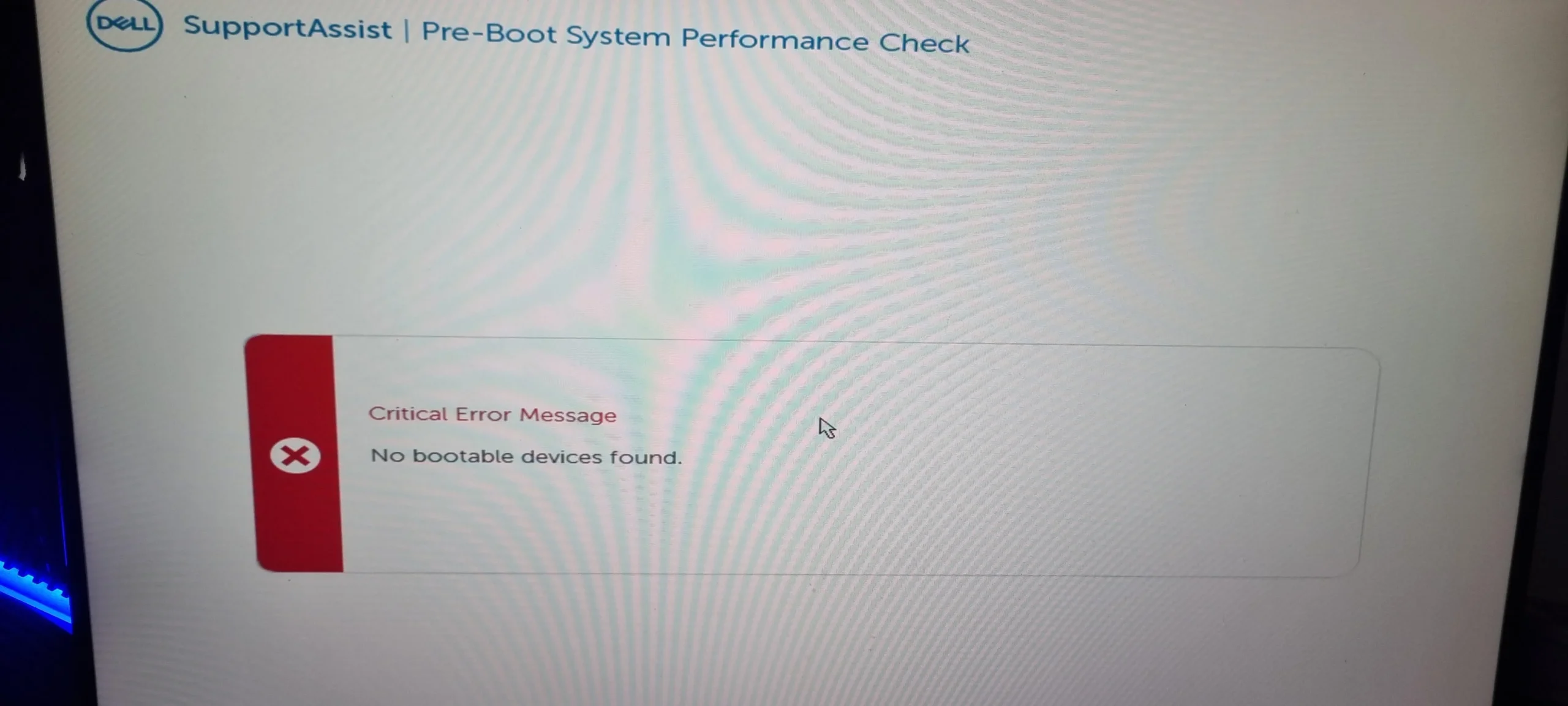
You press the power button on your Dell laptop or desktop, expecting to see the Windows login screen. Instead, you are greeted by a black screen with a loading bar and the message: “SupportAssist Pre-Boot System Performance Check.” Normally, this diagnostic tool runs quickly in the background and then boots into your operating system. But sometimes, it gets stuck. The progress bar freezes, loops indefinitely, or fails to detect your hardware.
This is a frustrating issue because it locks you out of your work, files, and entertainment. Fortunately, in most cases, this does not indicate a broken hard drive or motherboard. It is often caused by a BIOS glitch, a corrupted driver, or a configuration error within the diagnostic tool itself.
In this guide, we will explain why the supportassist pre boot system performance check fails to work correctly and provide step-by-step solutions to get your Dell PC booting normally again.
 Also readStellar Migrator for Exchange Review: Migrating from Exchange Server to Microsoft 365
In this article
What is the SupportAssist Pre-Boot System Performance Check?
Before diving into the fixes, it is helpful to understand what this tool actually does. The supportassist pre boot system performance check is an embedded diagnostic tool (often referred to as ePSA or PSA) that runs independently of your Windows operating system .
Unlike software you install on Windows, this tool lives inside the motherboard’s BIOS (Basic Input/Output System). Its job is to test the physical hardware components—such as the RAM, hard drive (SSD/HDD), processor, and motherboard chipset—for potential failures . If the tool detects an issue, it displays an error code (e.g., 2000-0142 or 2000-0415). If it doesn’t find an issue, it should hand control over to the bootloader to start Windows.
The “not working” scenario usually manifests in three ways:
-
The scan is stuck at 0% or 30%: The bar does not move, and the computer appears frozen.
-
The scan is looping: It finishes the test but starts over immediately instead of booting.
-
The scan fails to start: You get a “Hardware Scan Failed” error or a black screen immediately after running it.
Why is the Pre-Boot Performance Check Not Working?
Understanding the root cause helps you choose the right fix. Based on hardware diagnostics and user reports, the most common culprits are:
-
BIOS Corruption or Misconfiguration: The BIOS acts as the bridge between the diagnostic tool and the hardware. If BIOS settings are wrong or outdated, the communication breaks down .
-
Faulty Peripheral Connections: Sometimes, the tool gets confused by an external USB drive, a printer, or even a specific internal cable that isn’t seated perfectly.
-
Dell Reliable Memory Technology (RMT): Some Dell systems have a feature that attempts to map out bad sectors of RAM. This feature can conflict with the pre-boot assessment .
-
Software Conflicts within SupportAssist: Ironically, the version of SupportAssist installed on your Windows drive can sometimes conflict with the version stored in the BIOS .
Preliminary Checks: Quick Wins
Before we go into the BIOS, let’s try the simplest hardware tricks that often resolve the supportassist pre boot system performance check not working issue.
1. Disconnect All External Devices
The pre-boot environment is very “dumb” compared to Windows. It struggles to handle multiple devices. Unplug every single USB device.
-
Action: Remove USB drives, external hard drives, printers, docking stations, and dongles. Leave only the power cord connected.
-
Result: Try to restart. If the check passes, plug your devices back in one by one to find the offending device.
2. Perform a Hard Reset (Drain Residual Charge)
Static electricity can confuse the motherboard’s sensors, causing the diagnostic to hang.
-
For Laptops: Turn off the laptop. Disconnect the charger. If the battery is removable, take it out. Press and hold the Power button for 30–60 seconds. This drains the capacitors. Reconnect the battery/charger and turn it on .
-
For Desktops: Shut down, unplug the power cable, press and hold the Power button for 30 seconds, then plug it back in.
3. Check for Beep Codes
When the screen is stuck, listen to the speakers. If your Dell emits a sequence of beeps (e.g., 1 long, 2 short), that is a hardware code.
-
Action: Count the beeps and check Dell’s official error code table. For example, beep code *2000-4224* usually points to a hard drive failure . If you hear beeps, you may have a physical hardware failure rather than a software glitch.
Advanced Fixes: Resolving the Pre-Boot Loop
If the quick checks didn’t work, the issue is likely buried in the BIOS settings or the firmware itself. Do not worry; navigating the BIOS looks intimidating, but it is quite safe if you follow these instructions.
Fix 1: Reset BIOS to Default Settings
In 3 out of 5 cases, misconfigured BIOS settings are to blame for the supportassist pre boot system performance check being stuck. Resetting the BIOS removes any “bad” settings that might have been changed by an update or a power surge .
How to reset BIOS:
-
Restart your Dell computer.
-
As soon as the Dell logo appears, tap the F2 key repeatedly until you enter the BIOS setup.
-
Look for an option on the bottom right or top of the screen labeled “Load Defaults,” “Restore Settings,” or “Load Optimized Defaults.”
-
Confirm the selection and choose “Save and Exit.”
Fix 2: Update the BIOS Firmware
Dell frequently releases BIOS updates to fix bugs. If your BIOS is 2 or 3 years old, it may have a known conflict with the pre-boot assessment .
Since you are stuck in the pre-boot screen, you cannot update BIOS through Windows. You will need another computer and a USB drive.
-
On another PC, go to the Dell Support Website.
-
Enter your Service Tag (found on a sticker on the bottom of your laptop or back of your desktop).
-
Go to Drivers & Downloads and filter by “BIOS.”
-
Download the BIOS update
.exefile and copy it to a USB flash drive (formatted in FAT32). -
Insert the USB into your stuck Dell. Boot the Dell and press F12 to enter the Boot Menu.
-
Select “BIOS Flash Update” (the name may vary) and select the file on your USB drive to update the BIOS .
Fix 3: Disable Dell Reliable Memory Technology (RMT)
This is a specific fix that has saved many Dell XPS and Inspiron users. The supportassist pre boot system performance check sometimes gets stuck because it tries to test memory that Dell RMT has isolated .
Steps to disable RMT:
-
Restart and press F2 to enter BIOS.
-
Navigate to the “Performance” tab (sometimes under “Virtualization Support”).
-
Look for “Dell Reliable Memory Technology (RMT).”
-
Uncheck the box or set it to “Disabled.”
-
Save and Exit.
Fix 4: Toggle Secure Boot or Enable Audit Mode
Secure Boot ensures that only trusted software runs when the PC starts. Sometimes, the pre-boot diagnostic doesn’t recognize the current Secure Boot key. Flipping this switch can force the system to reset the handshake .
-
Enter BIOS (F2).
-
Go to the “Boot Configuration” or “Security” tab.
-
Find “Secure Boot.”
-
If it is On, turn it Off.
-
If it is Off, turn it On.
-
-
If toggling doesn’t work, change the Secure Boot Mode to “Audit Mode.” Audit Mode does not enforce security policies, allowing the diagnostic to run freely.
-
Save changes and restart.
Fix 5: Run the ePSA Diagnostic Manually via F12
Sometimes, the tool gets stuck because it is trying to run automatically. You can bypass the automatic check and force a manual check.
-
Turn off the computer completely.
-
Turn it on and immediately tap F12 repeatedly.
-
On the Boot Menu screen, highlight “Diagnostics” (or “ePSA”) and press Enter .
-
The test will run. Let it finish. If it passes, exit the diagnostic. Your computer should now boot normally. If it fails, you will see the specific error code (e.g., 2000-0142). Write this code down. It confirms a hardware failure (like a hard drive dying), which requires a part replacement .
Fix 6: Check Internal Cables (Desktop Users)
For Dell desktop users, the supportassist pre boot system performance check often fails because a SATA cable (connecting the hard drive to the motherboard) has come loose.
-
Action: Open the desktop case. Unplug the SATA data cable and the power cable from your hard drive or SSD. Plug them back in firmly. Try booting again. A loose connection can cause the diagnostic to hang indefinitely .
Disabling the Feature (The Last Resort)
If none of the above fixes work, and your PC actually runs fine when you finally get into Windows (meaning the diagnostic tool is just buggy), you can disable the automatic pre-boot check entirely. I usually recommend against this because it hides potential early warnings of a failing drive, but it is better than having a bricked computer.
How to disable SupportAssist Pre-Boot Check:
-
Enter BIOS (F2).
-
Look for a tab labeled “SupportAssist System Resolution” (or simply “SupportAssist”).
-
Find the option “SupportAssist OS Recovery” or “Auto OS Recovery Threshold.”
-
Uncheck the box or set the threshold to “Off.”
-
Save and Exit .
By disabling this, your Dell will no longer run the supportassist pre boot system performance check at startup and will boot directly to Windows.
The Alternative: Use Dell Update Universal
If you find that SupportAssist is generally “not working” on your system (crashes, uses too much CPU, or fails to install), you are not alone. Many users on Dell forums have reported that version 4.x of SupportAssist is buggy .
An excellent alternative is Dell Update for Windows Universal. While it lacks the full diagnostic suite, it handles driver updates efficiently and does not run pre-boot checks .
-
Expert Tip: Uninstall SupportAssist from Windows (Settings > Apps). Install “Dell Update for Windows Universal” instead. For hardware diagnostics, continue to use the F12 > Diagnostics method manually when needed.
Conclusion and Actionable Takeaways
The supportassist pre boot system performance check is a valuable tool for catching hardware failures early, but it is useless if it prevents you from booting your computer.
Here is your quick-action checklist to resolve the issue:
-
Start Simple: Unplug USB devices and perform a hard reset (hold power button for 30 seconds).
-
Enter BIOS: If the boot loop persists, spam the F2 key to enter BIOS.
-
Reset & Update: Load BIOS defaults. If that fails, use another PC to download the latest BIOS update from Dell.
-
Toggle Settings: Disable Dell Reliable Memory Technology or toggle Secure Boot.
-
The Final Step: As a last resort, disable the pre-boot check in the BIOS settings to regain normal booting.
