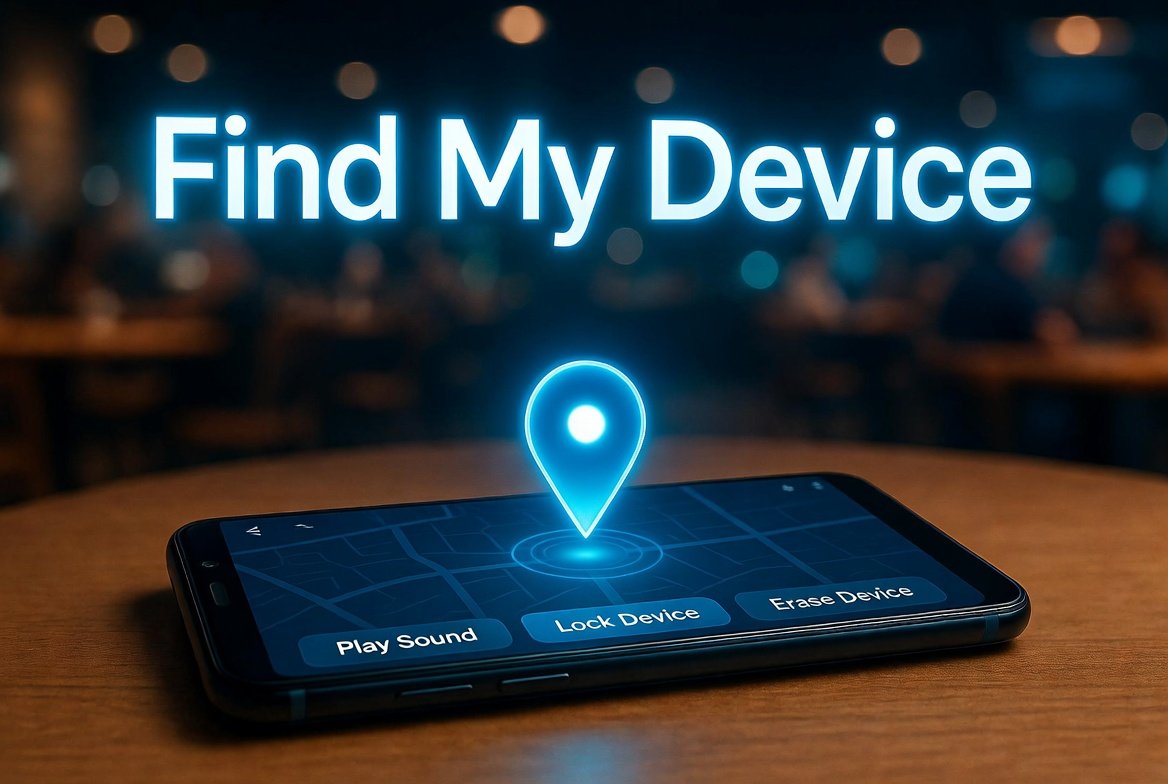
Losing your Android phone can be incredibly stressful. Whether it slipped out of your pocket on a busy commute, vanished in a crowded café, or was left behind during travel, that sinking feeling is universal. Fortunately, Google’s Find My Device (rebranded as Find Hub in recent updates) offers a powerful, free solution to track, secure, and potentially recover your lost phone.
This comprehensive guide walks you through everything you need to know—from initial setup to advanced features and troubleshooting—so you can act confidently if the worst happens. With over a billion Android devices worldwide, understanding this tool is essential for modern smartphone users.
In this article
- What Is Find My Device and Why Does It Matter?
- Prerequisites: Preparing Your Android Phone Before It Gets Lost
- Step-by-Step: How to Locate Your Lost Android Phone Using Find My Device
- What to Do Once You Locate Your Device
- Advanced Features: Offline Finding and Battery-Dead Tracking
- Troubleshooting Common Find My Device Issues
- Find My Device for Different Scenarios
- Security and Privacy Considerations
- Beyond Phones: Tracking Other Devices
- Comparison with Alternative Tracking Options
- Expert Tips for Maximum Effectiveness
- Frequently Asked Questions (FAQs)
- Conclusion: Stay Prepared and Protected
What Is Find My Device and Why Does It Matter?
Find My Device is Google’s built-in service for locating lost or stolen Android phones, tablets, Wear OS watches, and compatible accessories. It uses a combination of GPS, Wi-Fi, cellular data, and a crowdsourced network of nearby Android devices to pinpoint locations, even when your phone is offline.
 Also readWhy Is X (Twitter) Not Loading? Feed and Login Issues Explained

Key capabilities include:
- Real-time or last-known location on a map
- Playing a loud sound to help locate it nearby
- Remotely locking the device
- Displaying a custom message with contact info
- Erasing data as a last resort
The service has evolved significantly. The expanded Find My Device network (launched around 2024) introduced Bluetooth-based crowdsourcing, allowing detection even without internet connectivity on the lost device. Newer Pixels can even be found for hours after the battery dies.
This feature has helped countless users recover devices and protect sensitive information like banking apps, photos, and personal data.
Prerequisites: Preparing Your Android Phone Before It Gets Lost
Prevention is better than cure. Proper setup ensures Find My Device works seamlessly when needed.
Step 1: Sign In to Your Google Account
Your phone must be linked to a Google Account—the foundation of the service.
- Go to Settings > Accounts (or Google on many devices).
- Ensure you’re signed in with the primary account you’ll use for tracking.
Pro Tip: Use a strong, unique password and enable 2-Step Verification (2SV). Create backup codes or use a security key for access if your phone is lost.
Step 2: Enable Location Services
Location accuracy relies on this setting.
- Open Settings.
- Tap Location (or search for it).
- Toggle Use location to On.
- Set to High accuracy mode for best results (uses GPS, Wi-Fi, and Bluetooth).
Real-World Scenario: Sarah forgot her phone at the gym. Because location was enabled, she saw its exact spot in the locker room via the map.
Step 3: Turn On Find My Device / Find Hub
On most devices:
- Go to Settings > Google > Find My Device (or Find Hub).
- Toggle Allow this device to be found or similar options to On.
- Enable Find your offline devices for the crowdsourced network. Choose “With network in all areas” for maximum coverage on supported devices.
Step 4: Additional Setup Recommendations
- Keep your phone updated to the latest Android version.
- Set a secure screen lock (PIN, pattern, or biometric).
- Install the official Find Hub app from Google Play for quick access from other Android devices.
- Note your phone’s IMEI number (dial *#06# or check in Settings > About phone).
Expert Tip: Regularly check your device list at android.com/find to confirm visibility.
Step-by-Step: How to Locate Your Lost Android Phone Using Find My Device
Here’s the core process when your phone goes missing.
Accessing Find My Device
Option 1: Via Web Browser (Any Device)
- On a computer, tablet, or another phone, open a browser.
- Go to android.com/find or google.com/android/find.
- Sign in with the same Google Account linked to your lost phone.
Option 2: Using the Find Hub App
- On another Android device, open the Find Hub app (download from Play Store if needed).
- Sign in (use “Continue as [your name]” or Guest mode for helping others).
- Select your lost device from the list.
Understanding the Map and Location
Once signed in, you’ll see:
- A map with your device’s location pin.
- Accuracy radius (smaller = more precise).
- Battery level, network status, and last seen time.
If the device is online, the location updates in near real-time. Offline? You’ll see the last known location, or the crowdsourced network may provide updates.
Nearby Finding Feature: If within ~10 meters, use “Find nearby” for directional guidance and proximity indicators.
What to Do Once You Locate Your Device
Play Sound
- Select Play sound. Your phone rings at full volume for up to 5 minutes, even on silent.
- Ideal for when it’s lost under couch cushions or in a nearby room.
Secure Your Device (Mark as Lost / Remote Lock)
- Choose Mark as lost or Lock.
- Set or confirm a lock screen PIN/password.
- Add a custom message and phone number (e.g., “Please call 555-1234 if found”).
- This locks the device and displays your message on the screen.
Practical Example: John’s phone was stolen on the subway. He locked it remotely and added his number. A good Samaritan contacted him, and the phone was returned intact.
Erase Your Device (Nuclear Option)
Use this only if recovery seems impossible:
- Select Erase device.
- Confirm—it wipes all data (may not affect SD cards).
- After erasure, tracking stops, but the device requires your Google password to set up again.
Caution: This is irreversible for most data. Back up regularly via Google One or other services.
Advanced Features: Offline Finding and Battery-Dead Tracking
The modern Find My Device network shines here. Participating Android devices anonymously help relay encrypted location pings via Bluetooth.
- Enable “Find your offline devices” in settings.
- Newer Pixels (8 series and later) support finding even when powered off or battery dead for several hours.
Benefits vs Drawbacks Comparison:
| Aspect | Benefits | Drawbacks |
|---|---|---|
| Offline Network | Works without Wi-Fi/cellular | Requires dense Android population |
| Battery Dead | Extended tracking on Pixels | Limited hours, not all devices |
| Privacy | End-to-end encryption | Minor battery/network usage |
| Accuracy | High in urban areas | Less reliable in remote locations |
Troubleshooting Common Find My Device Issues
Even the best tools have hiccups. Here’s how to resolve them:
- Device Not Showing: Confirm it’s signed in, Location on, and visible on Google Play. Restart your phone or toggle settings.
- Inaccurate Location: Switch to High accuracy mode; move to open areas.
- Offline/No Location: Check last known location. Wait for network help.
- Can’t Sign In: Use 2SV backup codes or recovery options.
- App/Web Not Updating: Clear cache, update app/browser, or try incognito mode.
Expert Advice: Test the feature monthly by locating your own device. Familiarity reduces panic in real situations.
Find My Device for Different Scenarios
Lost at Home or Office
Use Play Sound and Nearby Finding. Combine with Google Maps Timeline for movement history.
Stolen Phone
Immediately lock the device, note the location for police report, and monitor for movement. Contact your carrier to suspend service.
Traveling or International Loss
Location works globally where there’s network coverage. Ensure roaming data if applicable.
Helping a Friend or Family
Use Guest mode in the app. Family Link integrates supervised devices automatically.
Security and Privacy Considerations
Google prioritizes privacy with end-to-end encryption for offline locations. You control data sharing, and the service includes anti-stalking protections.
Always:
- Use strong authentication.
- Review connected devices regularly in your Google Account.
- Enable automatic backups.
For more on how the service protects data, refer to official resources.
Beyond Phones: Tracking Other Devices
Find My Device extends to:
- Tablets and Wear OS watches
- Compatible trackers (e.g., from Chipolo, Pebblebee)
- Headphones and earbuds
Setup is similar—pair via Bluetooth and enable network support.
Comparison with Alternative Tracking Options
While Find My Device is robust and free, alternatives exist:
- Samsung’s SmartThings Find (strong integration for Galaxy users)
- Manufacturer-specific apps (e.g., for Xiaomi, OnePlus)
- Third-party apps (with caution for permissions)
Google’s solution stands out for its broad compatibility and network scale.
Expert Tips for Maximum Effectiveness
- Regular Backups: Use Google Photos, Drive, or One for seamless data recovery.
- Multiple Access Methods: Bookmark the web version and install the app.
- Battery Habits: Keep your phone charged; enable battery saver thoughtfully.
- Community Reporting: In some regions, involve authorities with location data.
- Update Everything: New features roll out with Android and app updates.
- Test in Controlled Conditions: Simulate loss to build confidence.
Real-World Success Story: Emily left her phone in a taxi during a trip. Using offline network pings, she tracked it to the driver’s home and recovered it the next day.
Frequently Asked Questions (FAQs)
Q: Does Find My Device work if the phone is turned off? A: On supported Pixels, yes—for several hours after power-off.
Q: Can someone disable Find My Device on my lost phone? A: It requires the screen lock. Quick actions limit tampering.
Q: Is it free? A: Yes, included with Android and Google Account.
Q: What about iPhone users? This guide focuses on Android. Apple has its own Find My network.
Conclusion: Stay Prepared and Protected
Using Find My Device effectively transforms a potential disaster into a manageable situation. By setting it up proactively, understanding the step-by-step process for location tracking, locking, and data protection, and applying troubleshooting tips, you’re well-equipped to handle a lost Android phone.
Key takeaways:
- Always enable Location, Find Hub, and offline features.
- Act quickly: Locate, secure, then decide on erase.
- Combine with good habits like backups and strong security.
- Test regularly for peace of mind.
Don’t wait until your phone disappears—take five minutes today to verify your settings. With Find My Device, you have one of the most powerful recovery tools at your fingertips. Safe travels and happy tracking!
External Resources: