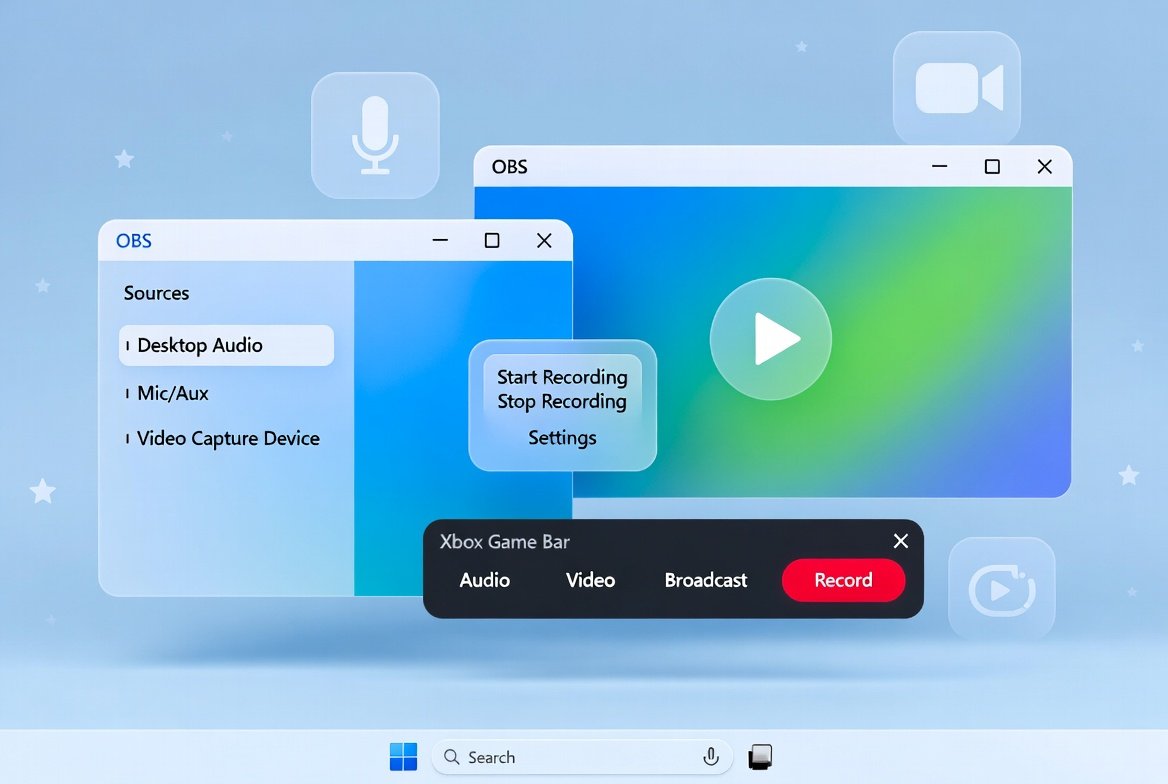
How to screen record on Windows opens up endless possibilities for sharing knowledge, creating tutorials, documenting processes, and preserving precious moments on your computer. Whether you’re a teacher preparing online lessons, a professional demonstrating software, a student capturing lecture notes, or simply someone who wants to show a friend how to fix a tech issue, screen recording has become an essential skill. It allows you to capture everything happening on your display—along with audio, webcam footage, or annotations—in a video file that you can edit, share, or store for future reference. This comprehensive guide will walk you through simple, reliable methods tailored to Windows 7, 8 (including 8.1), 10, 11, and even forward-looking insights for Windows 12, using both built-in features and trusted free tools.
Screen recording promotes productivity and clear communication in a wholesome way, helping families, educators, and communities share beneficial knowledge without any unnecessary complications.
Why Learning How to Screen Record on Windows Matters Today
Screen recording empowers you to create clear, visual explanations that words alone cannot match. Imagine helping your family member understand a new application or preserving a step-by-step guide for a halal business project. It supports education, remote collaboration, and personal archiving in positive, productive manners.
Benefits include:
- Enhanced Learning: Visual demos improve retention.
- Efficient Troubleshooting: Share exact steps for technical support.
- Content Creation: Produce tutorials, reviews, or family memory videos.
- Professional Growth: Document workflows or training modules.
With various Windows versions in use, knowing version-specific methods ensures you stay prepared no matter your setup.
Built-in Options and Limitations Across Windows Versions
Microsoft has improved screen recording features over time. Earlier versions rely more on third-party solutions, while newer ones offer convenient built-in tools.
Screen Recording on Windows 7: Reliable Methods for Older Systems
Windows 7 lacks a dedicated built-in video recorder, but practical options exist. Many users still appreciate its stability, and screen recording remains fully achievable.
One helpful built-in tool is the Problem Steps Recorder (psr.exe). It captures steps as screenshots with descriptions rather than continuous video, useful for detailed troubleshooting guides.
For full video recording, free and open-source software like OBS Studio works excellently on Windows 7. Download a compatible older version if needed for smooth performance.
Step-by-Step with OBS Studio on Windows 7:
- Download and install a Windows 7-compatible version of OBS Studio.
- Launch the program and run the Auto-Configuration Wizard for optimal settings.
- In the Sources panel, click the “+” icon and select “Display Capture.”
- Name the source and adjust to capture your full screen or a specific area.
- Set up audio sources for microphone and system sound.
- Click “Start Recording” and perform your tasks.
- Stop recording when finished—files save to your chosen directory, usually in MKV or MP4 format.
This method offers high customization, including scene transitions and filters, ideal for creating polished educational videos.
Alternative lightweight tools include ShareX or older versions of other recorders. Always download from official sources for security.
Pro Tip for Windows 7 Users: Close unnecessary background programs to maintain smooth recording performance on older hardware.
Mastering Screen Recording on Windows 8 and 8.1
Windows 8 introduced improvements, but still no native full-screen video recorder like newer versions. Users can leverage similar third-party solutions or the built-in Steps Recorder.
The process mirrors Windows 7, with good compatibility for popular free tools. Many appreciate the tile interface for quick app access during recording sessions.
Focus on tools that support Windows 8 natively. OBS Studio or ScreenRec provide excellent results here.
Quick Setup for Windows 8:
- Install your chosen recorder.
- Configure capture area, audio inputs, and quality settings (720p or 1080p recommended for balance).
- Use hotkeys for seamless start/stop to maintain workflow flow.
These versions benefit from solid performance on mid-range hardware common at their release.
How to Screen Record on Windows 10 with Built-in Xbox Game Bar
Windows 10 marks a significant upgrade with the Xbox Game Bar, making how to screen record on Windows much more accessible without extra software.
Simple Steps Using Xbox Game Bar:
- Open the app or screen you want to record.
- Press Windows key + G to open the Game Bar overlay.
- In the Capture widget, click the record button (or use the shortcut Windows + Alt + R to start instantly).
- A small recording bar appears with a timer. Toggle microphone with Windows + Alt + M.
- Stop recording by clicking the stop button or using the same shortcut.
- Find your video in Videos > Captures folder.
This tool works great for most applications, though it performs best with games or full-screen apps. You can also capture system audio and microphone simultaneously.
For more advanced needs on Windows 10, the Snipping Tool received screen recording capabilities in later updates, allowing quick clips with easy editing.
Advanced Capabilities in Windows 11: Snipping Tool and Enhanced Game Bar
Windows 11 refines these features further. The updated Snipping Tool now supports direct screen recording, perfect for quick captures.
Using Snipping Tool in Windows 11:
- Search for “Snipping Tool” or press Windows + Shift + R.
- Select the video recording option.
- Choose the area (full screen, window, or rectangular selection).
- Enable microphone or system audio as needed.
- Record, then trim and save directly in the editor.
The Game Bar remains powerful with better integration and performance optimizations.
Windows 11 also integrates Clipchamp, a user-friendly video editor with built-in recording features, allowing seamless recording and post-production.
Preparing for Windows 12: What to Expect for Screen Recording
While Windows 12 details continue to evolve, expect enhanced AI-assisted tools and smoother integration of recording features. Future versions will likely build on Windows 11’s foundation with improved performance, better hardware acceleration, and possibly intelligent auto-editing suggestions.
Best practice: Choose versatile, regularly updated software like OBS Studio that adapts quickly to new operating systems. This ensures your skills remain relevant across upgrades.
Top Free and Reliable Screen Recording Software Recommendations
For consistent results across versions, dedicated software provides more flexibility than built-in tools alone.
OBS Studio – The Gold Standard:
- Completely free and open-source.
- Supports multi-source scenes, streaming, and high-quality output.
- Works on virtually all Windows versions.
- Advanced audio mixing and filters.
Other Excellent Options:
- ShareX: Lightweight with powerful annotation and upload features.
- ScreenRec: Simple interface with instant sharing links.
- Clipchamp: Integrated in newer Windows with easy editing.
Explore more options in our advanced screen recording tools section for detailed comparisons.
When selecting software, prioritize those with no watermarks on free versions and strong community support for wholesome, long-term use.
Detailed Step-by-Step Tutorials for Popular Tools
Comprehensive OBS Studio Guide (Works on All Mentioned Versions)
OBS Studio stands out for its power and flexibility. Here’s an in-depth walkthrough:
- Installation: Download from the official OBS Project website. Run the installer and follow prompts.
- Initial Setup: Use the Auto-Configuration Wizard. Select “Optimize for recording” for best quality.
- Scene Creation: Add a Display Capture source. For specific windows, use Window Capture.
- Audio Configuration: Add Desktop Audio and Mic/Aux sources. Adjust levels to avoid distortion.
- Settings Optimization: Under Output, choose Simple mode first. Set Recording Quality to High Quality, and format to MP4.
- Hotkeys: Assign custom shortcuts for Start/Stop Recording to work efficiently.
- Recording Process: Preview your scene, then start recording. Monitor performance via stats.
- Post-Recording: Locate files and use built-in tools or external editors for trimming.
For longer tutorials, record in segments and combine them later—this keeps files manageable and focused.
Quick Recording with Built-in Tools
For users preferring no downloads, master the shortcuts:
- Game Bar: Win + Alt + R
- Snipping Tool (newer Windows): Win + Shift + R
These promote quick, purposeful recordings aligned with efficient, value-driven work.
Best Practices for High-Quality Screen Recordings
To create professional, engaging videos:
- Plan Ahead: Outline content and prepare your desktop (close tabs, organize windows).
- Audio Quality: Use a good microphone and record in a quiet space. Speak clearly and at a moderate pace.
- Visual Clarity: Record at 1080p or higher, 30-60 FPS. Use cursor highlighting if available.
- Annotations: Add text, arrows, or zooms during or after recording to emphasize points.
- Length Management: Keep individual videos under 10-15 minutes for better viewer engagement.
- File Management: Organize recordings in dedicated folders with descriptive names and dates.
- Privacy Considerations: Review footage before sharing to ensure no sensitive information appears.
These habits help produce content that benefits others meaningfully.
Troubleshooting Common Screen Recording Issues
Even the best setups encounter hiccups. Here are solutions:
Low Performance/Lag:
- Lower resolution or FPS.
- Close background apps.
- Update graphics drivers.
No Audio:
- Check source selection in settings.
- Ensure microphone permissions granted.
- Test system sound output.
Black Screen:
- Run as administrator.
- Switch capture method (Display vs. Window).
- Update or reinstall graphics drivers.
Compatibility on Older Windows:
- Use older software versions.
- Check system requirements carefully.
File Too Large:
- Adjust bitrate or resolution.
- Record shorter clips.
- Compress post-recording using free tools.
Patience and systematic testing usually resolve most issues quickly.
Creative and Productive Use Cases for Screen Recordings
Screen recording supports many positive activities:
- Educational Content: Teachers creating lesson supplements.
- Family Guidance: Grandparents sharing tech tutorials with grandchildren.
- Business Documentation: Recording workflows for team training (ensure halal compliance).
- Personal Archives: Capturing software tutorials or memorable digital moments.
- Community Help: Assisting others with step-by-step visual guides.
Combine with voiceover for more personal, engaging results that foster learning and connection.
Editing Your Recordings for Polish and Impact
Basic editing elevates your videos:
- Trim unwanted sections.
- Add transitions or text overlays.
- Adjust brightness, contrast, or speed.
- Include background music (royalty-free, wholesome options).
- Export in appropriate formats for sharing (MP4 widely compatible).
Free editors like Shotcut or built-in options in Clipchamp work wonderfully.
For more ideas on enhancing your videos, check our best video editing software resources.
Security and Ethical Considerations in Screen Recording
Always record responsibly:
- Obtain permission when capturing others’ content.
- Respect privacy and copyrights.
- Use recordings for beneficial, truthful purposes.
- Keep software updated for security patches.
This approach aligns with values of honesty and respect for others.
Comparing Built-in vs. Third-Party Tools
Built-in Advantages: No installation, quick access, good for basic needs.
Third-Party Strengths: More features, customization, better quality controls, cross-version compatibility.
For most users seeking versatility, combining both approaches yields the best results.
Optimizing Storage and Sharing Your Recordings
- Compress videos without significant quality loss.
- Use cloud storage (with strong privacy settings) for backups.
- Share via direct links or embedded players when appropriate.
- Consider file formats: MP4 for broad compatibility.
Future Trends in Screen Recording Technology
Expect improvements in AI-powered editing, automatic transcription, better hardware integration, and seamless multi-device support. Staying updated with reliable tools keeps your skills current.
Conclusion: Empower Your Productivity with Screen Recording Skills
Learning how to screen record on Windows equips you with a valuable skill that enhances communication, education, and daily efficiency across all versions. From simple built-in shortcuts on modern Windows to powerful software like OBS on older systems, you now have the knowledge to capture and share information effectively.
Start practicing today with small recordings and gradually explore advanced features. Your efforts will yield clear, helpful content that benefits yourself and others in meaningful ways. Embrace this tool as part of your journey toward greater productivity and knowledge sharing.