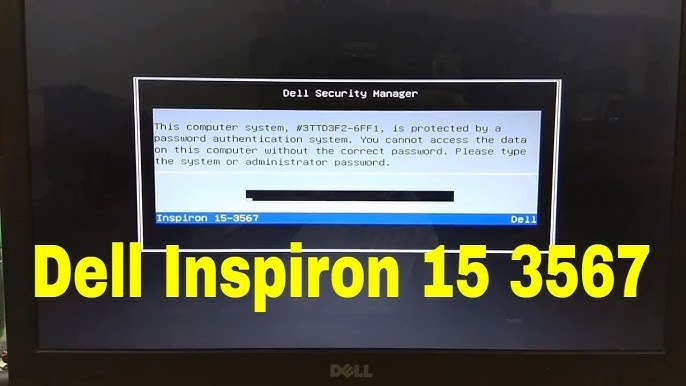
The Dell Inspiron 15-3567 is a reliable workhorse that has powered home users, students, and professionals through countless tasks. However, like any sophisticated machine, its heart is the Basic Input/Output System (BIOS)—the low-level software that bridges your operating system with the physical hardware. Whether you are trying to install a fresh copy of Windows, tweak boot order priorities, or resolve a system error, mastering the Dell Inspiron 15-3567 BIOS is an essential skill for any owner.
In this comprehensive guide, we will cover everything you need to know about the Dell Inspiron 15-3567 BIOS. You will learn how to access the setup utility, update it safely, tweak performance settings, troubleshoot boot failures, and restore factory defaults. This guide aims to turn you from a passive user into an expert who can confidently manage their laptop’s firmware.
What is the BIOS and Why Does It Matter for Your Dell Inspiron 15-3567?
Before diving into the technical steps, it is helpful to understand what the BIOS actually does. The BIOS (Basic Input/Output System) is the first software that runs when you press the power button. It wakes up the components, initializes them, checks their health (Power-On Self-Test, or POST), and finally hands control over to your operating system, like Windows 11 or Linux.
The specific version of the Dell Inspiron 15-3567 BIOS dictates how well your hardware communicates with your software. An outdated BIOS can lead to compatibility issues with new RAM, peripheral devices, or even prevent the installation of newer operating systems. Conversely, a badly configured BIOS can cause boot loops or slow performance.
Key functions of the BIOS on this laptop include:
-
Hardware Initialization: It detects the CPU, RAM, hard drive, and keyboard.
-
Boot Management: It decides which drive (SSD, HDD, or USB) to load the OS from.
-
System Clock Management: It maintains the date and time.
-
Security: It allows setting hard drive and system passwords.
How to Enter the Dell Inspiron 15-3567 BIOS (Step-by-Step)
Accessing the Dell Inspiron 15-3567 BIOS is a straightforward process, but timing is crucial. Because modern laptops boot very quickly, you need to act fast. Here are the three most reliable methods to enter the BIOS.
Method 1: The Traditional Key Press (F2)
This is the fastest method, provided your laptop is shut down completely.
-
Shut down your Dell Inspiron 15-3567 completely. Ensure it is not in “Sleep” or “Hibernation” mode.
-
Press the Power button to turn the laptop on.
-
Immediately and repeatedly tap the F2 key on your keyboard. Do not press and hold; tap rhythmically.
-
If you see the Dell logo and the spinning dots for Windows, you have missed the window. Restart your computer and try again.
-
You should now see the blue and white Dell Inspiron 15-3567 BIOS setup screen.
Note: On some configurations, if tapping F2 doesn’t work, try holding the Fn key and then tapping F2 simultaneously, as some function key locks can interfere.
Method 2: Using Windows Advanced Startup (For Windows 10/11)
If your keyboard is unresponsive during the boot phase, or if you are already logged into Windows, you can enter the BIOS via the system settings.
-
Click the Start button and select Settings (the gear icon).
-
Go to Update & Security (Windows 10) or System > Recovery (Windows 11).
-
On the left menu, select Recovery.
-
Under the “Advanced Startup” section, click Restart now.
-
Your laptop will reboot into a blue menu titled “Choose an option.”
-
Navigate to Troubleshoot > Advanced Options > UEFI Firmware Settings.
-
Click Restart. The system will boot directly into the Dell Inspiron 15-3567 BIOS interface.
Method 3: The Boot Menu (F12)
If you want to boot from a USB drive without changing the permanent boot order, use the One-Time Boot Menu.
-
Restart your laptop.
-
Repeatedly tap the F12 key as soon as Dell appears.
-
This launches the Boot Selection Menu. Here, you can select “BIOS Setup” from the list to enter the firmware.
Inside the BIOS: A Tour of Settings for the Inspiron 15-3567
Once you enter the Dell Inspiron 15-3567 BIOS, the interface may look intimidating if you aren’t familiar with it. However, the options are logically grouped. Use the arrow keys to navigate, Enter to select, and Esc to go back.
System Information (System Info)
Located usually on the main tab, this section displays static details about your machine. Here you can verify your BIOS Version (e.g., 1.7.0 or 2.14.0), Service Tag, and memory installed. It is always good practice to check this screen first to confirm you are looking at the right hardware.
Boot Configuration (Boot Sequence)
This is arguably the most accessed feature for technicians. In the Boot Configuration tab, you can manage the Boot List Option:
-
UEFI (Unified Extensible Firmware Interface): The modern standard. If you are installing Windows 10 or 11, this should remain selected.
-
Legacy External Devices: For booting from old DOS-based USB drives or older operating systems.
Practical Tip: To install Windows from a USB drive, you must ensure “USB Storage Device” is at the top of the boot order or use the F12 boot menu to override it temporarily.
Security Settings
The Security tab allows you to set up passwords to prevent unauthorized access.
-
Admin Password: Prevents users from changing BIOS settings.
-
System Password: Requires a password just to turn the laptop on.
-
HDD Password: A powerful security feature that locks the hard drive. Caution: Do not forget this password; data recovery is nearly impossible without it.
Performance (Intel SpeedStep)
Dell hides power management settings here. You can generally toggle Intel SpeedStep (allows the CPU to slow down to save battery) and Turbo Boost. If you are trying to fix overheating issues, disabling Turbo Boost in the Dell Inspiron 15-3567 BIOS can lower temperatures, though at the cost of raw performance.
Updating the BIOS: How to Flash Version 2.14.0 and Later
Keeping your BIOS up to date is critical for system stability. Dell frequently releases updates to patch security vulnerabilities (like Intel side-channel threats) and improve hardware compatibility. For the Inspiron 15-3567, the latest revisions focus on stability when resuming from sleep and compatibility with large SSDs.
Step 1: Identify Your Current Version
Before downloading, check if you need an update.
-
Enter the BIOS using the F2 method.
-
Look for BIOS Version/Date. If it reads “2.14.0” or the latest available, you are up to date. If you are on “1.0.x” or “1.5.x,” you can benefit from an update.
Step 2: Download the Correct File
Do not download BIOS files from third-party forums; use only Dell’s official support.
-
Go to the official Dell Support website.
-
Enter your Service Tag (usually found on a sticker on the bottom of the laptop). This ensures you get the exact drivers for the Dell Inspiron 15-3567 BIOS.
-
Navigate to the “Drivers & Downloads” tab.
-
Filter the category by “BIOS.”
-
Download the latest
.exefile.
Step 3: Apply the Update
WARNING: Do not remove the charger or force shutdown during this process. A failed BIOS update can “brick” your motherboard.
-
Ensure your laptop is plugged into the AC adapter. The battery should have at least 20% charge as a backup.
-
Close all open applications.
-
Right-click the downloaded
.exefile and select Run as Administrator. -
The Dell BIOS Flash utility will open. Click “Update.”
-
Your system will reboot. You will see a black screen with a progress bar showing the firmware flashing. Do not touch the power button.
-
Once completed, the laptop will restart and boot into Windows normally.
Troubleshooting Common BIOS-Related Issues
Even the most reliable hardware can glitch. If your laptop is acting strangely, the issue might reside in the Dell Inspiron 15-3567 BIOS settings.
Issue 1: “Invalid Configuration” or “Time-of-day not set”
If you see this error, the CMOS battery on the motherboard has likely failed. This small coin-cell battery keeps the BIOS settings saved when the laptop is unplugged.
-
Solution: Replace the CR2032 battery inside the laptop. After replacement, enter the BIOS, press F9 to load default settings, and F10 to save and exit.
Issue 2: Stuck in a Boot Loop (Login Loop)
Sometimes, a corrupted BIOS setting (or a bad update) can cause the laptop to restart endlessly. As noted on Dell community forums, this can sometimes be resolved by a hardware reset.
-
Remove the charger and the main battery (if it is removable; if not, skip to step 2).
-
Press and hold the Power button for 15-20 seconds. This drains residual static charge from the capacitors.
-
Reconnect the power and boot the system. If it fails, enter the BIOS and reset to factory defaults (F9).
Issue 3: Hard Drive Not Detected
If your SSD or HDD is missing from the boot list:
-
Go to System Configuration > SATA Operation.
-
If you have an NVMe SSD, ensure it is set to AHCI mode. If you upgraded from an old HDD, ensure the drive is seated properly in the caddy.
Resetting the BIOS to Factory Defaults
If you have made too many changes or the laptop is behaving erratically, resetting the BIOS is your best bet. There are two ways to do this on the Dell Inspiron 15-3567.
Method 1: Using the Keyboard (F9)
This is the easiest way to reset the Dell Inspiron 15-3567 BIOS without booting anything.
-
Enter the BIOS using F2.
-
Once inside, press the F9 key.
-
A dialog will appear asking: “Load default configuration?”
-
Select YES.
-
Press F10 to Save and Exit.
Method 2: Clearing CMOS (Hardware Reset)
If the laptop does not display anything at all (black screen) but the fans spin, you may need to disconnect the battery and CMOS.
-
Turn off the laptop and remove the charger.
-
Unscrew the back panel (Phillips #0 screwdriver).
-
Locate the circular CR2032 battery.
-
Unplug the main battery connector from the motherboard.
-
Remove the CR2032 coin cell for 1 minute.
-
Reassemble. The BIOS will be wiped clean.
Advanced Tips: Optimizing the Inspiron 3567 for Speed
While the Dell Inspiron 15-3567 BIOS is not designed for extreme overclocking, you can make intelligent choices to speed up your daily usage.
-
Fast Boot: Enable “Fast Boot” in the Boot options. This skips some memory checks and significantly reduces the time to reach the Windows login screen.
-
Assign USB Wake Support: If you use a docking station, enable “USB Wake Support.” This allows you to wake the laptop by moving the mouse or pressing a key on an external keyboard, rather than lifting the lid.
-
Virtualization (VT-x): If you use WSL (Windows Subsystem for Linux) or VMWare/VirtualBox, go to Virtualization Support and enable Intel Virtualization Technology. This unlocks near-native performance for virtual machines.
-
The Dell Inspiron 15-3567 BIOS is more than just a yellow or blue settings screen; it is the control panel for your hardware. Understanding how to navigate it gives you the power to troubleshoot errors, secure your data with passwords, and optimize boot times.
To summarize the actionable takeaways:
-
Access is easy: Use F2 during startup or the Windows Advanced Recovery menu.
-
Update safely: Always download BIOS updates directly from Dell’s official support page. Ensure the laptop is plugged into AC power during the update to avoid bricking the system.
-
Use F9 and F10: Remember F9 loads default settings (fixes most errors), and F10 saves and exits.
-
Hardware resets solve black screens: If the screen stays dark, hold the power button for 15 seconds to drain static before panicking.
By mastering these BIOS processes, you extend the life and reliability of your Dell Inspiron 15-3567, ensuring it runs smoothly for years to come.
-
