You have just finished an important video call, and you need to capture the confirmation code before it disappears. Or perhaps you are a designer trying to send feedback to a colleague. In the Windows world, you look for the “Print Screen” button, but on a Mac, things work a little differently.
If you have recently switched ecosystems or simply never bothered to learn the shortcuts, you might be wondering what the best how to screenshot on Mac methods actually are.
The good news is that macOS is equipped with one of the most powerful and versatile native screenshot toolkits on the market. You do not need to download Snagit, CleanShot X, or any other third-party application to get professional, clean results. Whether you need to capture the entire display, a specific menu, or even record your screen, Apple’s built-in tools have you covered.
In this guide, we will walk you through every native method available. By the end, you will master the how to screenshot on Mac workflow, learn hidden tricks like removing window shadows, changing save locations, and editing screenshots instantly—all without installing a single extra app.
The Quick Start: Master How to Screenshot on Mac in Seconds
Before we dive into the advanced settings, let’s look at the core shortcuts. These are the combinations you will use 95% of the time. They work on every modern MacBook, iMac, and Mac Mini running macOS Mojave or later.
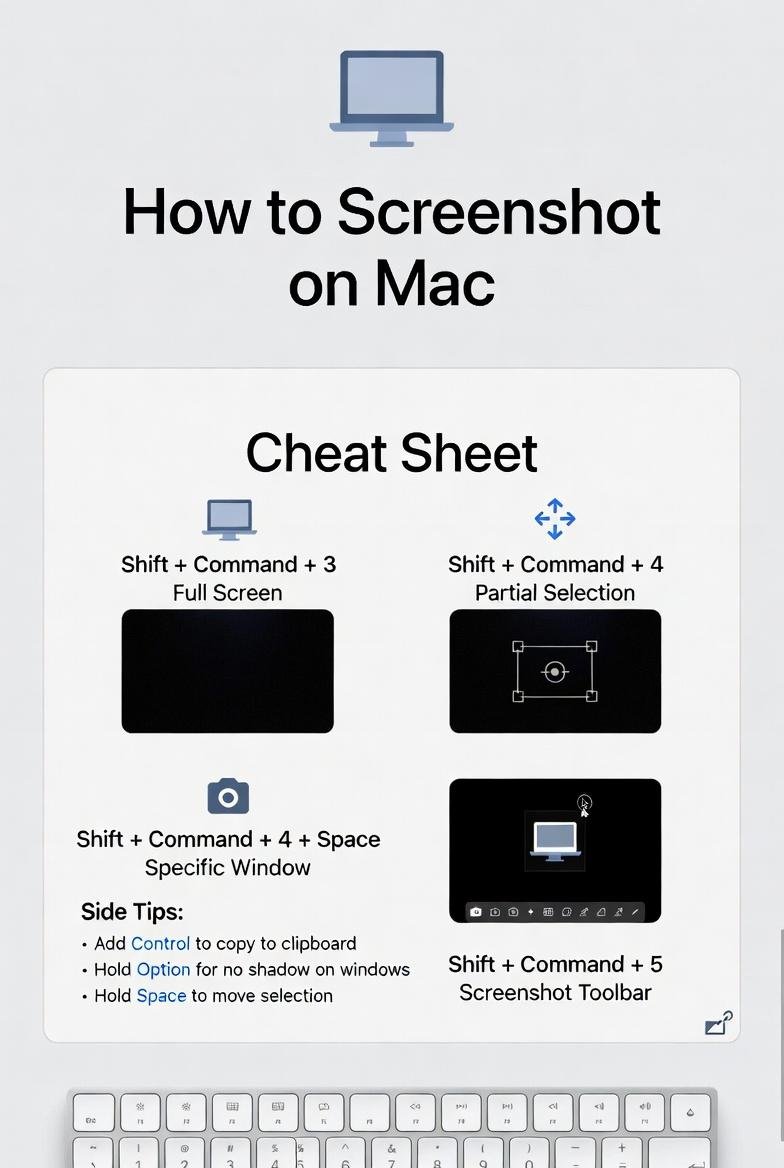
Here is the cheat sheet to how to screenshot on Mac using only your keyboard:
| Goal | Keyboard Shortcut | What happens? |
|---|---|---|
| Full Screen | Shift + Command + 3 |
Captures everything visible. Saves file to Desktop. |
| Partial Selection | Shift + Command + 4 |
Turns cursor into crosshair. Drag to select area. |
| Specific Window | Shift + Command + 4 + Spacebar |
Turns cursor into camera. Click a window to capture it. |
| Screenshot Toolbar | Shift + Command + 5 |
Opens the control center for screenshots & recording. |
Pro Tip: If you add the Control key to any of these shortcuts (e.g., Shift + Command + Control + 3), the screenshot goes straight to your Clipboard instead of the desktop. This is perfect for pasting directly into an email or document without cluttering your hard drive.
Method 1: Capturing the Entire Screen
Capturing the whole screen is the most common task, and macOS makes it incredibly simple. This method is ideal for saving a snapshot of your current desktop, a full webpage, or a bug report for IT.
The Standard Way
-
Navigate to the screen you want to capture.
-
Press Shift-Command-3.
-
Listen for the camera shutter sound (you can adjust this volume in System Settings > Sound).
-
Look at your Desktop. You will see a file named “Screen Shot [date] at [time].png”.
The “Stealth” Clipboard Method
If you are sharing the screenshot in a chat (like Slack or Discord) and don’t want to save the file permanently:
-
Press Shift-Command-Control-3.
-
Go to your chat window and press
Command+Vto paste.
The Thumbnail Trick
When you take a standard screenshot (without the Control key), a small thumbnail appears in the bottom-right corner of your screen. Do not ignore it! You can:
-
Swipe it right to dismiss it and save the file.
-
Click on it to open the Markup editor instantly.
-
Drag it directly into a document or email.
Method 2: The Precision Tool – Partial Selection
Often, you don’t want your messy desktop icons or your second monitor in the background. You just want that specific image or paragraph. When you how to screenshot on Mac using the partial selection tool, you gain total control.
How to do it:
-
Press Shift-Command-4. Your cursor changes to a crosshair icon ( +\ ) with coordinates.
-
Click and drag to draw a box around the area you want.
-
Release the mouse button or trackpad to capture.
Hidden Tweaks While Selecting:
-
Cancel mid-selection: Press the
Escape(Esc) key before releasing the click. -
Move the selection: Holding the Spacebar while dragging allows you to reposition the entire selection box without resizing it. This is a lifesaver for perfect framing.
-
Lock aspect ratio: Hold
Shiftwhile dragging to lock the selection’s width and height ratio (e.g., forcing a perfect square). -
Center from origin: Hold
Option(Alt) while dragging to expand the selection box outward from the center point.
Method 3: Window Capture (The Professional Look)
Have you ever tried to take a screenshot of a single window only to accidentally get the background desktop, the dock, and the menu bar? The “Specific Window” method solves this. It automatically crops the image to exactly the window boundaries and even adds a nice, professional drop shadow.
Executing Window Capture:
-
Press Shift-Command-4.
-
Press the Spacebar once. The crosshair will turn into a camera icon.
-
Hover over the window you want to capture. macOS will highlight the entire window in a light blue overlay.
-
Click the mouse or trackpad.
The “No Shadow” Secret (For Graphic Designers)
While the default drop shadow looks nice, it makes cropping the image into a document difficult. If you need a clean, flat PNG of a window:
-
Follow steps 1-3 above, but before you click to capture, hold down the Option key.
-
Click. The resulting screenshot will have the drop shadow removed, leaving only the flat window content.
Method 4: The Master Control – Shift-Command-5
If you can never remember which number key does what, Shift-Command-5 is your best friend. Introduced in macOS Mojave, this is the Screenshot App interface. It consolidates all capture methods plus screen recording into one handy toolbar.
The Toolbar Options:
When you press Shift + Command + 5, a small translucent panel appears at the bottom of your screen. From left to right, the buttons do the following:
-
Capture Entire Screen: Same as
Shift+Command+3. -
Capture Selected Window: Same as the camera method.
-
Capture Selected Portion: Same as the crosshair method.
-
Record Entire Screen: Captures a video of everything (with audio if selected).
-
Record Selected Portion: Captures a video of a specific area you define.
Setting a Delay Timer
This is arguably the most useful feature in the toolbar. Need to capture a dropdown menu or a hover state that disappears when you move your mouse?
-
Open the toolbar (
Shift+Command+5). -
Click Options.
-
Under “Timer,” select 5 Seconds or 10 Seconds.
-
Click “Capture.”
-
You will have 5 or 10 seconds to open the menu or hover over the element before the shot is taken automatically.
Advanced Customization: Taking Control of Screenshots
Now that you know how to capture, let’s optimize where they go and how they look.
Changing the Default Save Location
Cluttering your Desktop with screenshots is a universal problem. To fix this:
-
Press
Shift+Command+5to open the toolbar. -
Click Options.
-
Under “Save to,” select Documents, Clipboard, or Other Location (to create a specific “Screenshots” folder).
Changing the File Format (PNG to JPG or PDF)
PNG files are high quality but huge. If you are taking many screenshots, switching to JPG saves space. To do this, you must use the Terminal (a one-time setup):
-
Open Terminal (Applications > Utilities).
-
To change to JPG, type or paste this command and press
Enter:
defaults write com.apple.screencapture type jpg -
To apply the change, type:
killall SystemUIServer
To revert to PNG, replace “jpg” with “png” in the command.
Disabling the Drop Shadow on Screenshots
As mentioned earlier, you can remove the shadow on a case-by-case basis with the Option key, but if you never want the shadow:
-
Open Terminal.
-
Paste this command:
defaults write com.apple.screencapture disable-shadow -bool TRUE -
Run
killall SystemUIServer.
Bonus: Screen Recording Without Apps
While this article focuses on static images, it is worth noting that the native how to screenshot on mac command also unlocks video recording. This is a built-in free screen recorder.
-
Press
Shift+Command+5. -
Choose either “Record Entire Screen” or “Record Selected Portion.”
-
Click the Options dropdown. Here, you can select a Microphone (if you want voice narration) or “None” for system audio only.
-
Click Record.
-
To stop, click the Stop icon (⏹) in the menu bar.
-
The video saves to your Desktop as a
.movfile.
Troubleshooting: Why Isn’t It Working?
Sometimes, shortcuts don’t work. Here is how to fix the most common issues related to how to screenshot on mac.
-
The shortcut does nothing: Check your System Settings > Keyboard > Keyboard Shortcuts > Screenshots. Ensure the shortcuts are enabled. Some third-party apps (like Dropbox or OneDrive) sometimes hijack these shortcuts.
-
I get a cursor icon but no crosshair: This usually happens if you pressed
Shift-Command-4and then pressedSpacebar. PressEscapeto exit camera mode and try again. -
Screenshots are saving as “Screen Shot” with no extension: This is rare, but usually a Launch Services database issue. Restarting your Mac usually fixes it.
-
I only have a “Print Screen” button (PC Keyboard): If you are using a standard Windows keyboard on your Mac, the
Windowskey acts as theCommandkey. So, Windows + Shift + 3 takes a full screenshot.
Conclusion: Go Native, Stay Efficient
Mastering the ability to how to screenshot on Mac using native tools is a massive productivity booster. You do not need to clutter your system with third-party utilities when macOS offers such a robust suite of options.
From the rapid-fire Shift-Command-3 to the highly customizable Shift-Command-5 toolbar, Apple has provided every tool a professional needs.
Actionable Takeaways:
-
Memorize the Big Three:
+3for full,+4for partial,+5for the menu. -
Use the Modifiers: Hold
Spaceto move selections; holdOptionto center them; holdControlto send to clipboard. -
Clean Your Desktop: Spend 30 seconds setting a custom save location via the
Optionsmenu in theShift-Command-5toolbar. -
Experiment with the Timer: Next time you need to capture a tricky hover menu, use the 5-second delay.
For more advanced macOS tips and deep dives into Apple’s ecosystem, you can visit the official Apple Support Page on Screenshots. This resource covers the latest changes introduced in macOS Sequoia and beyond.