


Introduction to Customizing Navigation Audio
In today’s fast-paced world, reliable navigation tools like Apple Maps have become essential for daily commutes, road trips, and exploring new places. One feature that often goes unnoticed but significantly impacts the user experience is the voice that provides spoken directions. Many users seek ways to personalize this aspect for clearer instructions or simply to make journeys more enjoyable. If you’ve ever felt the default narration doesn’t quite match your preference, you’re not alone. Changing the voice used for directions can make a real difference in how you interact with the app.
This guide walks you through everything you need to know about adjusting the audio guidance in Apple Maps. We’ll explore the connection to system-wide settings, provide detailed steps for various Apple devices, and share practical tips to ensure everything works smoothly. Whether you’re a frequent traveler or just looking for a fresh change, these adjustments are straightforward and take only a few minutes.
Understanding How the Navigation Voice Functions
The spoken directions in Apple Maps rely on the same technology that powers Siri’s voice responses across your device. This integration means the apple maps voice isn’t controlled directly within the Maps app but through broader voice settings. When you request directions and enable audio, your device reads street names, turn instructions, and traffic updates aloud using the selected voice profile.
This design keeps things consistent across apps and features, so changing one setting updates navigation, voice commands, and more. Users often appreciate this because it allows for a unified experience—select an accent that feels natural, and it applies everywhere. For example, if English is your primary language but you prefer a British or Australian tone for variety, the system supports multiple varieties without needing third-party tools.
Related to this, many explore similar customizations like Siri voice change or adjusting spoken directions in other apps. These tweaks improve clarity during hands-free use, which is especially helpful in busy traffic or for those with specific pronunciation preferences.
Why You Might Want to Update Your Navigation Voice
Personalizing the apple maps voice offers several practical benefits. First, different accents or voices can improve comprehension—perhaps a clearer enunciation helps in noisy environments like a car with music playing. Second, it adds a touch of freshness to routine drives, reducing monotony on long commutes. Third, for multilingual households or travelers, switching languages ensures directions align with your comfort level.
Safety is another key reason. Clear, understandable instructions allow you to keep your eyes on the road rather than glancing at the screen. Apple Maps already excels in real-time traffic and route suggestions, and fine-tuning the audio makes it even more user-friendly. Many drivers report feeling more confident after switching to a voice that matches their regional dialect or personal taste.
If you’re interested in other iPhone productivity enhancements, consider our related internal guide on how to check location on iPhone for safe and ethical family tracking tips.
Step-by-Step Guide: Changing the Apple Maps Voice on iPhone
Here’s the most common method for iPhone users running the latest iOS. The process is simple and requires no technical expertise.
- Open the Settings app on your home screen.
- Scroll down and tap Siri & Search (or Apple Intelligence & Siri on newer versions).
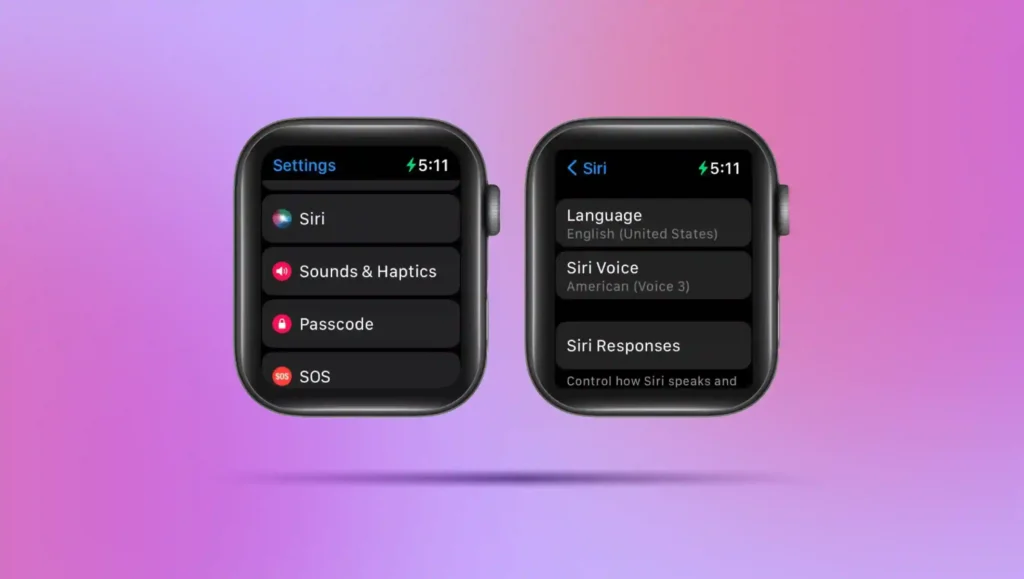
- Select Siri Voice.
- Choose your preferred Language first if you want directions in a different tongue.
- Under Variety, pick an accent such as American, British, Australian, Indian, or others available.
- Tap Voice and select from the listed options—often labeled by number or gender for variety.
- Your device will download the new voice if it’s not already installed (connect to Wi-Fi for faster results).
- Once complete, close Settings and test by starting a route in Apple Maps.
This update applies instantly to the apple maps voice for all future navigation sessions. Restart your iPhone if the change doesn’t appear right away. The entire process usually takes under two minutes, and you can experiment with options until you find the perfect fit.
Extending Customization to iPad, Mac, CarPlay, and Apple Watch
The same Siri-based approach works across the Apple ecosystem. On iPad, follow identical steps in Settings > Apple Intelligence & Siri > Siri Voice. For Mac users, go to System Settings > Apple Intelligence & Siri (or Siri), enable the feature if needed, and select your preferred voice variety. Changes sync seamlessly if you’re signed in with the same Apple ID.
When using CarPlay, the updated apple maps voice carries over automatically—no extra steps required. This ensures consistency whether you’re driving with your iPhone mounted or connected wirelessly. Apple Watch follows suit through paired iPhone settings, providing clear audio cues during walks or bike rides.
For tech enthusiasts troubleshooting other apps, explore our internal resource on fixing Google Chrome not opening as an example of common device fixes.
Fine-Tuning Volume, Pauses, and Additional Spoken Direction Options
Beyond voice selection, Apple Maps offers controls for how directions are delivered. Head to Settings > Apps > Maps > Spoken Directions. Here you can adjust Voice Volume to options like Normal, Louder, or Quiet. You can also choose when directions play—always, only when navigating, or never.
While actively navigating, tap the speaker icon in the Maps interface to toggle audio on or off temporarily. Volume can also be adjusted using device buttons during playback for quick tweaks. These options ensure the apple maps voice fits your environment perfectly, whether in a quiet neighborhood or on a highway.
Common Issues and How to Resolve Them
Sometimes the voice doesn’t update immediately. Common fixes include restarting your device, ensuring sufficient storage for downloads, or double-checking that Siri is enabled. If directions remain silent, verify that Spoken Directions are turned on in Maps settings.
Language mismatches can occur if your device region differs from the chosen voice—adjusting the primary language in Settings > General > Language & Region often resolves this. For persistent problems, signing out and back into your Apple ID can refresh settings. Users on forums like Reddit frequently share similar experiences and solutions.
Practical Tips for the Best Navigation Experience
Experiment with voices during a short test route to hear them in context. Download voices over Wi-Fi to avoid data charges. Combine with other features like offline maps for reliable guidance in low-signal areas. Consider accessibility options if you need enhanced clarity, such as larger text or different announcement styles.
For broader Apple ecosystem knowledge, the Wikipedia entry on Apple Maps provides an excellent overview of its development and features.
The Advantages of a Personalized Apple Maps Voice
Customizing delivers a more engaging and efficient drive. A familiar accent reduces cognitive load, allowing quicker reactions to turns. It also supports inclusivity for diverse users worldwide. Over time, this small change can make navigation feel less like a chore and more like a helpful companion.
Frequently Asked Questions
Does changing Siri voice affect only Maps? No—it updates across all Siri features, creating consistency.
Can I use different voices for different apps? Currently, the voice is system-wide, but future updates may offer more granularity.
Is there a gender-neutral option? Yes, many varieties include neutral voices alongside traditional ones.
Will this work offline? Downloaded voices function without internet once installed.
How often can I switch? As many times as you like—it’s reversible with no limits.
In summary, mastering the apple maps voice through these easy adjustments elevates your entire navigation routine. With just a few taps, you gain control over clarity, style, and convenience. Try it today and enjoy more confident travels every time you hit the road.