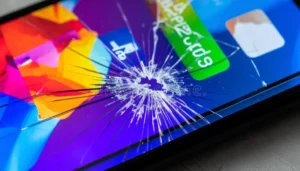
In today’s fast-paced digital world, a responsive touchscreen is essential for seamless interaction with laptops and tablets. Whether you’re browsing, drawing, or multitasking, an unresponsive touchscreen can disrupt productivity and cause frustration. The good news is that many tip screen problems stem from software glitches, minor hardware hiccups, or environmental factors rather than permanent damage. This means you can often restore functionality without the expense and hassle of replacing the screen.

This detailed guide walks you through proven, step-by-step methods to troubleshoot and fix an unresponsive touchscreen. We’ll cover common causes, basic fixes, advanced solutions for Windows and Android devices, and practical tips drawn from real-world scenarios. By following these instructions carefully, most users can revive their tip screen effectively. Remember, patience and systematic troubleshooting are key—start with the simplest steps and progress as needed.
Understanding the Common Causes of an Unresponsive Touchscreen
Before diving into fixes, it’s helpful to identify why your tip screen might have stopped responding. Touchscreens rely on a combination of hardware (the digitizer layer that detects touch) and software (drivers and operating system processes). Issues can arise from:
- Software Glitches: Temporary bugs after a system update, app conflicts, or corrupted drivers often cause the touchscreen to freeze or ignore inputs.
- Driver Problems: Outdated, missing, or corrupted touchscreen drivers prevent the operating system from communicating with the hardware.
- Dirt, Smudges, or Obstructions: Fingerprints, dust, oil, or a poorly fitted screen protector can interfere with capacitive touch sensors.
- Power and Sleep Issues: Problems after waking from sleep mode, battery drainage, or power management settings that disable input devices.
- Calibration Errors: Over time, the touchscreen’s sensitivity mapping can drift, leading to inaccurate or no response.
- Environmental Factors: Extreme temperatures, humidity, or electromagnetic interference can temporarily affect performance.
- Minor Hardware Connections: Loose internal connections (without visible damage) sometimes resolve with gentle resets or pressure techniques.
In many cases, these issues are fixable at home. For instance, a user might notice their tip screen becoming unresponsive right after a Windows update, pointing directly to a driver conflict. Identifying the trigger helps narrow down the solution.
Preliminary Checks Before Troubleshooting
Start with these quick assessments to rule out obvious problems:
- Confirm Touchscreen Hardware Support: Not all laptops or tablets have touch capability. On Windows, search for “View pen and touch info” in the Start menu. If it says no pen or touch input is available, the device may not support it.
- Test with External Input: Connect a mouse or keyboard to navigate menus if the tip screen is completely unresponsive.
- Check for Physical Damage: Inspect for cracks, swelling (from battery issues), or liquid exposure. If visible damage exists, professional repair might be necessary, but proceed with software fixes first.
- Note Recent Changes: Did the issue start after an update, installing new software, or dropping the device? This context guides your approach.
These checks take just minutes and prevent unnecessary steps.
Step 1: Basic Fixes – Restart and Clean Your Device
The simplest solutions often yield the best results for tip screen problems.
Perform a Simple or Force Restart
A restart clears temporary glitches and refreshes drivers.
- For laptops and tablets: Save your work, then shut down completely via the Start menu (Windows) or power button (Android). Wait 30 seconds before powering on again.
- Force Restart (if unresponsive): On Windows laptops, hold the power button for 10-15 seconds until it shuts off, then turn it back on. For tablets, use the same method or follow manufacturer-specific button combinations (e.g., Volume Up + Power for many Android devices).
Many users report their tip screen reviving immediately after a restart, especially following sleep mode or updates.
Clean the Touchscreen Thoroughly
Dirt and oils create a barrier against touch sensors.
- Power off the device.
- Use a soft, lint-free microfiber cloth. Lightly dampen it with distilled water or a screen-safe cleaner if needed—never spray liquid directly on the screen.
- Wipe gently in circular motions, focusing on edges and corners where grime accumulates.
- Remove any screen protector or case temporarily and test the tip screen. A misaligned protector is a frequent culprit.
Tip: Clean weekly as preventive maintenance, especially if you use your device with bare hands.
Remove Accessories and Test
Disconnect external devices, cases, or styluses one by one. Reintroduce them gradually to isolate interference.
These basic steps resolve up to 50% of unresponsive tip screen cases without further effort.
Step 2: Check and Enable the Touchscreen in Device Manager (Windows)
Windows users often find the tip screen disabled accidentally.
- Right-click the Start button and select Device Manager.
- Expand Human Interface Devices.
- Look for HID-compliant touch screen. If it has a downward arrow or shows as disabled, right-click and select Enable device.
- If multiple entries appear, repeat for each.
If the device shows an error (yellow exclamation mark), right-click and choose Update driver or Uninstall device, then restart to let Windows reinstall it automatically.
This process directly addresses software recognition issues with the tip screen.
Step 3: Update Windows, Drivers, and BIOS
Outdated components frequently cause tip screen failures.
Run Windows Update
- Go to Settings > Windows Update.
- Click Check for updates and install everything, including optional updates for drivers.
- Restart after installation.
Microsoft recommends this as a primary step for touchscreen issues.
Update or Reinstall Touchscreen Drivers
In Device Manager:
- Right-click HID-compliant touch screen > Update driver > Search automatically.
- If no update is found, uninstall the driver and restart.
Visit your laptop manufacturer’s website (e.g., Dell, HP, Lenovo) and download the latest touchscreen-specific drivers using your model number. Generic Windows drivers sometimes suffice, but manufacturer ones optimize performance.
Update BIOS (Advanced Caution)
BIOS updates can resolve hardware communication problems. Download from the official support page only, and follow instructions precisely—incorrect BIOS flashing risks bricking the device.
Practical Insight: After a major Windows 11 update, many users fixed their tip screen by reinstalling drivers via Device Manager.
Step 4: Calibrate the Touchscreen
Calibration realigns the tip screen’s touch points.
On Windows:
- Search for Calibrate the screen for pen or touch input or open Tablet PC Settings in Control Panel.
- Under the Display tab, click Calibrate.
- Select Touch input and follow on-screen prompts: tap crosshairs accurately as they appear.
- Save the calibration.
If the option is missing, ensure touchscreen drivers are installed, or run the command msdt.exe /id devicediagnostic for hardware troubleshooting.
Recalibrate periodically or after major updates for optimal tip screen accuracy.
Step 5: Run Troubleshooters and Power Management Adjustments
Windows includes built-in tools:
- Search for Troubleshoot settings > Other troubleshooters > Run the Hardware and Devices or Keyboard troubleshooter (touch often falls under input devices).
- For power issues: In Device Manager, expand Human Interface Devices, right-click the touchscreen > Properties > Power Management tab, and uncheck “Allow the computer to turn off this device to save power.”
Adjust sleep settings in Settings > System > Power & battery to prevent premature disabling of input devices.
Advanced Fixes for Persistent Tip Screen Issues
If basic steps fail, try these:
Perform a Power Drain Reset
- Shut down the device and unplug the charger.
- Remove the battery if possible (on removable models).
- Hold the power button for 30-60 seconds to drain residual power.
- Reassemble and restart.
This resets hardware states without data loss.
Check for App or Software Conflicts
- Boot in Safe Mode (hold Shift during restart > Troubleshoot > Advanced options > Startup Settings > Restart > Option 4).
- Test the tip screen. If it works, a third-party app is likely interfering—uninstall recent programs.
- On Android tablets: Boot into Safe Mode and check.
Factory Reset as Last Software Resort (Backup First!)
For Windows: Use Settings > System > Recovery > Reset this PC (keep files option available).
For Android: Go to Settings > System > Reset options, or use recovery mode (Volume buttons + Power).
Always back up data beforehand.
Gentle Pressure or Warming Technique (Use Extreme Caution)
Some users report success by gently warming the screen edges (with a hairdryer on low, far away) and applying even palm pressure to reseat minor internal connections. Avoid heat on plastic parts or excessive force—this is not recommended for beginners and carries risk.
Troubleshooting for Android Tablets
Android devices share similar issues but use different interfaces.
- Restart and Clean: Same as above.
- Remove Screen Protector: Test without it.
- Check Developer Options: Enable “Show touches” to visualize input.
- Update System and Apps: Via Settings > System > System update.
- Reset Touch Sensitivity: Some models offer settings under Display > Touch sensitivity.
- Recovery Mode Reset: Power off, then hold Volume Up + Power (model-specific) to enter recovery and wipe cache partition first (non-destructive).
Example: A user with a budget Android tablet fixed their unresponsive tip screen by clearing the system cache in recovery mode.
Preventive Tips to Avoid Future Tip Screen Problems
- Keep your device updated regularly.
- Use a high-quality, thin screen protector designed for your model.
- Clean the screen frequently with proper tools.
- Avoid extreme temperatures and direct sunlight.
- Manage power settings thoughtfully.
- Install reputable antivirus and avoid sideloading untrusted apps.
- Periodically calibrate the tip screen.
Following these habits extends the life of your touchscreen significantly.
When to Seek Professional Help
If none of the steps restore your tip screen, it could indicate deeper hardware issues like a failing digitizer connection or internal damage not visible externally. In such cases:
- Contact the manufacturer’s support with your model details.
- Visit an authorized service center for diagnostics.
- Consider warranty status—repairs might be covered.
Avoid DIY disassembly unless experienced, as it can void warranties.
For reliable tech resources and business insights on device maintenance, explore informative platforms like Business to Mark.
Additionally, for general knowledge on touch technology, refer to the touchscreen entry on Wikipedia, which explains the underlying capacitive principles.
Conclusion: Actionable Takeaways for Fixing Your Unresponsive Touchscreen
Dealing with an unresponsive tip screen doesn’t have to mean expensive replacements. By methodically applying the steps outlined—starting with restarts and cleaning, moving to driver management and calibration, and escalating to advanced resets—you can resolve most issues safely at home.
Key Takeaways:
- Always begin with the basics: restart, clean, and check for obstructions.
- Use Device Manager frequently for enabling and updating drivers on Windows.
- Calibrate regularly to maintain accuracy.
- Keep software updated and back up data before major resets.
- Practice prevention to minimize future problems.
With these strategies, you’ll likely restore full functionality to your laptop or tablet’s tip screen. If challenges persist, professional diagnostics ensure the right path forward. Empower yourself with knowledge, act step by step, and enjoy a smoother touch experience once again.
Related posts:

The 6 Best PDF to Excel Conversion Tools for Accurate Table and Column Extraction in 2026
Tech Software
How to Grow Followers on Instagram Organically in 2026: The Ultimate Guide
AI Technology![Surface Laptop 3 Cracked Screen]()
Dealing with a Surface Laptop 3 Cracked Screen: A Comprehensive Repair Guide
Tech Software![13-inch MacBook Pro Display Backlight Service Program: Complete Guide]()
13-inch MacBook Pro Display Backlight Service Program: Complete Guide
Tech Software![n8n http request node documentation]()
The Power of n8n HTTP Request Node Documentation for Seamless Automation
Tech Software![Hard Drive File Recovery: Restore Deleted Hard Drive Data Fast and Easily]()
Hard Drive File Recovery: Restore Deleted Hard Drive Data Fast and Easily
Tech Software