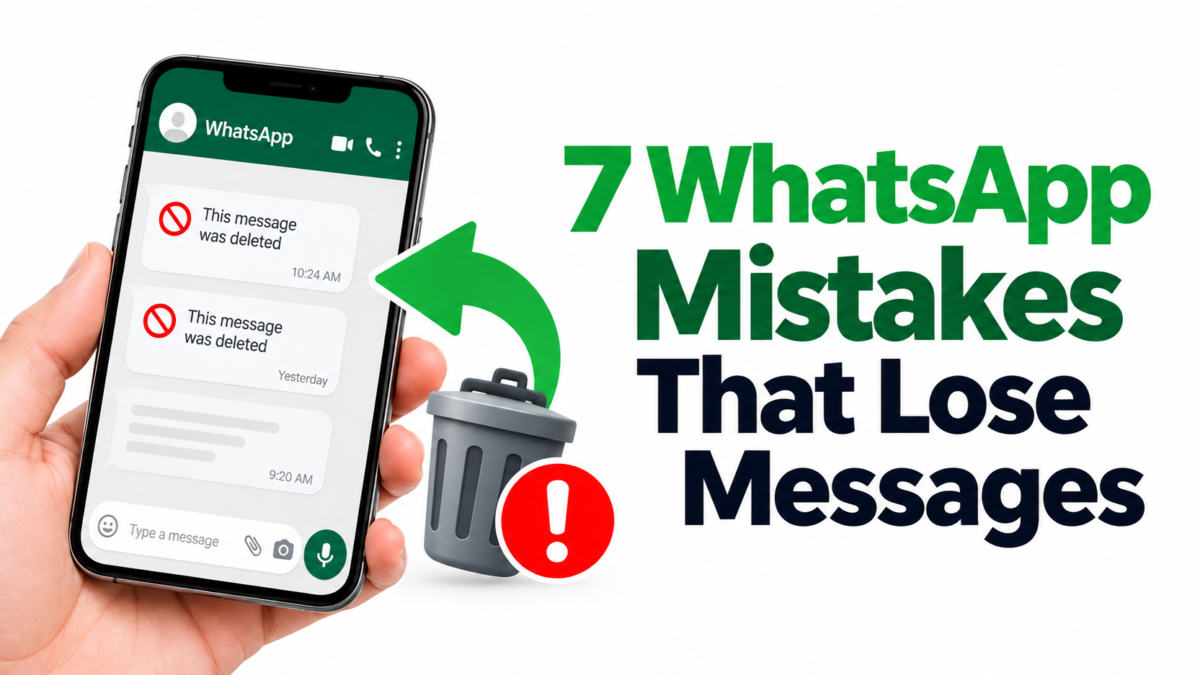
Most people only think about their WhatsApp backup at the worst possible moment: when the chats are already gone. A dropped phone, a rushed reinstall, a new handset on launch day, and suddenly years of family photos, client conversations and voice notes have vanished.
Here’s the uncomfortable part. In almost every case, the messages weren’t lost because of a bug. They were lost because of a small, avoidable mistake made earlier. WhatsApp doesn’t store your chat history on its servers, so your phone and your backup are the only copies you have. Get the backup wrong, and there’s nothing to restore.
 Also readWhy Is My Tumblr Blog Not Showing Up in Search Results? 7 Fixes That Work
Below are the seven mistakes that cause the most lost messages, why each one happens, and exactly how to avoid it. If you want a full walkthrough of setting things up from scratch, start with our complete WhatsApp backup guide.
In this article
- Why WhatsApp Messages Disappear in the First Place
- Mistake 1: Never Turning On Automatic Backups
- Mistake 2: Uninstalling WhatsApp Before Checking the Backup
- Mistake 3: Using a Different Phone Number or Account When Restoring
- Mistake 4: Letting Cloud or Phone Storage Run Out
- Mistake 5: Misunderstanding Media, Video and Disappearing Message Settings
- Mistake 6: Using the Wrong Method to Switch Phones
- Mistake 7: Restoring Without Checking the Backup Date
- Bonus: Don’t Lose the Key to Your Encrypted Backup
- Extra Tips for Businesses Using WhatsApp
- WhatsApp Backup Checklist
- Frequently Asked Questions
- Final Thoughts
Why WhatsApp Messages Disappear in the First Place
WhatsApp messages are end-to-end encrypted. Once a message is delivered, WhatsApp no longer keeps a copy. That’s great for privacy, but it means recovery depends entirely on what you saved yourself:
- A cloud backup — Google account storage on Android, iCloud on iPhone.
- A local backup — Android only, saved on the phone’s internal storage.
- The other person’s phone — they still have their side of the conversation.
Every mistake below breaks one of these safety nets.
Mistake 1: Never Turning On Automatic Backups
It sounds too obvious to list, but it’s the number one cause of permanent loss. Many people skip the backup prompt during setup and never go back to it. Others set it up once on an old phone and forget to do it again on the new one.
How to fix it
On Android:
- Open WhatsApp and tap the three-dot menu, then Settings > Chats > Chat backup.
- Choose the Google account to back up to.
- Set the backup frequency to Daily.
- Tap Back up to create your first backup now.
On iPhone:
- Make sure iCloud Drive is turned on in your iPhone’s Settings.
- In WhatsApp, go to Settings > Chats > Chat Backup.
- Turn on Auto Backup and choose Daily.
- Tap Back Up Now.
Daily is the right choice for almost everyone. A weekly backup means up to six days of messages can disappear in one bad moment.
Mistake 2: Uninstalling WhatsApp Before Checking the Backup
When WhatsApp misbehaves, the instinct is to delete and reinstall it. That can be fine, but only if a recent, complete backup exists. Uninstall first and check later, and you may discover the last good backup is three months old.
How to fix it
Before you uninstall, reset or wipe anything:
- Open Settings > Chats > Chat backup.
- Look at Last backup: the date, time and size.
- If it’s not from today, tap Back up and wait until it finishes.
- Only then uninstall.
There’s one important exception. If you’ve just lost messages and want them back, don’t run a new backup — it can replace the older backup that still contains them. Restore first, back up afterwards.
Mistake 3: Using a Different Phone Number or Account When Restoring
A WhatsApp backup is tied to two things: your phone number and the cloud account it was saved to. Change either one, and WhatsApp won’t find the backup during setup.
This catches people out constantly. They sign into a new Android phone with a work Google account instead of their personal one, or they switch SIM cards and verify a new number. WhatsApp then behaves as if no backup exists.
How to fix it
- Note the account listed under Chat backup before you change phones.
- On Android, add that same Google account to the new phone before installing WhatsApp.
- On iPhone, sign in with the same Apple Account and make sure iCloud Drive is on.
- Verify the same number you used when the backup was created. If you’re changing numbers, use WhatsApp’s Change number feature on the old phone first.
For Android users moving more than just WhatsApp, our guide on backing up and restoring data on your Android device covers the account side in more detail.
Mistake 4: Letting Cloud or Phone Storage Run Out
Backups fail silently more often than people realise. The usual culprit is storage.
- Cloud storage: On Android, WhatsApp backups now count toward your Google account storage, which is shared with Gmail, Google Drive and Google Photos. On iPhone, backups use your iCloud storage. When either fills up, backups stop.
- Phone storage: If your phone is almost full, WhatsApp may struggle to create or restore a backup.
How to fix it
- Check your Google account or iCloud storage and free up space, or upgrade your plan if you’re consistently near the limit.
- In WhatsApp, open Settings > Storage and data > Manage storage to find and delete large forwarded videos and files you don’t need.
- Keep at least a couple of gigabytes free on your phone.
- Check the Last backup date once a month to confirm backups are still running.
Mistake 5: Misunderstanding Media, Video and Disappearing Message Settings
Many people restore a backup and find the text is there, but the videos aren’t. Usually nothing went wrong — the videos were never included in the first place.
What to check
- Include videos: In Chat backup settings, videos are a separate option. If it’s off, videos aren’t backed up. Turning it on makes backups bigger and slower, so make sure you have the storage for it.
- Media visibility: This controls whether photos and videos are saved to your phone’s gallery. It doesn’t replace a backup, but having important photos in your gallery (and backed up by Google Photos or iCloud Photos) is a useful second copy.
- Disappearing messages: Messages in chats with disappearing messages turned on vanish after the chosen time and can’t be recovered from a later backup. If a conversation contains something you need to keep, save it before it expires — with the other person’s agreement where appropriate.
Mistake 6: Using the Wrong Method to Switch Phones
This is the mistake that causes the most damage on “new phone day.” The key rule: a Google backup can’t be restored on an iPhone, and an iCloud backup can’t be restored on Android. They’re different systems.
The right method for each situation
- Android to Android or iPhone to iPhone: Restore from your cloud backup during setup, or use WhatsApp’s built-in Transfer chats option to move chats directly between phones using a QR code.
- Android to iPhone: Use Apple’s Move to iOS app during the iPhone’s initial setup and select WhatsApp.
- iPhone to Android: Use the transfer option offered during the new Android phone’s setup, following WhatsApp’s instructions.
Before you start, read WhatsApp’s official chat transfer instructions, because exact steps depend on your phone models and app versions. And don’t factory-reset or trade in your old phone until you’ve confirmed everything arrived on the new one.
For business owners moving a WhatsApp Business account, our guide to transferring WhatsApp for business or personal use covers the extra points to watch.
Mistake 7: Restoring Without Checking the Backup Date
A restore replaces what’s on your phone with what’s in the backup. If that backup is old, every message after its date is gone from the phone.
People often restore without looking at the date, assume everything came back, and only notice weeks later that a whole month of messages is missing.
How to fix it
- Check the date and size that WhatsApp shows during the restore prompt.
- On Android, remember local backups. WhatsApp keeps recent local backups on the phone, typically from about the last week. If the cloud copy is wrong or corrupted, an older local file may still contain what you need.
- Let media finish downloading before deciding something is missing. Text restores first; photos and videos follow in the background.
WhatsApp’s official backup and restore guide explains what happens during a restore and the requirements for it to work.
Bonus: Don’t Lose the Key to Your Encrypted Backup
WhatsApp lets you protect your backup with end-to-end encryption, using either a password or a 64-digit encryption key. It’s a strong privacy feature, but it comes with a serious catch: if you forget the password or lose the key, nobody can open that backup — not you, and not WhatsApp.
- Store the password or key in a password manager.
- Don’t keep the only copy on the phone you’re backing up.
- If you change the password, make sure your new backup completes afterwards.
Extra Tips for Businesses Using WhatsApp
If your business relies on WhatsApp for orders, customer support or team chats, losing messages costs more than memories. A few extra steps help:
- Use WhatsApp Business with a dedicated business number, not a staff member’s personal phone.
- Record who owns the backup account so access isn’t lost when an employee leaves.
- Export key customer conversations (open the chat > More > Export chat) and save them somewhere secure. Exports can’t be re-imported into WhatsApp, but they preserve the record.
- Move critical information into your own systems, such as a CRM, order system or shared document, rather than leaving it only in chats.
If managing devices and backups across a team is becoming a headache, a specialist IT service such as [CLIENT LINK] can set up a reliable backup routine for your business phones.
WhatsApp Backup Checklist
Use this before you reinstall WhatsApp, reset your phone, or switch to a new one:
| Check | Why it matters |
|---|---|
| Last backup is from today | Recent messages are included |
| Correct Google account / Apple Account noted | WhatsApp can find the backup later |
| Same phone number ready to verify | Backups are tied to the number |
| Enough cloud and phone storage | Backup and restore won’t fail midway |
| “Include videos” set the way you want | Videos are only restored if backed up |
| Encryption password or 64-digit key saved | Encrypted backups can’t be opened without it |
| Right transfer method for your phones | Cloud backups don’t cross platforms |
| Old phone kept until restore is confirmed | You still have a fallback copy |
Frequently Asked Questions
Why did my WhatsApp messages suddenly disappear?
Common reasons include an accidental chat deletion, disappearing messages being turned on, restoring an old backup, a failed restore after reinstalling, or setting up WhatsApp on a new phone without restoring. Check whether a backup exists before trying anything else.
Can I recover WhatsApp messages without a backup?
Usually not from WhatsApp itself, because it doesn’t keep copies of your messages. Your best option is to ask the other person to forward or export the conversation.
Does uninstalling WhatsApp delete my messages?
It removes the app’s data from your phone. If you have a recent cloud backup, you can restore your chats when you reinstall and verify the same number.
Do WhatsApp backups use my Google storage?
Yes. On Android, WhatsApp backups count toward your Google account storage. On iPhone, they use iCloud storage.
Why can’t WhatsApp find my backup?
Most often you’re using a different Google account or Apple Account, a different phone number, or the backup never completed because storage was full.
Can I move a WhatsApp backup from Android to iPhone?
Not by restoring the Google backup directly. Use Apple’s Move to iOS app during iPhone setup, following WhatsApp’s official instructions.
Is exporting a chat the same as backing it up?
No. An export creates a separate file you can read and save, but it can’t be restored back into WhatsApp as a chat.
Can I restore an older backup after making a new one?
The cloud usually keeps only your latest backup, so a new backup replaces the old one. On Android, older local backups from recent days may still be on your phone.
Final Thoughts
Losing WhatsApp messages almost never comes out of nowhere. It’s usually the result of a backup that was never turned on, a reinstall done in a hurry, the wrong account at setup, or the wrong transfer method on a new phone. Each of those mistakes takes only a minute to avoid.
Turn on daily backups today, check the last backup date once a month, save your encryption key somewhere safe, and run through the checklist above before any phone change. Your future self — and anyone who depends on those conversations — will thank you.