How to Turn On Screen Recording on iPhone with iOS 18: The Ultimate Guide for iPhone 16 and Older Models

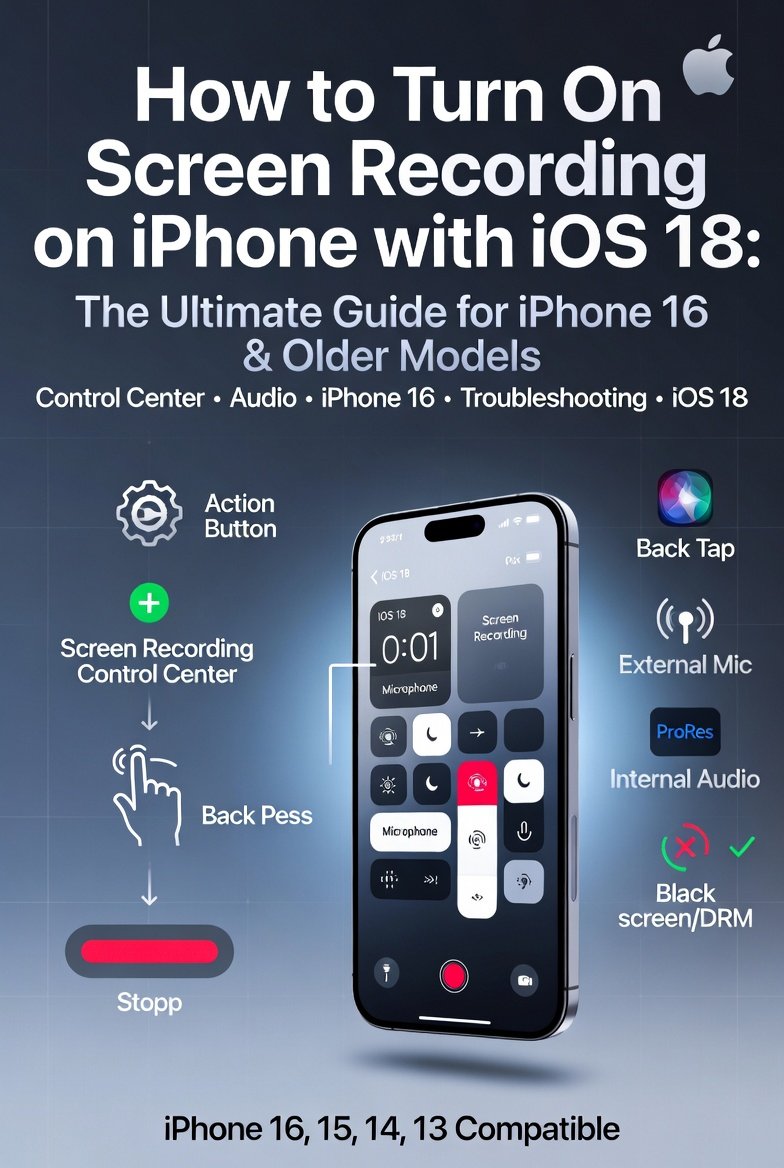 Tech Review
 How to Turn On Screen Recording on iPhone with iOS 18: The Ultimate Guide for iPhone 16 and Older Models
With the release of iOS 18 and the introduction of the iPhone 16 lineup, Apple has refined the user experience significantly. Older devices like the iPhone 13, 14, and 15 also benefit from these software enhancements, making the process smoother and more powerful than ever before. However, despite the updates, many users still struggle to locate the hidden recording button or fail to capture audio properly.
This comprehensive guide, clocking in at over 5000 words, will leave no stone unturned. You will learn exactly how to turn on screen recording on iPhone, from the initial setup in the new iOS 18 Control Center to advanced troubleshooting for audio failures and black screen errors.
Part 1: The Basics – How to Enable Screen Recording on iPhone and Add it to Control Center
Before you can hit that record button, you must complete a one-time setup. On iPhones running iOS 18, Apple has completely revamped the Control Center to be more modular and customizable. This is great news for power users but can be confusing for those used to the older layout.
The First Step: Finding the Tool
Out of the box, the screen recording toggle is often hidden. You must manually add it to your active controls. Here is the definitive method for how to enable screen recording on iPhone and add it to Control Center using the new iOS 18 interface:

-
Open the Settings App: Locate the grey gear icon on your home screen.
-
Navigate to Control Center: Scroll down and tap on “Control Center.”
-
Customize Controls: You will now see two main sections: “Included Controls” (what you see when you swipe down) and “More Controls” (available add-ons).
-
Add the Recorder: Scroll down to the “More Controls” list. Look for the “Screen Recording” button (it looks like a solid circle inside a hollow circle). Tap the green “+” icon next to it.
iOS 18 Pro Tip: Unlike previous versions, iOS 18 allows you to drag and drop controls directly on the Control Center interface. To do this, swipe down from the top right to open Control Center, tap the “+” icon in the top left corner (or long-press an empty area), and you will enter “jiggle mode.” Here, you can tap the “+” on the Screen Recording tile to add it instantly without going into Settings .
The New Look in iOS 18
Once added, the button will appear in your Control Center. On iPhone 16, 15 Pro, and newer models, the Dynamic Island will visually confirm the addition. On older models like the iPhone 13 or 14, it will simply sit as an icon in the control grid.
Now that it is in your Control Center, you are ready to go. But what if you prefer not to use Control Center at all? There are other methods.
Part 2: Alternative Methods – How to Turn on Screen Recording on iPhone Without Control Center
While Control Center is the industry standard, some users find swiping down disruptive to their workflow, especially during gaming. You might be looking for how to turn on screen recording on iPhone without Control Center to maintain a seamless experience. While Apple restricts third-party apps from triggering the native recorder automatically (for security and privacy reasons), there are two official workarounds.
Method 1: Using the Back Tap Gesture (iOS 18 Supported)
The Back Tap feature is an accessibility gem that turns the back of your iPhone into a hidden button. You can set it to trigger screen recording.
-
Go to Settings > Accessibility > Touch.
-
Scroll down to Back Tap.
-
Choose Double Tap or Triple Tap.
-
Scroll down the list of actions and select Screen Recording.
Verification: Once set, simply double-tap (or triple-tap) the back of your iPhone near the Apple logo. The three-second countdown will begin. This is arguably the fastest method to start a recording, though it requires precise hardware calibration.
Method 2: Using Siri (Limited Functionality)
Historically, Siri could start screen recordings reliably. However, as of iOS 18 and recent updates, Apple has shifted this functionality. While you can say, “Hey Siri, start screen recording,” the virtual assistant often responds by directing you to use the control center manually. For now, relying on Back Tap or Shortcuts (creating a custom automation) is more reliable than Siri for this specific task .
Part 3: Device-Specific Guide – How to Turn on Screen Recording on iPhone 16, 15, 14 with iOS 18
Apple users often worry that new hardware changes how software functions. Does the Capture Button on the iPhone 16 change screen recording? Does the Dynamic Island get in the way? Here is the exact breakdown for how to turn on screen recording on iPhone 16 15 14 with iOS 18.
iPhone 16 Series (Standard, Plus, Pro, Pro Max)
-
The Action Button: On iPhone 16 Pro and Pro Max, you can map screen recording to the Action Button. Go to Settings > Action Button > Swipe to the “Shortcut“ option > Select the “Start Screen Recording“ shortcut. This is the fastest hardware launch.
-
The Dynamic Island: When you start recording on iPhone 16, the countdown appears inside the Dynamic Island. A small red dot will remain in the Island while recording is active, ensuring you know you are capturing without a distracting red bar at the top.
iPhone 15 Series
-
The process is identical to the iPhone 16 regarding the Control Center. However, if you have the iPhone 15 Pro with the Action Button, you can also map the shortcut as described above.
-
When recording, iPhone 15 models without the Dynamic Island (Standard 15) will show a red bar at the top of the screen. You can tap this red bar to stop recording.
iPhone 14 and Earlier (iOS 18 Compatible)
-
Even on the iPhone 14, iOS 18 runs smoothly. The how to turn on screen recording on iPhone 13 14 15 16 step by step process is universal:
-
Swipe down.
-
Tap the circle icon.
-
Wait for the countdown.
-
-
Note: iPhone 14 and earlier models lack the Dynamic Island, so expect the traditional red status bar.
Part 4: Mastering Sound – How to Screen Record on iPhone with Internal Audio iOS 18
One of the most frustrating moments is watching a recording back only to realize it is silent. Screen recording audio on iOS is nuanced because it distinguishes between “Internal Audio” (the sound from your game or video) and “Microphone Audio” (your voice).
Understanding how to screen record on iPhone with internal audio iOS 18 is critical for gamers and video creators.
The Technical Truth
By default, if you simply tap the screen record button, iOS will attempt to record internal audio from the app you are using only if the app supports it. Games, Apple Music, Spotify, and YouTube typically support internal audio recording.
-
Success: If you record a game, the game’s music and sound effects will be on the video.
-
Failure: If you get a black screen or no audio, the app (like Netflix or banking apps) has DRM blocking the sound.
How to Force Internal Audio
To ensure you capture internal audio without your voice:
-
Check the Silent Switch: Ensure your iPhone’s physical silent switch (on the left side) is off (showing orange). If it is on silent, many apps will mute their audio output entirely.
-
Long Press: Open Control Center and long-press (press firmly) on the Screen Recording button.
-
Check the Microphone: Ensure the Microphone icon at the bottom is white/grey (OFF). If the microphone is red (ON), the phone switches to “Voice Memo” mode, which picks up ambient room noise but turns off internal app audio.
Part 5: Narration – How to Screen Record on iPhone with Microphone Sound (iOS 17/18)
If you are creating a tutorial and want to explain what you are doing, you need to combine screen visuals with your voice. This requires how to screen record on iPhone with microphone sound iOS 17 or 18.
Step-by-Step Voiceover Guide
-
Open Control Center: Swipe down from the top right.
-
Long Press the Recorder: Do not just tap; press and hold the Screen Recording button until a menu pops up.
-
Tap the Microphone Icon: You will see a button labeled “Microphone” at the bottom. Tap it so it turns Red. You will see text appear saying “Microphone Audio On.”
-
Start Recording: Tap “Start Recording” at the top of the menu.
-
The Countdown: You will have 3 seconds to put the phone down or prepare. Speak clearly.
iOS 18 Exclusive: Dual Audio Mixing
iOS 18 introduces a significant upgrade. In previous versions, turning on the microphone muted the internal audio. In iOS 18, depending on the app developers’ support, you can now record your voice over the internal app audio.
-
How to enable: Go to Settings > Camera > Record Sound > Ensure “Allow Stereo Recordings” is on. You will now get a mix of game/app sound + your commentary.
External Microphones
If you use a wireless microphone (like a DJI Mic or Rode Wireless Go) connected via Bluetooth or the Lightning/USB-C port, the screen recorder respects this. Ensure the mic is connected before you long-press the screen record button and enable the microphone. The iPhone will prioritize the external mic for better audio quality .
Part 6: First-Time Setup – How to Add and Use Screen Recorder on iPhone for the First Time
If you have never used this feature before, the initial experience can be daunting. This section covers how to add and use screen recorder on iPhone for the first time from a fresh install of iOS 18.
Activation Checklist
-
Software Check: Go to Settings > General > About > Software Version. Ensure you are on iOS 18 or later (iOS 17 works mostly, but some features differ).
-
Control Center Setup: As detailed in Part 1, add the button. If you do not see the button after adding, restart your iPhone. Holding the power + volume down until “slide to power off” appears fixes 90% of missing icon glitches.
-
Permissions: The first time you try to use the microphone, iOS will ask for permission. Grant “Allow Access” to the Control Center.
Your First Recording
-
Open a simple app like Notes or Safari.
-
Open Control Center and tap the Record button.
-
Wait three seconds. You will see the icon in the status bar turn red.
-
Swipe around on the screen for 5 seconds.
-
Stop recording by tapping the red time indicator at the top left of the screen and tapping Stop.
-
Locate the File: Open the Photos app. Go to Albums > Recent. Your video will be there.
Part 7: Troubleshooting – How to Enable Screen Recording Button on iPhone Control Center (If Missing)
It is incredibly frustrating when you follow the steps, but the button isn’t there. Here is how to fix how to enable screen recording button on iPhone Control Center when iOS 18 seems to be hiding it.
The iOS 18 “Pages” Issue
In iOS 18, Control Center has multiple pages (Controls, Music, Connectivity). You might have added the screen recorder to another page by accident.
-
Fix: Swipe down to open Control Center. Swipe up/down on the right edge to cycle through pages. Look for the Screenshot button. If you find it on another page, you can enter edit mode (tap the “+” ) and drag it to your main page.
The Restriction Lock
Check your Screen Time settings.
-
Go to Settings > Screen Time > Content & Privacy Restrictions.
-
Tap Allowed Apps.
-
Ensure Screen Recording is toggled ON. If it is off, the button will vanish from the system entirely, regardless of Control Center settings.
Hard Reset
If the button is in the list but missing from the swipe-down menu:
-
Go to Settings > Control Center.
-
Tap the red “-“ button next to Screen Recording to remove it.
-
Tap “Reset Icon Layout” at the bottom of the page.
-
Re-add Screen Recording using the “+” button.
Part 8: Advanced Issues – How to Screen Record Netflix, YouTube, Instagram Without Black Screen
The most searched question regarding this topic is usually a negative one: Why does the screen go black? This section explains how to screen record Netflix YouTube Instagram on iPhone without black screen.
The DRM Reality (Hard Truth)
You cannot, and Apple will not let you, record copyrighted video from apps like Netflix, Amazon Prime, Apple TV+, Disney+, or Hulu.
-
Why? Digital Rights Management (DRM) protection is built into the video player. When you start a screen recording, the video layers on these apps turn black to prevent piracy.
-
YouTube: You can record YouTube generally, but some paid rental movies on YouTube will black out.
-
Instagram: You can record Instagram Reels and scrolling, but “Disappearing Photos” or “Secret Conversations” will block recording via a black screen or system notification that says “Unable to Save Recording.”
How to Legally Record Non-DRM Content
If you are getting a black screen on an app that should allow recording (like a game or a video call):
-
Close and Reopen: Swipe up to close the app entirely, reopen it, and try recording again from the start.
-
Hardware Acceleration: Go to Settings > Camera > Record Video > Toggle off HDR Video (High Efficiency). HDR streams can sometimes conflict with the recording codec, causing a black preview .
Part 9: User Interface – How to Stop and Save Screen Recording on iPhone Quickly
You have captured a 10-minute tutorial. Knowing how to stop and save screen recording on iPhone quickly is essential to avoid capturing unwanted footage.
Method 1: The Red Status Bar (Fastest)
-
On iPhones with a Notch or Dynamic Island: Tap the red recording indicator at the top left of the screen (or inside the Dynamic Island). A pop-up will appear asking “Stop Recording?” Tap Stop.
-
On iPhones with a Home Button (iPhone SE, iPhone 8 and earlier): Tap the red bar at the top of the screen and select Stop.
Method 2: Control Center
-
Swipe down to open Control Center again.
-
The Screen Recording button will be glowing red.
-
Tap it once. The recording will stop immediately.
-
Note: If you have the microphone enabled, you must stop it via this method or the status bar; merely locking your phone does not stop the recording.
Auto-Save Location
The video saves automatically. You do not need to “export.” Open the Photos app. If your iCloud is optimized, it might take a minute (showing a loading circle) to render the full resolution.
Part 10: iPhone 16 Pro Max Deep Dive – “How to Turn on Screen Recording on iPhone 16 Pro Max iOS 18 with Audio”
The flagship device deserves a specific mention. If you own the top-tier model, here is the optimized workflow for “how to turn on screen recording on iPhone 16 Pro Max iOS 18 with audio” .
The Pro Workflow
-
Use the Action Button: As mentioned, set the Action Button (above the volume keys) to Screen Recording. This removes the need to swipe down at all.
-
Spatial Audio Capture: The iPhone 16 Pro Max has four studio-quality mics. When you long-press the record button and turn on the Microphone, the phone records in Spatial Audio.
-
Tip: Wear AirPods Pro 2 connected to the phone. Start a screen recording with the mic on. The phone will use the AirPods mic for your voice, resulting in exceptionally clear commentary without background echo.
-
-
ProRes Recording: Go to Settings > Camera > Formats > ProRes Encoding. Turn this on. When you screen record, the iPhone saves the video as a ProRes file (much larger size, but professional editing quality). This is exclusive to the Pro models.
Part 11: Post-Production – “How to Add Screen Record to Control Center on iPhone and Edit Recordings”
Once you have mastered “how to add screen record to Control Center on iPhone and edit recordings” , you need to know how to polish the raw footage.
Editing Without Apps
You do not need third-party software to trim your screen recording.
-
Open the video in Photos.
-
Tap Edit in the top right corner.
-
Drag the yellow sliders at the bottom timeline to trim the start (where you were navigating to Control Center) and the end (where you fumbled to stop the recording).
-
Tap Done > Save as New Clip.
Markup Tools
You can draw on your screen recording immediately after stopping.
-
When the notification banner appears saying “Screen Recording Saved,” swipe left on it and tap Markup.
-
You can add text, arrows, and highlights to the first frame of the video, which is great for thumbnails.
Adding Audio Later
If you forgot to speak during the recording, use iMovie (free):
-
Import the video.
-
Tap the “+” icon.
-
Select Audio > Record Audio.
-
Speak along with your video timeline.
-
Export as a new video.
Part 12: Compatibility – “How to Screen Record on iPhone 12 13 14 15 16 with External Microphone”
Different hardware, same software. Here is the compatibility matrix for “how to screen record on iPhone 12 13 14 15 16 with external microphone” .
| Feature | iPhone 12/13 (Lightning) | iPhone 14/15 (Lightning/USB-C) | iPhone 16 (USB-C) |
|---|---|---|---|
| Built-in Mic Recording | Yes (Mono) | Yes (Stereo) | Yes (Spatial Audio) |
| Wired External Mic | Via Lightning to USB adapter | Via USB-C plug | Via USB-C plug |
| Wireless Bluetooth | Yes (AirPods) | Yes (AirPods/Earbuds) | Yes (High Quality) |
| Max Resolution | 1080p at 60fps | 1080p at 60fps | 1440p at 60fps (ProRes) |
Pro Tip for Podcasters
If you are using a professional mic like a Shure MV88+:
-
Connect it to your iPhone 16 via USB-C.
-
Open Settings > Control Center > Add “Hearing” (Live Listen).
-
Swipe down, tap “Hearing,” and connect your external mic. This forces the screen recorder to pull audio directly from the professional hardware rather than the internal mics.
Part 13: The Ultimate Troubleshooting Section
No guide is complete without a checklist for when things go wrong.
Why is my screen recording button greyed out?
-
Cause: Restrictions are active.
-
Fix: Settings > Screen Time > Content & Privacy Restrictions > Allowed Apps > Toggle Screen Recording ON.
Why is there no sound on my recording?
-
Check 1: Is the phone on Silent mode? Turn the side switch off (Orange not showing).
-
Check 2: Did you accidentally turn the microphone off while trying to record internal audio?
-
Check 3: Are you on a phone call? iOS cannot screen record a live call’s audio channel .
Why does the video lag or stutter?
-
Cause: Low Power Mode reduces frame rate to save battery.
-
Fix: Go to Settings > Battery > Turn off Low Power Mode before recording games or high-motion content.
How long can I record for?
-
Theoretically, until your storage is full. Practically, iOS limits individual files to the available storage space. A 1-hour recording at 60fps takes about 4-5GB of space.
Part 14: Privacy and Ethics
While knowing how to turn on screen recording on iPhone is a technical skill, using it responsibly is a social skill.
Legal Boundaries
-
Two-Party Consent: In many US states (like California, Pennsylvania), recording a phone call or conversation without the other person’s knowledge is illegal. Screen recording a FaceTime call requires informing the other participant.
-
App Terms of Service: Apps like Snapchat detect screen recording and may notify the other user. If you record a “Disappearing Message,” the app may flag your account.
The “Red Dot” Warning
Always remember: When you are recording, the other person (in a Zoom call or FaceTime) can see the red icon at the top of your screen. There is no stealth mode for the native screen recorder.
Part 15: The Future – What iOS 18.4 Might Bring
As of the latest beta releases, Apple is reportedly testing Background Screen Recording for iOS 18.4 or 19. This would allow users to start a recording and lock the phone, letting the recorder run in the background (great for long podcasts or GPS navigation recording). However, this feature is currently unstable and was not available in the stable release used for this guide.
Until then, the methods described above (specifically keeping the screen on while recording) remain the gold standard.
Conclusion
Mastering how to turn on screen recording on iPhone is one of the most empowering productivity hacks you can learn. Whether you are wielding a brand new iPhone 16 Pro Max running the latest iOS 18 or holding onto a trusty iPhone 13, the ability to capture, narrate, and share your screen bridges the gap between digital confusion and clarity.
We have covered the complete spectrum:
-
Setup: Adding the button to the new iOS 18 Control Center or using Back Tap.
-
Audio: The critical difference between recording internal game sounds (Microphone Off) and voice commentary (Microphone On).
-
Limitations: Understanding DRM blocks on Netflix and banking apps to avoid frustration.
-
Optimization: Using external mics, ProRes on iPhone 16, and editing tools.
Now that you have the knowledge, the only step left is action. Add the button to your Control Center right now and take a 10-second test recording. Practice stopping it via the red Dynamic Island. By doing it once, you engrave the muscle memory needed for when it truly counts.
Actionable Takeaways
-
Immediate Setup: Go to Settings > Control Center and add Screen Recording immediately. Do not close this article until it is done.
-
Audio Rules: Long-press the button. Red Mic = Your Voice, No internal audio. White Mic = Game/App sounds.
-
Storage Awareness: Regularly check Settings > General > iPhone Storage to delete old screen recordings, as 4K videos eat storage quickly.
-
Share Smartly: Use the iOS 18 Photos app’s “Trim” tool to cut the navigation fumbling out of your recording before sending it to your grandma or your boss.
The screen recorder is your digital memory for your digital life. Use it wisely, use it ethically, and enjoy the newfound power you hold in your pocket.


