
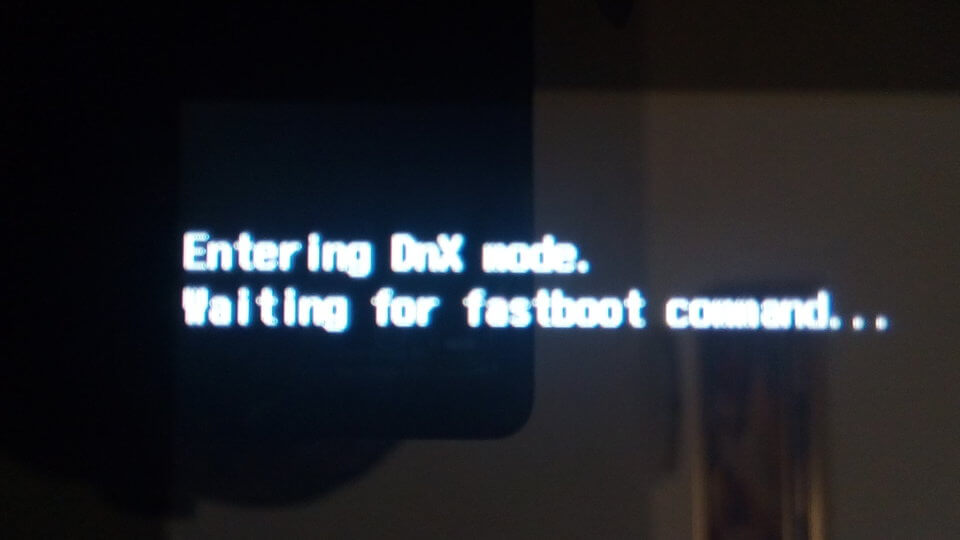
You press the power button on your tablet or smartphone, eager to check your messages or browse the web. But instead of your familiar home screen, a black screen appears with a cryptic message: “Entering DNX mode. Waiting for fastboot command….”
If this scenario sounds familiar, don’t panic. You’re not alone, and more importantly, your device is not necessarily broken beyond repair. This error screen is actually a specialized diagnostic mode found on many Android devices, particularly those with Intel processors.
This comprehensive guide will walk you through everything you need to know about the entering dnx mode waiting for fastboot command message. You’ll learn what DNX mode actually is, why your device is stuck there, and most importantly—how to fix it. By the end, you’ll have a clear action plan to rescue your device and prevent this from happening again.
 Also readiPhone Duo Sells Out: Prices, Wait Times and Resale Risks Every Buyer Should Know
In this article
Understanding DNX Mode: What Is It Really?
Before diving into solutions, it’s helpful to understand exactly what DNX mode is and why it exists.
The Definition of DNX Fastboot Mode
DNX stands for “Download and Execute.” The entering dnx mode waiting for fastboot command screen indicates that your device has entered a low-level recovery state typically found on Android devices powered by Intel processors (such as Intel Atom, Bay Trail, or Cherry Trail chipsets).
Think of DNX mode as a “waiting room” for your device. When normal startup fails, the device enters this mode and waits for instructions—specifically Fastboot commands—from a connected computer. The message is essentially your device saying, “I can’t start normally, so I’m waiting for you to tell me what to do next.”
How DNX Mode Differs from Standard Fastboot Mode
Many Android users are familiar with standard Fastboot mode, which is used for unlocking bootloaders and flashing custom ROMs. However, DNX Fastboot mode is different:
| Feature | Standard Fastboot | DNX Fastboot Mode |
|---|---|---|
| Processor Support | Qualcomm, MediaTek, Exynos | Intel-based only |
| Access Level | Bootloader-level access | Deeper hardware-level access |
| Primary Use | Flashing ROMs, unlocking bootloader | Repairing corrupted firmware, restoring bricked devices |
| Availability | Widely available on most Android devices | Found only on Intel-powered devices |
The entering dnx mode waiting for fastboot command state operates at a deeper technical level than standard Fastboot. It allows technicians and advanced users to repair or flash firmware that standard recovery options cannot access.
Which Devices Are Affected?
The entering dnx mode waiting for fastboot command message appears primarily on Intel-based Android devices. You’re most likely to encounter it on:
-
Intel-powered Android tablets from brands like Asus, Lenovo, Chuwi, Acer, and Teclast
-
Xiaomi Mi Pad 2 (which uses an Intel Atom processor)
-
Surface 3 (in some cases)
-
Dual-OS tablets that run both Windows and Android
-
Various Android devices with Intel Atom or Z-series chipsets
If your device uses a Qualcomm Snapdragon or MediaTek processor, you’ll typically see different error messages. The entering dnx mode waiting for fastboot command screen is specifically tied to Intel hardware architecture.
Why Is Your Device Stuck on That Screen?
Understanding the root cause helps determine the right fix. Here are the most common reasons why devices become trapped displaying entering dnx mode waiting for fastboot command:
Accidental Button Combinations
The most common and least alarming cause is simply pressing the wrong button combination during startup. On many Intel-based devices, holding Volume Down + Power or Volume Up + Volume Down + Power simultaneously during boot triggers DNX mode.
This can happen accidentally:
-
If buttons get pressed while the device is in a bag or pocket
-
If physical buttons are stuck due to dirt or debris
-
During an automated restart process
Failed or Interrupted Firmware Flashing
If you were attempting to flash firmware using tools like Intel Platform Flash Tool, XFSTK, or Manufacturing Flash Tool, an interruption during the process can leave your device stuck in DNX mode.
Common interruptions include:
-
The USB cable becoming disconnected
-
The computer losing power
-
The software crashing mid-operation
-
An incompatible firmware file being used
Corrupted System Files or Bootloader
More serious cases involve corruption of critical system components. When the bootloader or IFWI (Intel Firmware Interface) becomes corrupted—often during Android ROM modification attempts—the device defaults to DNX mode as a safety measure.
Research has shown that corruption of the IFWI in SPI Flash during ROM modification attempts can leave a device only able to enter DNX mode, offering only a minimal fastboot endpoint.
Driver or USB Connectivity Issues
Sometimes the problem isn’t with the device itself but with the connection between your device and computer. Missing or incorrect drivers, faulty USB cables, or problematic USB ports can prevent your PC from properly communicating with the device, leaving it stuck on the entering dnx mode waiting for fastboot command screen while it waits for commands that never arrive.
Accidental System Updates Gone Wrong
A system update that fails mid-installation can also trigger DNX mode. If an official or custom update is interrupted by a power loss or other disturbance, the device may be left in an incomplete state, defaulting to DNX mode as a fallback.
7 Proven Methods to Fix the “Entering DNX Mode” Error
Now for the part you’ve been waiting for—the solutions. Try these methods in order, from simplest to most advanced.
Method 1: The Force Restart (Quickest Fix)
Often, the entering dnx mode waiting for fastboot command message is just a temporary glitch that a simple force restart can clear. Here’s how:
-
Press and hold the Power button for 20–30 seconds continuously
-
Don’t release even if the screen goes blank
-
After about 30 seconds, the device should power off completely
-
Wait 10 seconds, then press the Power button normally to restart
If the device still shows the same message, try this combination:
-
Press and hold Power + Volume Down for 20 seconds
-
Release both buttons when the screen goes dark
-
Attempt a normal restart
Many users have reported that a 30-second power button hold successfully resolved the issue when nothing else worked.
Method 2: Correct Button Combo to Exit DNX Mode
The same button combination that accidentally triggered DNX mode can often exit it. Try these combinations in order:
Combination 1:
-
Press and hold Volume Up + Power for 10–15 seconds
Combination 2:
-
Press and hold Volume Down + Power for 10–15 seconds
Combination 3 (for dual-boot or stubborn devices):
-
Press and hold Volume Up + Volume Down + Power simultaneously until the screen changes
When you see the message “DNX fastboot request is received… please release the button combo,” release all buttons immediately.
Method 3: Enter Recovery Mode
If your device supports it, booting into Recovery Mode can allow you to perform a factory reset:
-
Power off the device completely
-
Press and hold Volume Up
-
While holding Volume Up, press and hold the Power button
-
Release the Power button when the manufacturer logo appears, but keep holding Volume Up
-
Release Volume Up when the Recovery screen appears (green Android robot with exclamation mark)
-
From Recovery Mode, select “Wipe data/factory reset”
Warning: This will erase all data on your device. Only proceed if you have backed up your important files.
Method 4: Install Correct USB Drivers
If the entering dnx mode waiting for fastboot command screen persists, your computer may not have the proper drivers to communicate with your device. This is especially common with Windows computers.
For Windows users:
-
Download and install the Intel USB Driver for Android Devices from the official Intel website
-
Connect your device to your PC via USB
-
Open Device Manager (right-click Start button)
-
Look for your device under “Other devices” or “Portable devices”
-
If you see a yellow exclamation mark, the driver isn’t installed properly
-
Right-click the device and select “Update driver”
-
Choose “Browse my computer for drivers” and point to the Intel driver folder
A properly configured driver setup will recognize the device with VID_8087 and PID_0A65 identifiers, allowing Fastboot commands to be received.
For checking driver installation on Motorola devices specifically: Open Device Manager and look for “Android ADB Interface – Motorola ADB Interface.” If you see a yellow “Fastboot” icon with an exclamation, the driver needs to be installed.
Method 5: Use Fastboot Commands from PC
Once drivers are properly installed, you can use Fastboot commands to exit DNX mode:
Prerequisites:
-
Download and install ADB and Fastboot tools on your computer
-
Enable USB debugging if possible (though this may not be accessible)
Steps:
-
Open a command prompt or terminal window in the folder where ADB/Fastboot is installed
-
Connect your device to the computer while it shows the entering dnx mode waiting for fastboot command screen
-
Type
fastboot devicesand press Enter—your device should appear -
Type
fastboot rebootand press Enter to restart the device
If the fastboot devices command shows your device, you have a connection. If it doesn’t, revisit Method 4 for driver troubleshooting.
For Xiaomi Mi Pad 2 devices specifically: if the device is stuck in DNX mode but recognized by Fastboot, you can try fastboot oem verified to return the bootloader to verified mode.
Method 6: Reflash the Stock Firmware
For more serious cases where the device remains stuck displaying entering dnx mode waiting for fastboot command, reflashing the stock firmware may be necessary.
For Chuwi, Teclast, and similar Intel tablets:
-
Download the official stock firmware for your exact device model
-
Install Intel Platform Flash Tool or Manufacturing Flash Tool
-
Boot the device into DNX mode (use the button combination described earlier)
-
Connect the device to your PC
-
Open the flashing tool and load the firmware files
-
Select “flash” or “flash_no_erase_all” option
-
Start the flashing process and wait for completion
Important: Do not disconnect the USB cable or interrupt the flashing process once it begins. Any interruption could worsen the situation.
Method 7: Advanced Recovery with xFSTK (For Intel Atom Devices)
For Intel Atom Bay Trail or Cherry Trail devices that won’t respond to other methods, the xFSTK tool offers a deeper recovery option:
-
Download the xFSTK flash tool and the correct firmware files for your device
-
Install Intel Android Driver version 1.7.3 (specific version known to work)
-
Power off the device completely
-
Press and hold the appropriate volume button(s) while connecting the USB cable
-
Launch xFSTK and attempt to flash the IFWI and firmware images
This method is advanced and should only be attempted if you have technical experience. For most users, Methods 1-5 should resolve the issue.
Quick Troubleshooting Reference Table
| Symptom | Likely Cause | Suggested Fix |
|---|---|---|
| Device stuck after accidental button press | Unintentional key combination | Method 1 or 2 |
| Problem started after failed update | Corrupted system files | Method 3 (factory reset) |
| Device not recognized by computer | Missing or incorrect drivers | Method 4 |
| Fastboot doesn’t see connected device | USB cable or port issue | Change USB cable/port |
| Only appears when connecting to computer | USB miscommunication | Method 4 and 5 |
Prevention: How to Avoid Future DNX Mode Issues
Once you’ve successfully resolved the entering dnx mode waiting for fastboot command error, follow these best practices to avoid recurrence:
Keep Your System Updated
Install official updates as soon as they become available. Interrupted or outdated software is one of the leading causes of the entering dnx mode waiting for fastboot command error.
Be Careful with Button Presses During Startup
Learn your device’s correct startup button combination. On most devices, a simple short press of the Power button is sufficient for normal startup. Avoid holding multiple buttons simultaneously unless you intentionally want to access special modes.
Use Quality USB Cables
When connecting your device to a computer for flashing or file transfers, always use high-quality USB cables. Poor-quality cables can cause connection drops that trigger DNX mode.
Avoid Unauthorized Modifications
Unless you have advanced technical knowledge and understand the risks, avoid installing custom ROMs or modifying system software on Intel-based devices.
Perform Regular Backups
Regular backups ensure you won’t lose important data even if you need to perform a factory reset to exit DNX mode.
When to Seek Professional Help
While most cases of the entering dnx mode waiting for fastboot command error can be resolved at home, some situations warrant professional assistance:
-
If none of the methods above work after multiple attempts
-
If the device doesn’t respond to any button combinations
-
If you see error codes like “ER04 – SecurityInit” during recovery attempts
-
If the device is still under warranty (don’t void it by attempting advanced fixes)
Expert Tips for Advanced Users
-
Verify Fastboot Compatibility: Not all Intel devices respond to standard Fastboot commands. The DNX mode provides an extremely minimal fastboot endpoint where only basic commands like
fastboot devicesmay work. -
Use the Correct Flashing Tools: Different Intel platforms require different flashing utilities:
-
Intel Platform Flash Tool for general use
-
Manufacturing Flash Tool for Bay Trail devices
-
xFSTK for deeper firmware recovery
-
-
Check USB Port Compatibility: Some USB 3.0 ports can cause communication issues with older Intel devices. Try using a USB 2.0 port if available.
Conclusion
Encountering the entering dnx mode waiting for fastboot command screen can be alarming, but in most cases, it’s a recoverable situation rather than a permanent device failure.
To recap, here are your key takeaways:
Start with the simplest fixes: A 20-30 second forced restart resolves many cases. The correct button combination (Power + Volume Up/Down) is often all you need.
When simple fixes fail, check your drivers. Most recognition issues stem from incorrect or missing USB drivers on your computer.
Factory reset through Recovery Mode is your next best option if software corruption is the culprit.
Advanced users can use Fastboot commands or reflash firmware using manufacturer-provided tools.
Prevention is better than cure. Regular backups, careful button handling, and avoiding risky modifications will keep your device running smoothly.
Most importantly, don’t give up on your device too quickly. The entering dnx mode waiting for fastboot command message, while frustrating, is often a sign that your device is still alive and waiting for instructions—not permanently dead.
