Introduction
High-quality audio plays a vital role in maintaining focus during virtual meetings, enjoying music while commuting, or immersing yourself in creative projects on your Apple device. Whether you own a MacBook Pro, MacBook Air, or iMac, pairing premium wireless headphones can elevate your daily experience significantly. One popular choice among professionals is learning bose headphones to mac connection methods, which deliver exceptional noise cancellation and rich sound without complicated setups. This guide provides everything you need to know, from basic pairing to advanced optimization, ensuring reliable performance across different models and macOS versions.
Bose headphones stand out for their innovative engineering, comfortable fit, and long battery life, making them ideal companions for busy professionals who rely on their Mac for hours each day. By the end of this detailed tutorial, you will confidently connect your headphones, troubleshoot any issues, and maximize audio quality for both personal and business use. We will cover compatibility, step-by-step processes for various models, common problems with solutions, and expert tips to enhance your workflow.
Understanding Compatibility Between Bose Headphones and Mac Devices
Before diving into the connection process, it is essential to verify compatibility. Most Bose wireless headphones and earbuds support Bluetooth 5.0 or higher, which aligns perfectly with modern Mac devices running macOS Ventura, Sonoma, Sequoia, or later versions available in 2026. This ensures stable connections with minimal latency, even during video conferences or music streaming.

Popular models like the QuietComfort series, QuietComfort Ultra, and SoundLink headphones work seamlessly with Apple silicon chips in MacBooks and iMacs. Earbuds such as Bose QuietComfort Earbuds II also pair effortlessly. Older Mac models with Bluetooth 4.0 may experience slightly reduced range, but they still function well for most users.
Always check your Mac’s Bluetooth version by going to the Apple menu > About This Mac > System Report > Bluetooth. Bose devices do not require special drivers on macOS, as the operating system handles Bluetooth audio natively. However, keeping your macOS and headphone firmware updated through the Bose Music app (on a mobile device) or Bose support website guarantees the best results.
For business users, this compatibility means uninterrupted Zoom calls, clear podcast listening, or focused work sessions with ambient noise blocked out. If you frequently switch between devices, Bose multi-point connectivity allows pairing with your Mac and smartphone simultaneously.
Preparing Your Bose Headphones and Mac for Connection
Preparation prevents most common issues. Start by charging your Bose headphones fully using the provided USB-C cable. A full charge typically takes around two hours and provides up to 24-30 hours of playback, depending on the model and noise cancellation usage.
On your Mac, ensure Bluetooth is enabled. Click the Apple logo in the top-left corner, select System Settings (or System Preferences on older macOS), and navigate to Bluetooth. Toggle it on if it is not already active. Keep your Mac within 30 feet of the headphones for a strong initial signal.
Remove any previously paired devices that might interfere by selecting them in the Bluetooth menu and choosing “Forget This Device.” Restart both your headphones and Mac for a clean slate. If your Bose model uses the Bose Music or Bose Connect app, install it on your iPhone or iPad first to update firmware, even though the primary connection happens directly via Bluetooth on Mac.
Step-by-Step Guide: Connecting Over-Ear Bose Headphones to Your Mac
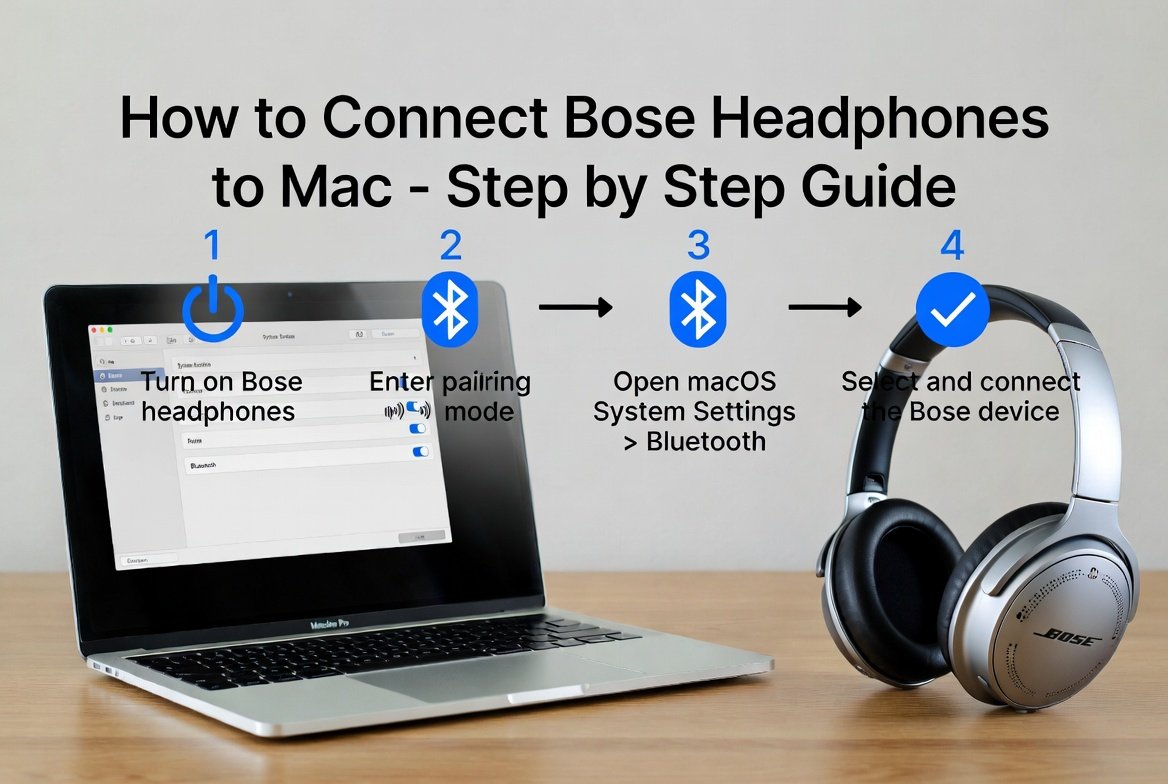
Connecting over-ear models like the Bose QuietComfort 45, QuietComfort Ultra, or SoundLink is straightforward. Here is the detailed process:
- Power on your headphones: Press the power button on the right earcup. You will hear a voice prompt confirming the device is on.
- Enter pairing mode: Slide the Power/Bluetooth switch to the right and hold for about three seconds (for most QuietComfort models) until you hear “Ready to connect” and see the status light blinking blue. For QuietComfort Ultra models, press and hold the Bluetooth/Power button until the light blinks.
- Access Mac Bluetooth settings: Go to Apple menu > System Settings > Bluetooth. Your Mac will scan for nearby devices.
- Select your headphones: Look for your Bose model name (e.g., “Bose QC Ultra” or “Bose QuietComfort 45”) under “Nearby Devices” or “Other Devices.” Click “Connect.”
- Confirm connection: You should hear “Connected to [your Mac name]” from the headphones. The status light will turn solid blue.
To set the headphones as your default audio output, go to System Settings > Sound and select them from the output list. Test the connection by playing some audio or joining a call.
This process works identically on MacBook Air, MacBook Pro, and iMac models. The entire setup usually takes under one minute once you are familiar with it.
Connecting Bose Earbuds to Mac: Model-Specific Instructions
Bose earbuds, including QuietComfort Earbuds and Sport Earbuds, follow a similar but slightly adjusted routine due to their compact design.
Open the charging case and remove the earbuds. Press and hold the Bluetooth button inside the case (or on the earbuds themselves for certain models) for about 10 seconds until you hear the pairing prompt and the lights flash.
On your Mac, repeat the Bluetooth settings navigation as described earlier. Select the earbuds from the list and connect. Many users appreciate the touch controls on Bose earbuds for quick volume adjustments or call management directly from the Mac interface.
For models with multipoint pairing, you can connect to your Mac while keeping a secondary link to your phone active, perfect for professionals who handle calls across devices.
Troubleshooting Common Connection Issues
Even with straightforward Bluetooth technology, occasional hiccups can occur. Here are proven solutions: