In this article
- What Is Downloaderto?
- How Downloaderto Works
- Why People Use Online Video Downloaders
- Downloaderto Features to Understand
- Downloaderto and Video Quality
- Downloaderto vs. Other Download Methods
- Comparison Table: Download Methods
- How to Use Downloaderto Step by Step
- How to Download More Safely
- What to Do When a Browser Blocks a Download
- Mobile vs. Desktop Downloading
- Pros and Cons of Downloaderto
- Is Downloaderto Safe to Use?
- Copyright and Responsible Downloading
- Frequently Asked Questions
- Key Takeaways
- Recommended Resources
- Conclusion
What Is Downloaderto?
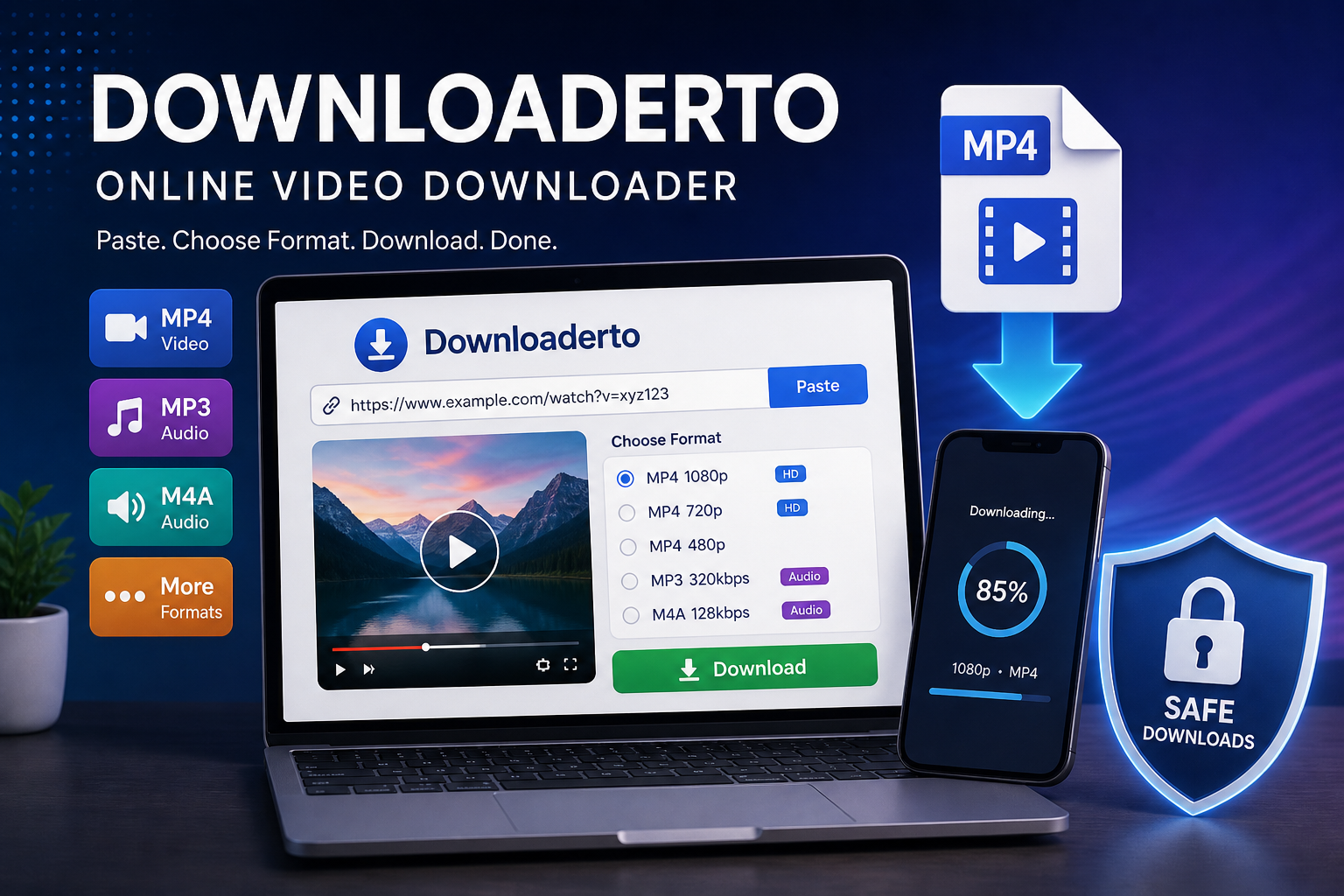
If you’ve ever wanted to save an online video for legitimate offline use, you’ve probably encountered browser-based video download tools. Downloaderto is a name used for an online video-downloading service that lets users paste a video URL and select from available output formats.
The service currently presents itself as a browser-based tool rather than traditional software that needs to be installed on a computer. Its pages advertise options such as MP4 video and several audio formats, although the exact formats and resolutions available can depend on the source video.
That distinction matters.
 Also readWhy AI Search Engines Sometimes Give Wrong Answers Despite Having Reliable Sources
A browser-based downloader can be convenient because you don’t necessarily have to install another application. But convenience should never replace basic security checks. A download is ultimately a file arriving on your device, so it’s worth paying attention to where it comes from, what your browser says about it, and whether the content is yours or you’re authorized to save it.
For that reason, this guide focuses on Downloaderto, how online downloaders generally work, what to look for before downloading, and how to reduce unnecessary security risks.
Important: Download only content you have permission to save and use. Online platforms can have their own terms governing downloads, copying, and offline use.
How Downloaderto Works
The basic concept behind Downloaderto is relatively straightforward.
You provide a video URL, the service processes the source, and the page presents available output options. Depending on the source and service configuration, those options may include different video resolutions or audio formats.
The typical workflow looks like this:
Video URL → Online processing → Format selection → File download
Unlike a conventional desktop application, a browser-based service can perform much of the processing remotely.
This is one reason online downloaders appeal to casual users. There’s no need to learn a complicated editing program just to save an authorized piece of content.
However, the simplicity of the interface doesn’t mean every download is automatically safe.
Google Chrome, for example, checks downloads using Safe Browsing and may block files classified as dangerous, suspicious, uncommon, or unwanted.
That’s an important part of the downloading process that shouldn’t be ignored.
Why People Use Online Video Downloaders
There are several legitimate reasons someone might want to download online video content.
Offline Access
A person may need to access authorized content when an internet connection isn’t available.
For example, someone traveling on a flight might want to have a video they are permitted to download already stored on their device.
Personal Organization
Downloaded files can sometimes make it easier to organize your own video material, provided you have the appropriate rights to save and use it.
Different File Formats
Some users need a particular format for compatibility with a device or editing application.
MP4 is commonly used for video because of its broad compatibility, while audio-only formats may be useful when the user has permission to extract audio from the source.
No Additional Desktop Software
A browser-based service can be appealing when you don’t want to install another application.
Downloaderto’s own pages describe its service as browser-based and say that no dedicated software installation is required.
Downloaderto Features to Understand
Before using any online downloader, it’s helpful to understand what the available options actually mean.
URL-Based Downloading
The basic process begins with a source URL.
Instead of searching through a large software library, you provide the address of the particular video you’re interested in.
Multiple Output Formats
Downloaderto pages currently advertise formats including MP4 and several audio options. Availability can vary depending on the source.
Don’t automatically select the highest-quality option.
A larger file isn’t always better for your particular situation.
Different Resolutions
Depending on the source, users may encounter options such as 720p, 1080p, 1440p, or 4K.
The original video matters here.
If the source doesn’t contain a particular resolution, an online downloader cannot magically create genuine source-quality detail that wasn’t there.
Browser-Based Access
One of the main attractions of Downloaderto is that it can be accessed through a web browser.
That can make the process convenient across different devices, but it also means the user should pay attention to browser security warnings and unexpected redirects.
Downloaderto and Video Quality
Video quality isn’t simply about choosing the biggest number.
A 4K option can sound attractive, but it can also produce a substantially larger file than 720p or 1080p.
Your choice should depend on how you intend to use the file.
| Resolution | Best For | Typical Consideration |
|---|---|---|
| 360p | Small screens or basic reference | Small file |
| 480p | Older devices | Lower detail |
| 720p | Everyday viewing | Good balance |
| 1080p | HD viewing | Higher detail |
| 1440p | High-resolution displays | Larger file |
| 4K | Compatible large displays | Very large files |
A practical example makes this easier to understand.
Suppose you’re saving an authorized instructional video to watch on a phone. A 4K file may provide little practical benefit compared with a smaller 720p or 1080p version, especially on a relatively small display.
On a large monitor, however, higher resolution can make more sense.
The best download is the one that matches your actual need—not necessarily the one with the biggest resolution number.
Downloaderto vs. Other Download Methods
Online downloaders are only one option.
Depending on the platform, there may be an official download feature that is preferable to using a third-party service.
Official Platform Download
When a service provides its own offline-download function, that is often the simplest choice.
The platform controls the download process, and the feature is designed around its own content-delivery system.
Browser-Based Downloader
A tool such as Downloaderto can be convenient when the relevant content and its terms permit downloading.
The primary advantage is simplicity.
Desktop Software
Dedicated applications can offer additional controls, but they also require installation and maintenance.
Installing software from an unknown source can introduce unnecessary risk.
Microsoft specifically recommends downloading apps from trusted sources and keeping security software up to date.
Screen Recording
For content you’re authorized to capture, screen recording can sometimes be an alternative when direct downloading isn’t available.
However, recording may result in lower quality and may be restricted by the platform or content owner.
Comparison Table: Download Methods
| Method | Installation | Convenience | Security Consideration | Best Use |
| Official offline feature | Usually no extra software | Excellent | Generally easiest to manage | Supported offline viewing |
| Downloaderto/browser tool | No dedicated app required | High | Check downloads and browser warnings | Authorized browser-based downloads |
| Desktop downloader | Yes | Medium | Software source matters | Users needing additional controls |
| Screen recording | Usually built into device | Medium | Content rights still matter | Authorized personal capture |
The key lesson is simple: convenience, security, and permission all matter at the same time.
How to Use Downloaderto Step by Step
If you have permission to download the content, the basic browser workflow is straightforward.
Step 1: Find the Source Video
Open the page containing the video you want to save.
Make sure you’re using the legitimate source rather than a suspicious copy or unfamiliar mirror.
Step 2: Copy the Video URL
Copy the URL from the browser address bar or the platform’s share function.
Check the address carefully before pasting it into any third-party service.
Step 3: Open Downloaderto
Navigate to the relevant Downloaderto page.
The service presents a field where the source URL can be entered.
Step 4: Paste the URL
Paste the video address into the input field.
Avoid installing browser extensions or additional programs simply because a pop-up tells you to do so.
Step 5: Review Available Formats
Look at the available output options.
If your device only needs standard HD, there’s little reason to select an unnecessarily large file.
Step 6: Start the Download
Select the appropriate option and begin the download.
Pay attention to what your browser does next.
If a completely unrelated website opens, an unexpected executable file appears, or your browser displays a security warning, stop and reassess.
Step 7: Check the Downloaded File
After the download finishes, check the filename and extension.
A normal video file should look like a video file—not an unexpected executable or installer.
Step 8: Scan When Appropriate
If you’re unsure about a downloaded file, use your operating system’s security tools before opening it.
Windows includes security protections designed to help identify potentially harmful applications and files.
How to Download More Safely
This is arguably the most important section of the guide.
An online downloader may appear simple, but your browser and operating system remain your last lines of defense.
1. Keep Safe Browsing Enabled
Google recommends keeping Safe Browsing enabled.
Chrome uses Safe Browsing to warn users about dangerous websites, downloads, extensions, phishing, malware, and social engineering.
Enhanced protection can provide additional warnings about potentially dangerous sites and downloads.
2. Don’t Ignore Security Warnings
If Chrome says a file may be dangerous, don’t immediately click through the warning just because you want the download.
Google explains that Chrome may block malware, deceptive software, suspicious files, and certain uncommon downloads.
A warning doesn’t automatically prove that every file is malicious, but it is a reason to investigate.
3. Avoid Unnecessary Installers
If you wanted a video file and suddenly receive an .exe installer, stop.
That isn’t what you expected to download.
Microsoft recommends obtaining applications from trusted sources and notes that Windows includes protections against potentially unwanted applications.
4. Don’t Disable Security Tools
Never disable antivirus protection or browser security simply because a website tells you that it’s required for a download.
That removes an important safety layer precisely when you’re receiving an external file.
5. Check the Domain
Before entering a URL or downloading anything, check the website address.
Look for obvious misspellings, strange subdomains, excessive redirects, or domains that don’t match the service you’re trying to use.
6. Be Careful With Pop-Ups
A download button isn’t necessarily the only clickable element on a page.
If a new tab opens unexpectedly, close it rather than assuming it is part of the download process.
7. Don’t Install Unknown Extensions
Some websites may encourage users to install a browser extension to continue.
Don’t install extensions simply to overcome a download limitation.
Review the publisher, permissions, reputation, and purpose first.
What to Do When a Browser Blocks a Download
A blocked download can be frustrating, especially when you believe the file should be legitimate.
But the correct response isn’t automatically to bypass the warning.
Chrome identifies several reasons why a download can be blocked, including malware, deceptive software, suspicious files, and insecure downloads.
Try this process instead:
- Read the exact warning.
- Confirm the source website.
- Check whether you actually need the file.
- Look for an official download option.
- Verify the file type.
- Scan the file if appropriate.
- Leave the download blocked if you cannot establish that it is trustworthy.
Google’s guidance specifically recommends taking download warnings seriously rather than simply bypassing them.
Mobile vs. Desktop Downloading
The experience can differ considerably between a smartphone and a computer.
On Desktop
Desktop browsers generally make it easier to inspect filenames, file extensions, download folders, and security warnings.
Windows also provides built-in security features that can help protect against unsafe applications and files.
On Android
Android has Google Play Protect, which checks apps and devices for potentially harmful behavior.
Google says Play Protect can warn about harmful applications and may disable or remove them.
Google also warns that installing apps from unknown sources can put your device and personal information at risk.
This is especially relevant if a website tries to convince you to install a downloader APK instead of using a browser.
On iPhone and iPad
iOS and iPadOS have a different application distribution model, but the same principle applies: don’t install unfamiliar software or profiles simply because a download page requests them.
Pros and Cons of Downloaderto
Pros
- Browser-based workflow
- No dedicated desktop installation is required for the basic online process
- Simple URL-based approach
- Multiple output options may be available
- Can be convenient on different devices
- Useful when downloading content is authorized
Cons
- Third-party services require additional trust
- Available formats can vary
- Browser warnings should not be ignored
- Unexpected advertisements or redirects can create confusion
- Downloading content may conflict with platform terms or copyright restrictions
- A browser-based tool does not automatically make every downloaded file safe
The last point deserves emphasis.
Online does not mean risk-free.
A website can be convenient while the files it delivers still deserve normal security checks.
Is Downloaderto Safe to Use?
There isn’t a responsible way to describe any third-party downloader as universally safe simply because its webpage says it is secure.
Downloaderto’s own pages make security-related claims, but those claims should not replace your browser’s security controls, operating-system protections, or your own judgment.
Google’s security guidance provides a useful benchmark: Chrome evaluates downloads and can warn users about dangerous, suspicious, uncommon, or unwanted files.
So the better question isn’t:
“Is Downloaderto 100% safe?”
Instead, ask:
“Is the specific download I’m about to receive expected, authorized, and free from security warnings?”
That’s a much more useful approach.
Copyright and Responsible Downloading
Technology makes downloading easy.
That doesn’t automatically make every download permitted.
Video platforms may impose terms that govern copying, downloading, redistribution, or commercial use. Copyright laws can also differ between countries and situations.
A responsible downloader should therefore consider three things:
- Who owns the content?
- Do I have permission to save it?
- What does the platform’s policy allow?
For example, downloading your own video for backup is fundamentally different from downloading someone else’s copyrighted material and redistributing it.
When in doubt, use the platform’s official offline feature or obtain permission from the rights holder.
This approach keeps the technology useful without encouraging misuse.
Frequently Asked Questions
Question 1: What is Downloaderto?
Answer: Downloaderto is a browser-based online video downloading service. Its current pages allow users to submit video URLs and select available video or audio output options.
Question 2: Does Downloaderto require software installation?
Answer: Its website describes the service as browser-based and says users can use it without installing dedicated downloader software.
Question 3: Can Downloaderto download videos in 1080p or 4K?
Answer: Downloaderto pages advertise multiple resolutions, including HD and 4K on relevant pages. However, the options available can depend on the original source video and the particular downloader page.
Question 4: Is Downloaderto safe?
Answer: No third-party downloading service should be treated as automatically risk-free. Use browser security features, avoid unexpected installers, and take Chrome warnings seriously. Google Chrome actively checks downloads for potentially dangerous files and sites.
Question 5: What should I do if Chrome blocks a Downloaderto file?
Answer: Read the warning, verify the source and expected file type, and look for an official alternative. Do not disable browser security simply to force a questionable download.
Question 6: Can I use Downloaderto on a phone?
Answer: Downloaderto presents itself as a browser-based service, so its pages can be accessed through supported mobile browsers. However, mobile users should be especially cautious about websites asking them to install unknown APK files or applications. Google recommends using trusted sources and explains that unknown apps can create security risks.
Question 7: Should I choose 4K whenever it is available?
Answer: Not necessarily. Higher resolution generally means more data, larger files, and greater storage requirements. Choose the quality that matches your display and intended use.
Question 8: Is downloading every online video legal?
Answer: No. Permission, copyright law, and the terms of the platform can affect whether a particular download is allowed. Only download content you’re authorized to save and use.
Key Takeaways
- Downloaderto is presented as a browser-based online video downloading service.
- Available formats and resolutions can vary according to the source video.
- Don’t ignore Chrome, Windows, or mobile security warnings just to complete a download.
- Avoid unexpected installers, browser extensions, APK files, and suspicious redirects.
- Use official offline-download options whenever they are available and appropriate.
- Always respect copyright and the terms governing the content you’re downloading.
Recommended Resources
For readers who want authoritative information about safer downloads and device security:
- Google Chrome Help — Download Safety — Google’s guidance explains why Chrome blocks dangerous, suspicious, and uncommon downloads.
- Google Safe Browsing Protection — Official information about Safe Browsing protection levels.
- Google Play Protect — Official Android guidance for detecting potentially harmful apps.
- Microsoft Download Center — Microsoft’s official software download platform and security information.
- Microsoft PC Protection Guidance — Microsoft’s recommendations for reducing unwanted software risks.
Conclusion
Downloaderto can be convenient for users who need a browser-based way to process an online video URL and save an authorized file. Its appeal comes largely from its straightforward workflow: provide a URL, choose an available format, and download the result.
But the smartest approach to online downloading isn’t simply finding the fastest tool.
It’s understanding what you’re downloading, checking where it comes from, keeping browser and device prote