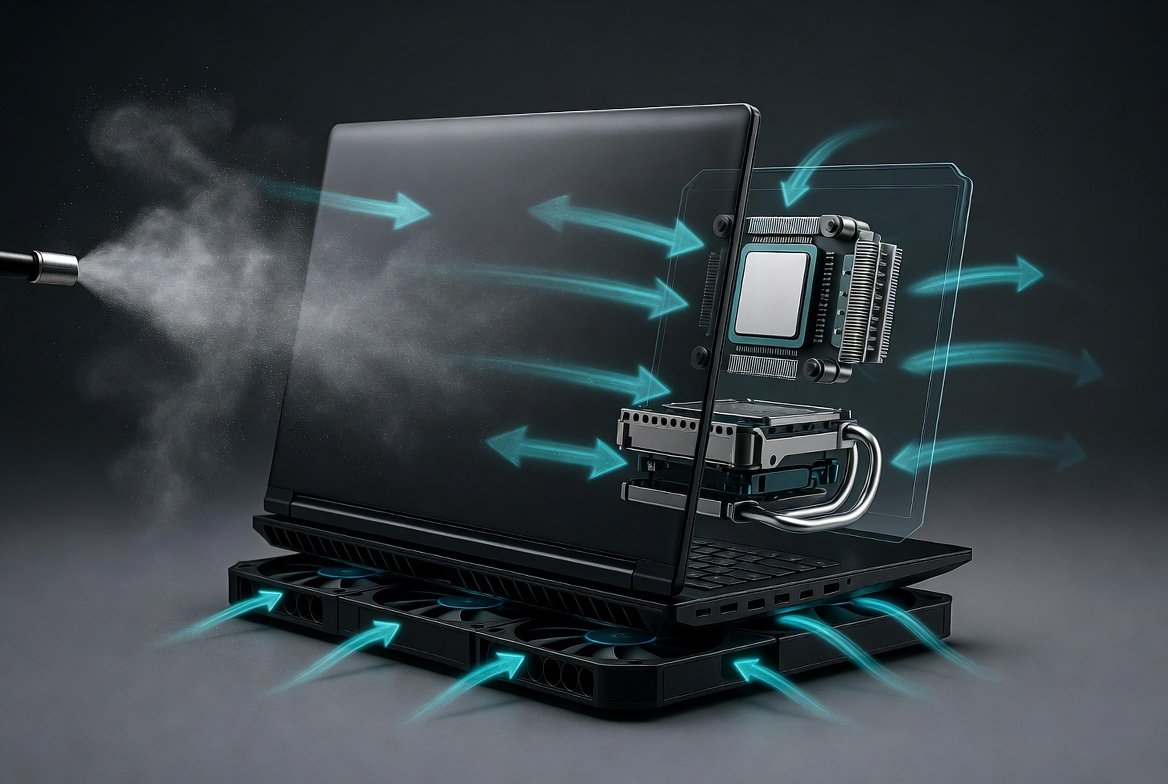
Gaming laptops deliver powerful performance in a compact design, but intense graphics and high-speed processing often lead to heat buildup. Many users notice their device getting uncomfortably warm during long sessions, with fans spinning loudly and performance dropping unexpectedly. If you are facing similar issues, you have come to the right place. This in-depth guide will walk you through everything you need to know about how to fix overheating problem on gaming laptop, from basic daily habits to advanced maintenance techniques.
Overheating is not just uncomfortable—it can cause thermal throttling, where the processor and graphics card slow down to protect themselves, leading to lag, frame drops, and reduced battery life. In severe cases, it may even shorten the overall lifespan of your hardware. The good news is that most overheating problems on gaming laptops are fixable with simple, safe methods that anyone can apply at home. We will cover the root causes, how to diagnose them accurately, quick fixes, software optimizations, hardware upgrades, and long-term prevention strategies. By the end of this article, you will have a complete toolkit to keep your gaming laptop running cool and efficient for years to come.
Whether you own a high-end model or a mid-range one, the principles remain the same. Proper ventilation, regular cleaning, and smart usage habits make a world of difference. Let’s dive into the details and transform your gaming experience.
 Also readStellar Migrator for Exchange Review: Migrating from Exchange Server to Microsoft 365
In this article
- Understanding the Causes of Overheating in Gaming Laptops
- Diagnosing Overheating Issues Effectively
- Basic Maintenance and Quick Fixes You Can Do Today
- Software Optimizations to Reduce Heat Generation
- Hardware Solutions and Upgrades for Better Cooling
- Advanced Techniques for Serious Overheating Problems
- Preventive Measures for Long-Term Cooling Success
- Common Mistakes to Avoid When Fixing Overheating
- When to Consult Professionals
- Conclusion
Understanding the Causes of Overheating in Gaming Laptops
Gaming laptops are engineered to pack powerful CPUs, GPUs, and high-refresh-rate displays into slim chassis. This compact design leaves limited space for cooling systems, making overheating a common challenge. The primary culprits include dust accumulation, restricted airflow, demanding workloads, and environmental factors.
Dust is one of the biggest enemies. Over months of use, fine particles, pet hair, and debris get sucked into the intake vents and clog the fans and heat sinks. This reduces airflow dramatically, forcing the cooling system to work harder while dissipating heat less effectively. As a result, internal temperatures rise quickly during gaming.
Restricted airflow happens when you place the laptop on soft surfaces like beds, sofas, or laps. These block the bottom intake vents, trapping hot air inside. Even using it on a cluttered desk can obstruct exhaust vents on the sides or rear. High ambient room temperatures—especially in warm climates or without air conditioning—compound the problem by raising the baseline temperature your laptop starts from.
Resource-heavy tasks push components to their limits. Modern games with ultra graphics settings, ray tracing, and high frame rates demand maximum power from the CPU and GPU. Background applications, multiple browser tabs, system updates, or even antivirus scans add extra load, generating more heat. Outdated drivers or BIOS can cause inefficient power management, making components run hotter than necessary.
Degraded thermal paste is another hidden cause that appears after one to two years of heavy use. The paste between the processor and heat sink dries out over time, reducing its ability to transfer heat away from the chips. Weak or failing fans, poor thermal design in some budget models, and even overclocking (if enabled) can accelerate overheating.
Understanding these causes is the first step toward targeted solutions. Gaming laptop overheating often stems from a combination of these factors rather than a single issue, so addressing them systematically yields the best results.
Diagnosing Overheating Issues Effectively
Before applying fixes, confirm that overheating is actually the problem. Many users mistake normal warmth for an issue, while others ignore early warning signs until performance suffers.
Use reliable monitoring tools to track temperatures in real time. Free programs like HWMonitor, Core Temp, or MSI Afterburner provide accurate readings for CPU, GPU, and other sensors. During idle, temperatures should stay below 55°C. Under heavy gaming load, anything consistently above 85–90°C indicates a problem that needs attention. Watch for sudden spikes or sustained high readings even after short sessions.
Pay attention to physical and performance symptoms. Excessive fan noise that stays loud even on balanced modes is a clear red flag. If you feel excessive heat on the keyboard, palm rests, or bottom panel, or notice the laptop throttling (frame rate drops, stuttering), overheating is likely at play. Unexpected shutdowns, screen artifacts, freezing, or blue screens during gameplay are more serious signs that the system is protecting itself from damage.
Run stress tests safely. Tools like FurMark for the GPU or Prime95 for the CPU can simulate heavy loads, but use them briefly and monitor temperatures closely. Check your power plan in Windows settings—high-performance modes often increase heat compared to balanced ones.
Log your findings over a few days. Note room temperature, surface used, games played, and temperature readings. This data helps pinpoint whether the issue is dust-related, software-driven, or hardware-specific. For community insights and real-user experiences with similar models, check this comprehensive discussion on gaming laptop temperatures.
Accurate diagnosis prevents unnecessary spending on accessories or repairs. Once you have data, move to practical fixes.
Basic Maintenance and Quick Fixes You Can Do Today
Start with the easiest, no-cost solutions that often deliver immediate improvements.
Use proper positioning and surfaces. Always place your gaming laptop on a hard, flat surface like a desk or table. Avoid beds, carpets, or pillows that block vents. Elevate the rear slightly with a simple book or laptop stand to improve airflow underneath. Many gaming laptops already have raised rubber feet—make sure they are not worn down.
Clean external vents regularly. Every two to four weeks, power off the laptop, unplug it, and use a can of compressed air to blow dust out of the intake and exhaust vents. Hold the can upright and use short bursts. Wipe the exterior with a microfiber cloth. This simple step can lower temperatures by 5–15°C almost instantly.
Limit background processes. Open Task Manager (Ctrl + Shift + Esc) and close unnecessary apps, browser tabs, and startup programs. Disable resource-heavy software like multiple antivirus scans or cloud sync tools during gaming. This reduces CPU and RAM usage, lowering heat generation right away.
Optimize in-game settings. Lower graphics options such as resolution, texture quality, shadows, and anti-aliasing. Enable VSync or cap frame rates to 60–120 FPS depending on your display. These adjustments ease the load on the GPU without ruining the visual experience in most games.
Adjust power settings. In Windows Power Options, edit your plan and set the maximum processor state to 95–99% instead of 100%. This tiny change often reduces temperatures significantly while maintaining near-full performance.
These basic steps form the foundation of any overheating fix and should be part of your routine.
Software Optimizations to Reduce Heat Generation
Software tweaks offer powerful, reversible ways to control temperatures without opening the laptop.
Keep Windows, graphics drivers, and BIOS updated. Manufacturers release patches that improve power efficiency and thermal management. Use the manufacturer’s app (such as Armoury Crate for ASUS or similar tools) for one-click updates.
Explore advanced tools like ThrottleStop or Intel XTU for undervolting the CPU slightly. Reducing voltage by 50–100mV can cut temperatures by 10°C with minimal performance loss. For NVIDIA GPUs, use MSI Afterburner to create custom fan curves that ramp up earlier and undervolt the card safely.
Switch to balanced or quiet performance modes in your laptop’s control software during less demanding tasks. Reserve turbo or performance modes for short, intensive sessions only.
Monitor and manage startup items. Disable non-essential programs from launching automatically to keep resource usage low from boot-up.
These optimizations can be applied in under 30 minutes and often provide lasting benefits. For broader insights into optimizing tech setups and dedicated resources, explore our guide on dedicated computing.
Hardware Solutions and Upgrades for Better Cooling
When software alone is not enough, hardware additions make a noticeable difference.
Laptop cooling pads are one of the most effective accessories. Choose models with multiple high-RPM fans, adjustable height, and mesh surfaces for maximum airflow. Place the laptop on the pad, connect via USB, and select a suitable speed. Quality pads can drop temperatures by 10–20°C during gaming.
Laptop stands or risers improve passive airflow even without extra fans. Look for ergonomic designs with ventilation holes and stable bases.
Undervolting hardware (mentioned earlier) pairs well with external cooling. If comfortable, consider professional repasting with high-quality thermal compound after the warranty period, but this is an advanced step.
For network-related performance tweaks that reduce background load, check our home WiFi mesh setup guide to ensure stable connections without extra processing overhead.
Investing in one or two of these solutions often resolves persistent overheating when combined with maintenance.
Advanced Techniques for Serious Overheating Problems
For laptops that still run hot after basic and software fixes, deeper interventions may be necessary. This is the middle point of our guide where we revisit the core challenge: learning exactly how to fix overheating problem on gaming laptop when standard methods fall short.
Internal cleaning requires care. If your laptop allows easy access (check the manual for removable bottom panels), use compressed air and isopropyl alcohol on a cotton swab to clean fans and heat sinks gently. Work in a well-lit area and ground yourself to avoid static damage. Many users report 15–25°C improvements after thorough cleaning.
Thermal paste replacement is highly effective after 1–2 years of use. High-quality paste like Arctic MX-6 or similar non-conductive options transfers heat far better than factory paste that has dried out. The process involves disassembling, cleaning old paste, applying a pea-sized amount to the CPU and GPU, and reassembling carefully. Always follow model-specific guides and consider professional help if unsure.
Fan control software or custom BIOS tweaks can increase fan speeds manually, though this increases noise. Undervolting combined with these steps often brings temperatures into a safe 70–80°C range under load.
Remember safety first: power off completely, remove the battery if possible, and work slowly. These advanced methods provide excellent results but carry minor risks if done incorrectly.
For deeper computer knowledge that supports better hardware handling, our computer courses guide offers valuable learning paths.
Preventive Measures for Long-Term Cooling Success
Prevention is easier and cheaper than repeated fixes.
Develop a maintenance schedule: clean vents monthly, deep clean internals every 6–12 months, and monitor temperatures weekly. Store the laptop in a dust-free case when not in use. Use it in cool, well-ventilated rooms with air conditioning during hot weather.
Avoid running games at maximum settings continuously. Alternate between high and medium graphics to give components breathing room. Keep the device updated and avoid unnecessary overclocking.
Good habits like these extend hardware life significantly and keep performance consistent.
Common Mistakes to Avoid When Fixing Overheating
Many users make errors that worsen the situation. Never use the laptop on soft surfaces or block vents with stickers or accessories. Avoid cheap, low-quality cooling pads that actually trap heat. Do not ignore updates or skip regular cleaning. Over-applying thermal paste or using conductive types incorrectly can cause shorts. Always test changes gradually and monitor results.
When to Consult Professionals
If temperatures remain high after all DIY efforts, or if you hear unusual grinding noises from fans, seek authorized service. Professionals can diagnose hardware failures safely and perform warranty-covered repairs if applicable.
Conclusion
Fixing and preventing overheating on your gaming laptop is straightforward when you follow a systematic approach. From daily habits and software tweaks to cleaning and hardware aids, every step contributes to cooler operation and better performance. Apply the methods in this guide consistently, and you will enjoy lag-free gaming sessions while protecting your investment for the long term. Stay proactive, monitor your device, and game on with confidence. Your laptop will thank you with reliable, cool performance for years ahead.