Understanding your device’s network identity is essential for smooth troubleshooting and secure connections. One key piece of information many Samsung users look for is the mac address on samsung galaxy phone. Whether you are setting up a new router, resolving Wi-Fi issues, or managing network access at home or work, knowing how to locate this unique identifier can save you time and frustration. This comprehensive guide walks you through every method, explains why it matters, and provides practical tips tailored specifically for Samsung Galaxy devices running the latest One UI.
What Is a MAC Address and Why Does It Matter?
A MAC address, short for Media Access Control address, is a unique 48-bit identifier assigned to every network interface on your device. It appears as six pairs of hexadecimal characters, such as 00:1A:2B:3C:4D:5E. Unlike an IP address that can change, the MAC address is hardware-based and remains constant for your phone’s Wi-Fi and Bluetooth adapters.
This address plays a vital role in local network communication. Routers and switches use it to direct data packets to the correct device without confusion. For Samsung Galaxy phone owners, it becomes particularly useful when:
- Registering your device on enterprise or school networks that use MAC filtering.
- Diagnosing connectivity problems where the router fails to recognize your phone.
- Enhancing security by whitelisting trusted devices.
- Troubleshooting advanced setups like mesh networks or smart home integrations.
Understanding the MAC address helps you appreciate how your Samsung Galaxy phone interacts with the broader internet ecosystem. It is not just a random string of numbers—it is your device’s digital fingerprint at the hardware level.
The Evolution of MAC Addresses in Samsung Galaxy Phones
Samsung has refined how users access network information across Galaxy models over the years. Early Galaxy devices (like the S4 or Note series) placed MAC details deeper in menus under “More” tabs. With the introduction of One UI, Samsung streamlined the process significantly. By 2026, on flagships such as the Galaxy S25 or S26 series and mid-range A-series models, the path is more intuitive than ever.
Android’s privacy features introduced MAC randomization starting around Android 10. Your Samsung phone may present a temporary, randomized MAC when scanning for networks to protect your privacy. However, the factory or “phone” MAC address remains visible in the status menu for legitimate troubleshooting needs. This balance between privacy and functionality is a hallmark of modern Samsung Galaxy phones.
Primary Method: Finding MAC Address Through Settings (Works on Most Models)
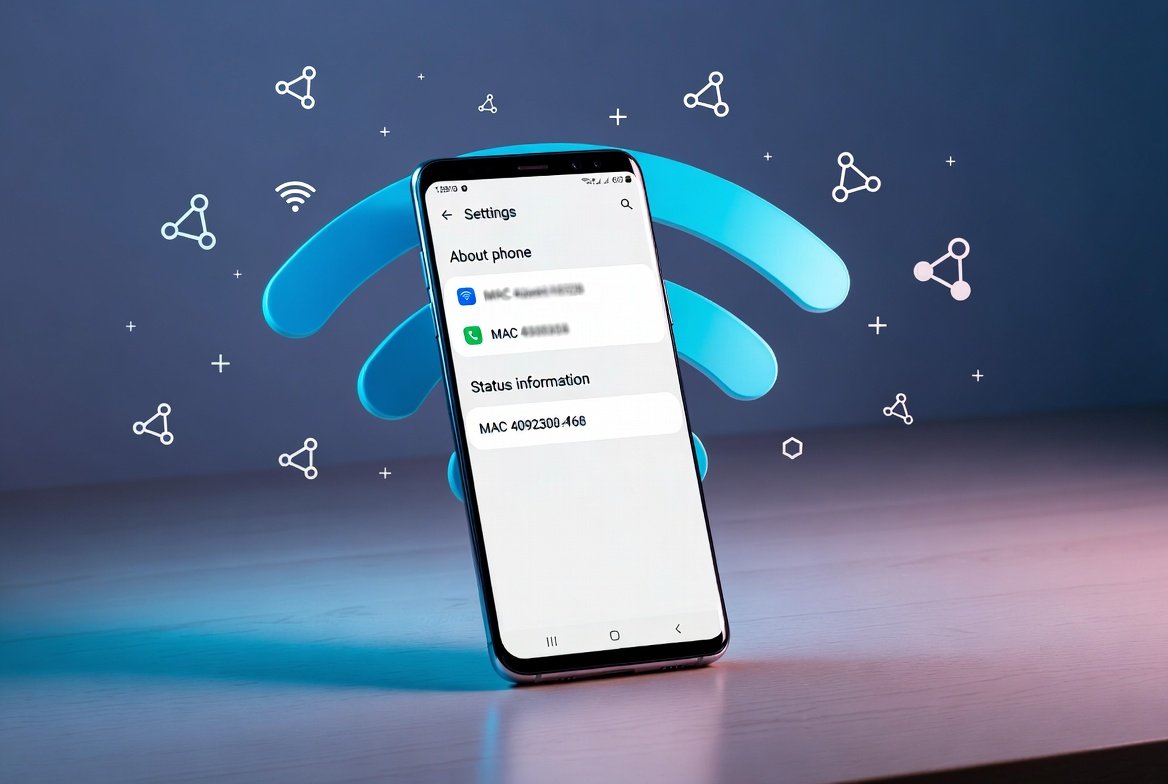
The easiest and most reliable way to locate the MAC address on any recent Samsung Galaxy phone involves the Settings app. Here is the exact step-by-step process:
- Open the Settings app from your home screen or app drawer.
- Scroll down and tap About phone.
- Tap Status information (on some models it may simply say Status).
- Scroll to the bottom of the list.
- Look for Phone Wi-Fi MAC address or Wi-Fi MAC address. Your device’s permanent MAC address is displayed right there.
This method works consistently on Galaxy S24, S25, A53, A54, Z Fold series, and most devices running One UI 6.0 or higher. The entire process takes less than 30 seconds once you know where to look.
Pro Tip: If you own an older model like the Galaxy S22 or Note 20, the path is almost identical. Some devices may label the section as About device instead of About phone, but the Status option leads to the same information.
Alternative Method: Via Wi-Fi Advanced Settings (For Connected Networks)
Sometimes you need the MAC address while actively troubleshooting a specific connection. Follow these steps:
- Go to Settings > Connections > Wi-Fi.
- Ensure you are connected to the network in question.
- Tap the gear icon next to the connected network name.
- Tap Advanced or View more.
- Look for MAC address type or the displayed MAC address.
Here you can also switch between Randomized MAC (default for privacy) and Phone MAC (your permanent address). This option is especially helpful when a network rejects randomized addresses or when you need to register the real MAC for MAC filtering.
Locating Bluetooth MAC Address on Samsung Galaxy Phones
Your Samsung Galaxy phone has separate MAC addresses for Wi-Fi and Bluetooth. To find the Bluetooth one:
- Return to Settings > About phone > Status information.
- Scroll further down to Bluetooth address.
This is useful for pairing with older Bluetooth accessories, car systems, or when setting up device-specific permissions in smart home apps.
Model-Specific Variations Across Samsung Galaxy Lineup
Samsung offers a vast range of devices, and minor menu differences exist between premium flagships and budget models.
- Galaxy S Series (S23–S26): Follow the primary Settings method exactly. Status information appears immediately under About phone.
- Galaxy A Series (A15–A55): Same path, though the interface may feel slightly lighter due to lower RAM.
- Galaxy Z Fold and Flip Series: The foldable form factor does not change the menu structure—use the same steps.
- Older Models (S20 or earlier): You may see More > About device > Status instead of direct About phone.
Regardless of the model, the information is always present and accurate.
Understanding MAC Randomization and Privacy Features in One UI
Samsung, like Google, prioritizes user privacy. When your Galaxy phone scans for Wi-Fi networks, it uses a randomized MAC address. This prevents tracking across different locations. However, once connected, you can view and use the real mac address on samsung galaxy phone for stable identification.
To permanently use your phone’s MAC on a specific network:
- Go to the network’s advanced settings.
- Change MAC address type from Randomized to Phone MAC.
This change applies only to that network and can resolve connection drops on routers that do not support randomization well.
Advanced Methods for Tech-Savvy Users
For developers or advanced users, additional options exist: