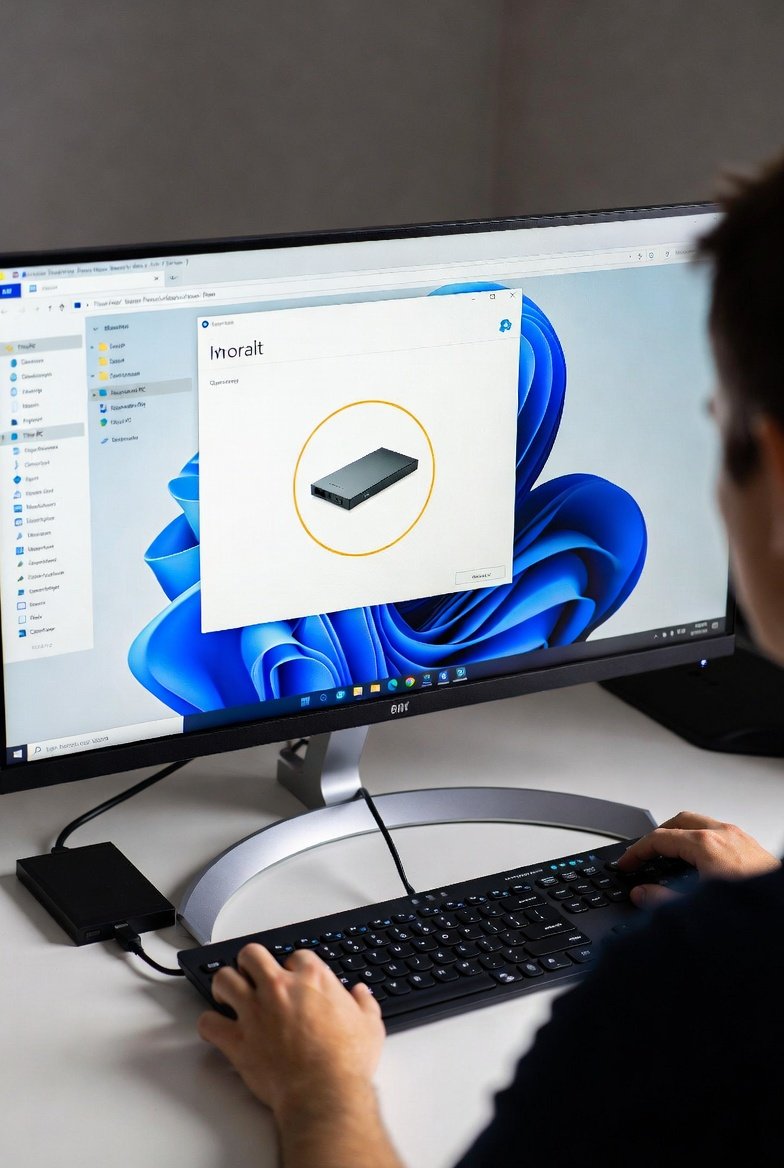
We have all felt that sudden jolt of anxiety. You sit down at your desk, plug your trusty external hard drive into your laptop or desktop, and wait for the familiar ping. You open ‘This PC’ or ‘File Explorer,’ expecting to see that extra drive icon appear next to your local disks (C:). But nothing happens. You refresh the window, try a different USB port, and even restart your computer. Still, the folder remains empty.
If you are searching online for a solution because windows 11 wont show my external hard drive, please know that you are not alone. This is one of the most common frustrations reported by users who have recently upgraded their operating system or installed a major update.
The good news is that in the vast majority of cases, your hardware is perfectly fine. The drive is spinning, the data is intact, and your photos, documents, and backups are still safe. Usually, the issue is a minor software glitch, a missing drive letter, or a simple driver conflict caused by Windows 11’s strict security and power management settings.
Before you rush to buy a new drive or panic about lost data, let us walk through six safe, ethical, and highly effective solutions. These steps are organized from the simplest checks to slightly more technical fixes. By the end of this guide, you will likely have your drive back up and running.
1. Start with the Physical Connection and Basic Hardware Checks
It sounds almost too simple, but you would be surprised how often the “software error” turns out to be a loose cable. When windows 11 wont show my external hard drive, the first step is always to rule out a physical problem. Do not skip this stage, as it saves time and prevents unnecessary troubleshooting.
Check the USB Cable and Ports:
External hard drives require a stable data connection. The cable that came with your drive might look fine, but internal breaks are common, especially if the cable bends tightly around your desk.
-
Try a different USB port: If you are using a desktop computer, always plug the external drive into a port directly on the back of the motherboard. Front panel ports sometimes deliver less power.
-
Swap the cable: If you have another micro-USB, USB-C, or USB 3.0 cable lying around (for example, from a printer or phone), test it with your drive.
-
Bypass USB hubs: Do not plug the drive into a cheap, unpowered USB hub. Connect it directly to the computer’s native port.
Listen and Feel for Signs of Life:
Place your hand gently on the external drive enclosure.
-
Do you feel vibration? A slight hum or vibration means the drive is spinning and receiving power.
-
Do you hear clicking? A rhythmic “click of death” or scraping noise is a sign of physical failure. If you hear this, stop troubleshooting immediately and contact a professional data recovery service. Do not run fix-it tools on a physically failing drive.
Check the Power Supply:
Many large 3.5-inch desktop external drives come with a separate power brick. If that brick has failed or come unplugged, the drive will not spin up. Ensure the LED light on the adapter is on. For portable 2.5-inch drives, try a different USB port, as some laptops have “sleep and charge” ports that provide inconsistent power.
2. Unlock the Hidden Drives in Disk Management
Sometimes, Windows 11 actually does see your external hard drive, but it hides it from File Explorer due to a missing drive letter or a partition error. This is the most common scenario when windows 11 wont show my external hard drive in the main folder view. To fix this, we need to look at the “Disk Management” console.
How to Access Disk Management:
-
Right-click the Start button (or press
Windows + X). -
Select “Disk Management” from the menu.
Once the window loads, look closely at the list of disks (Disk 0, Disk 1, Disk 2, etc.). Your external drive should be present, usually at the bottom of the list. Here is how to interpret what you see:
Scenario A: The Drive is “Offline”
If the box for your external drive says “Offline” or “Missing,” right-click the word “Offline” and select “Online.” Windows will reactivate the drive.
Scenario B: The Drive Has No Letter (The Bar is Black)
If the bar is black (indicating “Unallocated” space) or simply does not show a letter like E: or F: next to its name:
-
Right-click the black section or the simple volume.
-
Choose “Change Drive Letter and Paths…”
-
Click “Add.”
-
Select “Assign the following drive letter” and pick any letter from the dropdown (like M: or N:).
-
Click OK.
Instantly, the drive should appear in File Explorer without needing a restart.
Scenario C: The Drive is RAW or Asks to Format
If Disk Management shows the file system as “RAW” or if Windows pops up a message saying “You need to format the disk before you can use it,” do not click format yet. Formatting will erase your data. This is a file system corruption issue, which we will address later in the driver and repair sections.
3. Refresh and Reinstall the Core Drivers
If the drive appears in Disk Management but not in File Explorer, or if it doesn’t appear at all, the software bridge between Windows 11 and your hardware might be corrupted. Drivers are the translators that let your operating system talk to the USB storage device.
When windows 11 wont show my external hard drive, updating or reinstalling the drivers is a highly effective, non-destructive fix.
Reinstalling the USB Controllers (The Safe Method):
-
Right-click the Start button and select Device Manager.
-
Scroll down and expand the “Universal Serial Bus controllers” section.
-
You will see items like “USB Root Hub” and “Host Controller.”
-
Right-click on each “USB Root Hub” and select “Uninstall device.” (Do not worry, your keyboard and mouse might flicker, but they will come back).
-
After uninstalling all the hubs, restart your computer.
When Windows 11 boots back up, it automatically detects that the controllers are missing and reinstalls the freshest drivers from its internal cache. This clears up any “ghost” configurations that were blocking your external drive.
Updating the Disk Drive Specifically:
Sometimes only the specific external drive driver is bad.
-
In Device Manager, expand “Disk drives.”
-
Look for your external drive model. It might have a yellow exclamation mark next to it.
-
Right-click it and select “Update driver.”
-
Choose “Search automatically for drivers.”
If Windows says the best driver is already installed, try the opposite approach: Right-click the drive in Device Manager, select “Uninstall device,” unplug the USB cable, wait 30 seconds, and plug it back in. Windows will reinstall it fresh.
4. Run the Built-in Hardware Troubleshooter
Windows 11 is often smarter than we give it credit for. It includes a suite of diagnostic tools that run in the background to fix common problems. If the manual methods feel intimidating, let the operating system do the heavy lifting for you.
How to Run the Troubleshooter:
-
Press
Windows + Ito open Settings. -
Navigate to System > Troubleshoot > Other troubleshooters.
-
Find “Hardware and Devices” in the list.
-
Click the Run button next to it.
Follow the on-screen prompts. The troubleshooter will check for common issues like driver conflicts, missing registry keys, or power management settings that might cause the drive to be ignored. If it finds a problem, click “Apply this fix” and allow it to make the changes. This automated process resolves the issue in many cases where windows 11 wont show my external hard drive after a recent update.
5. Disable USB Selective Suspend (Power Management)
Windows 11 is designed to save power. It has a feature called “USB Selective Suspend” that tells the computer to cut power to a USB port if it thinks the device is not being used. Unfortunately, Windows 11 is sometimes too aggressive. It might “suspend” your external hard drive the moment you plug it in to save a tiny amount of battery, making it impossible to read the disk.
To fix this, we need to tell Windows to leave the USB ports alone.
Via the Control Panel:
-
Type “Control Panel” into the Windows search bar and open it.
-
Change the “View by” option in the top right to “Large icons.”
-
Click on “Power Options.”
-
Click “Change plan settings” next to your current power plan (usually Balanced or High performance).
-
Click “Change advanced power settings.”
-
Scroll down the list until you find “USB settings.” Expand it.
-
Expand “USB selective suspend setting.”
-
Change the drop-down menu from “Enabled” to “Disabled.”
-
Click Apply and OK.
Via Device Manager (Extra Safety):
To double down on this fix, go back to Device Manager > Universal Serial Bus controllers. Right-click every “USB Root Hub” and “Generic USB Hub,” select Properties, go to the Power Management tab, and uncheck the box that says “Allow the computer to turn off this device to save power.” Do this for every item in the list. This ensures your ports stay fully active for storage devices.
6. Repair File System Errors Using CHKDSK
If your drive shows up in Disk Management but appears as “RAW” or gives an “Access Denied” error, the file system—the structure that organizes your files—might be damaged. This can happen if the drive was unplugged without using “Safely Remove Hardware” or if there was a power flicker.
If windows 11 wont show my external hard drive due to corruption, formatting is not the only option. You can use a built-in command line tool called CHKDSK (Check Disk) to repair the structure without deleting your photos or documents.
Running CHKDSK Safely:
-
Type “cmd” in the Windows search bar.
-
Right-click Command Prompt and select “Run as administrator.” (Accept the User Account Control prompt).
-
In the black window, you need to type a command.
-
First, note the drive letter of your external drive (even if you can’t see it in Explorer, you saw it in Disk Management, e.g., E: or D:).
-
-
Type:
chkdsk X: /f(Replace “X” with your drive letter, for example,chkdsk E: /f) and press Enter.-
The
/fflag tells Windows to fix errors automatically.
-
The scan might take a while if your drive is large (1TB or 2TB). Be patient. CHKDSK will go through three stages, looking for file records and bad sectors. Once it finishes, it will report how much space is used and if any repairs were made.
A Note on Data Recovery:
If CHKDSK gets stuck or says it cannot run because the disk is RAW, your data might be harder to access. In this specific scenario, professional recovery software (like Recuva or TestDisk) is required. Always prioritize saving the data before attempting complex repairs. However, in 80% of cases, the simple /f command is enough to bring the drive back to life.
7. Update Windows 11 and Motherboard Chipset Drivers (Preventative)
Finally, sometimes the reason windows 11 wont show my external hard drive is simply that the operating system itself has a known bug. Microsoft frequently releases cumulative updates that patch USB connectivity issues.
Check for Updates:
-
Go to Settings > Windows Update.
-
Click “Check for updates.”
-
Install any pending updates, especially “Optional updates” that mention “Cumulative Update” or “Servicing Stack.”
Check for Chipset Drivers:
Do not rely solely on Windows Update for your motherboard drivers. The USB controllers on your computer rely on “Chipset” drivers provided by Intel, AMD, or your PC manufacturer (like Dell, HP, or Lenovo).
-
Visit the support website of your laptop or motherboard manufacturer.
-
Search for your specific model number.
-
Download and install the latest Chipset and USB Controller drivers.
Installing the official manufacturer drivers over the generic Microsoft ones often resolves deep-seated compatibility issues that cause drives to disappear randomly.
Conclusion: Restoring Peace of Mind
Facing the error where windows 11 wont show my external hard drive can feel like a technical nightmare, especially when that drive contains your work portfolio, family memories, or system backups. However, as we have explored today, the solution is rarely a hardware failure. It is almost always a logical error—a missing letter, a power saving feature, or a confused driver.
By methodically working through these seven steps—checking physical connections, exploring Disk Management, refreshing drivers, running troubleshooters, disabling power saving, and running repair tools—you have a 95% chance of recovering access to your data without losing a single file.
Remember to always eject your drive safely once you get it working again. Right-click the drive in File Explorer and select “Eject” before unplugging the cable. This simple habit prevents the file system corruption that causes the “RAW” errors we discussed.
Frequently Asked Questions (FAQs)
Q1: Does formatting my external hard drive fix the detection issue?
Formatting will almost certainly make the drive visible again, but it erases all data. Only format if you have a backup of your files or if the drive is brand new. Try the CHKDSK repair method first to save your data.
Q2: Why does my external drive work on my friend’s computer but not mine?
If the drive works on another PC, your hardware (the drive and cable) is fine. The problem is specific to your Windows 11 settings. Focus on updating your drivers and checking Disk Management for missing drive letters.
Q3: My drive is detected in Device Manager but not in File Explorer. Why?
This is a classic “missing drive letter” scenario. The computer sees the hardware (Device Manager) but has not assigned a letter for the operating system to display it. Follow the Disk Management steps (Solution 2) to manually assign a letter like F: or G:.
Q4: Can a virus cause my external hard drive to disappear?
Yes, some malware hides drives or alters registry keys. It is wise to run a full system scan using Windows Defender (which is built into Windows 11 and very effective) before concluding it is a hardware fault.
Q5: Should I buy a new external hard drive if Windows 11 refuses to see my current one?
No. Only replace the drive if you hear clicking noises (physical failure) or if the drive fails to spin up on multiple computers. Software issues are almost always fixable for free using the steps above.
Q6: Where can I learn more about general data storage safety?
For a broader understanding of how digital storage works, you can refer to the Wikipedia page on “Hard disk drive” which explains the physical mechanics of the device you are trying to fix.
-
If you rely on your external drive for business marketing assets, read this guide on protecting your digital files: A Deep Look at Skylink Mini: Features, Uses, Setup, and Benefits
-
Understanding data safety is crucial for entrepreneurs. Learn about financial data security in this article: Stock Market Debut: The Journey of a Company to the Public Market
Related posts:

Why Is My Software Not Opening After Installation and How Do I Fix It?
Windows
How to Stop Windows Update: A Comprehensive Guide for Windows 10 and 11
Windows![Fix Windows 11 Update Errors Quickly]()
How Can You Fix Windows 11 Update Errors Quickly?
Windows![windows 11 boot error repair]()
Windows 11 Boot Error Repair: Your Essential Guide to Fixing Startup Problems Smoothly
Windows
Black Lines Across MacBook Pro Screen: Causes, Fixes, and Prevention
Windows![How to Fix the “Your Organization’s Data Cannot Be Pasted Here” Error in Windows or Microsoft Apps?]()
How to Fix the “Your Organization’s Data Cannot Be Pasted Here” Error in Windows or Microsoft Apps?
Windows