Android 16 Internet Issues: Complete Fix Guide for Wi-Fi, VPN & Mobile Data Problems

 Tech Review
 Android 16 Internet Issues
Introduction
Android 16 arrived earlier than expected on June 10, 2025, bringing a host of exciting features including Live Updates, enhanced anti-theft protections, and improved customization options. However, alongside these innovations came a troubling wave of Android 16 internet issues that have left countless users frustrated and disconnected.
From silent VPN failures that leave your online activities exposed to Wi-Fi networks that refuse to connect and mobile data that mysteriously stops working, the connectivity problems plaguing Android 16 are among the most widespread in recent Android history. What makes these issues particularly concerning is that many of them operate invisibly—your VPN might stop working in the background without any warning, or your phone might drop its network connection while you’re navigating with GPS.
The situation has become so serious that multiple major VPN providers—including Proton VPN, Mullvad, WireGuard, and TunnelBear—have publicly called out Google for failing to address these problems, with some bugs remaining unpatched for over seven months. This guide provides a complete, actionable roadmap for diagnosing and resolving Android 16 internet issues, whether you’re using a Google Pixel, Samsung Galaxy, or any other Android 16 device.
Understanding Android 16 Internet Issues: An Overview
Before diving into specific fixes, it’s essential to understand what you’re dealing with. Android 16 internet issues manifest in several distinct ways, and the root causes vary significantly:
| Issue Type | Common Symptoms | Primary Cause |
|---|---|---|
| VPN Connectivity Failures | VPN disconnects silently; apps can’t reach internet | Network stack corruption during VPN updates |
| Wi-Fi Problems | Can’t connect; no roaming between access points; slow speeds | OS-level Wi-Fi stack bugs |
| Mobile Data Failures | No internet despite signal; IMEI shows null | Carrier configuration conflicts; system update issues |
| Bluetooth-Related Issues | Bluetooth turns off; internet sharing fails | Driver conflicts in January 2026 update |
| Call & Network Drops | Calls fail; constant network reconnection | Advanced Protection conflicts; modem issues |
The most widely reported Android 16 internet issues stem from systemic problems within Android’s network stack—the fundamental software layer that manages all internet connectivity on your device. When this stack becomes corrupted, it affects everything from VPNs to basic Wi-Fi connections.
The Android 16 VPN Bug: A Silent Security Crisis
What’s Happening with VPNs on Android 16?
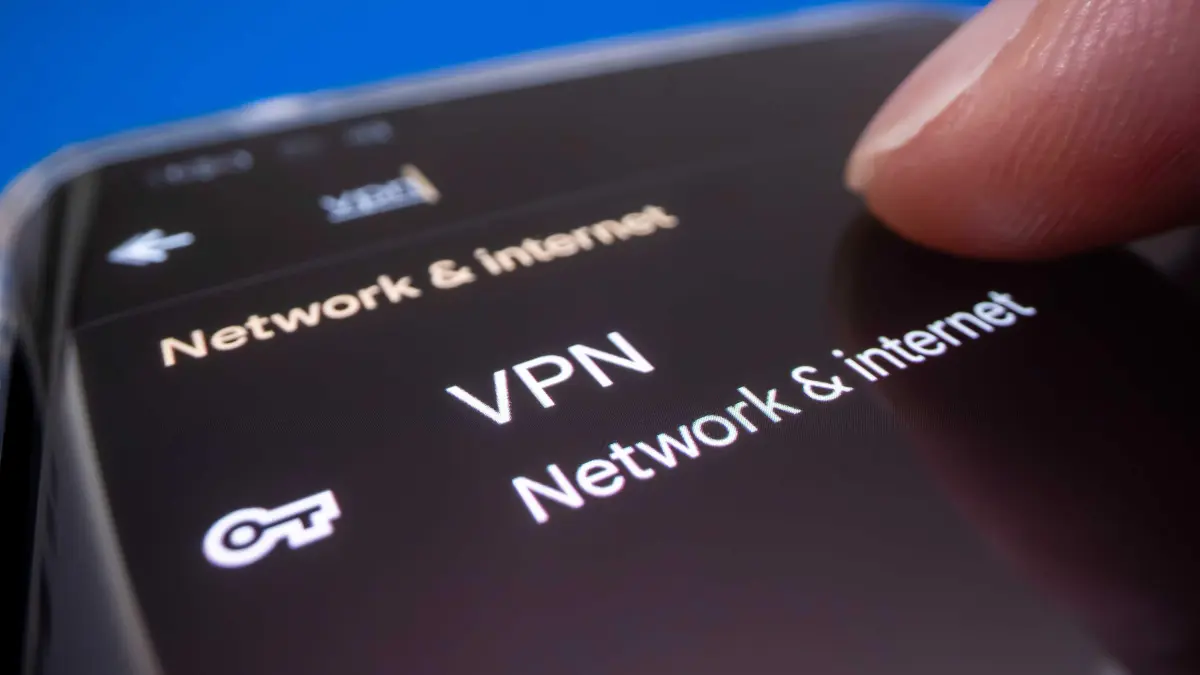
The most critical Android 16 internet issue involves VPN connectivity. When a VPN app is updated while running in the background, Android 16’s network stack becomes corrupted at the system level. The VPN app can no longer reach the internet, but crucially, there’s no warning or error message—the VPN simply stops working silently.
Proton VPN described the situation bluntly: “The bug corrupts Android’s network stack at the system level after a VPN update, causing users to blame their VPN provider”.
Which VPN Providers Are Affected?
This isn’t an isolated problem affecting a single app. Multiple major VPN services have confirmed they’re impacted:
-
Proton VPN – First reported the bug to Google in September 2025
-
Mullvad – Reported the issue in August 2025
-
WireGuard – Confirmed the bug affects their service
-
TunnelBear – Confirmed the issue in December 2025
-
Ivanti Secure Access – Enterprise VPN solution also affected
Why This VPN Bug Is Dangerous
The silent nature of this Android 16 internet issue poses a significant security risk. Users who rely on VPNs for privacy, security on public Wi-Fi, or accessing region-restricted content may unknowingly have their VPN connection fail, leaving their data exposed.
Mullvad noted they can only reproduce this bug approximately 5-10% of the time, making it particularly difficult to diagnose and fix. This intermittent nature means you might not even realize your VPN has stopped working.
Temporary Fixes for VPN Issues
While Google has yet to release a permanent fix, these workarounds can restore your VPN connection:
-
Restart your phone – A full reboot resets the network stack and typically restores VPN functionality
-
Switch VPN profiles – Toggle between different established VPN profiles
-
Reinstall the VPN app – Completely uninstall and reinstall the application
-
Switch to another VPN temporarily – Connecting to a different VPN can sometimes “unstick” the affected app
Google’s Response (or Lack Thereof)
Perhaps the most frustrating aspect of this Android 16 internet issue is Google’s response. When Mullvad first reported the bug in August 2025, a Google representative said, “I don’t see anything unusual”. By September, Google acknowledged the issue, stating they had “shared this with our product and engineering team and will update this issue with more information as it becomes available”.
As of 2026, no permanent fix has been released, and Google has remained largely silent on the matter. This lack of communication has frustrated both users and VPN providers alike.
Wi-Fi Connectivity Issues on Android 16
Common Wi-Fi Problems
Wi-Fi-related Android 16 internet issues are nearly as widespread as VPN problems. Users have reported:
-
Wi-Fi won’t connect – The phone refuses to associate with known networks
-
No roaming between access points – Moving between Wi-Fi access points no longer triggers automatic switching
-
Band steering failures – Phones don’t automatically switch between 2.4GHz and 5GHz networks
-
WPA3 compatibility issues – Some Android 16 devices can’t connect to WPA3-SAE-only access points
-
Slow Wi-Fi speeds – Dramatically reduced internet speeds on Wi-Fi connections
-
IPv6 connectivity loss – Wi-Fi connects but loses IPv6 connectivity, causing various issues
Real-World Impact: A User’s Story
One Samsung S24 user described their experience after upgrading to Android 16: “There are a lot of issues on the WIFI side: roaming between APs no longer works, jumping automatically from 2GHz to 5GHz no longer works, when the WiFi signal is bad the phone switches to mobile network 5G with WIFI ON!!! All other Android devices in the house which are Android 15 or below work flawlessly”.
This highlights a crucial point: these Android 16 internet issues aren’t caused by your router or network setup—they’re fundamental problems with the operating system itself.
How to Fix Wi-Fi Problems on Android 16
Quick Fixes to Try First
-
Toggle Wi-Fi off and on – Sometimes the simplest solution works
-
Forget and reconnect – Remove the network and add it again
-
Restart your phone – Clears temporary network glitches
Advanced Troubleshooting
If quick fixes don’t resolve your Android 16 internet issues:
Reset Network Settings:
Navigate to Settings > System > Reset options > Reset Bluetooth & Wi-Fi. This won’t delete your personal data but will remove saved Wi-Fi networks and Bluetooth pairings.
Check WPA3 Settings:
If you’re using WPA3 encryption, try temporarily switching to WPA2 on your router to see if that resolves the connection issue.
Disable Adaptive Connectivity:
Some users have found that disabling Adaptive Connectivity in Settings > Network & Internet > Adaptive Connectivity helps stabilize Wi-Fi connections.
Mobile Data and Cellular Network Problems
What Users Are Experiencing
Mobile data-related Android 16 internet issues have been equally problematic:
-
Mobile data stops working after restart – Data works initially but fails after a reboot
-
IMEI shows as null – The device loses its IMEI number, making network connection impossible
-
Network drops during GPS use – Using navigation apps causes complete network loss
-
Calls fail to connect – Outgoing and incoming calls don’t work
-
Constant network reconnection – Phone repeatedly reconnects to mobile network, causing data disruptions
The Advanced Protection Issue
One particular cause of Android 16 internet issues involves Advanced Protection. If you enabled Advanced Protection during the Android 16 upgrade, it blocks connections to 2G networks. Your phone might be trying to connect to 2G for calls, causing call failures.
Fix: Go to Settings > Security > Advanced Protection and try turning it off temporarily to see if it resolves your call and network issues.
Troubleshooting Mobile Data Problems
Step-by-Step Fixes
-
Toggle Airplane Mode – Turn it on for 10 seconds, then off
-
Check mobile data is enabled – Swipe down from the top and ensure the mobile data icon is active
-
Reset network settings – Settings > System > Reset options > Reset network settings
-
Check APN settings – Settings > Network & Internet > SIMs > Access Point Names
-
Remove and reinsert SIM card – For physical SIMs; for eSIM, try disabling and re-enabling
-
Contact your carrier – Some Android 16 issues may be carrier-specific
APN Configuration
If your mobile data still isn’t working, you may need to manually configure your Access Point Name (APN) settings:
-
Go to Settings > Network & Internet > SIMs
-
Select your SIM and tap Access Point Names
-
Create a new APN with your carrier’s specific settings
-
Save and select the new APN
Bluetooth and Internet Sharing Issues
Android 16 Bluetooth Problems
Bluetooth-related Android 16 internet issues often manifest as:
-
Bluetooth refusing to turn on
-
Intermittent disconnections from car systems
-
Wi-Fi and Bluetooth both failing simultaneously
The January 2026 Pixel update in particular seems to have triggered a wave of Bluetooth and Wi-Fi problems, with users reporting that common troubleshooting steps like restarting, resetting network settings, or booting into safe mode don’t resolve the issues.
Fixes for Bluetooth Issues
-
Reset Wi-Fi and Bluetooth settings – Settings > General Management > Reset > Reset Wi-Fi and Bluetooth settings
-
Clear Bluetooth cache – Settings > Apps > Show system apps > Bluetooth > Storage > Clear cache
-
Close all background apps – Some users report that closing all active apps before connecting to Bluetooth devices helps
-
Check for app conflicts – Security apps like Bitdefender have been known to interfere with network connectivity on Android 16
The Android 16 QPR Updates: Progress and Setbacks
Google has released several Quarterly Platform Releases (QPR) for Android 16, with mixed results for Android 16 internet issues.
QPR3 Beta 2 Improvements
The Android 16 QPR3 Beta 2 update (January 2026) addressed several connectivity problems:
-
Fixed slow Wi-Fi connectivity
-
Addressed Wi-Fi connection bugs
-
Fixed crashes when accessing radio information settings
However, this same update also introduced new Bluetooth and Wi-Fi issues for many users. This pattern—fixing one problem while creating another—has been frustrating for Android 16 users.
The GrapheneOS Experience
Even custom ROMs aren’t immune. GrapheneOS users reported that after installing the Android 16 QPR2 update, multiple user profiles experienced recurring network connectivity issues. This suggests the problems are deeply embedded in Android’s core networking code.
Comprehensive Troubleshooting Guide for Android 16 Internet Issues
Step 1: Basic Troubleshooting
Start with these simple fixes for any Android 16 internet issue:
| Fix | How to Do It | Success Rate |
|---|---|---|
| Restart phone | Press and hold power button > Restart | High |
| Toggle Airplane Mode | Quick settings > Airplane mode on/off | Medium |
| Check Wi-Fi/mobile data | Ensure the correct connection is enabled | Medium |
| Update apps | Google Play Store > Update all | Low-Medium |
Step 2: Network Settings Reset
If basic fixes don’t work, reset your network settings:
Android 16 Network Reset Path:
Settings > System > Reset options > Reset Wi-Fi, mobile & Bluetooth
This resets all network configurations without deleting your personal data. You’ll need to reconnect to Wi-Fi networks and re-pair Bluetooth devices afterward.
Step 3: Check for App Conflicts
Some security and VPN apps can interfere with Android 16 internet connectivity. If you’re experiencing issues:
-
Boot into Safe Mode (press and hold power button, then tap and hold “Power off” until Safe Mode appears)
-
If internet works in Safe Mode, a third-party app is causing the problem
-
Uninstall recently installed or updated apps, especially security and VPN apps
Step 4: Factory Reset (Last Resort)
If nothing else resolves your Android 16 internet issues, a factory reset may be necessary. Before doing this, back up all your data.
Factory Reset Path:
Settings > System > Reset options > Erase all data (factory reset)
Warning: Some users have reported that even factory resets didn’t resolve their Android 16 internet issues. If this is the case, you may need to contact your device manufacturer or carrier for further assistance.
Expert Tips for Managing Android 16 Internet Issues
Tip 1: Disable Automatic VPN Updates
Since the VPN bug is triggered by app updates while the VPN is active, disable automatic updates for your VPN apps:
-
Open Google Play Store
-
Tap your profile icon > Settings > Network preferences
-
Select Auto-update apps > choose Don’t auto-update apps
-
Manually update VPN apps when you’re not actively using them
Tip 2: Monitor Your VPN Connection
Regularly check that your VPN is actually working. Many VPN apps show a connection status icon—make sure it’s active. If you suspect your VPN has failed, try visiting a website that shows your IP address to confirm.
Tip 3: Use a Single VPN Profile
Some users report that sticking with one established VPN profile and avoiding frequent switching reduces the likelihood of triggering the bug.
Tip 4: Keep Your Device Updated
While updates have introduced some problems, they’ve also fixed others. Install Android 16 security patches and QPR updates as they become available, but be aware that new issues may arise.
Tip 5: Consider Downgrading (Advanced Users)
For users experiencing severe Android 16 internet issues, downgrading to Android 15 may be an option. However, this is complex and carries risks—proceed with caution and only if you’re comfortable with advanced Android operations.
Benefits vs. Drawbacks of Android 16
The Good
| Feature | Benefit |
|---|---|
| Live Updates | Real-time progress tracking on lock screen |
| Advanced Protection | Enhanced security and privacy |
| APV Codec Support | Professional-quality video recording |
| Desktop Windowing | Freely resizable app windows on tablets |
| Anti-theft Features | Improved device security |
The Bad (Connectivity Issues)
| Issue | Impact |
|---|---|
| VPN failures | Security risk; exposed data |
| Wi-Fi problems | Unreliable internet access |
| Mobile data failures | No connectivity when away from Wi-Fi |
| Bluetooth issues | Problems with car systems and accessories |
| Call drops | Disrupted communication |
The Bottom Line
Android 16 offers meaningful improvements in many areas, but the widespread connectivity issues make it a challenging upgrade. For users who rely heavily on VPNs or have complex Wi-Fi setups, the Android 16 internet issues may outweigh the benefits of the new features.
What Google Needs to Fix
Based on user reports and feedback from VPN providers, here’s what Google must address to resolve Android 16 internet issues:
-
Network stack corruption – The fundamental bug causing VPN failures
-
Wi-Fi roaming and band steering – Restore automatic switching between networks
-
WPA3 compatibility – Fix connections to WPA3-SAE-only access points
-
Mobile data stability – Prevent network drops and IMEI issues
-
Bluetooth reliability – Restore consistent Bluetooth connections
-
Better communication – Provide updates on fix timelines
As Proton VPN noted, “only Google has the access to diagnose it properly”. Until Google takes decisive action, users will continue to struggle with Android 16 internet issues.
Conclusion
Android 16 internet issues represent one of the most significant connectivity challenges in recent Android history. From the silent VPN failures that compromise user security to Wi-Fi problems that make basic internet access unreliable, these issues affect virtually every aspect of how we use our smartphones.
Key Takeaways:
-
The VPN bug is the most serious Android 16 internet issue, affecting multiple providers and leaving users exposed without warning
-
Wi-Fi problems include connection failures, roaming issues, and WPA3 incompatibility
-
Mobile data can fail completely, with some devices even losing their IMEI number
-
Temporary fixes include restarting your phone, reinstalling affected apps, and resetting network settings
-
Google has been aware of these problems for over seven months but has yet to release permanent fixes
Actionable Advice:
-
Check your VPN – Regularly verify it’s actually working
-
Disable automatic VPN updates – Update VPN apps manually when not in use
-
Reset network settings – This resolves many connectivity issues
-
Stay informed – Follow Android news for updates on fixes
-
Consider your needs – If VPNs or Wi-Fi roaming are critical for you, weigh whether upgrading to Android 16 is worthwhile
While Android 16 brings exciting new features, the persistent Android 16 internet issues make it a frustrating experience for many users. Until Google releases comprehensive fixes, the workarounds in this guide will help you stay connected. Keep your device updated, monitor your connections, and don’t hesitate to reach out to your device manufacturer or carrier if problems persist.
The situation is evolving, and with enough pressure from users and VPN providers, Google will hopefully prioritize these fixes. In the meantime, stay vigilant about your internet connectivity and take proactive steps to protect your online privacy and security.