
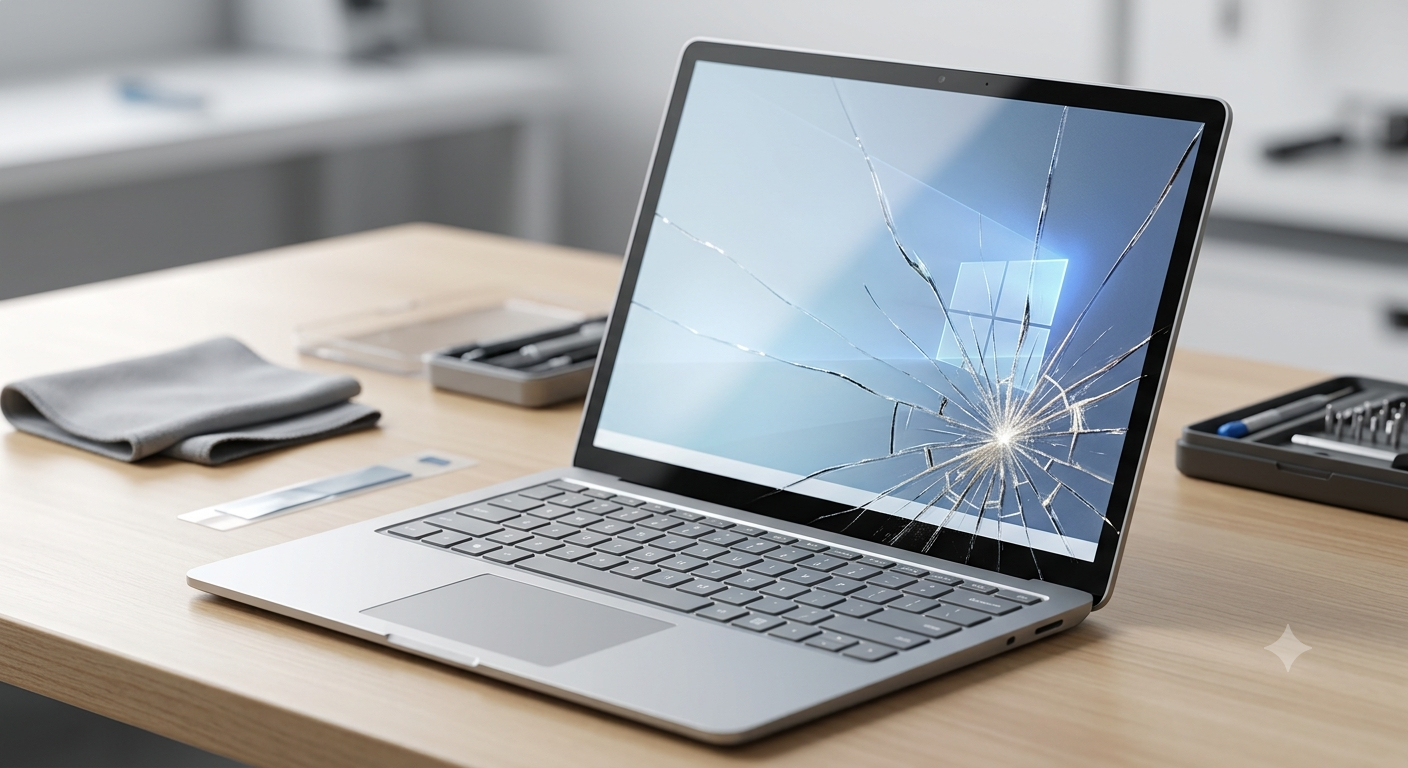
The Microsoft Surface Laptop 3 is celebrated for its sleek design, premium keyboard, and impressive performance. However, like any sophisticated piece of hardware, it is susceptible to physical damage. If you are staring at a surface laptop 3 cracked screen, you are likely worried about the functionality, the cost of repair, and the safety of your data.
A cracked screen is more than just a cosmetic annoyance; it can lead to touch-input malfunctions, display bleeding, or even glass splinters. This guide provides a detailed look at how to handle this issue professionally.
In this article
- Understanding the Anatomy of Your Surface Laptop 3 Screen
- Immediate Steps to Take After Damage
- Assessing Repair Options: DIY vs. Professional Service
- Comparison of Repair Costs and Risks
- Preventing Future Damage: Tips for Surface Users
- Does a Crack Affect Performance?
- Expert Tips for Choosing a Replacement Part
- Advanced Troubleshooting for Display Issues
- Conclusion: Making the Right Decision
Understanding the Anatomy of Your Surface Laptop 3 Screen
Before jumping into repairs, it is essential to understand that the Surface Laptop 3 uses a laminated display assembly. Unlike traditional laptops where the glass and the LCD panel are separate, the Surface display is a single, bonded unit.
 Also readTesla’s Flying Roadster: Is It Real? What Elon Musk Actually Launched
-
Integrated Design: The digitizer (touch layer), the LCD panel, and the outer glass are fused together.
-
Repair Implications: Because of this lamination, you cannot simply replace the top glass pane. A microsoft surface laptop 3 cracked screen almost always requires the replacement of the entire display assembly.
Immediate Steps to Take After Damage
If your screen has just been damaged, follow these steps to prevent further issues:
-
Back Up Your Data: If the display is still functional, immediately move your important files to an external drive or cloud storage.
-
Assess Touch Functionality: Determine if the “ghost touching” (random clicks) is occurring. If it is, disable the touch driver in Device Manager to regain control of your mouse.
-
Prevent Splinters: If the glass is shattering, apply a clear screen protector or a piece of clear packing tape over the area to prevent glass fragments from falling into the keyboard or injuring your fingers.
Assessing Repair Options: DIY vs. Professional Service
When faced with a surface laptop 3 crack, you generally have three paths: official support, third-party repair, or self-repair.
1. Microsoft Official Support
Microsoft offers out-of-warranty service options. While this is the most expensive route, it ensures the use of genuine parts and maintains the integrity of your device.
2. Third-Party Repair Shops
Many specialized electronic repair shops can handle a surface laptop 3 screen crack. Ensure you vet the shop by checking their experience specifically with Microsoft devices, as the Surface line is notoriously difficult to open.
3. DIY Repair
While it is possible to perform a repair yourself, it is categorized as “difficult” by experts. The device relies heavily on strong adhesives rather than screws, making internal access risky. If you are interested in advanced hardware setups, you might appreciate the complexity involved in mobile triple screen setup simracing.
Comparison of Repair Costs and Risks
Preventing Future Damage: Tips for Surface Users
A surface laptop 3 screen cracked incident is often preventable. Adopting these habits can save you significant repair costs in the future:
-
Never close the lid with objects inside: Even a small coin or a pen left on the keyboard can exert enough pressure to shatter the display when the lid is closed.
-
Use a high-quality sleeve: Ensure your laptop sleeve has padded corners to absorb shock during travel.
-
Avoid cleaning with harsh chemicals: Over time, corrosive liquids can weaken the structural integrity of the display edges. Use only a microfiber cloth and specialized screen cleaner.
Does a Crack Affect Performance?
Many users ask if a surface laptop 3 crack will eventually kill the entire machine. While a minor crack may not impact the GPU or CPU immediately, there are secondary risks:
-
Display Bleeding: Over time, the pressure from the crack can cause liquid crystal leakage, leading to black spots that grow across the screen.
-
Touch Input Failures: The digitizer layer is highly sensitive. As the glass structure shifts, your mouse might start jumping to random locations, rendering the laptop unusable for productivity.
Expert Tips for Choosing a Replacement Part
If you decide to proceed with a repair, buying the correct component is critical.
-
Verify Model Numbers: Ensure the screen assembly matches your specific Surface Laptop 3 model (13.5-inch vs 15-inch versions use different parts).
-
Avoid “Glass-Only” Kits: Do not purchase kits that claim to replace only the glass. These are meant for professional laboratory-grade machinery, not home repairs.
-
Test Before Sealing: If attempting a DIY repair, connect the new screen assembly to the motherboard and boot the system to ensure the display and touch sensors work before applying the final adhesive seals.
Advanced Troubleshooting for Display Issues
If you aren’t sure if the issue is a physical crack or a software driver failure, try these steps first:
-
Update Display Drivers: Go to the Microsoft Support Center to download the latest firmware and driver pack for your specific model.
-
External Monitor Test: Connect your laptop to an external monitor via a USB-C dock. If the image on the external monitor is clear, you can confirm that your graphics card is working and the issue is indeed limited to the physical panel.
-
Check for “Ghosting”: If the screen flickers without a visible crack, this might be a hardware defect covered by warranty, which is distinct from a microsoft surface laptop 3 cracked screen.
Conclusion: Making the Right Decision
Dealing with a surface laptop 3 cracked screen is frustrating, but it is manageable if you approach it systematically.
-
Summary: We have explored the structural complexity of the Surface display, the risks of DIY attempts, and the importance of data protection.
-
Making an Informed Decision: If your device is under warranty, contact Microsoft immediately. If it is out of warranty, weigh the cost of a professional repair against the current resale value of the laptop.
-
Actionable Takeaways: Always keep a backup of your data, use a padded sleeve, and avoid DIY repairs unless you are highly experienced with heat-bonded electronics.
While accidents happen, being prepared ensures that a damaged screen doesn’t mean the end of your device’s lifecycle. Whether you choose to repair it professionally or upgrade to a newer model, always prioritize the safety of your data and the integrity of your hardware. If you are someone who enjoys optimizing your tech, you might also be curious about how to optimize a mobile triple screen setup simracing rig for better productivity or entertainment. Treat your devices with care, and they will continue to serve your professional and personal needs for years to come.
