How to Download WhatsApp on Laptop for Free: The Ultimate 2026 Guide

 Business
 How to Download WhatsApp on Laptop for Free: The Ultimate 2026 Guide
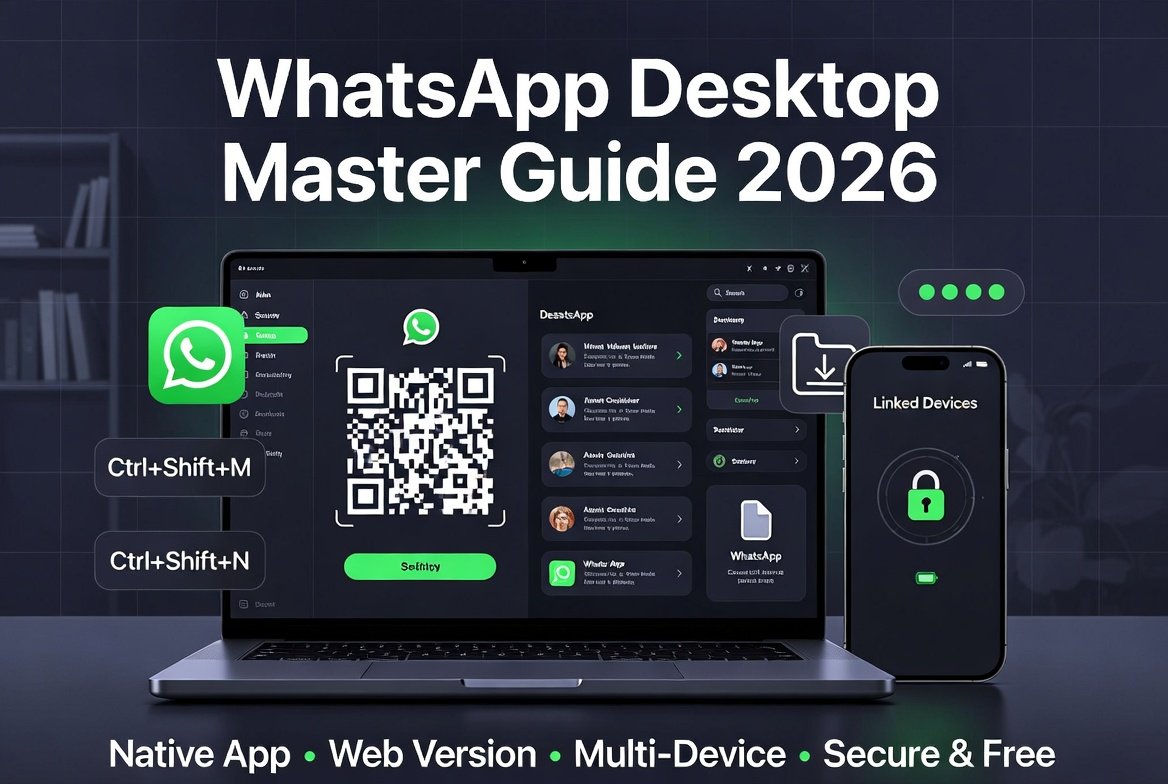
If you want to download WhatsApp to streamline your workflow, you might be surprised to learn that the process is completely free and takes only a few minutes. This comprehensive guide will walk you through every method available for Windows, Mac, and even Chromebook users in 2026. We will cover native desktop apps, web-based access, troubleshooting common issues, and even security best practices to keep your data safe.
By the end of this 5000+ word guide, you will be a master of WhatsApp on the big screen.
Why You Should Use WhatsApp on Your Laptop
Before diving into the technical steps, let’s explore why installing WhatsApp on your computer enhances your daily productivity.
The Ergonomics of Efficiency
Typing on a physical keyboard is almost always faster than tapping on glass. When you download WhatsApp desktop version, you gain the ability to type long messages, respond to emails simultaneously, and manage multiple chats without the wrist strain associated with smartphone use.
Seamless File Sharing
Transferring photos and documents from your computer to a contact used to require emailing yourself the file first. With the desktop app, you can drag and drop files directly from your laptop’s hard drive into the chat window. This is a game-changer for professionals who need to send PDFs, ZIP files, or high-resolution images instantly.
Battery Preservation
Constantly switching to your phone drains its battery. By routing your chats to your laptop, you can leave your phone charging on your desk while still maintaining 100% connectivity.
Method 1: The Native Desktop App (Recommended)
The best way to download WhatsApp for a seamless experience is to use the native desktop application. Unlike the web version, the desktop app supports native notifications, keyboard shortcuts, and better system integration.
System Requirements
To use the desktop app, you need the following:
-
For Windows: Windows 10.1 (64-bit) or Windows 11, build 1903 or newer.
-
For macOS: macOS 12.1 (Monterey) or newer.
-
Storage: Approximately 150 MB of free space.
-
Connectivity: Your phone must remain connected to the internet (Wi-Fi or mobile data) to sync messages.
Step-by-Step Installation Guide
Step 1: Visit the Official Source
Open your preferred web browser (Chrome, Edge, Safari) and go to the official Meta website. The safest place to download WhatsApp is always the official site.
Step 2: Select Your Operating System
The homepage will automatically detect your OS, but you can manually select “Windows” or “Mac”. Click the green “Download” button.
Step 3: Install the Application
-
For Windows: Once the
.exefile downloads, double-click it. Follow the setup wizard. You may see a User Account Control prompt—click “Yes”. -
For Mac: Drag the WhatsApp icon into your “Applications” folder.
Step 4: Launch and Link
Open the app from your start menu or applications folder. You will see a QR code on the screen.
Step 5: Link Your Phone
-
Open WhatsApp on your iPhone: Go to Settings > Linked Devices > Link a Device.
-
Open WhatsApp on your Android: Tap the three dots (menu) > Linked Devices > Link a Device.
Scan the QR code on your laptop screen.
Alternative: Download via Microsoft Store / Mac App Store
If you prefer not to download executable files from the web, you can use your operating system’s native store.
-
Windows Users: Open the Microsoft Store, search for “WhatsApp Desktop,” and click Install.
-
Mac Users: Open the Mac App Store, search for “WhatsApp,” and click Get.
Method 2: WhatsApp Web (The Browser Option)
If you cannot install software on your work computer due to admin restrictions, or if you are using a Chromebook, WhatsApp Web is your best friend. It does not require you to download WhatsApp software; it runs entirely in your browser.
H3: How to Access WhatsApp Web
-
Open your browser (Chrome, Firefox, Edge, Safari).
-
Navigate to
web.whatsapp.com. -
You will see a QR code.
-
On your phone, navigate to Linked Devices (Settings > Linked Devices).
-
Tap Link a Device and scan the QR code on the screen.
Pro Tip: Bookmark the WhatsApp Web page for instant access later.
WhatsApp Web Login Without QR Code
One of the most common frustrations users face is the inability to scan the QR code. Perhaps your phone camera is broken, or you are using a virtual machine. Fortunately, in 2025 and 2026, Meta introduced an alternative method: WhatsApp Web login without QR code using your phone number.
This feature is a lifesaver for accessibility. Here is exactly how to bypass the QR scanner.
Step-by-Step: Link with Phone Number
On Your Laptop/Computer:
-
Go to
web.whatsapp.com. -
Look at the bottom of the QR code box. You will see a link that says “Link with phone number” . Click this.
-
Select your country and enter your mobile phone number. Click Next.
-
The screen will now display a connection code (an 8-character alphanumeric code).
On Your Phone (iOS/Android):
-
Open the WhatsApp mobile app.
-
Go to Settings (iOS) or the three-dot menu (Android).
-
Tap Linked Devices.
-
Tap the “Link a Device” button.
-
Crucial Step: Look for the text at the bottom of the camera screen that says “Link with phone number instead” . Tap it.
-
Enter the 8-character code displayed on your laptop screen.
Once you input the code, the laptop browser will instantly sync with your phone. This method is secure and removes the hardware barrier of needing a functional camera to download WhatsApp or access its web version.
Troubleshooting “No QR Code” Issues
-
Outdated App: If you don’t see the “Link with phone number” option, update your mobile WhatsApp via the Google Play Store or Apple App Store.
-
Region: Ensure your app supports the latest version; this feature is now global, but older APK versions may miss it.
Method 3: WhatsApp for Tablets (iPad/Android Tablet)
While technically not a “laptop,” many users use iPads with keyboard cases as laptops. Historically, iPad users were locked out. As of 2026, the multi-device beta is stable.
Installing on iPad
-
Open the App Store on your iPad.
-
Search for “WhatsApp Messenger.”
-
Download WhatsApp just as you would on a phone.
-
Open the app. Unlike the iPhone version, the iPad app now shows a QR code.
-
On your primary phone, go to Linked Devices > Link a Device.
-
Scan the QR code on the iPad screen.
You can now use WhatsApp independently on your iPad, even if your phone is off (thanks to the multi-device beta architecture).
A Deep Dive into WhatsApp Business on Desktop
If you are using your laptop for customer service, the standard app might be limiting. You need the specific business tools.
👍 WhatsApp Business Account Setup Guide
Switching to or installing WhatsApp Business on your laptop requires a slightly different setup. Note that you cannot run two phone numbers on the same WhatsApp Business account without specific API setups.
Step 1: Download the Right App
You cannot use the standard consumer app for a business account on desktop if you want the specific features (labels, quick replies, away messages). You need to:
-
On your phone: Install “WhatsApp Business” from the Play Store or App Store (this requires a separate phone number if you already have personal WhatsApp).
-
On your Laptop: Visit
web.whatsapp.combut log in using your WhatsApp Business mobile account.
Step 2: Set Up Your Business Profile on Desktop
Once you scan the QR code with your Business app, you can access the desktop interface. Here is how to optimize it:
-
Click the three dots (Menu) > Business Tools.
-
Catalog: Upload your products directly from your laptop (easier to drag/drop high-res images).
-
Greeting Message: Set an automated hello for when customers first message you.
-
Away Message: Configure auto-replies for after-hours.
Step 3: Labels for Organization
The desktop app supports “Labels” (like “New Customer,” “Order Received,” “Pending Payment”). This helps you manage the chaos of sales chats efficiently.
Mastering Features: Tips and Tricks for Desktop Users
Once you download WhatsApp and log in, the experience doesn’t stop at texting. Here are advanced features to boost your usage.
👍 Best Ways to Use WhatsApp Calling Features
Your laptop likely has a better microphone and speaker than your phone. Here is how to optimize calling:
-
Video Calls: You can make group video calls with up to 32 people on the desktop app. The larger screen allows you to see everyone in a grid view, perfect for team meetings.
-
Screen Sharing: During a call, look for the Screen Sharing icon (a rectangle with an arrow). This allows you to show colleagues a document, a website, or a problem on your computer in real-time.
-
Audio Routing: If you have AirPods or a Bluetooth headset connected to your laptop, the call will automatically route through them, offering superior sound quality.
👍 How to Backup WhatsApp Chats to Google Drive
Note: This process is initiated from your mobile device, but you can restore or prepare for it on desktop.
Backups are crucial for moving data. On your Phone:
-
Open WhatsApp > Settings > Chats > Chat Backup.
-
Tap Back up to Google Drive (Android) or iCloud (iOS).
-
Select the frequency (Daily, Weekly, Monthly).
Desktop Insight: While the desktop app syncs recent messages, your full history is stored on the phone backup. Ensure your Google Drive has enough space.
👍 WhatsApp Privacy Settings for Personal Account
Privacy is paramount. When you use a shared laptop, you must lock it down.
-
Screen Lock: In the Desktop App, go to Settings > Privacy > Enable “Lock with password/pin” . This prevents someone from using your laptop and reading your messages while you take a coffee break.
-
Disappearing Messages: For sensitive chats, click the contact name > Disappearing Messages > 24 hours or 7 days.
-
Blocking: You can block contacts directly from the desktop. Click on the contact name > scroll down to Block.
👍 How to Join a WhatsApp Group Without an Invitation Link
Directly joining a “closed” group without a link isn’t possible (that would be a security risk). However, you can use the Desktop App to open links instantly.
If a friend sends you a Group Invite Link via DM:
-
Click the link.
-
WhatsApp desktop will process the “deep link.”
-
A pop-up will appear asking: “Join group?” Click Join Group.
This bypasses the need to “Save” the link to your phone first.
👍 Download Latest WhatsApp Version for Android (Via Computer)
Sometimes you need the APK file to update an old tablet.
-
Search for the official WhatsApp Android APK on a trusted repository like APKMirror (owned by the founders of Android Police) on your laptop.
-
Download WhatsApp APK file to your laptop.
-
Transfer the file via USB cable to your Android device’s “Downloads” folder.
-
Open the file on your Android to install (ensure “Install from unknown sources” is enabled).
Security and Encryption
WhatsApp End to End Encryption Explained
One of the biggest fears about using a web or desktop client is security. “Can my employer see my messages?” “Is the connection safe?”
The Answer: End-to-end encryption (E2EE) works perfectly on the desktop.
When you download WhatsApp desktop app, all messages are encrypted on your phone before being sent to the cloud and decrypted only on your laptop. WhatsApp cannot read your messages, and neither can your internet provider.
How to verify encryption:
-
Open a chat on the desktop.
-
Click the contact name.
-
Click Encryption > Scan the QR code (or compare the 60-digit number) with your friend’s phone.
If they match, the chat is secure.
👍 Secure WhatsApp Account with Two-Step Verification
To prevent hackers from taking over your account on a new device, enable Two-Step Verification.
-
On Desktop: Settings > Account > Two-step verification > Enable.
-
On Mobile: Settings > Account > Two-step verification > Enable.
You will need to enter a 6-digit PIN whenever you register your phone number with WhatsApp again. This is essential for protecting your business data.
👍 How to Recover Deleted WhatsApp Messages (2026 Methods)
We have all done it: deleted a message by accident. While the “Delete for me” is permanent, the “Delete for everyone” isn’t always.
-
The PC Method: If you have notifications enabled on Windows, Windows stores Action Center notifications. If you delete a message but the notification popped up on your laptop, you might still see the text in the Windows Notification History.
-
Backup Restore: Uninstall and reinstall WhatsApp. During setup, when it finds the Google Drive backup, it will restore messages. Note: This only works if you haven’t backed up after deleting the message.
Advanced Desktop Features You Didn’t Know About
👍 WhatsApp Desktop App Features and Shortcuts
The desktop app is not just a mirror; it has unique speed hacks. Here are keyboard shortcuts (Windows):
-
Ctrl + N: Start a new chat.
-
Ctrl + E: Archive chat.
-
Ctrl + Shift + M: Mute chat.
-
Ctrl + Backspace: Delete current chat.
-
Ctrl + G: Search GIPHY (in text box).
-
Alt + Left/Right Arrow: Navigate back/forward in pages.
WhatsApp Voice Message Transcription Guide
Getting a long voice note during a meeting is annoying. The desktop app now supports Voice Message Transcription.
-
Availability: Currently rolling out for iOS-to-Windows and iOS-to-Mac.
-
How to use: When you receive a voice note, right-click the audio bar. Select “Transcribe” . Text will appear above the audio message.
-
Language: Ensure your laptop’s keyboard language matches the voice note language for accuracy.
Troubleshooting Common Issues
Even the best software has hiccups. Here is how to fix the most common problems when you try to download WhatsApp or use it on your laptop.
WhatsApp Web Not Working” or QR Code Not Loading
-
Issue: The QR code is spinning or won’t appear.
-
Fix: Clear your browser cache (Ctrl + Shift + Del). Or, check your antivirus. Some “Web Protection” modules block WebSockets, which WhatsApp Web relies on.
Mobile Phone “Offline” Error
-
Issue: The desktop says “Waiting for Network” or “Phone Offline.”
-
Fix: Your phone must have an active internet connection. If your phone is on Wi-Fi, ensure it isn’t in “Battery Saver” mode, as that kills background apps. Allow WhatsApp unrestricted battery access in your phone settings.
Installation Fails on Windows
-
Issue: “This app can’t run on your PC.”
-
Fix: You likely have an outdated version of Windows 10 (e.g., version 1803). You need Windows 10 version 1903 or higher. Go to Settings > Update & Security > Windows Update to update your OS.
Notifications Not Showing
-
Windows: Go to Settings > System > Notifications & Actions. Find WhatsApp and ensure “Banners” and “Sound” are on.
-
Mac: Open WhatsApp > Preferences > Notifications. Ensure they are enabled. Also check your Mac’s System Settings > Notifications.
Frequently Asked Questions (FAQ)
Q: Do I need to pay to use WhatsApp on my laptop?
A: No. The desktop application and WhatsApp Web are 100% free. There are no subscription fees. (Meta recently introduced a Premium tier for businesses using the API at scale, but the consumer app remains free).
Q: Can I use WhatsApp on two laptops at the same time?
A: Yes. You can link up to 4 devices (including the phone itself) to one account. You can link two different laptops, an iPad, and a phone all simultaneously.
Q: Does my phone need to be turned on to use the desktop app?
A: With the new Multi-Device Beta (which is now standard for most users), your primary phone only needs to connect to the internet once every 14 days. For the rest of the time, you can leave your phone in your pocket, turned off, and the desktop app will still work. (Note: To send messages or receive them instantly, the phone technically needs periodic connection for key updates, but the “phone must be on the same Wi-Fi” restriction is gone).
Q: How do I log out remotely?
A: If you forgot to log out of a public computer, open WhatsApp on your phone. Go to Linked Devices. Click on the device you want to remove and tap Log Out.
The Future of WhatsApp on Desktop (WhatsApp Premium)
As of April 2026, Meta has started testing WhatsApp Plus (or Premium) . While the core ability to download WhatsApp remains free, Premium subscribers get access to:
-
Custom themes and sticker packs on Desktop.
-
Ability to pin more than 3 chats.
-
Custom ringtones for specific contacts on the PC version.
-
New app icons.
However, the basic features of texting, calling, and file sharing will always remain free for users. Businesses, however, are moving toward the API and Cloud API models to scale customer service.
Comparison Chart: Web vs. Desktop App
| Feature | WhatsApp Web (Browser) | WhatsApp Desktop App |
|---|---|---|
| Installation Required | No | Yes |
| Keyboard Shortcuts | Limited | Full Support |
| Native Notifications | Yes (Browser dependent) | Yes (System Level) |
| Screen Sharing | Yes (Chrome/Edge only) | Yes |
| Voice/Video Calls | No (Browser version struggles) | Yes (Best Quality) |
| Dark Mode | Matches Browser | Matches System |
| Best For | Quick access, shared computers | Daily work, calling |
How to Optimize Your Laptop for WhatsApp Performance
If you are going to download WhatsApp and use it heavily, ensure your hardware is up to par.
H3: Microphone and Camera Permissions
-
Windows: Go to Settings > Privacy & Security > Microphone. Ensure “Let apps access your microphone” is On. Do the same for Camera.
-
Mac: Go to System Preferences > Security & Privacy > Privacy. Check the boxes next to WhatsApp for Camera and Microphone.
Keeping it Light
The WhatsApp desktop app is a RAM hog if you have 50,000 message threads. To clean it:
-
Go to Settings > Storage.
-
Click Manage storage (mostly a phone feature, but on desktop you can clear cache by reinstalling).
-
On Desktop, simply Log Out and Log In again. This clears the local cache without deleting your cloud history.
Conclusion and Actionable Takeaways
Moving your messaging from a small screen to a large one is one of the simplest productivity hacks available today. Whether you choose the web version for quick access or the full desktop experience to leverage WhatsApp calling features and file transfers, the process is seamless, secure, and free.
To recap the key steps:
-
Choose your method: Use the official website (whatsapp.com/download) or the Microsoft/Apple Store to download WhatsApp.
-
Link via Security: Use the new WhatsApp Web login without QR code feature if your camera is broken, or scan the QR code safely.
-
Optimize: Set up two-step verification, explore keyboard shortcuts, and manage your linked devices from your phone.
-
Stay Updated: As of 2026, features like voice transcription and multi-device linking are the new standard. Keep your apps updated to enjoy them.
Don’t let your phone bottleneck your communication. Download the app today and experience the freedom of typing at full speed.
Additional Resources and Tags
For further reading on specific features mentioned in this guide, you can explore the official documentation provided by Meta regarding device linking and security on platforms like WhatsApp’s official FAQ page .


