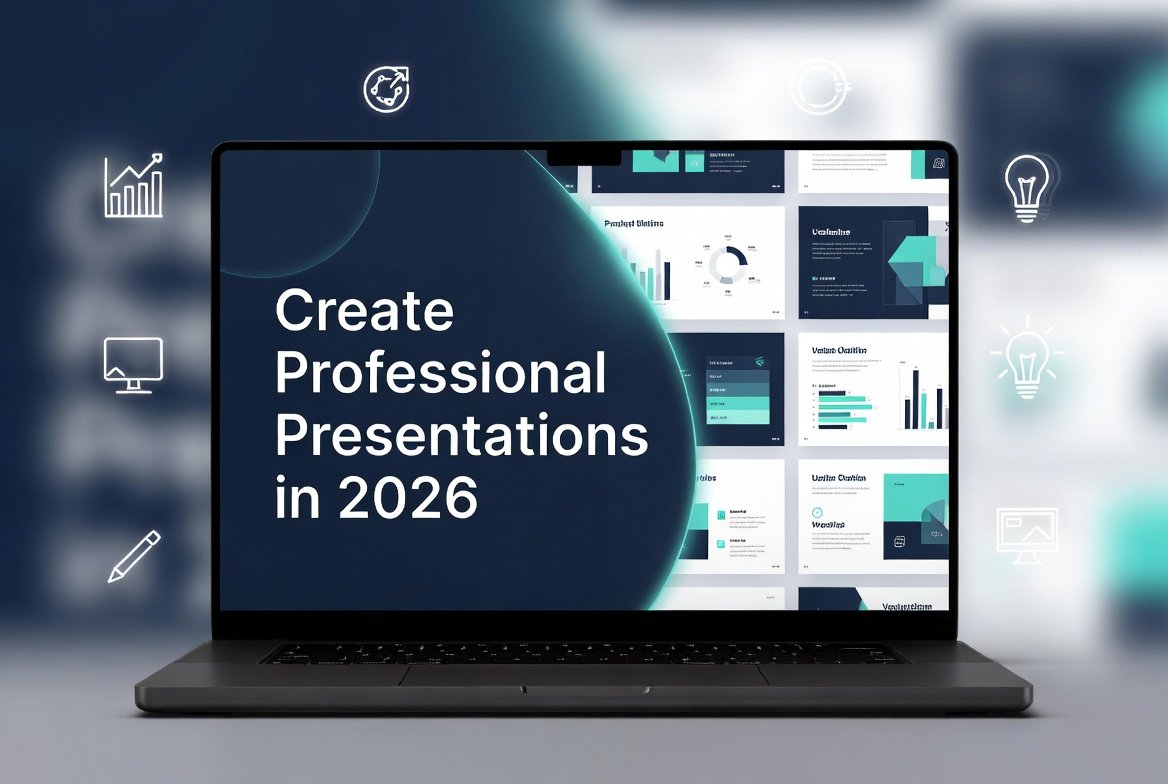
How to Create a Professional PowerPoint Presentation from Scratch in 2026

 Tech Review
 How to Create a Professional PowerPoint Presentation from Scratch in 2026
Table of Contents
ToggleIntroduction: The Evolution of the Presentation in 2026
Gone are the days when building a presentation meant manually formatting bullet points and searching for clip art. In 2026, the landscape of digital communication has shifted dramatically. We are currently in the era of the “Co-pilot,” where artificial intelligence handles the heavy lifting of design and structure, allowing the human creator to focus entirely on narrative and impact.
Microsoft PowerPoint remains the undisputed king of presentation software, holding an estimated 95 percent of the global market share . However, the tool you use today is vastly different from the version of five years ago. With the deep integration of Microsoft Copilot, real-time collaboration, and advanced accessibility features, creating a stunning slide deck is faster than ever—but only if you know how to leverage the right tools.
Whether you are pitching to investors, teaching a class, or delivering a quarterly report, this guide will walk you through how to build a professional presentation from absolute scratch using the specific features available in 2026.
Phase 1 – Laying the Foundation (Planning and Structure)
Before you open the application, you need a roadmap. The most visually stunning presentation will fail if the story is disjointed. In 2026, we use AI not to replace thinking, but to accelerate the organization of thought.
Defining Your Core Narrative (The “Golden Thread”)
Every great presentation has a single “Golden Thread”—one core message you want the audience to remember. If they remember nothing else, what should it be?
To define this, answer three questions:
-
Who is my audience? (Executives need summaries; technicians need data).
-
What is my goal? (To inform, to persuade, or to instruct?).
-
What is the one takeaway? (Write this on a sticky note. If a slide doesn’t support this note, delete it).
Using AI to Generate the Outline (Copilot in Action)
In 2026, you do not stare at a blank screen. You use Agent Mode in PowerPoint. Microsoft has expanded Copilot to allow for “conversational creation,” where the AI can generate new slides, update existing content, and enhance layouts based on natural language prompts .
How to do it:
-
Open PowerPoint and navigate to the
Copilotpane on the ribbon (Home tab). -
Select “Create presentation from scratch” or “Outline.”
-
Type a prompt like: *”Generate a 10-slide presentation outline for a sustainable packaging strategy aimed at retail investors. Use a professional tone and include a slide for financial projections.”*
Copilot will instantly generate a structured outline with section headers. Crucially, in 2026, these AI suggestions are highly contextual. You can ask Copilot to adjust the length, merge ideas, or add specific data points. This gives you a “draft” that you can refine in seconds rather than hours.
Setting Up the Slide Master (The Blueprint)
Before adding a single image, you must establish the “Master Slides.” This ensures brand consistency.
-
Navigate to
View>Slide Master. -
Here, define the fonts, colors (matching your brand palette), and logo placement.
-
Pro Tip for 2026: Use the Designer feature. As you add content later, the AI will suggest layout variations based on the Master you built here, ensuring you never mess up the formatting.
Phase 2 – Content Creation (Writing and Visuals)
With the structure ready, it is time to fill the slides. The biggest mistake amateurs make is treating slides as a script. Slides are visual aids, not a teleprompter.
Writing Less, Showing More (The 2026 Rule)
The “7×7 Rule” (7 lines, 7 words per line) is now outdated. The 2026 rule is “3-5-7” : No more than 3 ideas, 5 bullets, or 7 words per line for a narrative slide. If you have a lot of text, move it to the Speaker Notes section.
Using AI to Refine Text:
Select a block of imported text. Click the Copilot logo and select “Rewrite” or “Compress.” As noted in recent updates, Copilot can now improve clarity, fix grammar, and adjust the tone (e.g., make it “more persuasive” or “more concise”) instantly .
Visual Storytelling with AI Image Generation
Finding the right stock photo is tedious. In 2026, PowerPoint solves this by generating exactly what you need.
Microsoft has rolled out prompt-based photo editing directly inside PowerPoint. You no longer need to switch to external apps .
How to generate visuals:
-
Go to
Insert>Pictures>Generate with AI. -
Type a descriptive prompt: “A photorealistic image of a diverse team of architects looking at a holographic blueprint of a green city, soft natural lighting.”
-
The AI generates a unique, royalty-free image that fits your exact context.
Additionally, the Stock Image library (Insert > Pictures > Stock Images) has been expanded with high-quality icons, stickers, and illustrations that are entirely free to use with your Microsoft 365 subscription.
Converting Documents to Decks
Do you have a 15-page Word report or a PDF that needs to become a presentation? In 2026, PowerPoint excels at this.
Use the “Create from File” feature in Copilot. Attach your Word document or PDF. Copilot will analyze the file, extract the key insights, and build a presentation draft for you, saving you hours of copy-pasting .
Phase 3 – Advanced Design and Layout
You have the content and the images. Now, we make it look like a professional designer built it.
Leveraging Designer (Formerly Design Ideas)
The Designer feature is now smarter than ever. As you drag an image onto a slide, a pane opens on the right offering a variety of layout options. It uses Microsoft’s AI to understand the content of the image and the surrounding text to suggest the most aesthetic composition.
-
Action: If you add a chart, Designer will ask if you want a “Data Layout” to make the numbers pop.
-
Tip: Try the Morph Transition for cinematic movement. It is found under
Transitions>Morph. If you duplicate a slide and move an object slightly, Morph animates the movement smoothly. It is the secret to “high-budget” looking animations.
Choosing the Right Aesthetic (2026 Trends)
The default templates are fine, but to look professional, you need to curate. According to the latest design trends, specific aesthetics perform better depending on your industry :
-
For Corporate/Finance: Use the Minimalist or Black and White templates. Clean lines, lots of negative space, and sans-serif fonts (like Inter or Roboto). This signals precision.
-
For Creative/Marketing: Use the Contemporary or Geometric templates. Bold shapes and contrasting colors show innovation.
-
For Education: Use Cool and Fun or Colorful and Bright to keep energy high.
To apply: File > New > type the aesthetic (e.g., “Geometric”) into the template search bar.
Phase 4 – The Rehearsal and Accessibility Check
Your slides are beautiful, but a presentation is a performance. The tools in PowerPoint ensure you are ready to deliver.
Rehearsing with Speaker Coach
This is one of the most underrated features in PowerPoint , especially the 2026 updates.
-
Go to
Slide Show>Rehearse with Coach. -
As you speak into your microphone, the AI listens.
-
What it tracks: Pacing (too fast/slow), pitch (monotone?), filler words (“um,” “like”), and even culturally sensitive phrases .
-
Result: You get a rehearsal report after your practice run, telling you exactly where you stumbled.
Accessibility: Presenting for Everyone
In 2026, a “professional” presentation is an inclusive presentation. Microsoft has embedded accessibility deep into the workflow .
Live Captions:
When presenting (online or in-person), turn on Live Captions (Slide Show > Always Use Subtitles). PowerPoint uses AI to transcribe your voice in real-time and displays the words on screen. It can even translate your spoken words into over 60 languages in real-time. This is crucial for global teams or diverse audiences.
The Accessibility Checker:
Before you export your file, run the checker.
-
Go to
Review>Check Accessibility. -
The tool will scan for missing Alt Text (descriptions for images), poor color contrast (making text hard to read), or incorrect slide reading orders.
-
Action: Fix these issues. Adding Alt Text to your charts ensures that a colleague using a screen reader can understand the data.
Phase 5 – Finalizing and Exporting
You are ready to go. But are you saving the file correctly?
File Formats for Different Needs
-
For Editing Later: Save as
.PPTX(The standard editable format). -
For Printing Handouts: Export as
.PDF. This preserves the layout perfectly. -
For Sharing Online (No Font Issues): Go to
File>Export>Create a Video. Export as an.MP4. This is great for emailing a “rolling deck” that plays automatically. -
For Presentations on Other Computers: Use
File>Info>Embed Fonts. This saves the specific fonts you used into the file, so it doesn’t break on a laptop that lacks your font style.
Creating a “Summary” Slide
Finally, use Copilot to generate a Takeaway slide. In the Copilot chat, type: “Summarize this presentation into 3 key takeaways for the executive summary.”
Copilot will scan the entire deck and produce a final slide that reminds the audience of the core message—tying back to your “Golden Thread.”
Top 5 “PowerPoint” Features You Must Use in 2026
To summarize the technical advancements, here are the five specific features within PowerPoint that will define professional work this year:
-
Agent Mode: For conversational creation and editing without touching the mouse .
-
AI Image Generation: For unique, custom visuals created inside the app .
-
Speaker Coach: Your private AI assistant for rehearsing tone and pacing .
-
Live Translation: Breaking down language barriers in global meetings .
-
Morph Transition: The easiest way to add Hollywood-level motion to your data.
H1: Resources and Further Reading
Mastering PowerPoint is a journey. To continue improving your skills, explore guides on business communication and presentation strategy.
Internal Resources (from businesstomark.com):
-
For understanding the financial aspects of software investment, check out this analysis on SaaS Pricing Models for 2026.
-
To improve your public speaking delivery, read 10 Tips for Confident Public Speaking.
-
For structuring your sales pitch, see How to Build a Sales Funnel Presentation.
External Resource:
-
For a detailed history of how this software evolved from a single Macintosh program to a global standard, you can read the entry on Microsoft PowerPoint via Wikipedia.
Conclusion
Creating a professional PowerPoint presentation from scratch in 2026 is a hybrid process. It requires human creativity (to define the story and understand the audience) and artificial intelligence (to design, refine, and rehearse).
By following the phases outlined above—Plan, Create, Design, Rehearse, and Export—you remove the technical friction from the process. You no longer need to be a graphic designer to build a stunning deck; you just need to be a clear thinker.
Open the application, start a conversation with Copilot, and watch your ideas transform into a visual masterpiece. The only limit left is the quality of your story, not the limit of the software.
Frequently Asked Questions (FAQ)
Q: Is the AI in PowerPoint free to use?
A: The advanced Copilot features (Agent Mode, AI image generation) require a Microsoft 365 Copilot subscription or a commercial license. However, basic Designer suggestions and Speaker Coach are available to standard subscribers.
Q: How do I ensure my fonts don’t change on another computer?
A: Go to File > Options > Save > Check the box that says “Embed fonts in the file.” This ensures your presentation looks exactly the same on any device.
Q: Can I use the AI to write speaker notes?
A: Absolutely. Select the slide content, click Copilot, and ask: “Generate speaker notes for this slide aimed at a technical audience.” The AI will write the script for you.
Q: How do I make my presentation accessible?
A: Always run the Accessibility Checker (Review > Check Accessibility) before finalizing. Add Alt Text to images and ensure your color contrast is high. Use the Live Captions feature during the actual presentation.