
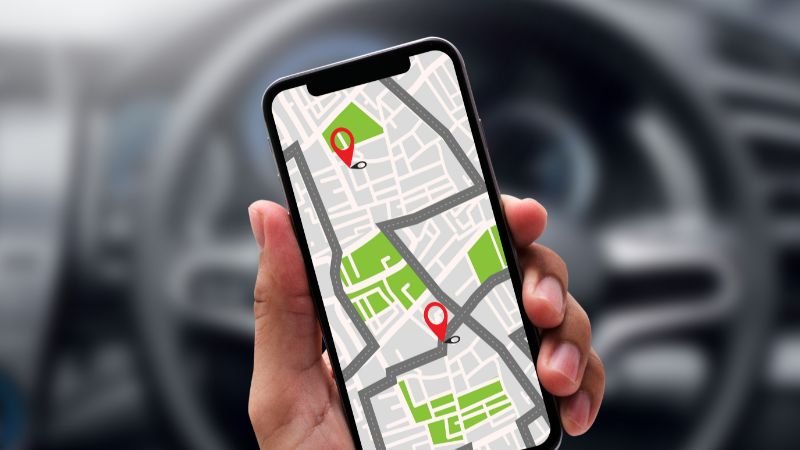
Checking location on iPhone allows families to coordinate plans, ensure safety during travel, or locate a misplaced device quickly. This guide explores legitimate, consent-based methods to view someone’s position using official Apple tools, emphasizing privacy and respect at every step. Whether you’re a parent keeping tabs on children after school or helping an elderly family member who might wander, these features promote security without compromising trust.

In this article
- iPhone Location Services: The Foundation of Safe Tracking
- Legal and Ethical Considerations Before Sharing Locations
- Method 1: Using the Find My App to Check Location on iPhone
- Method 2: Family Sharing – Perfect for Parents and Households
- Method 3: Sharing Location Directly Through Messages
- Method 4: Viewing Locations via iCloud.com
- Troubleshooting Common Location Issues on iPhone
- Privacy Controls and Best Practices
- How Location Technology Works Behind the Scenes
- Real-Life Scenarios and Use Cases
- Future of Location Services on iPhone
- Frequently Asked Questions (FAQs)
- Conclusion: Empowering Families with Responsible Location Tools
iPhone Location Services: The Foundation of Safe Tracking
Apple’s location services rely on a combination of GPS, Wi-Fi, cellular networks, and Bluetooth to provide accurate positioning. These technologies work together to deliver real-time data while prioritizing user control. Location services must be enabled on both devices involved, and sharing always requires explicit permission from the person being located.
iPhone users can manage these settings through the Privacy & Security menu in the Settings app. Here, you can toggle Location Services on or off globally or per app. For family-oriented use, enabling it ensures that tools like Find My function smoothly. It’s important to note that location data is encrypted and stored securely on Apple servers only when necessary, reducing risks of unauthorized access.
 Also readI Tested 20 Free and Paid Video Editing Tools in 2026 — Here’s Which One Actually Fits You
Why Location Sharing Matters for Families
For many households, sharing locations fosters better communication. Imagine a busy parent confirming a child’s safe arrival at a friend’s house or a group of siblings coordinating a meetup at a park. These features have evolved from simple device tracking to comprehensive people-finding networks, all designed with family values in mind.
Apple introduced significant improvements with the Find My app, merging previous tools into one seamless experience. This app now supports sharing with specific contacts, creating temporary links, or setting up permanent family groups. Always discuss and obtain agreement before sharing to maintain healthy relationships.
Legal and Ethical Considerations Before Sharing Locations
Before diving into technical steps, it’s crucial to address the ethical side. Checking someone’s location should only occur with their full knowledge and consent. In many regions, unauthorized tracking can violate privacy laws, so focus on mutual agreements, especially within families.
Parents can use these tools for minors under their care, but even then, transparency builds trust. For adults, sharing is typically voluntary and can be paused or stopped anytime. Apple provides robust controls to review who has access to your location and revoke it instantly.
Respecting boundaries aligns with positive family dynamics. Use location sharing for safety, emergencies, or convenience—not surveillance. This approach ensures the feature enhances lives rather than causing tension.
Method 1: Using the Find My App to Check Location on iPhone
The Find My app is Apple’s primary tool for locating people and devices. It replaced the older Find My iPhone and Find My Friends apps, offering a unified interface.
Step-by-Step Guide to Set Up and Use Find My for People
- Enable Location Services: Open Settings > Privacy & Security > Location Services and turn it on. Ensure Find My is allowed to access your location.
- Turn On Share My Location: Launch the Find My app. Tap the “Me” tab at the bottom. Toggle “Share My Location” to on.
- Invite Contacts to Share: From the People tab, tap the “+” icon. Select a contact and send an invitation. The recipient must accept on their iPhone.
- View Shared Locations: Once accepted, the contact’s position appears on the map in the People section. Tap their name for details like current address, arrival time estimates, or notifications when they arrive or leave a place.
You can customize notifications, such as alerts when someone reaches home or school. This is ideal for family routines.

Advanced Find My Features for Families
- Temporary Sharing: Share your location for a limited time (one hour, until the end of the day, or indefinitely) via Messages.
- Location History (with Permission): Some family organizers can view past movements if explicitly enabled through Family Sharing.
- Offline Finding: Even without internet, nearby Apple devices can anonymously relay location data using Bluetooth.
For device location (your own lost iPhone), the same app shows your device’s position. Mark it as lost to lock it remotely and display a custom message.
Method 2: Family Sharing – Perfect for Parents and Households
Family Sharing takes location tracking to the next level by creating a secure group for up to six members. It’s designed specifically for families, allowing easy oversight of children’s locations while sharing benefits like app purchases and subscriptions.
How to Set Up Family Sharing for Location Access
- Create or Join a Family Group: Go to Settings > [Your Name] > Family Sharing. Invite members via their Apple ID email.
- Enable Location Sharing: In Family Sharing settings, tap “Location Sharing” and turn it on for the group. Each member controls their own sharing preferences.
- Monitor from Find My: Family members automatically appear in the People tab of Find My. Organizers see locations by default for underage children.
This setup is excellent for ensuring kids stay safe during outings. You can also set geofence-based notifications, like alerts when a child leaves school grounds.
Managing Permissions in Family Sharing
Family organizers have tools to review and adjust location settings, but individual members can stop sharing at any time. Regular check-ins about usage promote open communication. For more on managing iPhone settings effectively, explore this helpful iPhone account management guide.
Method 3: Sharing Location Directly Through Messages
For quick, one-time shares without the full Find My setup, use the Messages app:
- Open a conversation with the contact.
- Tap the “+” icon next to the message field.
- Select “Location” and choose “Share My Current Location” or “Share Indefinitely.”
- The recipient sees your position pinned in the chat.
This method is lightweight and perfect for short-term coordination, like meeting at a mall. It integrates seamlessly with iMessage and works across Apple devices.
Method 4: Viewing Locations via iCloud.com
If you’re away from your iPhone, access locations through a web browser:
- Visit iCloud.com and sign in with your Apple ID.
- Click “Find iPhone” (now part of Find My).
- Select the “People” or “Devices” tab to view shared locations.
This is useful for desktop users or when helping family remotely. Always log out after use for added security.
Troubleshooting Common Location Issues on iPhone
Even the best tools can encounter hiccups. Here’s how to resolve them:
- Inaccurate Location: Restart the device, toggle Location Services off and on, or check for software updates in Settings > General > Software Update.
- Sharing Not Working: Ensure both parties have the latest iOS version and stable internet. Verify Apple ID sign-in.
- Battery Drain Concerns: Location sharing uses minimal power thanks to efficient background updates, but disable it when not needed.
- No Location Shown: The person may have paused sharing or turned off services. Ask them to check their settings.
For hardware-related tips, consider guides on iPhone accessories to keep devices powered during travel.
Privacy Controls and Best Practices
Apple empowers users with granular controls:
- Hide My Location: In Find My, tap a contact and select “Stop Sharing My Location.”
- Review Access: Settings > Privacy & Security > Location Services shows every app’s permissions.
- Reset Location Warnings: If prompts feel overwhelming, reset them via Settings.
- Two-Factor Authentication: Always enable this for your Apple ID to protect location data.
Educate family members on these controls. Discuss when and why sharing occurs to build mutual respect.
How Location Technology Works Behind the Scenes
GPS provides satellite-based accuracy, while Wi-Fi and cellular add indoor precision. Apple’s network of hundreds of millions of devices enables offline finding without revealing identities. Data is anonymized and end-to-end encrypted, aligning with Apple’s privacy-first philosophy.
The Evolution of Apple’s Location Features
From early Find My iPhone in 2010 to the 2019 unified Find My app, Apple has continuously improved accuracy and security. Integration with AirTags and other accessories extends tracking to items like keys or bags.
For deeper insight into the service’s history, refer to the detailed overview on Wikipedia’s Find My page.
Real-Life Scenarios and Use Cases
- School Pickup Coordination: Parents receive alerts when children arrive home.
- Travel Safety: Families track each other during road trips.
- Lost Device Recovery: Locate a forgotten iPhone at a cafe.
- Elderly Care: Ensure grandparents are safe at home.
These examples highlight practical, positive applications that strengthen family bonds.
Future of Location Services on iPhone
With ongoing iOS updates, expect enhanced precision, better battery efficiency, and new safety features. Apple continues to innovate while upholding strict privacy standards. Staying updated ensures you benefit from the latest improvements.
Frequently Asked Questions (FAQs)
Q1: Can I check location on iPhone without the other person knowing? A: No, sharing always requires consent. Apple designs features to notify users.
Q2: Does Find My work internationally? A: Yes, as long as there’s internet or nearby Apple devices for offline finding.
Q3: How accurate is iPhone location tracking? A: Typically within a few meters outdoors; slightly less indoors.
Q4: Can Android users participate? A: Limited options exist via web links or third-party apps, but full features require Apple devices.
Q5: What if my iPhone is offline? A: Offline Finding uses Bluetooth crowdsourcing anonymously.
Q6: How do I stop all location sharing? A: Go to Find My > Me > turn off Share My Location.
Q7: Is location data stored permanently? A: No, it’s temporary unless you enable history features explicitly.
Q8: Does it drain battery quickly? A: Minimal impact; optimized for efficiency.
Q9: Can I share with non-Apple users? A: Use Messages for temporary shares or web-based links.
Q10: How secure is the data? A: End-to-end encrypted with strong authentication.
Q11: What about children under 13? A: Family Sharing automates sharing with parental controls.
Q12: Can I view historical locations? A: Yes, with explicit permission in Family Sharing.
Q13: Does it work on iPad or Mac? A: Absolutely, the Find My app syncs across devices.
Q14: What if someone stops sharing suddenly? A: You’ll see a notification; respect their choice.
Q15: Are there alternatives to Apple’s tools? A: Stick to native features for best privacy and integration.
Conclusion: Empowering Families with Responsible Location Tools
Mastering how to check someone’s location responsibly on iPhone opens doors to safer, more connected family experiences. By using Find My, Family Sharing, and Messages with clear consent, you harness powerful technology ethically. Always prioritize communication, privacy settings, and mutual trust. For the latest iPhone insights, including premium models, check this comprehensive iPhone guide.
These features aren’t about control—they’re about care. Update your devices regularly, review permissions often, and enjoy the peace of mind that comes with staying close to those who matter most. With great tools comes great responsibility; use them wisely to strengthen your family bonds in our digital age.
