
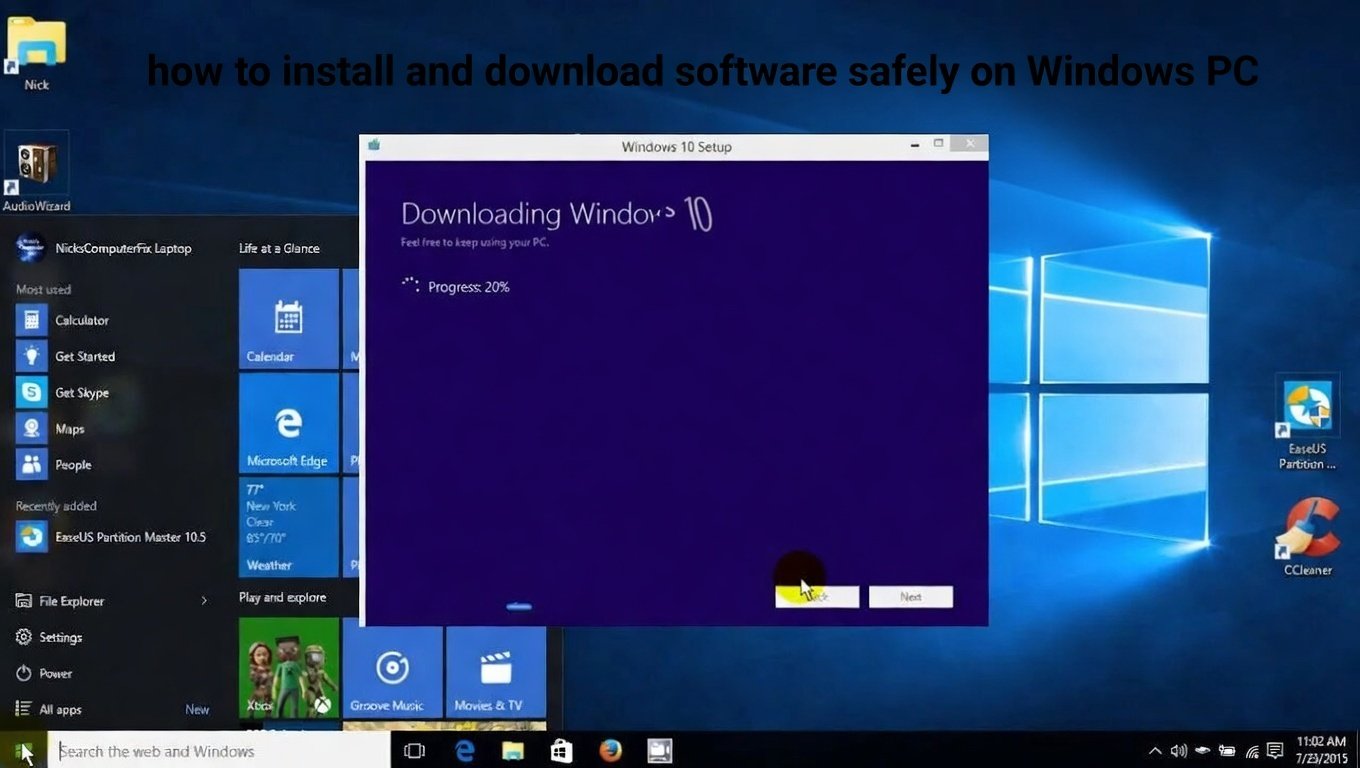
In the modern digital age, your Windows PC is the gateway to your work, creativity, and personal life. However, the most common action you take—to install and download software safely—is also the most common way cybercriminals try to infect your system. From fake download buttons to malicious ads disguised as installers, the internet is full of traps.

To help you navigate this landscape, we’ve created the ultimate guide on how to install and download software safely on your Windows PC. By following these best practices, you can keep your machine running smoothly and your data secure.
Table of Contents
ToggleWhy “Safe” Installation Matters
Gone are the days when viruses were just annoying pranks. Today, malicious software can steal your banking information, hold your files for ransom, or turn your PC into a botnet. Many users inadvertently install malware because they rush through the installation process or download from untrustworthy sources.
Learning to install and download software safely is the most critical skill for any computer user in 2026. Whether you are a beginner or a seasoned pro, this guide will provide you with a checklist to ensure every installation is secure.
The Modern Way – Using Package Managers
If you want to install and download software safely without ever touching a web browser, package managers are the answer.
What is a Package Manager?
A package manager is a tool that automates the installation of software from trusted, centralized repositories. While Linux users have enjoyed this for decades, Windows users now have powerful options like Winget (built into Windows 11), Chocolatey, and Scoop .
Why It’s Safer
When you use a package manager, you eliminate the “hunting and gathering” aspect of finding software. Instead of Googling “VLC download” and risking a fake site, you simply type a command. The package manager verifies the cryptographic hash of the installer, ensuring the file hasn’t been tampered with .
Enter UniGetUI
For those intimidated by the command line, UniGetUI provides a beautiful graphical interface for these package managers. It acts as a central hub, allowing you to browse, install, and update all your apps with a single click, pulling directly from trusted sources . This is arguably the safest and most efficient way to manage software today.
The Traditional Way – Executable Files
Most users still rely on downloading .exe files from the web. If you must do this, you need a strict protocol to install and download software safely.
Step 1: Source Verification
Never download from third-party aggregators. Always go to the official developer website. Look for the HTTPS padlock in the URL bar and double-check for spelling errors in the domain name (e.g., micros0ft.com is a red flag) .
Step 2: Check the Digital Signature
Before even running the file, right-click it and go to Properties. Navigate to the Digital Signatures tab. If the file is signed, you will see the signer’s name. Verify that the signer is the legitimate company (e.g., “Microsoft Corporation” or “VideoLAN”) and that the signature is “OK” . If there is no digital signature, do not run the file.
Step 3: Scan with Windows Defender
Even if the signature looks right, manually scan the file. Right-click the installer and select “Scan with Microsoft Defender” to ensure your antivirus gives it a clean bill of health .
Step 4: The “Custom Install” Trick
When you run the installer, never just mash the “Next” button. Always choose “Custom Installation” or “Advanced” if offered. This allows you to see exactly what is being installed. Uncheck any boxes offering toolbars, browser extensions, or “offers” from third parties .
Method 3: The Curated Experience – Microsoft Store
The Microsoft Store has evolved significantly. While it was once seen as a place for simple apps, it now hosts many popular desktop applications. When you download from the Store, Microsoft handles the security checks and updates. It’s a “walled garden” that makes it very easy to install and download software safely .
🌐 More in Tech Review

Building Your Safety Checklist
To truly master how to install and download software safely, adopt this weekly maintenance checklist:
-
Update via Package Manager: Open your terminal or UniGetUI and run an upgrade for all apps (e.g.,
winget upgrade --all) to patch security vulnerabilities instantly . -
Audit Installed Apps: Go to Settings > Apps > Installed apps. Scroll through the list. If you see something you don’t remember installing, research it and remove it .
-
Review Startup Programs: Open Task Manager and go to the Startup tab. Disable anything suspicious or unnecessary to prevent malware from loading on boot .
-
Create Restore Points: Before installing any major software, create a system restore point. If the software causes instability, you can roll back your system .
Danger Zones: What to Avoid
Understanding the danger zones is just as important as knowing the safe paths.
-
The “Download” Button on Freeware Sites: Those giant green “Download” buttons are almost always ads for malware. Train your eye to find the small, often gray, “Direct Download” link.
-
Browser Pop-ups: If a website pops up an alert saying “Your PC is infected, download now!”—do not click it. This is a classic scare tactic .
-
Illegal Software or “Cracks”: Downloading pirated software is the number one way to get ransomware. The “crack” or “keygen” you download is very likely the virus itself.
Conclusion
Mastering the art of software installation is an ongoing process. Whether you choose the cutting-edge path of UniGetUI, the traditional route of verified .exe files, or the safety of the Microsoft Store, the principles remain the same: verify the source, inspect the package, and monitor your system.
By following the steps outlined in this guide, you can confidently install and download software safely, ensuring your Windows PC remains a tool of productivity, not a victim of cybercrime.
Related Social Links
-
Follow Windows Security on X (Twitter): twitter.com/WindowsSecurity (Example)
-
Join the UniGetUI Community on GitHub: github.com/marticliment/UniGetUI/discussions
-
Reddit Community: reddit.com/r/Windows11
-
Official Microsoft Security Blog: techcommunity.microsoft.com/t5/security-compliance-and-identity/bg-p/MicrosoftSecurityandCompliance