












If you’re new to managing web servers, the Khloxo web hosting control panel setup guide for beginners offers a clear and practical path to take full control of your hosting environment without complexity. Kloxo, also known as the lightweight open-source alternative for Linux-based servers, empowers users to handle websites, emails, databases, and more through an intuitive web interface. This guide walks you through every stage, ensuring even complete beginners can succeed with confidence.
What Is Kloxo Control Panel and Why It Matters for Web Hosting
Kloxo is a free, open-source web hosting control panel designed specifically for Red Hat Enterprise Linux (RHEL) derivatives such as AlmaLinux, Rocky Linux, and CentOS. Originally known as Lxadmin, it has evolved into a robust tool that simplifies server administration for small to medium-sized hosting setups. Unlike heavier proprietary panels, Kloxo focuses on efficiency, using minimal resources while delivering essential features for web hosting management.
The panel supports multiple web servers including Nginx, Apache (httpd), Lighttpd, and Hiawatha. It also handles PHP versions from older 5.6 up to the latest PHP 8 series, MariaDB databases, qmail or Dovecot for email, Pure-FTPd for file transfers, and Bind for DNS. Additional tools like Let’s Encrypt for free SSL certificates, PHPMyAdmin, and webmail options such as Roundcube make it versatile for real-world use.
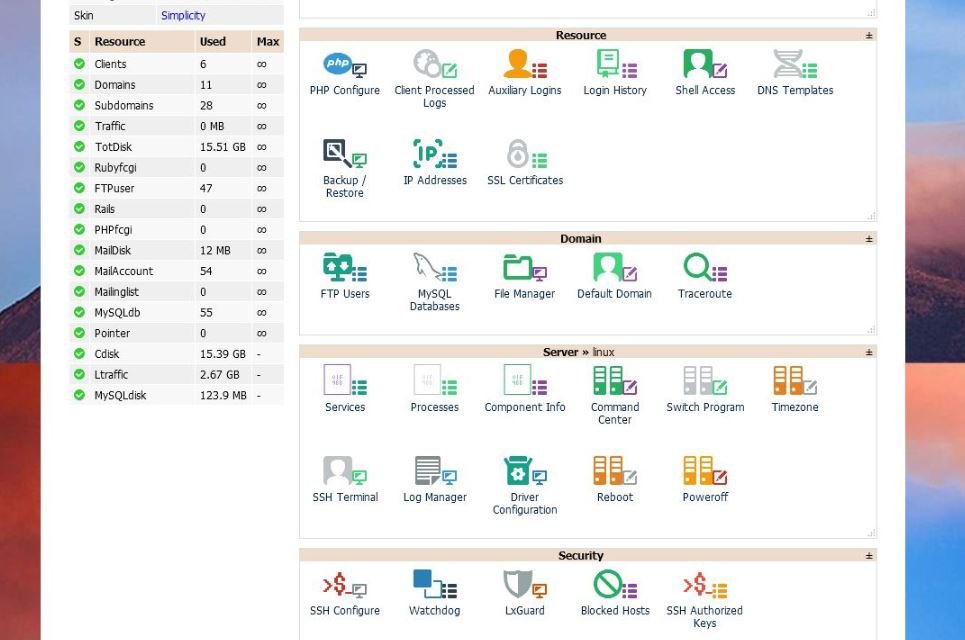
For beginners, Kloxo stands out because it removes the need to memorize dozens of Linux commands. Instead of SSH sessions for every task, you get a clean dashboard to create client accounts, add domains, manage DNS records, and monitor server resources. This democratizes web hosting, allowing freelancers, small business owners, and students to run professional-grade servers without advanced sysadmin experience.
According to Wikipedia, Kloxo has a long history of community-driven development, with recent forks like Kloxo-MR and KloxoNG keeping the project alive and updated for modern RHEL 8 and 9 systems. Its AGPLv3 license ensures it remains free and transparent.
Benefits of Using Kloxo for Beginners in Web Hosting
Choosing Kloxo brings several advantages tailored to newcomers. First, it is completely free, eliminating licensing costs common with other panels. Second, its lightweight design runs efficiently even on modest virtual private servers (VPS) or dedicated machines, saving on hosting expenses.
Beginners appreciate the user-friendly interface that guides you through domain addition, email creation, and database setup with simple forms. Security features like built-in support for Let’s Encrypt SSL, SpamAssassin, and ClamAV help protect your sites without extra plugins. Multiple PHP versions allow testing modern frameworks alongside legacy applications.
Kloxo also supports reseller hosting models, letting you create client accounts with limited privileges — perfect if you plan to offer hosting services later. For those exploring web hosting basics, Kloxo serves as an excellent hands-on learning tool that builds practical skills quickly.
Compared to command-line only management, Kloxo reduces errors and speeds up routine tasks. Community forums and updated installation scripts (as of 2025-2026) ensure ongoing support, making it reliable for long-term use.
For more insights on starting with technology tools, explore our open source software guide on the BusinessToMark site.
Prerequisites Before Starting Kloxo Control Panel Installation
Before diving into installation, prepare your server properly. You need a fresh minimal installation of a supported operating system: AlmaLinux 9, Rocky Linux 9, or any compatible RHEL 9 derivative. Avoid using a desktop environment or pre-installed web stacks to prevent conflicts.
Root access via SSH is mandatory. A stable internet connection is required for downloading packages. At least 2 GB RAM and 20 GB disk space are recommended for smooth operation, though Kloxo can run on less for very light usage.
Disable or stop any existing web server (Apache, Nginx) and firewall rules that might interfere. Update your system fully with dnf update -y to ensure security patches are applied. Install basic utilities like wget, curl, and unzip if not already present.
Familiarity with basic Linux commands helps, but this guide explains everything step by step. Back up any important data, as installation will configure services automatically.
Step-by-Step Khloxo Installation Process
The installation process for Kloxo is streamlined thanks to official scripts. Begin by logging in as root via SSH.
Updating the System and Installing Dependencies
Run the following commands one by one:
sudo dnf update -y
sudo dnf install -y wget curl unzip
These ensure your server has the latest packages and tools needed for the script.
Downloading and Running the Kloxo Installation Script
Kloxo provides a simple installer script. Download it with:
sudo curl -O https://kloxo.org/kloxo8/kloxo.sh
sudo sh kloxo.sh
The script will handle downloading and configuring web servers, databases, mail services, and more. It may take 5-15 minutes depending on your server speed. Do not interrupt the process.
Once complete, you will see a success message confirming Kloxo is installed.
Accessing the Kloxo Dashboard for the First Time
Find your server’s IP address using ip a or hostname -I. Open a web browser and navigate to:
http://YOUR_SERVER_IP:7778
Log in with default credentials: Username: admin Password: admin
Immediately change the password for security. Navigate to the Admin section, select Admin Settings, and update your password.
Post-Installation Configuration and First-Time Setup
After login, the dashboard presents a clean overview. Begin by adding your primary domain or client account.
Under the “Add a Client” or “Add Domain” section, enter details like domain name, username, and password. Kloxo automatically sets up DNS, web directories, and email.
Configure DNS records (A, MX, CNAME) directly from the panel. For email, create accounts and forwarders effortlessly.
Enable SSL by navigating to the SSL section and using the built-in Let’s Encrypt integration. This secures your sites with HTTPS in minutes.
Test basic functionality by uploading a sample index.html file via the built-in File Manager or FTP (Pure-FTPd credentials are provided per account).
Managing Websites, Databases, and Emails with Kloxo
Kloxo excels in daily management tasks. Use the File Manager to upload, edit, or delete website files without external FTP clients. The built-in PHPMyAdmin handles MariaDB databases — create, import, or export data easily.
For email management, set up mailboxes, autoresponders, and spam filters. Webmail clients like Roundcube integrate seamlessly.
Resource monitoring tools show CPU, RAM, and disk usage, helping beginners spot issues early. Backup options allow scheduled exports of websites and databases.
As you grow comfortable, explore multi-domain support and reseller features to expand your hosting capabilities.
As we delve deeper into practical server administration, the Khloxo web hosting control panel setup guide for beginners continues to prove invaluable by offering hands-on sections that build real confidence.
Advanced Features and Customization Options
Kloxo supports multiple web servers simultaneously, allowing you to switch between Nginx and Apache without data loss. PHP-FPM and multiple PHP versions enable running different applications on the same server.
Addon tools include malware scanners (RKHunter, MalDetect), antivirus (ClamAV), and anti-spam solutions. Customize the panel further by installing community modules or adjusting configuration files via the built-in editor.
For developers, Kloxo provides shell access per client (with proper permissions) and supports cron jobs, error log viewing, and statistics.
Common Issues and Troubleshooting Tips
Beginners may encounter a few common hurdles. If the dashboard does not load, verify port 7778 is open in your firewall:
sudo firewall-cmd --add-port=7778/tcp --permanent
sudo firewall-cmd --reload
PHPMyAdmin 404 errors often resolve by checking Apache logs or restarting services with systemctl restart httpd.
For mail delivery problems, ensure DNS MX records point correctly and check qmail logs.
Always keep the panel updated via the built-in updater or official scripts. Reinstalling on a fresh OS is the quickest fix for major configuration issues.
Best Practices for Security and Long-Term Maintenance
Security is paramount. Change default passwords immediately, enable two-factor authentication where available, and use strong, unique passwords. Regularly update the OS and Kloxo components.
Monitor logs for suspicious activity. Use firewall rules to allow only necessary ports (80, 443, 7778, etc.). Schedule automatic backups and test restores periodically.
For ongoing learning, refer to community resources and official documentation. Consider our detailed Linux server security tips for additional best practices.
Conclusion: Mastering Web Hosting with Kloxo
The Khloxo web hosting control panel setup guide for beginners equips you with everything needed to launch and manage professional web hosting environments confidently. From initial installation to advanced customization, Kloxo delivers power and simplicity in one package.
Start small, experiment in a test environment, and gradually scale your setup. The skills you gain here transfer well to other hosting platforms and deepen your understanding of Linux server management.
Whether you run a personal blog, client websites, or a small business portal, Kloxo proves that open-source tools can deliver enterprise-level control without the cost or complexity.
Take action today: spin up a compatible VPS, follow the steps outlined, and experience the freedom of full server ownership. Happy hosting!