


Know the password? Removing it is usually simple. Don’t have the password? You face a much tougher challenge.
Have you ever tried to open a PDF and been stopped by a password request? It can be frustrating. Maybe you set the password yourself years ago and can’t remember it. Or perhaps a colleague sent you a locked document but forgot to share the code. You need to know how to remove password from PDF files.
The good news is that if you know the password, removing it is often straightforward. You can use common tools like Adobe Acrobat or even your web browser. But if you don’t know the password, the situation is more complex. The process you need depends completely on what you’re starting with and what tools you can use.
This guide will walk you through every safe and effective method. We will cover desktop software, online tools, and important security tips.
Understanding PDF Password Security
Before you try to remove password from PDF files, it helps to know what you’re dealing with. Not all PDF locks are the same. There are two main types, and knowing which one protects your file changes what you can do.
The first type is an “Open” Password (often called a user password). This is like a lock on the front door of the document. You must enter this password simply to open and view the file. You cannot see a single page without it.
The second type is a “Permissions” Password (often called an owner password). This file can be opened by anyone, but the password controls what they can do. It might stop people from printing, copying text, editing, or adding comments. This password is needed to change or remove these restrictions.
Why does this matter? If a file has an Open Password, you must know that password to unlock the file with most legal methods. If it only has a Permissions Password, you might be able to open it but find you can’t edit it. Your goal to remove password from PDF protection depends on which lock you need to open.
How to Remove a PDF Password When You Know It
This is the simplest scenario. You have the password, and you just want to take the lock off for easier sharing or editing. Here are the most common and effective ways to do it.
Method 1: Using Adobe Acrobat (The Official Tool)
Adobe Acrobat is the standard software for creating and editing PDFs. If you have Acrobat Pro or Standard on your computer, this is the most direct method. The process keeps your file’s quality and formatting intact.
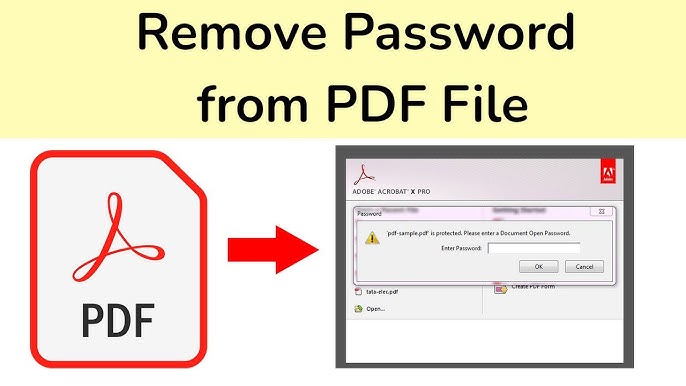
Here is how to remove password from PDF using Adobe Acrobat:
-
Open the protected PDF file in Adobe Acrobat.
-
Enter the document’s password when prompted.
-
Go to the “Tools” menu, select “Protect,” then choose “Encrypt,” and finally click “Remove Security.”
-
A dialog box will appear. If the document only had a Permissions Password, type it in when asked. If it had an Open Password, you may just need to click “OK.”
-
Save the document. The password protection is now gone.
Important Note: The free Adobe Reader software can only open and view PDFs; it cannot remove passwords. You need the paid Acrobat software (Standard or Pro) for this function.
Method 2: Using Your Web Browser (A Quick Free Trick)
Believe it or not, Google Chrome or Microsoft Edge can help you remove password from PDF files without any special software. It’s a clever workaround that re-saves the file without its protection.
Follow these steps:
-
Open your web browser (Chrome or Edge works best).
-
Drag the password-protected PDF file directly into an open browser window. You can also press
Ctrl+O(Windows) orCmd+O(Mac) to open a file browser and select the PDF. -
Enter the password to open the file inside the browser.
-
Once the PDF is open and visible, press
Ctrl+P(Windows) orCmd+P(Mac) to open the Print menu. -
In the “Destination” or “Printer” section, choose “Save as PDF” or “Microsoft Print to PDF.”
-
Click “Save.” Choose a new name or location for the file. The newly saved version will no longer have password protection.
Limitation: This method works well for basic password removal. However, it might not perfectly preserve complex elements like interactive form fields or advanced formatting. Use it for simple documents.
Method 3: Using Online PDF Unlock Tools
Many websites offer to unlock PDFs in your browser. Services like Smallpdf provide a user-friendly option. They are convenient because you don’t need to install software.
How online tools typically work:
-
Go to a trusted online unlock tool website.
-
Upload your password-protected PDF file.
-
Enter the password for the document.
-
The website processes the file and removes the security.
-
You download the unlocked version back to your computer.
A Critical Security Warning: When you use an online tool, you are uploading your document to someone else’s server. For non-sensitive, personal documents, this might be fine. Reputable sites like Smallpdf use encryption and automatically delete files after a short time.
However, you should never use online tools for sensitive documents. This includes contracts, financial reports, tax documents, or anything with personal identification information. You cannot guarantee how the file is handled on that server.
What If You Don’t Know the Password?
This is a difficult situation. PDF encryption is designed to be strong. If you don’t have the password, your options are very limited and often not guaranteed to work.
-
For “Open” Passwords: There is no simple “backdoor.” Your only hope is to use a specialized PDF password recovery tool. These programs use techniques like brute-force attacks (trying every possible combination) or dictionary attacks (trying common words). This process can take days, weeks, or even years for a strong password and is often unsuccessful.
-
For “Permissions” Passwords: If you can open the file but can’t edit or print it, some tools or the browser “Print to PDF” method mentioned earlier might bypass the restrictions, allowing you to create an editable copy.
Legal and Ethical Note: Only attempt to remove a password from a PDF that you own or have explicit permission to unlock. Doing otherwise may violate copyright laws or computer fraud statutes.
Keeping Your PDFs Safe: Best Practices
Knowing how to remove password from PDF is useful, but knowing how to protect them smartly is even better.
-
Use Strong, Memorable Passwords: If you must use a password, make it a strong passphrase. Avoid simple words or dates.
-
Consider Alternative Security: Instead of password-protecting every PDF, use secure file-sharing services. Send a shareable link that requires a login, rather than locking the PDF itself.
-
Remove Passwords When They’re No Longer Needed: If you’ve shared a locked PDF for a project that is now complete, unlock the final version before archiving it. This prevents future access problems.
-
Be Extremely Cautious with Online Tools: As a rule, do not upload confidential business documents, legal papers, or anything containing private data to a free online PDF website.
-
Use Professional Software for Business Needs: For companies that handle many sensitive documents, password-only protection is weak. Enterprise-grade solutions offer features like access logs, automatic encryption, and permission controls that don’t rely on shared passwords.
Conclusion: Unlocking PDFs with Confidence
Learning how to remove password from PDF files is a handy digital skill. The method you choose depends entirely on your situation. If you have the password, tools like Adobe Acrobat or even your web browser provide a quick solution. If you face a forgotten password, the path is much harder and often requires specialized recovery software that offers no guarantees.
Always prioritize the security of your documents. Choose your unlocking method based on the sensitivity of the file’s contents. For the most important documents, professional, offline software is always the safest choice.
What has been your biggest challenge when dealing with a password-protected PDF? Was it a forgotten password, or finding a tool that worked without compromising security?
Comments are closed.