










If your computer runs slow or shuts down without warning, heat might be the problem. Many people ask how to check cpu temp? to fix this. This guide shows you easy ways to do it. You will learn tools and tips to keep your CPU cool. No need for fancy skills—just follow the steps.
Why Monitor CPU Temperature?
Your CPU is like the brain of your computer. It works hard on tasks like browsing or gaming. But hard work makes it hot. Too much heat can slow things down or break parts. Experts say overheating causes many hardware problems. For example, it can wear out components faster and lead to lost data.
Think about this: Dust and poor air flow are top reasons for hot CPUs. Studies show dust buildup blocks cooling and raises temps by 20-30 degrees. Overclocking, where you make the CPU faster, adds more heat too. By checking temps often, you spot issues early. This saves money on fixes.
Monitoring helps in many ways:
- Spot problems fast: See if fans fail or paste dries out.
- Boost speed: Cool CPUs run better without slowing.
- Last longer: Keep temps low to make hardware live years more.
People who game or edit videos need this most. High loads push temps up. But even office users benefit. A simple check keeps everything smooth.
Understanding CPU Temperature Basics
CPU temp means how hot the processor gets. It shows in Celsius or Fahrenheit. Sensors inside the CPU track this. Normal ranges depend on what you do.
At rest, or idle, temps should stay 30-50°C. Light work like typing keeps it 40-60°C. Heavy tasks like games hit 60-80°C. Over 80°C often means trouble. Modern CPUs shut down near 100°C to protect themselves. But don’t let it get there—damage can happen first.
Different CPUs have limits. Intel chips handle up to 100-105°C. AMD ones top at 95°C. Laptops run hotter than desktops because of tight space. Always check your model’s max, called TJMax.
Why do temps rise? Causes include:
- Dust buildup: Clogs fans and vents.
- Bad cooling: Old fans or weak paste.
- High room heat: Warm rooms make PCs hotter.
- Overuse: Too many programs open.
Knowing these helps you prevent issues. Now, let’s see how to check cpu temp in detail.
How to Check CPU Temp Using Built-In Tools
You don’t always need extra software. Start with what your computer has. These methods work on most systems.
Check in BIOS/UEFI
BIOS is your computer’s basic setup. It shows temps without running the OS.
- Restart your PC: Press the power button to reboot.
- Enter BIOS: Tap keys like Del, F2, or F10 as it starts. Check your manual for the right key.
- Find hardware section: Look for “PC Health” or “Monitor.”
- View temps: See current CPU heat. Note it down.
- Exit and save: Press F10 to save if needed, then reboot.
This gives a quick look but not real-time data during use. Use it for basic checks.
Use Task Manager on Windows
Windows has a built-in tool for quick peeks.
- Open Task Manager: Right-click the taskbar and pick it. Or press Ctrl + Shift + Esc.
- Go to Performance tab: Click it at the top.
- Select CPU: Look on the right for temperature. It shows if your system supports it.
This works on Windows 10 and 11 with newer CPUs. But it might not show per-core details. For more, try other ways.
On Macs, use Activity Monitor or terminal commands. Type “sysctl -a | grep temperature” in Terminal for readings.
For Linux, install lm-sensors. Run “sensors” in terminal after setup.
These built-in options are free and easy. They suit beginners who want simple checks.
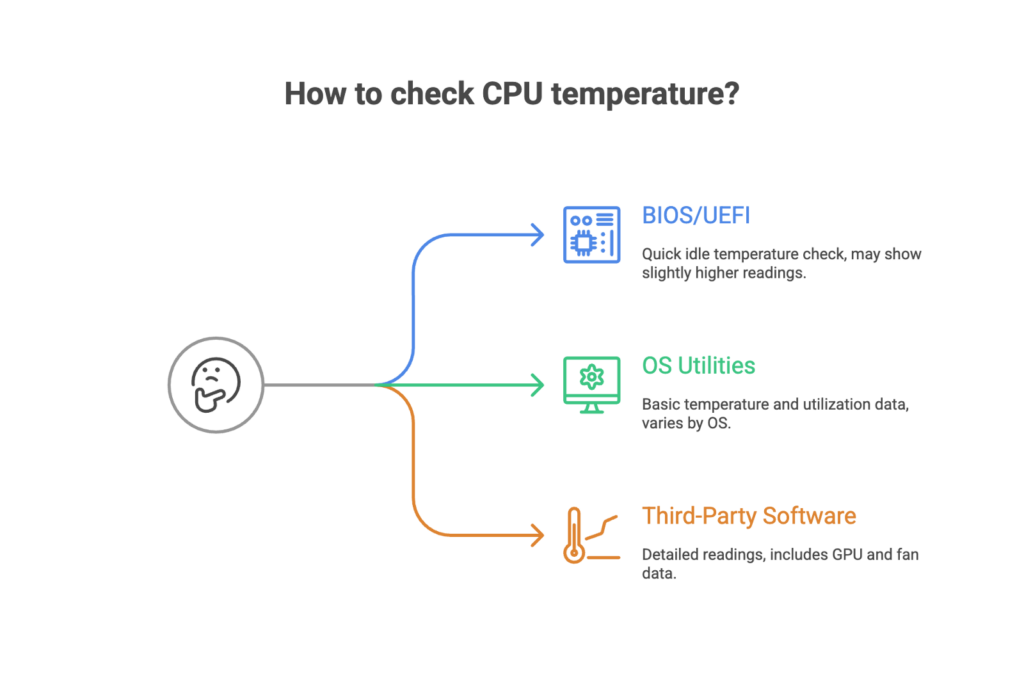
Best Third-Party Software for Monitoring CPU Temp
For deeper info, use free apps. They show real-time data, graphs, and alerts. Here are top picks.
Core Temp
This tool focuses on CPU cores. It shows each one’s heat.
- Download it: Get from the official site.
- Install and run: Follow prompts.
- View dashboard: See temps, max limits, and loads.
- Set alerts: It warns if heat rises too much.
Core Temp works on Windows. It’s light and doesn’t slow your PC.
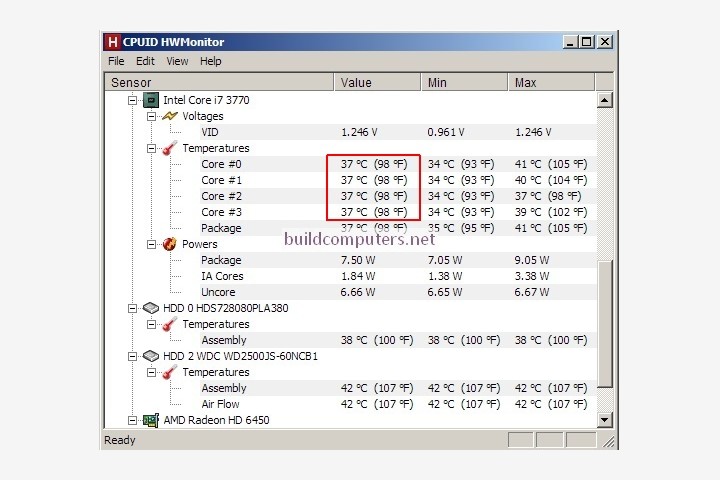
HWMonitor
HWMonitor tracks all hardware. It shows CPU, GPU, and more.
- Get the app: Free download.
- Launch it: No install needed for portable version.
- Check readings: See volts, fans, and temps.
- Log data: Save info for later review.
Great for full system checks. It helps spot if other parts overheat too.
Open Hardware Monitor
Open source and free. It monitors temps and speeds.
- Download: From GitHub or site.
- Run the program: Easy setup.
- Customize view: Pick what to show.
- Export reports: Share data if needed.
This one supports Windows and Linux. Use it for custom setups.
Other Options
- NZXT CAM: Good for gamers with fan controls.
- SpeedFan: Adjusts fans based on temps.
- MSI Afterburner: Best for overclockers, tracks during games.
Pick one that fits your needs. Start with Core Temp for simplicity. These tools give accurate data under load. Test during games or work to see peaks.
Normal CPU Temperature Ranges Explained
What counts as normal? It varies by activity and hardware.
- Idle: 30-50°C. Your PC sits with no big tasks.
- Light load: 40-65°C. Browsing or email.
- Heavy load: 60-85°C. Gaming or video edit.
- Max safe: Under 90°C. Over this risks damage.
For laptops, add 10-15°C because of small size. AMD Ryzen chips run cooler than older ones. Intel Core i9 might hit higher under stress.
Check your CPU’s specs online. For example, an Intel i7-12700K has TJMax of 100°C. Stay 20°C below for safety.
If temps spike, act fast. High heat can throttle speed—CPU slows to cool down. This drops FPS in games by 20-30%. Long-term, it shortens life from years to months.
Use a table for quick reference:
| Activity | Desktop Temp (°C) | Laptop Temp (°C) |
|---|---|---|
| Idle | 30-50 | 40-60 |
| Light Use | 40-65 | 50-75 |
| Gaming/Heavy | 60-85 | 70-95 |
| Danger Zone | Over 85 | Over 95 |
Keep an eye during hot weather. Room temp over 25°C pushes PC heat up.
How to Test CPU Temp Under Load
Real tests show true heat. Use stress tools.
- Pick a tool: Try Prime95 for CPU stress.
- Run the software: Start a test.
- Monitor with app: Use HWMonitor to watch temps.
- Run 10-15 mins: See if it stabilizes under 85°C.
- Stop if too hot: Shut down to avoid harm.
This mimics heavy use. Gamers, test during play. Tools like Cinebench score performance while heating.
If temps are high, note the cause. Maybe bad paste—replace every 1-2 years.
Tips to Reduce CPU Temperature
High temps? Fix them with these steps.
- Clean your PC: Use air cans to blow dust. Do it every 3-6 months.
- Improve airflow: Add fans or open case sides.
- Apply new paste: Remove old, add fresh thermal paste.
- Use better cooler: Upgrade from stock to air or liquid.
- Undervolt: Lower voltage for less heat. Use tools like ThrottleStop.
- Close extras: Shut background apps to cut load.
- Cool room: Keep PC in air-conditioned space.
For laptops, use cooling pads. Avoid beds or laps—they block vents.
These fixes drop temps by 10-20°C. For example, cleaning dust alone cools by 15°C in tests.
If issues stay, check hardware. Bad fans make noise or stop. Replace them cheap.
For more tech tips, visit BusinessToMark.
Common Mistakes When Checking CPU Temp
Avoid these for accurate reads.
- Ignore load: Check only idle misses peaks.
- Wrong tools: Old apps give bad data.
- Forget updates: Keep BIOS and drivers new.
- Overlook sensors: Some PCs need calibration.
Learn from pros. Sites like Micro Center explain basics well.
Advanced Monitoring for Enthusiasts
Overclockers need more. Use Ryzen Master for AMD or Intel XTU. They show volts and clocks too.
Set custom alerts. Some apps email if temps hit 80°C.
For servers, use enterprise tools like IPMI.
History of CPU Temp Monitoring
CPUs got hotter over time. In the 90s, no built-in sensors. Fans ran full speed always.
By 2000s, software like SpeedFan appeared. Now, OS includes it. Future? AI might predict heat issues.
Stats show 40% of failures tie to heat. From sources like hardware forums, dust causes 25% of cases.
FAQ on How to Check CPU Temp
What is a safe CPU temp? Under 85°C under load is good.
How often to check? Weekly for heavy users, monthly for others.
Can high temp damage my PC? Yes, it causes throttling and wear.
Best free tool? Core Temp for simplicity.
How to check on Mac? Use iStat Menus or Terminal.
For more details, see PC International’s guide.
Conclusion
You now know how to check cpu temp with easy tools and steps. Keep temps low to run smooth and last long. Clean often, use good software, and test under load. This prevents crashes and saves money.
What temps do you see on your PC? Share in comments to help others.
References
- Micro Center – Detailed guide on monitoring and reducing CPU heat. Great for beginners.
- PC International – Focus on Windows tools and gaming tips.
- Computer Mechanics – In-depth on software and stress tests.
- Computer A Services – Stats on overheating impacts.
- Utilities Online – Factors causing high temps.