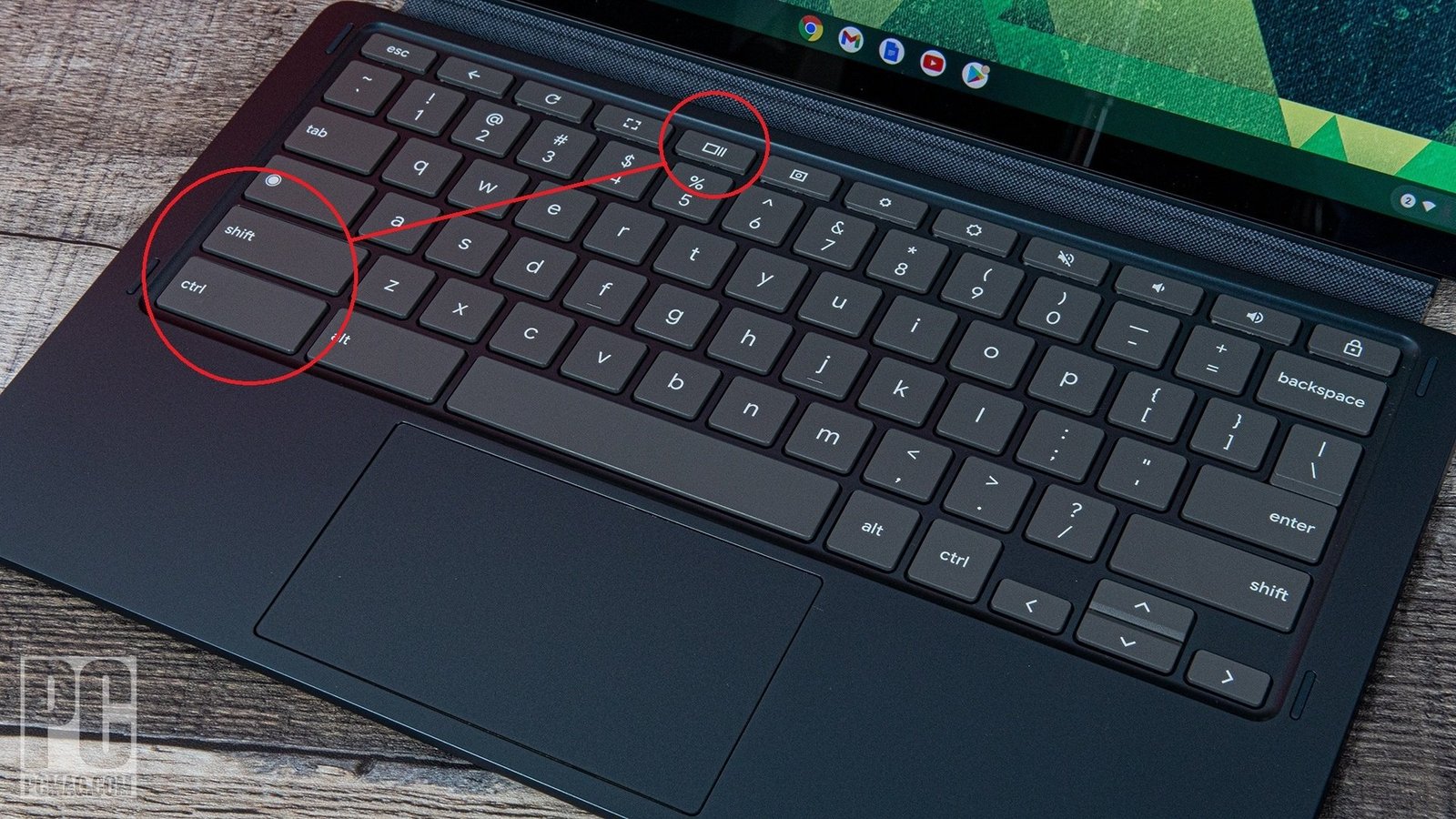
Taking a screenshot on a Chromebook is straightforward, and Chrome OS provides several easy methods. Here’s how to do it (these work on virtually all Chromebooks as of 2026, based on official Google support).
Quickest Ways Using Keyboard Shortcuts
- Full screen screenshot → Press Ctrl + Show windows (The “Show windows” key is usually on the top row—it looks like a rectangle with two vertical lines on the right side, sometimes labeled as a window icon or “Overview” key.)
- Partial screenshot (select an area) → Press Shift + Ctrl + Show windows Your cursor turns into a crosshair—click and drag to select the area you want, then release to capture.
- Screenshot of a specific window → Press Ctrl + Shift + Show windows (or in some cases Ctrl + Alt + Show windows), then click the window you want to capture.
Some newer Chromebooks have a dedicated Screenshot key (it looks like a small camera or rectangle with a circle). If your keyboard has this key, just press it alone to open the screen capture tool.
Using the Screen Capture Tool (Recommended for More Options)
- Press Shift + Ctrl + Show windows (this opens the toolbar at the bottom of your screen).
- Or click the time/clock in the bottom-right corner → tap Screen capture (or Screen Capture icon) in Quick Settings.
- In the toolbar that appears, choose:
- Screenshot icon (camera)
- Then pick: Full screen, Partial (drag to select), or Window (click the window)
- You can also switch to Screen record from the same toolbar if you need video instead.
Screenshots are automatically saved to your Downloads folder (or sometimes a “Screenshots” subfolder). You’ll usually see a notification in the bottom-right corner with a preview—click it to view, edit, or share right away.
If You’re Using a Tablet-Mode Chromebook (or Detachable)
Press the Power button + Volume down button together for a full-screen capture.
Your screenshots are saved as PNG files and can be found in the Files app → Downloads. From there, you can easily drag them into emails, Google Docs, etc., or right-click to copy/paste.
Related posts:
The June Jobs Report Lands Today. Here's What to Expect.
Business![cox business internet]()
The Ultimate Guide to Cox Business Internet Packages
Business
What Is Killing Productivity in Your Business?
Business![Personalize Every Account" Is Good Advice You Can't Actually Follow]()
Personalize Every Account" Is Good Advice You Can't Actually Follow
Business
Personal Loans for Bad Credit Guaranteed Approval: What You Need to Know in 2026
Business
How to Delete Facebook Account Permanently in 2026 – Step-by-Step Guide
Business