


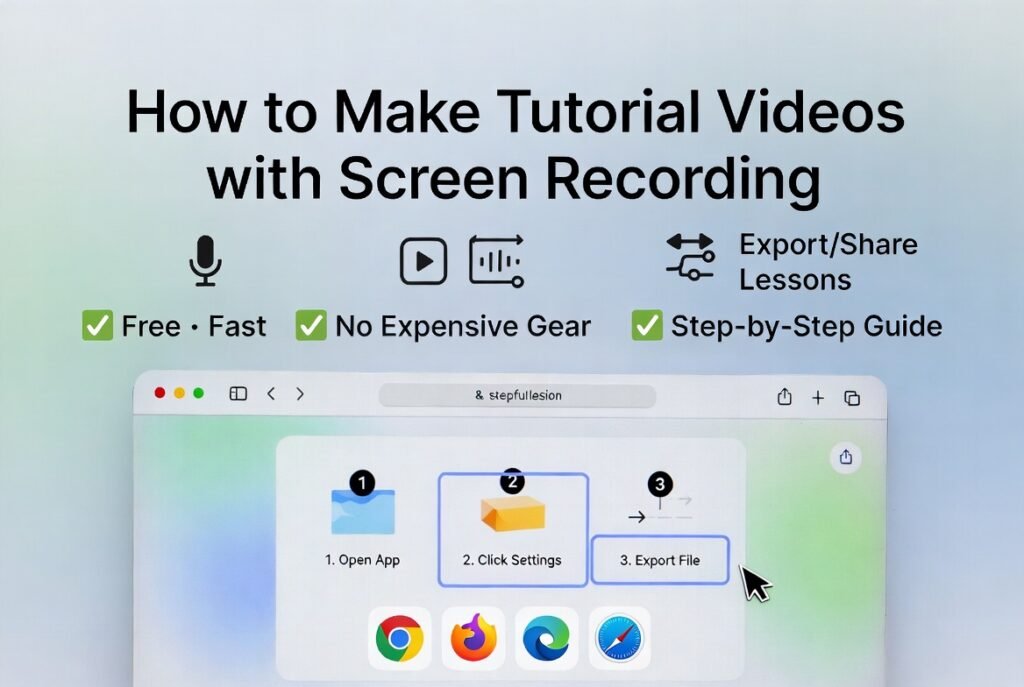


Screen recording has become one of the easiest ways to explain a task, share a process, or save a useful demonstration. A screencast is a digital recording of computer screen output, often with narration or captions, and it is widely used for tutorials, software walkthroughs, and clear visual communication. That is exactly why many people search for the best free screen recorder online without installation: they want a fast, simple tool that starts working right away, without setup delays or complicated downloads.
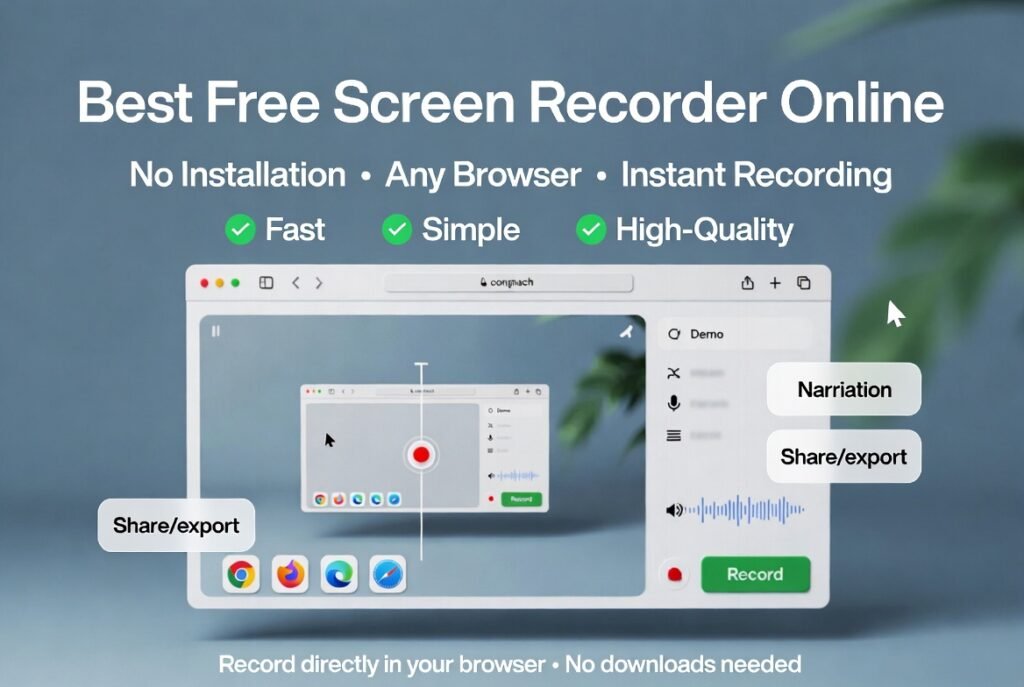
When a tool runs in the browser, the experience feels lighter and more flexible. You can open a page, choose what to record, and move on with your work instead of spending time installing extra software. That convenience matters for students, teachers, creators, support teams, and business users who need quick results. BusinessToMark’s own guides on screen recording software, QuickTime-based recording, and screenshot tools show how much everyday work now depends on clear visual capture.
Why browser-based recording feels so practical
A browser-based recorder is appealing because it reduces friction. There is no installer to run, no long setup wizard, and no need to change your computer in any permanent way. For many users, that alone makes the difference between finishing a task immediately and postponing it until later. In fast-moving work environments, that “later” often becomes never. A tool that opens in the browser fits naturally into short tasks such as making a quick demo, recording a class explanation, or capturing a walkthrough for a teammate.
There is also a practical comfort in keeping things simple. Some people only need a one-time recording, such as a project update, a bug report, a short lesson, or a product explanation. Others need the same capability every week but still do not want a cluttered desktop filled with apps they rarely use. A browser-based recorder avoids that problem by keeping the process accessible from nearly any modern device with a browser and a stable connection.
Another reason this approach works well is that the user stays focused on the message rather than the machinery. Instead of thinking about installation files, version numbers, or desktop shortcuts, the recorder becomes part of the workflow itself. That shift is important because screen recording is not only a technical action; it is a communication tool. The easier the capture process feels, the more likely you are to use it often and use it well.
What a good online recorder should give you
The best tools do more than capture motion. They help you communicate clearly. A strong browser recorder should let you record the screen, preserve useful audio, and share the result without forcing you into a complicated editing process. For many users, that means the ideal tool is quick to open, simple to understand, and reliable enough to use repeatedly without frustration. BusinessToMark’s screen recording guide emphasizes that modern recording tools are often chosen for speed, clarity, and easy sharing, especially in busy professional settings.
Audio quality matters just as much as picture quality. If your voice is difficult to hear, the recording loses value even when the visuals are sharp. A helpful browser recorder should make microphone access straightforward and support the kind of clean narration that keeps a viewer engaged. That is especially important in teaching, support, and onboarding, where the point of the recording is to reduce confusion. Screencasts are commonly used for demonstrations and instructions precisely because they make processes easier to follow than text alone.
Sharing is another key part of the experience. A recording is useful only when other people can open it easily. Some tools provide direct links, while others let you save a file and place it wherever your team needs it. In practical terms, the best choice is not always the one with the longest feature list; it is the one that helps you complete a task cleanly and hand it off without extra steps. Browser-based tools often succeed because they keep the workflow short from start to finish.
The first thing to check before you record
Before you hit record, think about the purpose of the video. A short support clip has different needs than a training session or product demo. If the goal is to explain one simple action, you may only need a few minutes of footage. If the goal is to show a full workflow, the recording should be organized, calm, and easy to follow from one step to the next. Planning first saves time later because it reduces the chance of re-recording the same material again and again.
Next, clear your screen. Close the windows you do not need, remove distractions from your desktop, and open only the pages or apps that matter. This makes the recording look cleaner and helps your audience stay focused on the task instead of the clutter. A neat workspace also helps you move through steps more confidently, which makes the final video feel smoother and more professional.
Then check your audio. Even a simple browser recorder can sound much better when you use a quiet room and a microphone that picks up your voice clearly. If you are recording a tutorial, speak as though you are guiding one person directly. That tone feels more human and less mechanical, which makes the video easier to watch. The best recordings usually sound calm, deliberate, and easy to trust.
A simple workflow that keeps the process easy
A smooth recording process often follows the same pattern every time. First, open the recorder in your browser. Second, choose what you want to capture. Third, test your microphone and any system audio options. Fourth, begin the recording only after everything looks right. That short routine may seem obvious, but repeating it helps you avoid mistakes such as missing audio, capturing the wrong window, or starting too early.
During the recording, move at a comfortable pace. People often speak too quickly when they know they are being recorded. Slow down enough for the viewer to follow each action. If you are showing a menu, pause long enough for the item to be visible. If you are explaining a process, allow a moment between steps so the information can settle. Screen recordings work best when the viewer feels guided rather than rushed.
After the recording ends, review it once before sharing. Look for missed words, unnecessary pauses, or awkward moments where the mouse wandered without purpose. Even small improvements can make the video much easier to watch. Editing does not need to be elaborate to be effective. Often, trimming the beginning and end, removing an accidental pause, and keeping the sound level balanced is enough to turn a rough capture into something polished.
Why this approach suits work, study, and everyday communication
The value of screen recording is not limited to professionals. Students use it for study notes and presentations. Teachers use it for lessons and demonstrations. Support teams use it to show a fix instead of writing a long explanation. Creators use it to build tutorials, explain software, and share visual steps that would be difficult to describe in text. In each case, the recording works because it replaces guesswork with clarity.
For teams, the benefit is often speed. A five-minute recording can solve a question that might otherwise lead to several messages back and forth. That makes screen capture useful for internal communication, onboarding, product support, and training. BusinessToMark’s screen recording software guide highlights these business uses and shows how recordings can reduce confusion, support documentation, and improve collaboration.
The same logic also applies outside formal work. If you are helping a friend understand a setting, sharing a lesson, or showing how to complete a small task, a short screen recording often communicates more effectively than a long typed explanation. That is one reason screencasts remain popular: they show the exact sequence of actions in the same order the viewer needs to see them.
The browser advantage in the middle of a busy day
This is where the phrase best free screen recorder online without installation becomes especially meaningful. People are not always looking for a full production suite. Very often, they just need a dependable way to capture a moment, finish the task, and move on. In that situation, a browser tool wins because it removes the extra layers that usually slow people down. No waiting for installation. No hunting for a desktop shortcut. No spending half an hour learning a system they may use only once.
A no-install tool also fits shared or temporary machines more comfortably. If you are working from a school lab, a borrowed laptop, or a device that you do not want to modify, the browser option feels less intrusive. It gives you access without changing the computer in a lasting way. That convenience is a major reason many users prefer web-based solutions for quick capture tasks.
This does not mean every browser recorder is identical. Some are designed for fast link sharing, some focus on screen plus webcam, and some lean toward simple recording with very little editing. The point is to choose the one that matches your actual habit. If your goal is to record and share quickly, a lightweight browser recorder may be all you need. If your workflow is more advanced, a richer tool may be better. The best choice depends on the job, not the marketing language.
What to look for in audio and clarity
Audio can make or break a screen recording. A video with clear visuals but weak sound often feels harder to trust than a slightly imperfect video with clean narration. That is why a good recording routine starts with the microphone. Speak steadily, avoid background noise, and keep your sentences short when explaining steps. This gives the viewer room to understand what they are seeing without having to rewind repeatedly.
If the recorder allows system audio, test it before you begin. Sometimes you may want only your voice. Other times you may need the sound from a website, a software demo, or a presentation. The right setting depends on the content, and checking it before the recording starts prevents wasted time later. That small habit is one of the easiest ways to make the final video feel more professional.
Clarity also comes from visual pacing. Move the cursor deliberately. Avoid jumping around the screen. Open menus only when they matter. If you need to show a sequence, do it in order and keep each action visible long enough to be understood. A screen recording should feel like a guided path, not a race. That pacing principle is one reason screencasts are so effective for teaching and support.
Keeping your recording safe and organized
Even a simple recording can contain private information, so it is wise to review the screen before you start. Remove sensitive tabs, log out of accounts that should not appear on camera, and close any alerts you would not want visible. A clean workspace is not just visually better; it is also safer and more professional.
File organization matters too. If you record often, create a simple naming habit so your videos are easy to find later. A clear title, date, and short note about the subject can save a great deal of time when you revisit the file months later. This small habit is especially useful for teams that share recordings regularly. A recording you can find quickly is far more useful than one buried in a vague download folder.
When you share the recording, think about the audience. A teammate may need only the raw clip. A client may prefer a polished version with a short introduction. A student may need the most direct path from opening to solution. The way you present the recording should fit the reason it was made. That audience-first approach is one of the main reasons screen recordings remain so effective across different situations.
Common issues and easy ways to avoid them
One common issue is rushing. Many people begin recording before they are ready, then realize they have the wrong tab open, the cursor is in the wrong place, or the microphone is not active. A thirty-second check at the beginning often prevents a full re-recording later. That check is worth it every single time.
Another issue is clutter. Too many tabs, notifications, or background apps can make even a simple recording feel messy. The solution is to prepare the screen before you start. Close what you do not need and focus on the exact task you want to show. A clean recording is easier to watch and easier to trust.
A third issue is unclear narration. Some people explain too much, too quickly, or with too many side comments. A better approach is to keep the script focused on the action. Say what you are doing, why it matters, and what the viewer should notice next. That style keeps the recording concise and practical.
Where internal reading can help you go further
If you want to explore more examples inside the same site, BusinessToMark’s Business category is a helpful place to continue. The category page currently surfaces useful posts such as Best Screen Recording Software 2026: Top Tools for Business Professionals, Mastering Screen Recording on iPhone: The Complete Guide to Using QuickTime Player for Professional Results, and A Deep Dive into Easy Screenshot Software for Windows 10 and 11 Ashampoo Snap Features and Tutorial. Those articles show how the same visual-capture idea can be used for business, mobile, and desktop workflows.
For a broader definition of the medium itself, the Wikipedia page for Screencast is a useful external reference. It explains the term as a screen-based recording and shows why the format is so closely tied to teaching, demonstrations, and software explanation. That background helps put browser-based recording into context: the tool may be simple, but the communication value can be surprisingly large.
A balanced way to choose your tool
The smartest choice is not always the tool with the most features. It is the one that fits your task, your comfort level, and your available time. A browser recorder is perfect for quick captures, simple demos, and fast sharing. A fuller desktop tool may be better for longer editing sessions, advanced effects, or more detailed production work. Both approaches have value, but they serve different goals.
If your work depends on frequent screen capture, a lightweight recorder can become part of your routine. If you only record occasionally, convenience may matter more than advanced controls. Either way, the basic habits stay the same: prepare the screen, check the sound, record clearly, and share the result with the right audience in mind. Those habits matter more than any one feature checkbox.
The good news is that screen recording no longer belongs only to specialists. It is now a practical everyday communication method that ordinary users can handle confidently. Once you understand the workflow, the process becomes natural. That is why browser-based tools are so popular: they make a useful skill feel easy enough to use whenever it is needed.
Final thoughts
A strong screen recording does not need to be complicated. It needs to be clear, purposeful, and simple enough to use without hesitation. That is the real appeal of a browser recorder: it helps you move from idea to finished video without extra friction. Whether you are teaching, supporting, documenting, or demonstrating, a short recording can save time and make your message much easier to understand.
The best results usually come from a calm process rather than a flashy tool. Keep the workspace clean. Speak in a steady voice. Record with a clear goal. Review once before sharing. These basic habits make a bigger difference than many people expect. With that approach, screen recording becomes less of a technical chore and more of a reliable communication habit.
For quick reference, the most important thing is to pick a recorder that lets you start fast, stay focused, and finish cleanly. That is what people really mean when they search for a no-install solution: a tool that respects their time and helps them communicate without delay.