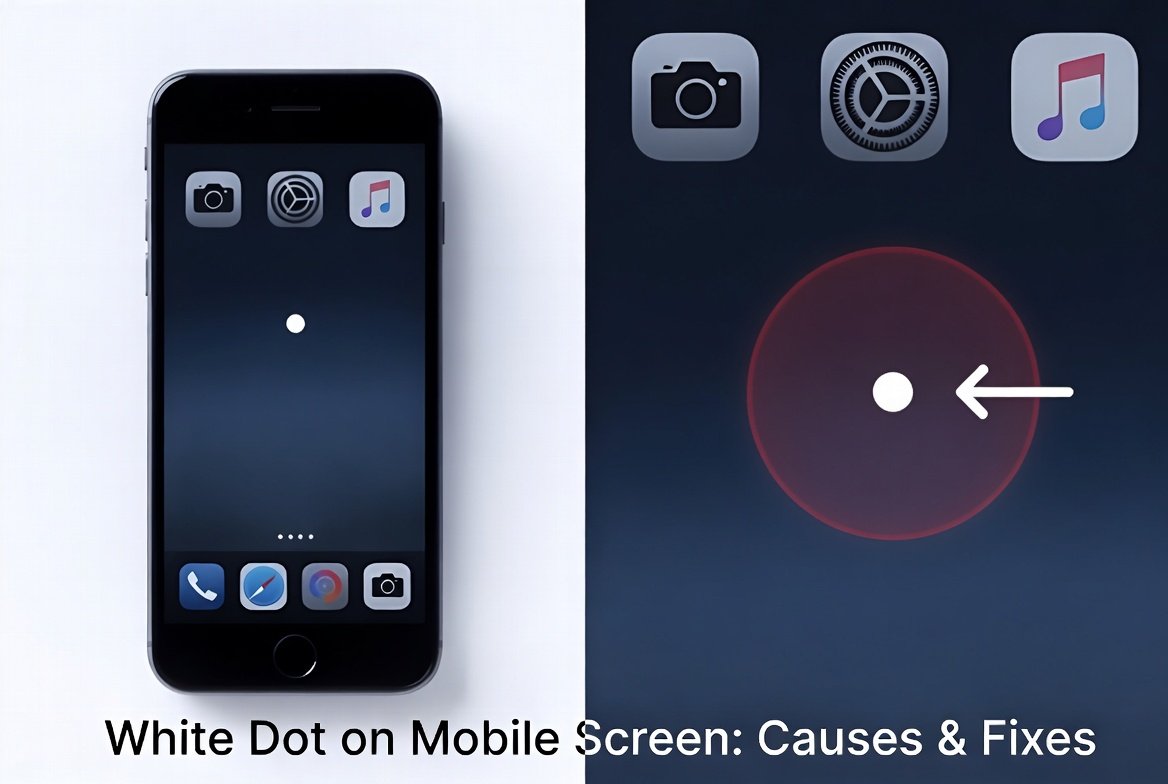
A white dot on mobile screen can be startling, especially if it appears suddenly and disrupts your viewing experience. Whether you’re scrolling through social media, watching videos, or reading an e-book, this small anomaly draws immediate attention. Fortunately, most cases aren’t serious and can be resolved quickly with the right approach.
This comprehensive guide explores the common causes of a white dot on your phone display, provides actionable troubleshooting steps, and offers expert prevention advice. By the end, you’ll know exactly how to diagnose and fix the issue on both Android and iOS devices.
Understanding the White Dot on Mobile Screen: Common Causes
The appearance of a white dot varies by device type, software, and underlying hardware. It could be a helpful accessibility feature, a status indicator, or a sign of display trouble.

1. Accessibility Feature: AssistiveTouch on iPhone
On iPhones, the most frequent culprit for a movable white (or gray) dot is AssistiveTouch. This built-in iOS feature creates a floating virtual button for easier navigation, especially useful for users with motor challenges or those who prefer quick access to gestures.
It remains visible on the screen until disabled and can be dragged around for convenience.
2. Status Bar Notification Indicator on Android
Many Android users notice a small white dot on mobile screen in the status bar (top of the screen). This typically signals notification overflow—meaning you have more icons than can fit in the bar. It can also appear due to active notifications or system indicators.
3. Stuck or Dead Pixels
A true pixel issue appears as a fixed bright white spot that doesn’t move. Stuck pixels fail to change color properly, often showing white or a single color. Dead pixels are usually black, but malfunctioning ones can appear bright white under certain lighting.
These are more noticeable on solid backgrounds like white or black screens.
4. Physical Damage or Pressure Spots
Dropping your phone, applying pressure (e.g., sitting on it), or a swelling battery can create white patches or spots. These result from damage to the LCD/OLED layers, backlight diffusion, or delamination.
5. Screen Protector or Dirt Issues
Trapped dust, air bubbles, or a poorly fitted screen protector can mimic a white dot. Moisture ingress may also cause temporary spots.
How to Identify the Type of White Dot on Your Mobile Screen
Quick diagnosis helps choose the right fix:
- Movable dot: Almost always AssistiveTouch (iOS) or a similar floating gesture aid.
- Top status bar dot: Notification overflow or system icon (Android).
- Fixed spot that stays in one place: Likely a pixel issue or physical damage.
- Visible only on certain backgrounds: Often stuck pixel.
- Appears after drop or pressure: Hardware-related.
Expert Tip: Take a screenshot. If the dot appears in the screenshot, it’s software-related. If not, it’s a display hardware problem.
Fixing AssistiveTouch White Dot on iPhone
For iOS users, disabling AssistiveTouch is straightforward:
- Open Settings.
- Tap Accessibility > Touch.
- Toggle off AssistiveTouch.
The floating button should disappear instantly. You can customize it before disabling if you find it useful—adjust opacity, reposition, or add shortcuts.
If the dot persists after disabling, restart your iPhone or check for iOS updates.
Resolving Status Bar White Dot on Android Devices
To clear the notification overflow dot:
- Swipe down the notification shade and clear unnecessary alerts.
- Go to Settings > Notifications and manage app notifications to reduce clutter.
- For persistent icons, check status bar settings or restart the device.
Some manufacturers like Samsung or Nothing have slight variations, but clearing notifications usually resolves it.
How to Fix Stuck Pixels and White Spots on Phone Screen
Stuck pixels often respond well to these methods:
Software Solutions: Pixel Fixer Apps and Tools
Several reliable apps cycle colors rapidly to “unstick” pixels:
- Search for “Dead Pixel Fix” or “Stuck Pixel Repair” on Google Play.
- Popular options include apps that run color flashes for 10–30 minutes (or longer for stubborn cases).
JScreenFix (web-based) works across devices by displaying a flickering square you position over the dot.
Gentle Physical Massage Technique
For minor pressure-related spots:
- Power off the phone.
- Use a soft microfiber cloth.
- Apply very light pressure in circular motions around the affected area for 30–60 seconds.
- Turn the screen back on and test.
Caution: Excessive force can worsen damage. This works best for fresh pressure spots.
Screen Cleaning and Protector Check
- Remove the screen protector carefully.
- Clean the display with a microfiber cloth slightly dampened with isopropyl alcohol (70% or less).
- Inspect for dust or bubbles before reapplying or replacing the protector.
When to Seek Professional Repair for White Dot Issues
If DIY methods fail:
- Warranty check: Contact your manufacturer (Apple, Samsung, Google, etc.) if under warranty. Many cover manufacturing defects but not accidental damage.
- Authorized service centers: Battery swelling or internal pressure often requires replacement parts.
- Screen replacement: Severe damage or large white patches usually need a new display assembly.
Real-World Scenario: A user sat on their phone briefly, causing a faint white spot. Gentle massage and a pixel fixer app resolved it within a day. Another with battery swelling needed professional service to prevent further issues.
Comparing Fixes: Benefits vs. Drawbacks
| Fix Method | Best For | Benefits | Drawbacks | Success Rate |
|---|---|---|---|---|
| Disable AssistiveTouch | iPhone floating dot | Instant, no tools needed | None | Very High |
| Clear Notifications | Android status bar | Quick, improves phone performance | May need ongoing management | High |
| Pixel Fixer Apps | Stuck pixels | Free/cheap, non-invasive | Takes time, not always effective | Medium-High |
| Gentle Massage | Pressure spots | No cost, immediate try | Risk of worsening if too hard | Medium |
| Professional Repair | Hardware damage | Permanent fix | Costly, time-consuming | Very High |
Prevention Tips to Avoid White Dots on Mobile Screens
- Use a high-quality screen protector and case.
- Avoid extreme temperatures and pressure on the device.
- Keep your phone updated with the latest software.
- Clean the screen regularly with proper tools.
- Monitor battery health—swelling can cause display issues.
- Handle your phone carefully during drops or heavy use.
Expert Advice: Enable automatic software updates and perform regular restarts to prevent software glitches that might mimic display problems.
Additional Causes and Advanced Troubleshooting
Software Glitches
Rarely, a bug after an update causes visual artifacts. Try:
- Safe Mode boot (Android) to check third-party app interference.
- Factory reset as a last resort (back up data first).
Backlight and OLED Issues
On OLED screens, uneven lighting can create spots. These may require panel replacement.
Manufacturing Defects
New phones with persistent dots should be returned or exchanged promptly.
Real User Experiences and Case Studies
Many Reddit and forum users report success with AssistiveTouch toggles or pixel apps. One common story involves a white spot appearing after phone repair—often due to leftover adhesive or improper reassembly.
Another scenario: A faint white dot visible only on white backgrounds that vanished after running a fixer video overnight.
Choosing the Right Approach for Your Device
Consider your phone model, age, and warranty status. Beginners should start with the simplest steps: restart, clean, and check settings before advanced fixes.
For iPhone users, Apple’s official support pages offer detailed AssistiveTouch guidance. Android users can refer to manufacturer-specific help centers.
Learn more about AssistiveTouch on Apple’s official support site (white dot on mobile screen feature).
Explore display troubleshooting on iFixit for repair guides.
Conclusion: Taking Action on Your White Dot on Mobile Screen
A white dot on mobile screen is rarely a reason to panic. Whether it’s a convenient accessibility tool, notification alert, pesky stuck pixel, or early sign of hardware stress, most issues have straightforward solutions.
Key Takeaways:
- Identify the dot type quickly (movable vs. fixed).
- Start with software toggles and cleaning.
- Use pixel repair tools for stuck pixels.
- Seek professional help for physical damage.
- Practice prevention for long-term screen health.
By following these steps, you can restore your mobile display to crystal clarity and enjoy uninterrupted use. If the problem persists or worsens, don’t hesitate to visit an authorized service center—early intervention often saves money and prevents bigger issues.
Your phone screen is one of its most important components. Addressing small problems like a white dot promptly keeps your device performing at its best for years to come.
Additional Subheadings for Enhanced Readability (integrated above):
- Understanding the White Dot…
- How to Identify the Type…
- Fixing AssistiveTouch…
- Resolving Status Bar…
- How to Fix Stuck Pixels…
- When to Seek Professional…
- Comparing Fixes…
- Prevention Tips…
- Additional Causes…
- Real User Experiences…
- Choosing the Right Approach…