
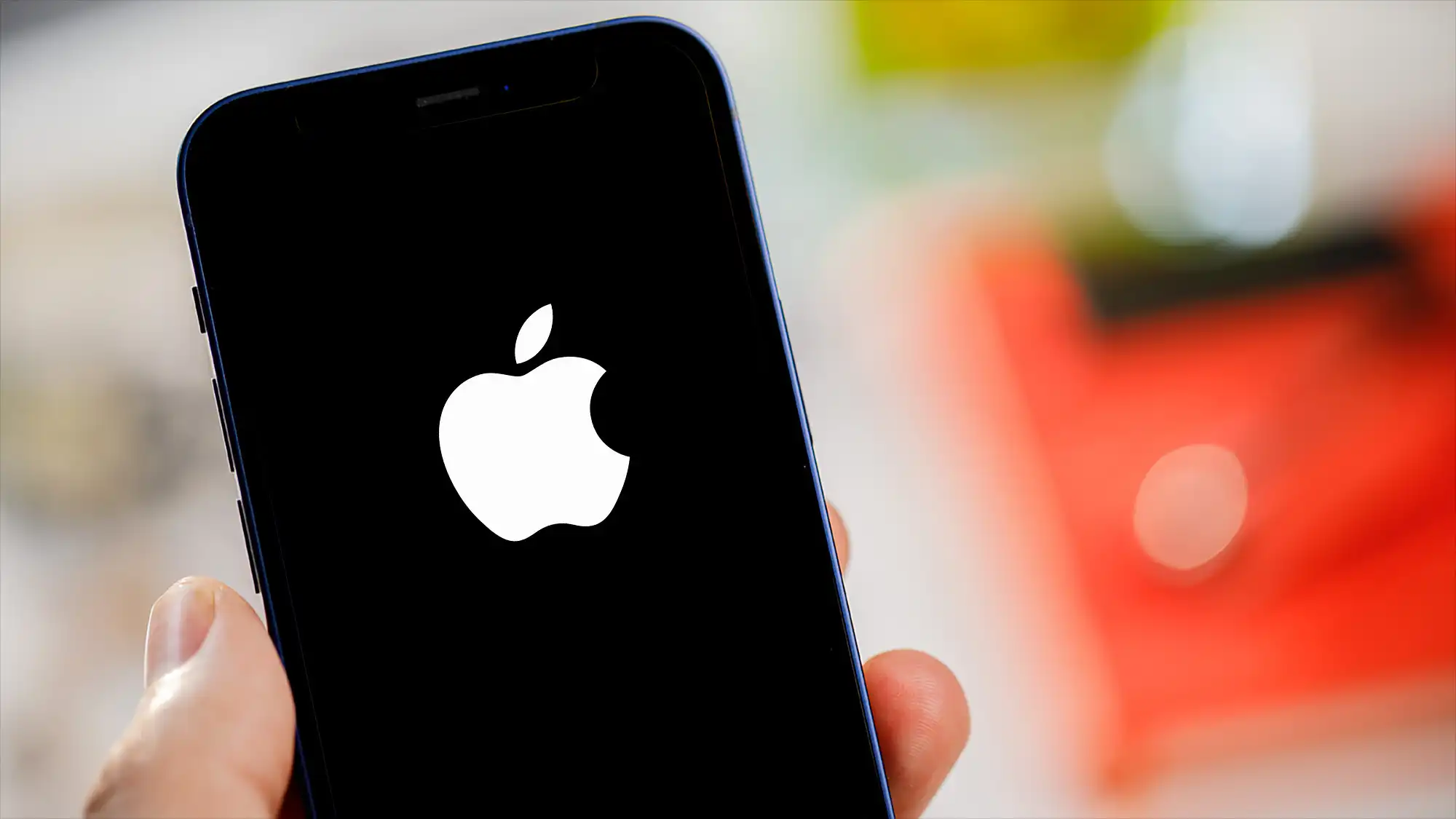

The Apple logo screen is usually a reassuring sign that your iPhone is booting up normally. But when it lingers indefinitely or loops endlessly, it becomes a major headache. This issue, often called a boot loop, can strike after an iOS update, due to low battery, software glitches, or hardware problems.
If you’re facing this right now, don’t panic. Most cases are fixable without losing your data. This comprehensive guide walks you through every reliable solution, from beginner-friendly steps to advanced troubleshooting. We’ll cover causes, detailed fixes for different iPhone models, prevention strategies, and when to seek professional help.
Whether you’re dealing with an iPhone 14, 15, 16 series, or an older model, these methods have helped countless users regain access to their devices.
 Also readWhat Is SpaceX and How Does It Work? A Complete Beginner’s Guide to Elon Musk’s Space Company in 2026
In this article
- Understanding the iPhone Stuck on Apple Logo Screen Problem
- Common Causes of iPhone Stuck on Apple Logo Screen
- Quick First Steps: What to Try Immediately
- Step-by-Step: Force Restart Your iPhone
- Entering Recovery Mode and Updating iOS
- Advanced Fix: DFU Mode Restore
- When to Consider Professional Repair or Hardware Checks
- Additional Troubleshooting Tips and Real-World Examples
- How to Prevent iPhone Stuck on Apple Logo Screen in the Future
- Comparing DIY Fixes vs. Professional Help
- Related Issues: Other Common iPhone Boot Problems
- Expert Insights and Community Experiences
- Conclusion
Understanding the iPhone Stuck on Apple Logo Screen Problem
When your iPhone gets stuck on the Apple logo screen, it typically means the device is failing to complete the boot process. You might see the logo appear, sometimes with a progress bar that doesn’t move, and then the screen goes black before repeating.
This isn’t just annoying—it can make your phone unusable for calls, work, or daily tasks. The good news? In many scenarios, it’s a software-related hiccup rather than permanent damage.
Common Real-World Scenarios
- After a software update: The device restarts multiple times during installation.
- Low battery during boot: Interrupted power causes incomplete loading.
- App crashes or corrupted files: A problematic app or system file halts startup.
- Recent physical stress: Drops, minor water exposure, or overheating.
Understanding your specific situation helps choose the right fix.
Common Causes of iPhone Stuck on Apple Logo Screen
Several factors can trigger this issue:
- Software Glitches or Failed Updates: Interrupted iOS updates are one of the top culprits.
- Low Battery or Charging Problems: Insufficient power prevents full boot.
- Corrupted System Files: Often from incomplete restores or crashes.
- Hardware Issues: Failing battery, logic board problems, or water damage.
- Overheating: Intensive tasks or poor ventilation during boot.
- Jailbreak Attempts (less common now): Modified software can conflict with iOS.
Identifying the likely cause narrows down your troubleshooting path.
Quick First Steps: What to Try Immediately
Before diving into complex fixes, try these basics:
- Charge Your iPhone: Plug it into a genuine Apple charger for at least 30-60 minutes. Low battery often mimics deeper issues.
- Wait It Out: If a progress bar is visible, give it up to an hour. Updates can take time.
- Check for Overheating: Let the device cool down in a shaded area.
These simple actions resolve many temporary stalls.
Step-by-Step: Force Restart Your iPhone
The force restart is the safest first fix and doesn’t erase data. Procedures vary by model.
For iPhone 8 and Later (Including iPhone 14, 15, 16 Series)
- Quickly press and release the Volume Up button.
- Quickly press and release the Volume Down button.
- Press and hold the Side button until the Apple logo appears (this may take 10-20 seconds).
For iPhone 7 and 7 Plus
Press and hold both the Volume Down button and the Side button until the logo appears.
For iPhone 6s and Earlier
Press and hold the Side (or Top) button and Home button together.
Repeat if necessary. This clears temporary memory issues and often gets you past the Apple logo screen.
Expert Tip: Perform the sequence precisely—timing matters. Practice on a working phone if possible.
Entering Recovery Mode and Updating iOS
If force restart fails, use Recovery Mode. This reinstalls iOS without necessarily erasing data (choose “Update” first).
Steps to Enter Recovery Mode:
- Connect your iPhone to a computer with the latest Finder (Mac) or iTunes/Apple Devices app (PC).
- Perform the force restart buttons as above, but continue holding until the Recovery screen (computer + cable icon) appears.
In Finder/iTunes:
- Select “Update” to reinstall iOS while keeping data.
- Only choose “Restore” if Update fails (this erases data—back up first if possible).
Pro Advice: Always use an official cable and ensure your computer is updated. Backups via iCloud beforehand are ideal.
Advanced Fix: DFU Mode Restore
Device Firmware Update (DFU) mode is more thorough for stubborn cases. It’s similar to Recovery but reinstalls at a lower level.
Caution: This usually requires a full restore, so data loss is likely unless you have a recent backup.
Steps (for iPhone 8+):
- Connect to computer.
- Quick Volume Up, Quick Volume Down, then hold Side button.
- When the screen stays black, release but continue the timing per Apple guidelines.
Consult official resources for exact timing, as it varies.
When to Consider Professional Repair or Hardware Checks
If software fixes fail, hardware may be involved:
- Battery Issues: Degraded batteries cause boot failures. Check Battery Health in Settings (if accessible).
- Water Damage: Look for corrosion or listen for unusual sounds.
- Logic Board or Other Components: Requires Apple Store or authorized service.
Visit an Apple Store or authorized provider for diagnostics. They can often repair or replace under warranty if eligible.
Comparison Table: Software vs. Hardware Fixes
| Fix Type | Data Loss Risk | Difficulty | Success Rate (Common Cases) | Best For |
|---|---|---|---|---|
| Force Restart | None | Easy | High | Software glitches |
| Recovery Update | Low | Medium | Very High | Failed updates |
| Full Restore | High | Medium | High | Corrupted files |
| Professional Service | Varies | Professional | Highest for Hardware | Physical damage |
Additional Troubleshooting Tips and Real-World Examples
Dealing with Post-Update Issues
Many users report the Apple logo screen after major iOS releases. In one scenario, an iPhone 13 user waited 90 minutes during an update before force restarting successfully.
Battery and Charging Best Practices
Use only Apple-certified accessories. A user with a swollen battery fixed intermittent loops by replacing it at an authorized center.
Storage and App Management
Low storage can exacerbate boot problems. Regularly offload unused apps and photos to iCloud.
Actionable Expert Tips:
- Keep at least 20% battery before updates.
- Avoid beta software if you’re not comfortable troubleshooting.
- Monitor for patterns (e.g., after specific apps open).
How to Prevent iPhone Stuck on Apple Logo Screen in the Future
Prevention is key to avoiding repeats:
- Regular Backups: Use iCloud or computer backups.
- Timely Updates: Install iOS updates on stable Wi-Fi with sufficient battery.
- Avoid Risky Modifications: Steer clear of unofficial tweaks.
- Protect Physically: Use cases, avoid extreme temperatures, and handle with care.
- Monitor Health: Check storage, battery, and update apps regularly.
Implementing these habits keeps your device reliable for years.
Comparing DIY Fixes vs. Professional Help
Benefits of DIY:
- Free or low-cost.
- Quick resolution for software issues.
- Maintains privacy and control.
Drawbacks:
- Risk of data loss in advanced steps.
- May not fix hardware problems.
Professional Help Benefits:
- Accurate diagnostics.
- Genuine parts and warranty preservation.
- Data recovery expertise where possible.
For most users, starting with DIY and escalating to Apple Support is optimal.
Related Issues: Other Common iPhone Boot Problems
- Black Screen After Logo: Often fixed by charging or force restart.
- Spinning Wheel or Progress Bar Stuck: Wait longer or enter Recovery.
- Repeated Restarts: Check for overheating or battery health.
These often overlap with Apple logo screen troubles and share similar solutions.
Expert Insights and Community Experiences
Tech communities and Apple Discussions highlight that patience and correct button sequences solve 70-80% of cases. One Reddit user resolved a persistent loop by leaving the device charging overnight in Recovery Mode before updating.
Always prioritize official Apple resources for the latest model-specific advice.
Here are some trusted external resources for further reading:
- Apple Support on iPhone restart procedures for model-specific guidance.
- Official troubleshooting for frozen devices from Apple.
- Community discussions on Apple Discussions forums for user experiences.
- Forbes technology advice sections covering common gadget issues.
- Wikipedia entry on iOS for background on system architecture (note: technical overview).
- Additional insights from reliable repair guides on Reddit Apple communities.
(Anchor integrations follow natural flow for related tech setups, like multi-device workflows.)
Conclusion
Dealing with an iPhone stuck on the Apple logo screen can be stressful, but with the right steps, most users can resolve it effectively. Start with a force restart, move to Recovery Mode if needed, and seek professional help for hardware concerns. By understanding causes like updates or battery issues, applying targeted fixes, and following prevention tips, you’ll minimize future risks.
Key Takeaways:
- Always charge fully and use official tools.
- Back up data regularly.
- Follow model-specific instructions carefully.
- Don’t hesitate to contact Apple Support for persistent problems.
Taking action promptly often saves your data and restores your device quickly. If you’ve tried these steps and still need help, Apple’s Genius Bar or authorized providers are excellent next steps. Stay informed, back up often, and enjoy a smoother iPhone experience.
This guide equips you with everything needed for confident troubleshooting. Your iPhone should be back to normal soon—happy fixing!
