Table of Contents
Understanding the Purpose of a Windows Error Generator
Have you ever seen a pop-up on your friend’s computer that looked so real it made them panic? That is the power of a windows error generator. While these tools are often used for harmless fun, they also serve a practical purpose for educators, IT professionals, and developers. A windows error generator allows you to create fake dialog boxes that mimic the look and feel of genuine Windows system messages. This can be useful for creating training materials, testing user responses, or simply pulling a clever prank.
However, it is equally important to understand the line between a generated fake error and a real system failure. When your computer displays a genuine Windows error code, it is indicating a problem that needs your attention. In this guide, we will explore how to generate fake errors using various methods and, more importantly, how to fix the real ones using effective Windows error fixing methods.
The Classic Tools for Error Generation
1. Using a Dedicated Windows Error Generator Application
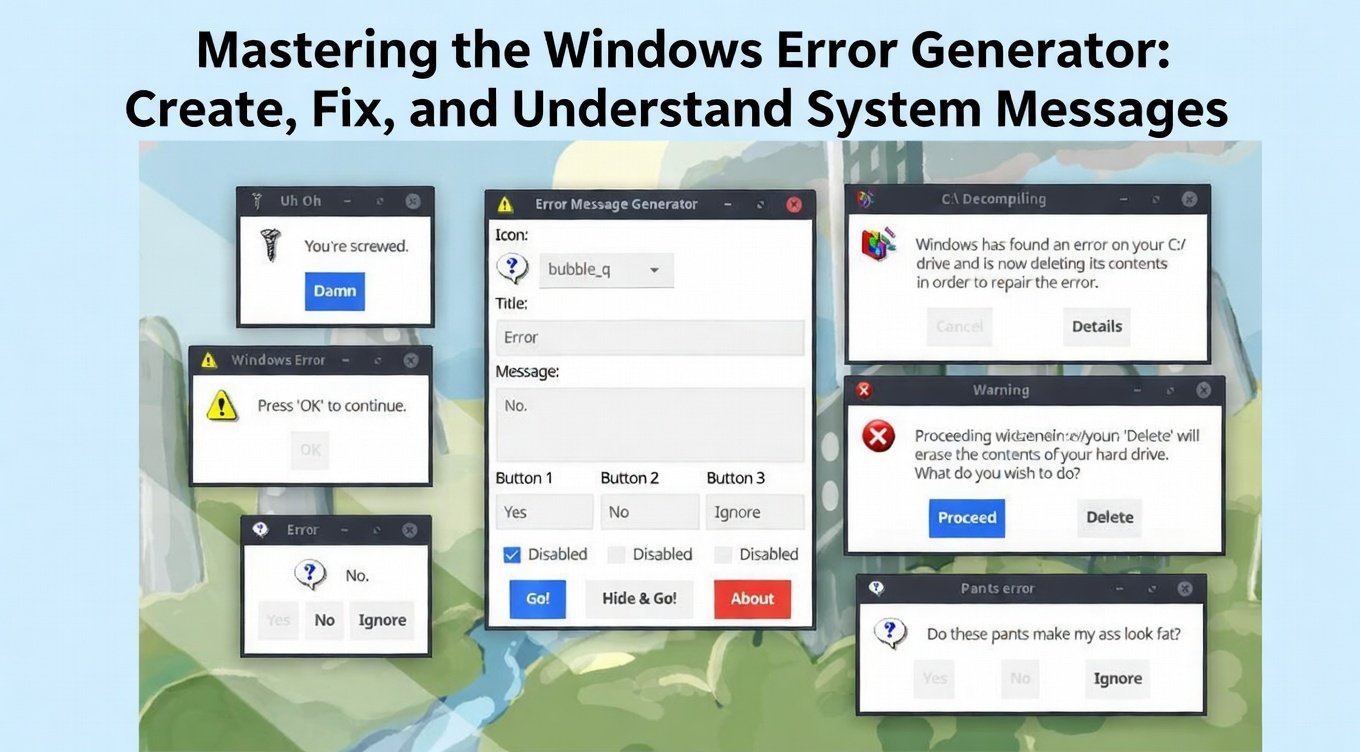
The most straightforward way to create a fake alert is by using a dedicated software tool. One of the most popular portable applications for this is Error Message Generator (often referred to as ErrorGen). This tool is favored because it requires no installation and allows for deep customization .
To use a typical windows error generator like this:
-
Download and Extract: Obtain the ZIP file and extract its contents to a folder on your desktop.
-
Customize the Box: Open the application. You will see tabs that allow you to change the error message text, the icon (like the red “X” or yellow exclamation mark), and the buttons (OK, Cancel, Abort, etc.) .
-
Execute: By clicking “Generate” or “Go,” the tool displays your custom dialog box exactly as if Windows had triggered it.
Another robust option mentioned by experts is Windows Error Message Creator. This tool goes a step further by allowing you to create not just standard dialog boxes, but also fake format dialogs and even Blue Screen of Death (BSOD) simulations .
2. The No-Software Method: VBScript and Notepad
If you prefer not to download third-party apps, you can turn your Windows PC into a windows error generator using a simple text editor. This method relies on VBScript, a scripting language native to Windows.
Here is a step-by-step guide to creating a fake error using Notepad :
-
Open Notepad: Press the
Windows Key + R, typenotepad, and hit Enter. -
Copy the Script: Paste the following line into the empty document:
x=msgbox("A fatal error has occurred. Please restart your computer.",0+16,"Fatal Error")-
Note: The
0+16part defines the buttons (OK) and the icon (Critical). You can change the text inside the quotation marks to anything you like.
-
-
Save as VBS: Click
File > Save As. In the “Save as type” dropdown, selectAll Files. Name your fileanything.vbs(the.vbsextension is crucial) and save it to your desktop. -
Test It: Double-click the file on your desktop. Your fake error message will pop up instantly.
Pro Tip: To make this prank even more convincing, you can disguise the file. Right-click the desktop, create a new shortcut, and point it to your .vbs file. Then, change the shortcut’s icon to look like Google Chrome or a important system tool . When your friend clicks what they think is their browser, they will be greeted by your custom Windows error code.
3. Advanced Generation: AI-Powered Scripting
As technology evolves, so does the concept of an error generator. Modern AI tools can now act as a sophisticated windows error generator by writing the code for you. Platforms like Skywork AI utilize specialized agents to help you brainstorm, code, and design unique error messages .
For example, you can ask an AI coder to “Write a VBScript for a Windows message box with the title ‘Network Failure’ and a critical icon.” The AI generates the script instantly, which you can then save and run, making the creation process faster and more accessible for non-coders .
Why Do Real Windows Errors Happen?
While fake errors are fun, real Windows error codes are not. They are the system’s way of telling you something is wrong. Understanding the root cause is the first step in applying the correct Windows error fixing methods.
Common causes include :
-
Corrupt System Files: Missing or damaged files (like DLLs) essential for Windows to run.
-
Driver Issues: Outdated, incompatible, or corrupted drivers that prevent hardware from communicating with the OS.
-
Registry Errors: A cluttered or damaged registry filled with invalid entries.
-
Malware: Viruses and other malware can corrupt files and cause system instability.
-
Hardware Failure: Failing components like RAM or a hard drive often trigger errors.
Essential Windows Error Fixing Methods
When faced with a real error, you need reliable fixes. Here are some of the most effective Windows error fixing methods, ranging from simple to advanced.
1. Run Built-in Windows Troubleshooters
Windows includes automated tools to diagnose and fix common problems.
-
How to: Go to
Settings > Update & Security > Troubleshoot(orSettings > System > Troubleshooton Windows 11). Select the troubleshooter for the area you are having trouble with (e.g., Internet Connections, Audio, Windows Update) and run it .
2. Use System File Checker (SFC)
This command-line tool scans for and repairs corrupt system files.
-
How to: Open Command Prompt as an administrator (type
cmdin the search bar, right-click it, and select “Run as administrator”). Typesfc /scannowand press Enter. Let the scan complete; it will replace any corrupted files it finds .
3. Check Disk for Errors
Hard drive issues can be resolved with the Check Disk utility.
-
How to: Open Command Prompt as an administrator and type
chkdsk /f. You will likely be prompted to schedule the scan for the next restart. Reboot your computer to let it check and fix file system errors .
4. Clean Up Junk Files
Accumulated junk files can slow down your system and cause errors.
-
How to: Type “Disk Cleanup” in the search bar and open the tool. Select your main drive (usually C:), and it will calculate how much space you can free up. Check the boxes for temporary files and system cache, then click OK .
5. Update Drivers and Windows
Keeping your system current prevents many errors caused by compatibility issues.
-
Windows Update: Go to
Settings > Windows Updateand check for updates. -
Drivers: Use Device Manager to update specific drivers, or visit your hardware manufacturer’s website for the latest versions .
Comparing Generators and Fixes
To help you visualize the difference between creating errors and solving them, here is a comparison of the tools available.
| Feature | Windows Error Generator (Fake) | Windows Error Fixing (Real) |
|---|---|---|
| Primary Goal | Entertainment, education, UI/UX mockups | System stability, troubleshooting, repair |
| Common Tools | ErrorGen, Notepad (VBScript), AI Coder | SFC Scannow, DISM, Windows Troubleshooter |
| User Intent | “How do I create a pop-up?” | “How do I remove this pop-up?” |
| Outcome | A simulated dialog box | A stable, error-free operating system |
Frequently Asked Questions (FAQ)
1. Is it safe to use a windows error generator?
Yes, most standalone generators like ErrorGen are safe and portable. However, always download software from reputable sources. The VBScript method using Notepad is entirely safe as long as you write the script yourself and do not run scripts from untrusted sources .
2. How do I fix a Windows error code like 0x80070005?
Error code 0x80070005 typically means “Access Denied.” You can try running the program as an administrator or checking your file/folder permissions. Using the System File Checker (sfc /scannow) can also resolve underlying permission issues .
3. Can I create a Blue Screen of Death (BSOD) as a prank?
Yes. Advanced tools like Windows Error Message Creator have built-in BSOD creators that display a simulated blue screen. It looks real but does not actually crash your computer . However, be very careful with this, as it can cause unnecessary panic.
4. Why does my computer keep getting the same error after restarting?
If an error persists, it indicates a deeper issue. It could be a failing hard drive, corrupt drivers that load on startup, or malware. You should run a full antivirus scan and check your disk for errors using chkdsk /f .
Conclusion
Whether you are using a windows error generator to create a harmless prank or trying to decode a frustrating Windows error code, knowledge is your best tool. We have explored how simple Notepad scripts can create convincing fake errors and how powerful commands like sfc /scannow can fix real ones.
By understanding the tools for both creation and repair, you gain true mastery over your Windows system. Remember to use your powers for good—or at least for fun pranks that don’t cause lasting damage!
Have you ever successfully pranked a friend with a fake error message, or did you recently fix a scary-looking error code using one of these methods? Share your story in the comments below!
References
-
Windows Report. (2020). Windows Error Message Generator to display fake error alerts.
-
Glarysoft. (2025). The 15 Most Effective Windows Error Fixing Methods.
-
Ultimate Systems Blog. (2025). Windows Error Codes List & Fixes.
-
Skywork.ai. (2026). Beyond Pranks: How to Use an AI Message Generator for Custom Windows Errors.
-
The Windows Club. (2024). Windows Error Message Creators & Generator to create error boxes & screens.
-
Glarysoft. (2025). 7 Essential Windows Error Fixing Methods Tips.
-
Fortect. (2023). What Causes Windows Errors?
-
Microsoft Learn. (2025). Debug system error codes.