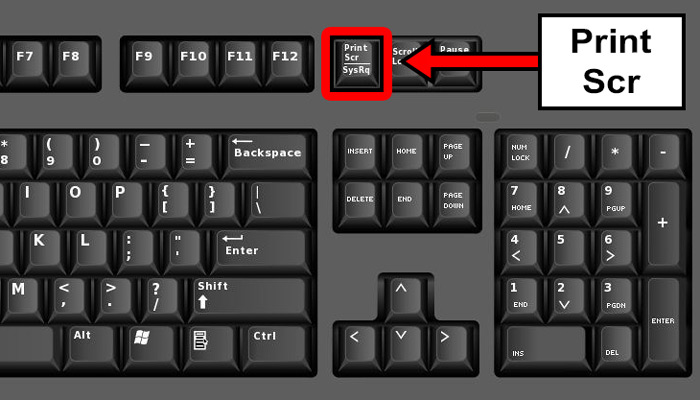
Taking a screenshot on your Windows computer helps you save important moments, share ideas, or fix problems. If you wonder how to screenshot on windows, this guide covers everything. From basic keyboard tricks to advanced tools, you get clear steps. Windows makes it simple for everyone. We draw from trusted sources to keep info accurate and helpful.
Why Learn How to Screenshot on Windows?
Screenshots let you capture what you see on screen. They work for work, school, or fun. Many people search for ways to do this because it’s useful daily. For example, you might need to show an error message to tech support or save a recipe from a website. Knowing how to screenshot on windows saves time and frustration.
This skill started simple in early Windows versions. Over time, Microsoft added better tools. Today, options fit all needs, from quick grabs to detailed edits. We focus on built-in features so you avoid extra downloads.
Basic Methods for How to Screenshot on Windows
Start with easy ways. These use keys on your keyboard. No extra apps needed.
Using the Print Screen Key
The Print Screen key, or PrtScn, captures your whole screen. Find it on most keyboards.
Steps to follow:
- Press PrtScn. This copies the screen to your clipboard.
- Open an app like Paint. Search for Paint in the Start menu.
- Paste the image. Use Ctrl + V.
- Save the file. Click File > Save As. Choose PNG or JPG.
This method works on all Windows versions. If your keyboard lacks PrtScn, try Fn + Windows key + Space Bar. It saves directly to your Pictures folder.
For laptops, hardware matters. Some need the Fn key. Test it out to see what fits your setup.
Capturing the Active Window
Want just one window? Use this trick.
Steps:
- Click the window to make it active.
- Press Alt + PrtScn. It grabs only that window.
- Paste into Paint with Ctrl + V.
- Edit and save as needed.
This helps when you have many windows open. It keeps things focused.
Full Screen with Windows Key
For quick saves, use this combo.
Steps:
- Press Windows key + PrtScn.
- Your screen dims briefly.
- Find the file in Pictures > Screenshots.
This auto-saves, no pasting required. Great for fast captures.
Advanced Tools for How to Screenshot on Windows
Built-in apps offer more control. Let’s explore them.
The Snipping Tool
The Snipping Tool lets you choose shapes. It’s free in Windows.
How to open it:
- Press Windows key + Shift + S. Or search “Snipping Tool” in Start.
Capture types:
- Rectangle: Drag to select a box.
- Freeform: Draw any shape.
- Window: Click a window.
- Full screen: Grabs everything.
After snipping, it copies to clipboard. Click the notification to edit.
Editing tips:
- Add highlights with the pen tool.
- Crop edges for clean looks.
- Save or share directly.
In Windows 11, it includes video recording. Press Windows key + Shift + R for clips.
Snip & Sketch App
This upgraded version combines old tools.
Steps to use:
- Open via search: Type “Snip & Sketch.”
- Select New for a snip.
- Choose mode like rectangle or full.
- Annotate with tools.
- Copy or save.
It auto-saves to clipboard. For delays, set 3-10 seconds. Useful for menus that vanish.
Keyboard Shortcuts for Quick Captures
Shortcuts speed things up. Memorize these for efficiency.
Common ones:
- PrtScn: Full screen to clipboard.
- Alt + PrtScn: Active window.
- Windows + PrtScn: Full screen save.
- Windows + Shift + S: Snipping mode.
Practice them. They work without opening apps.
For tablets, use Volume Down + Power button. It mimics PrtScn.
How to Screenshot on Windows 10
Windows 10 has solid options.
Key features:
- Snipping Tool for basics.
- Game Bar for videos: Press Windows + G.
- OneDrive auto-upload: Set in settings.
Steps for Game Bar:
- Open Game Bar.
- Click Capture.
- Select screenshot.
It saves to Videos > Captures.
Troubleshoot if keys fail: Check settings > Ease of Access > Keyboard. Turn off filter keys.
How to Screenshot on Windows 11
Windows 11 improves tools.
New perks:
- Snipping Tool with video.
- Auto-framing in Copilot+ PCs.
- Color picker for hex codes.
Steps for video snip:
- Open Snipping Tool.
- Choose Record.
- Select area.
- Start and stop.
Edit in Clipchamp for captions.
If issues, update Windows. Go to Settings > Update & Security.
Editing Screenshots After Capture
Don’t stop at capture. Edit for clarity.
Tools to use:
- Paint: Basic crop and text.
- Photos app: Filters and markup.
- Snipping Tool edits: Pens and shapes.
Steps in Photos:
- Open file.
- Click Edit.
- Add text or draw.
- Save changes.
For pros, try Paint 3D. It adds layers.
Saving and Organizing Screenshots
Keep files tidy.
Best practices:
- Create folders: By date or topic.
- Rename files: Use descriptive names.
- Backup to cloud: OneDrive or Google Drive.
Windows auto-saves to Pictures > Screenshots. Change path in settings if needed.
Sharing Screenshots Easily
Share fast.


