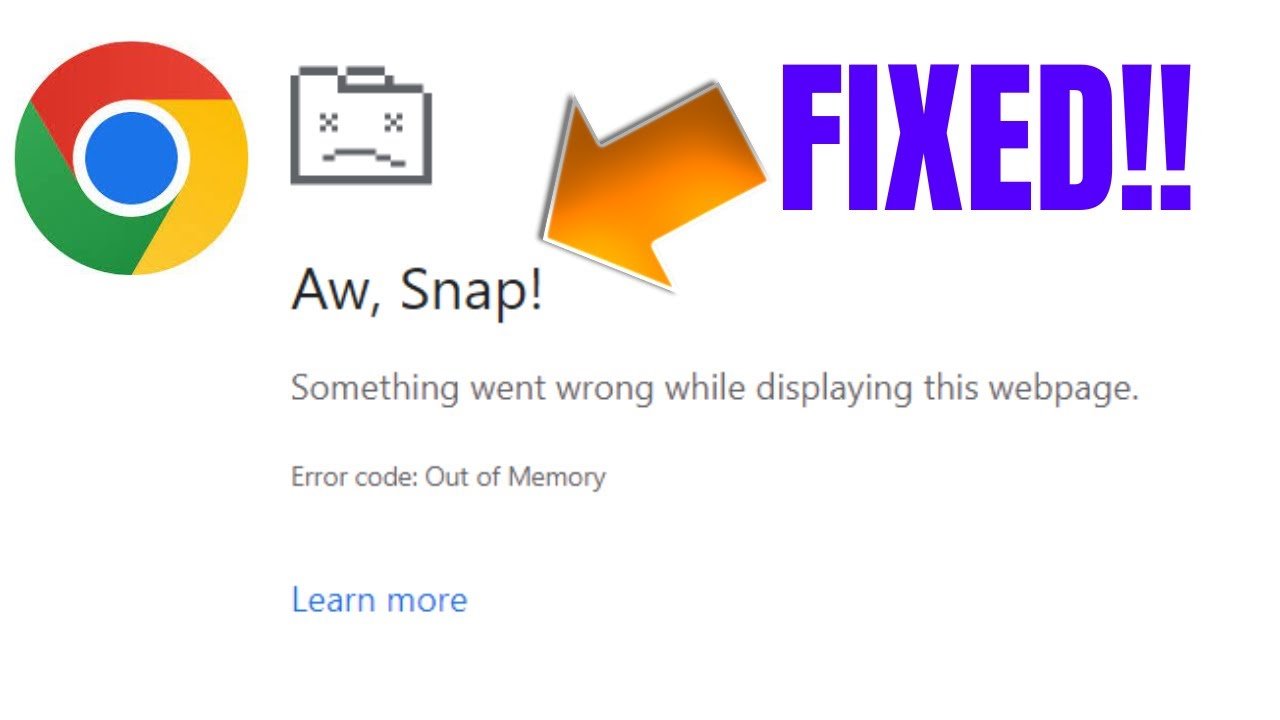
Chrome’s memory use comes from its architecture. Each open tab gets its own process, which isolates issues but adds overhead. Extensions run separately too, so a few bad ones pile up memory fast. Websites today are resource-heavy—think JavaScript-heavy apps, high-res images, or auto-playing videos.
Common triggers include:
- Too many open tabs — Each one holds data in memory.
- Extensions that leak memory — Some run scripts constantly.
- Large cache and cookies — Built-up data bloats usage.
- Hardware issues — If GPU can’t help with rendering, CPU/RAM takes more strain.
- Background activity — Chrome apps can run even when closed.
Chrome has built-in tools like Memory Saver (introduced in recent updates) that put inactive tabs to sleep, freeing up RAM. This can cut usage by up to 40% in some tests. Still, if you hit the out of memory error chrome, quick fixes are needed.
How to Fix Out of Memory Error Chrome – Step-by-Step Guide
Here are proven ways to solve the out of memory error chrome. Start with the easiest ones.
- Use Chrome’s Built-in Task Manager Press Shift + Esc (Windows/Linux) or Search + Esc (Chrome OS) to open it. Or go to the three-dot menu > More tools > Task Manager. Look at the Memory footprint column. Sort by memory to spot high users. End tasks for tabs or extensions you don’t need. This often stops the out of memory error chrome right away.
- Close Unneeded Tabs and Windows Fewer tabs mean less memory use. Right-click a tab and choose “Close tab” or use Ctrl + W (Windows) / Cmd + W (Mac). For groups, right-click > Close tabs to the right. Shut extra windows with Ctrl + Shift + W / Cmd + Shift + W. This simple step fixes many cases of out of memory error chrome.
- Disable or Remove Problem Extensions Type chrome://extensions in the address bar. Turn off toggles for ones you rarely use. Remove suspicious or old ones. Test in Incognito mode (Ctrl + Shift + N) where extensions are off by default. If no error happens, an extension was the cause. Common culprits include ad blockers or download managers that leak memory.
- Clear Cache and Cookies Go to three dots > Settings > Privacy and security > Clear browsing data. Pick “Advanced,” check “Cached images and files” and “Cookies and other site data.” Set time range to “All time” and clear. This frees space and stops bloated data from causing out of memory error chrome.
- Turn On Memory Saver Mode Update Chrome first (three dots > Help > About Google Chrome). Then go to chrome://settings/performance. Toggle Memory Saver on. It deactivates unused tabs and reloads them when you return. This is a game-changer for out of memory error chrome on busy sessions.
- Toggle Hardware Acceleration In Settings > System, find “Use hardware acceleration when available.” Toggle it off and restart Chrome. If it helps, great. If not, turn it back on—GPU help can reduce RAM strain for graphics-heavy sites.
- Disable Preloading and Background Apps In chrome://settings/performance, turn off “Preload pages.” In Settings > System, disable “Continue running background apps when Google Chrome is closed.” These stop extra memory use from predictions and hidden processes.
- Increase Virtual Memory (Windows) If RAM is low, add virtual memory. Right-click This PC > Properties > Advanced system settings > Advanced > Performance Settings > Advanced > Virtual memory > Change. Uncheck “Automatically manage,” set custom size (e.g., initial = 1.5x RAM, max = 3x RAM in MB). Restart. This gives Chrome more space when physical RAM runs low.
- Update or Reinstall Chrome Check for updates in About Chrome. If issues persist, uninstall via Control Panel (Windows) or drag to Trash (Mac), then reinstall from google.com/chrome. A fresh install clears corrupted files causing out of memory error chrome.
- Other Quick Tips
- Restart your computer to clear temporary issues.
- Use fewer resource-heavy sites or switch to lighter alternatives.
- If on low-RAM device, consider upgrading to 16GB+ for better handling.
Advanced Fixes for Persistent Out of Memory Error Chrome
If basic steps don’t work, try these.
- Create a New Chrome Profile — Go to chrome://settings/people > Add person. Test the new profile. If error-free, your old profile has corruption.
- Check for Malware — Run a scan with Windows Defender or trusted antivirus. Malware can spike memory.
- Monitor System Resources — Use Windows Task Manager (Ctrl + Shift + Esc) to see if other apps hog RAM. Close them.
- Tab Limits — Chrome has per-tab limits (around 16GB on 64-bit). Heavy single pages (e.g., big charts) hit this. Split work across tabs or use another browser for those.
For more on high RAM in Chrome, check this helpful guide from NinjaOne on Chrome high RAM usage. It explains memory management well.
Another resource with fixes is this post on fixing out of memory error in Chrome. It covers closing idle tabs and refreshing.