
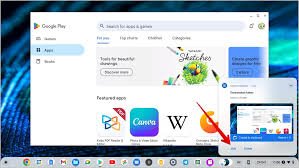
Editing screenshots on a Chromebook is simple and built right into the system. You don’t need extra apps for basic changes like cropping, drawing arrows, adding highlights, or making notes. Chrome OS has a handy editor that pops up right after you take a screenshot, or you can open it anytime from your files.
This works the same on Lenovo Chromebooks and most other models running recent Chrome OS versions.
Quick Way to Start Editing: Use the Preview Notification
The easiest method happens automatically after you capture your screen.
- Take your screenshot using Ctrl + Show Windows (for full screen) or Shift + Ctrl + Show Windows (for partial).
- A small preview thumbnail appears in the bottom-right corner of your screen for a few seconds.
- Click that preview right away.
- The screenshot opens in the built-in editor.
This is the fastest path for most people.

What Tools Are Available in the Built-in Editor?
Once the image opens, you’ll see a toolbar at the top with easy options. Here’s what you can do:
- Crop — Drag the edges or corners to cut out extra parts. This removes anything you don’t need.
- Draw / Annotate — Click the scribble (squiggly line) icon. Choose pen color and thickness. Draw freehand, add arrows, circles, or lines to point out important spots.
- Highlight — Use a thick marker or rectangle tool to cover areas brightly.
- Add text — Some versions link to more tools in Google Photos for typing words directly (look for “More tools in Photos” under draw options if needed).
- Adjust basics — Change brightness, contrast, or saturation for better look.
- Rotate or flip — Fix sideways shots quickly.
- Undo / Redo — Made a mistake? Use the arrows to step back or forward.
- Google Lens — Tap the Lens icon to search what’s in the image (great for identifying text or objects).
These tools cover most everyday needs, like marking homework answers, circling errors in emails, or highlighting recipes.
Edit Later: From the Files App
If you miss the preview or want to edit an old screenshot:
- Open the Files app (blue folder icon on your shelf or search for it).
- Go to Downloads (screenshots save here by default).
- Find your file (named something like “Screenshot 2026-02-14 at…”).
- Double-click it to open.
- It opens in the same built-in viewer/editor with the toolbar.
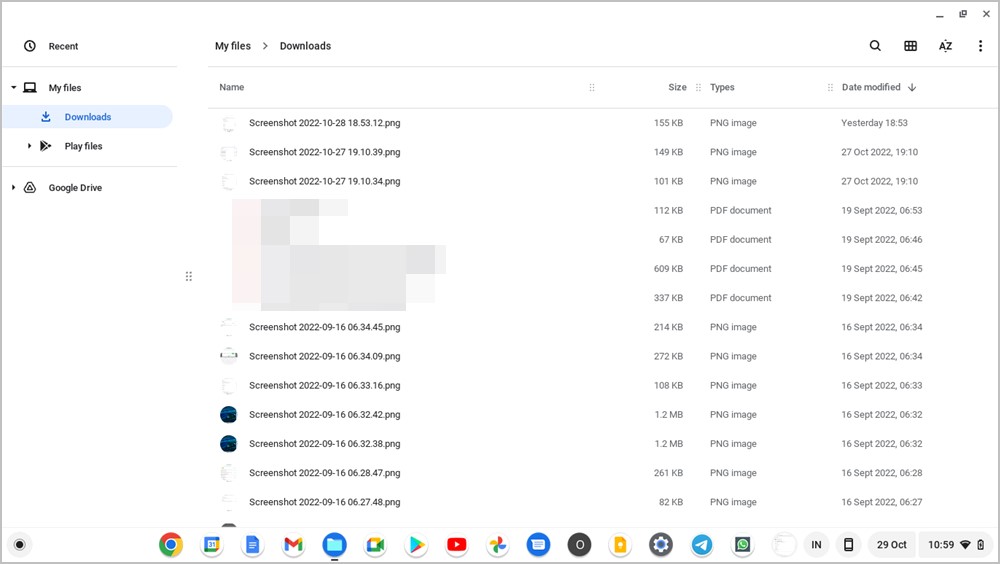
How to Edit a Picture or Screenshot on Chromebook – TechWiser
This method works for any image, not just screenshots.
Save Your Changes
After editing:
- Click the checkmark or Save button (or just close the window — it often autosaves).
- It overwrites the original file.
- Want to keep the unchanged version? Use Save as or duplicate the file first in Files (right-click > Make a copy).
Your edited screenshot stays in Downloads unless you move it to Google Drive for backup.
Extra Tips for Better Editing
- Use a stylus or touchscreen if your Chromebook supports it — drawing feels more natural.
- For advanced work (like heavy filters or layers), open the screenshot in Google Photos (pre-installed or from Play Store). Upload it there for Magic Eraser, Unblur, and more.
- On managed school Chromebooks, some features might be limited, but basic crop and draw usually work.
- Free up space if screenshots pile up — delete old ones or move to Drive.
- Pair with screen recording? Edit short clips in similar ways using built-in tools or web apps like Clipchamp.
These steps make editing fast and frustration-free.
What kind of edits do you do most often on your Chromebook screenshots — arrows for instructions, blurring private info, or something else? Let me know!